Hello Everyone,
Let me share some information about the Universal Scheduling in Field Service.
Allows scheduling non Field Service & Project Service Automation entities using the schedule board.
Provide visibility to those entities through the schedule assistant, and with resource scheduling optimization functionality.
Example:
Enable the opportunity entity to schedule technicians as technical sales consultants for sales opportunities.
Enable a custom entity that is used for additional services, and consulting items.
Universal Scheduling:
Depending on installed solutions, work orders and projects will be enabled for universal scheduling.
Additional entities will need to be enabled for scheduling through resource scheduling.
– Relationships between the entity with the Resource Bookings and Recruitment Entities will need to be defined.(Can be auto-created)
– You will need to publish you customization’s before the functionality is enabled for that entity.
-Once published, you can map specific information from entities to specific fields for entities that are enabled for scheduling.
Let’s see this in action from Dynamics 365 Field Service.
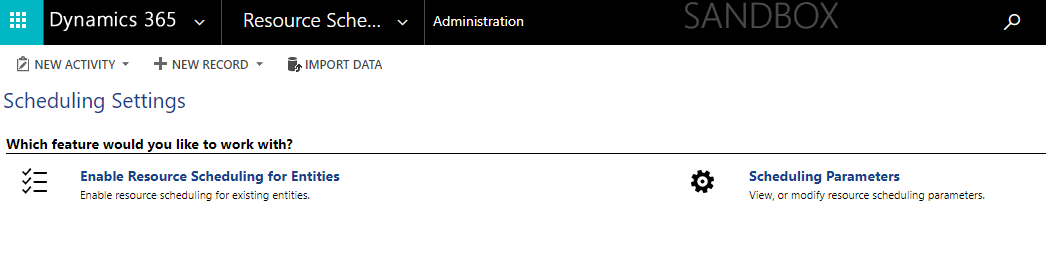
Login to Dynamics 365 > Resource Scheduling > Administration > Enable Resource Scheduling for Entities.
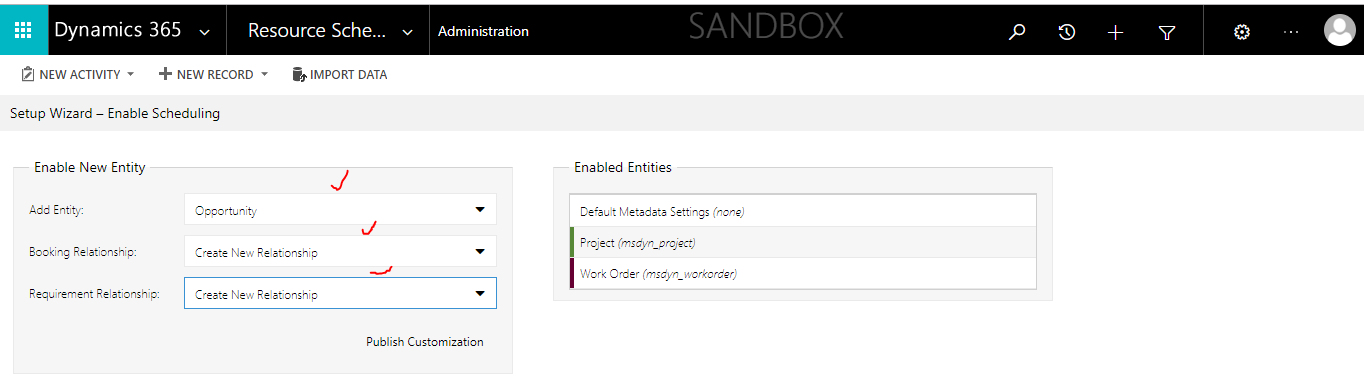
Then new window will pop’s up and you need to select an entity you want to enable in scheduled board.
By default the system have all the Field Service entities are enabled and for instance you want to enable “Opportunity” entity.
Let’s see in action
Click on the “Enable Resource Scheduling for Entities..
In the above image “Opportunity” entity has been selected and Booking Relationship & Requirement Relationship like OnetoMany is automatically created by the system once you select the “create new relationship” and click on the “Publish Customization”.
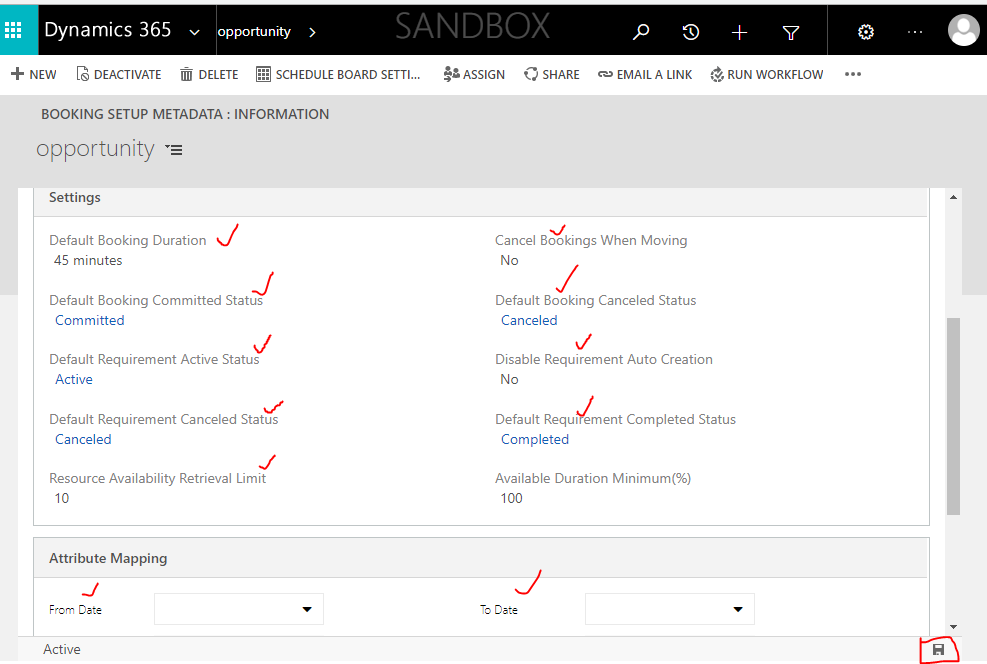
In order to utilise the Opportunity entity double click on the Opportunity entity from the above image – enabled entities.
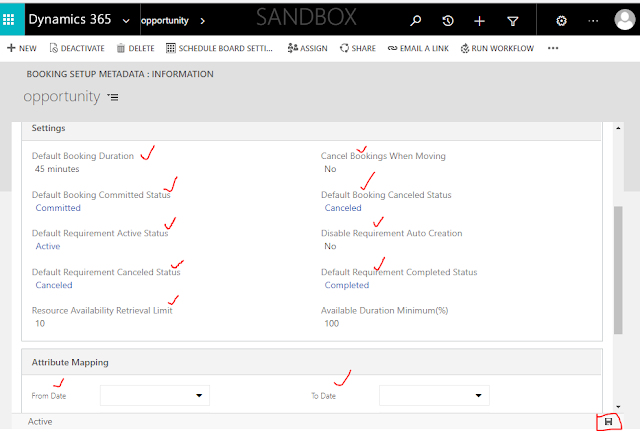
As you can see from the above image in order to use the “Opportunity” entity on the Field Service Scheduled board you need to configure the “Booking Status Field Logical Name” = “msdn_fieldservicestatus”.
Also the settings and Attribute mapping area needs to configured as how the Booking status needs to shown on the system related to Opportunity.
The Attribute Mapping is where the date from and to should be mapped with each from Opportunity and Field Service entity, also there are other attribute mappings for example if you enable the latitude and longitude on Opportunity then that should be mapped on the “Attribute Mapping” area.
so go ahead and click on the save button.
Now go back to the Opportunity entity on the “Sales “area on the Dynamics 365 and create new “Opportunity” record.
Once the new opportunity record created and click on the associated records of the opportunity down arrow:
It will create quick create of resource requirement:
What it will does is, it will create a resource schedule on the schedule board.
Lets go back to the schedule board and see the opportunity on the unscheduled items.
Now you can simply drag the Opportunity from the unscheduled booking area to the scheduled board where required according to the time and date.
Also instead of seeing all the unscheduled booking of opportunity on “open requirements”, you can create a new view on the Opportunity and utilize here on the scheduled board as new tab near the “Unscheduled Work Orders”.
I hope this helps.
For Microsoft Dynamics 365 Consultancy/Training/Support/Licensing
Contact us: https://www.gmritsolutions.co.uk
Email: admin@gmritsolutions.co.uk