Menu Close

Category: Blog

{How to} use code interpreter on customer uploaded files in agent conversations in copilot studio

Hello Everyone,

Today I am going to share my thoughts on the use of the code interpreter on customer-uploaded files in agent conversations in copilot studio.
Let’s get started.

Your chatbot (agent) can take a user upload during a chat and automatically analyze it using code, then return results within the same conversation.

What actually happens behind the scenes

1. User uploads a file

Examples:

Excel (.xlsx)
CSV (.csv)
Sometimes JSON or text files.

2. The agent receives the file

The file is passed into the conversation as:

System.Activity.Attachments

3. Code Interpreter kicks in

Copilot Studio:

Generate Python code automatically

Runs it in a secure environment

Uses it to:
Read the file
Analyse data
Create outputs

4. The agent responds with results

The bot sends back:

Charts
Tablets
Insights
Summaries

Example flow:

Real example
User says:
“Analyze this sales spreadsheet”

What the agent does:
Reads the Excel file
Groups sales by month
Calculates totals
Generates a chart
Response:
“Revenue increased 18% in Q3. Here’s a breakdown…” + chart

Why this feature is useful
No manual coding needed
Works in real-time conversations
Turns your agent into a data analyst
Great for:
Customer uploads
Business reports
Data exploration

In one sentence
It lets your Copilot Studio agent act like a Python-powered data analyst that can read and analyze files users upload during chat.

Important notes
Best with structured data (Excel, CSV)
Requires:
File upload enabled
Code Interpreter enabled
Has file size and type limits

That’s it for today.

I hope this helps.

Malla Reddy Gurram aka @UK365GUY

Share this:

{How to } Make Power Page Portal WCAG 2.1 Level A and AA Standards

Hello Everyone,

Today I am going to share my thoughts on how to make power pages portal according to the WCAG 2.1 Level A and AA Standards.

Let’s get started.

Making a Power Pages portal (from Microsoft’s Power Platform) compliant with WCAG 2.1 Level A and AA means addressing accessibility across design, content, and code. Power Pages gives you a solid starting point, but compliance depends on how you build and customise it.

Here’s a practical, structured way to get there:

1. Start with an Accessible Theme

Power Pages portals use templates (often based on Bootstrap).

Choose themes with good colour contrast

Avoid heavily customised UI that breaks semantic structure

Ensure responsive design (important for accessibility + zoom)

👉 Tip: Use tools like contrast checkers to meet 4.5:1 ratio (AA).

2. Use Proper HTML Semantics

WCAG relies heavily on structure.

Use correct heading hierarchy (h1 → h2 → h3)

Use semantic elements (

{How to} Use IVR with Omnichannel for customer service in Copilot Studio

Hello Everyone,

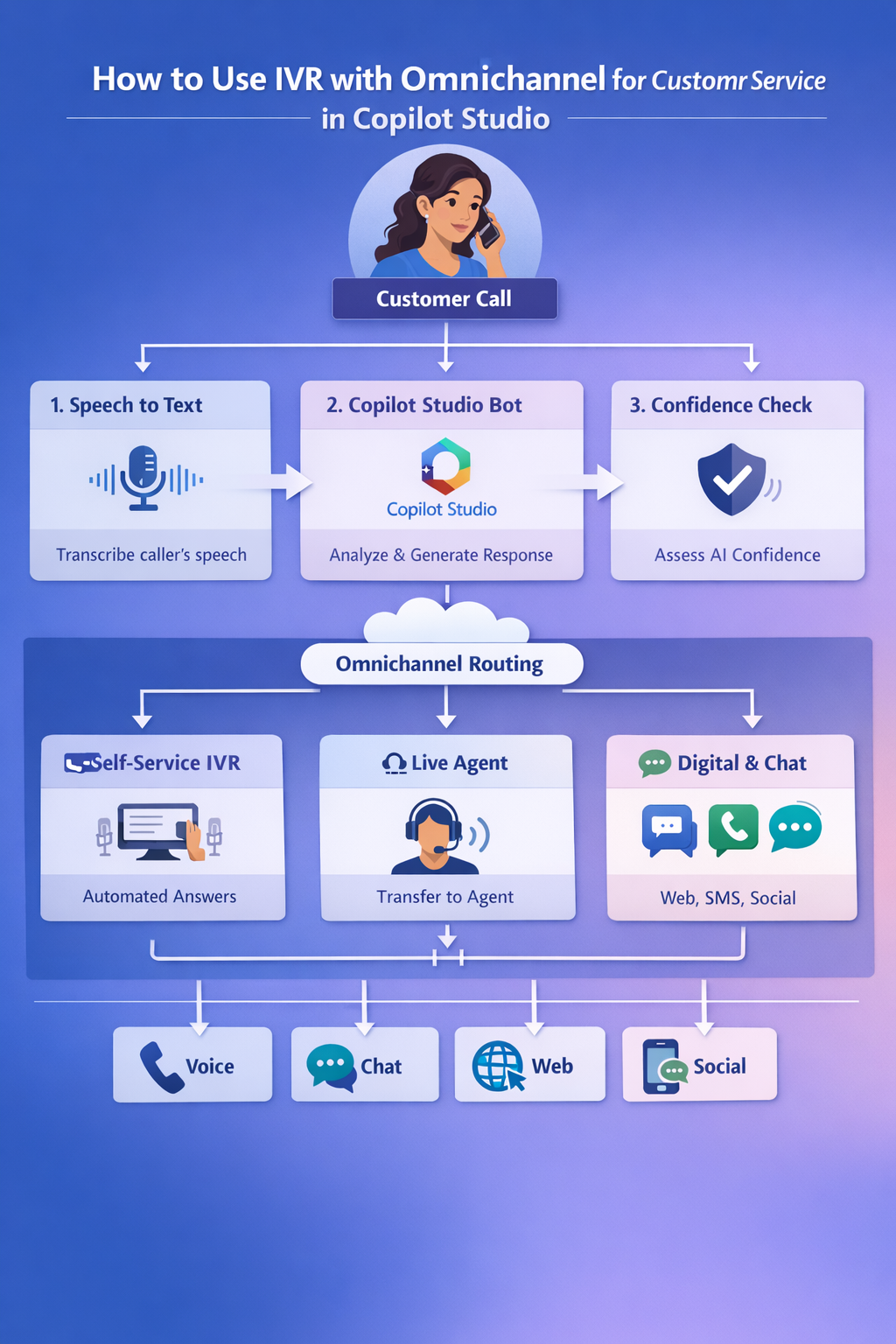
Today i am going to share my thoughts on using IVR with Omnichannel for Customer Service in Copilot Studio.

Let’s get started.

To use Interactive Voice Response (IVR) with Omnichannel for Customer Service in Microsoft Copilot Studio, you must integrate a voice-enabled agent into your Dynamics 365 environment. This allows the agent to handle phone calls, process keypad inputs, and escalate to live representatives when necessary.

Prerequisites:

Licensing: Ensure you have valid Copilot Studio and Dynamics 365 Customer Service licenses with the voice channel enabled.

Environment: Your agent and Dynamics 365 instance must be in the same geographical region.

Phone Number: Acquire a number through Azure Communication Services or use your own carrier (BYOC)

Setup Steps:

1. Configure the Agent in Copilot Studio:

1. Open your agent and navigate to Settings > Channels.

2. Select Dynamics 365 Customer Service (Under Customer Engagement Hub) and click connect.

3. Enabled Voice capabilities to allow speech recognition and DTMF (keypad) inputs.

2. Establish Handoff to Live Agents:

1. Go to Manage > Agent Transfers in Copilot Studio.

2. Select Omnichannel and enable it to ensure a seamless transition with full conversation history and variables.

3. Configure the Voice Workstream in Dynamics 365:

1. In the Customer Service Admin Centre, create a new voice workstream.

2. Link your acquired phone number to this channel.

3. Add your Copilot Agent to the workstream to act as the primary IVR.

Key IVR Capabilities:

DTMF Input: Customers can use their phone keypad for single- or multi-digit processing.

Speech Customisation: Use SSML (Speech Synthesis Markup Language) to adjust tone, pitch and speed.

Barge-in Control: Determine if customers can interrupt the agent while it is speaking.

Silence Detection: Configure the agent to handle pauses by triggering retries to reprompts.

That’s it for today.

I hope this helps.
Malla Reddy Gurram aka @UK365GUY
Share this:

{How to } Publish Copilot Agents to WhatsApp

Hello Everyone,

Today i am going to share my thoughts on how to publish the copilot agent to whatsapp channel.

Let’s get started.

To publish a Microsoft Copilot Studio agent to WhatsApp, you must use Azure Communication Services (ACS) as the bridge between your agent and the whatsapp business platform.

1. Prerequisites

Before starting, ensure you have the following:

Azure Subscription: You need an active subscription with an Azure Communication Services (ACS) resource.

WhatsApp Business Account (WABA): A verified business account on Meta’s WhatsApp Business Platform.

Phone Number: A clean, verified phone number specifically for your WhatsApp agent.

Agent Settings: Your agent’s authentication must be set to either “No authentication” or “Authentication manually” (Microsoft sign-in is not supported on this channel).

2. Step-by-Step Configuration

1. Publish YOur Agent: Ensure your latest changes are live by selecting Publish in the Copilot Studio side menu.

2. Navigate to Channels: Go to Settings > Channels and select the WhatsApp tile.

3. Connect to Azure:

a. Select your Azure Communication and the specific ACS resource.
b. Choose the WhatsApp-enabled phone number you wish to use.

4. Deploy: Click Deploy. This process automatically configure the connection between ACS and Copilot Studio.

5. Scan & Test: Once deployment is finished, Copilot Studio will generate a QR code.
Scan this with your WhatsApp device to start a test chat with your live agent.

3. Important Limitations & Tips

Content Restrictions: WhatsApp agents have limited support for Adaptive Cards.
Only “Interactive actions” (up to 3 buttons), “Choice lists”, and “Open URL” cards are supported.

24-Hour Window: You can reply freely to a user within 24 hours of their last message.
To initiate a conversation outside this window, you must use Meta-approved WhatsApp Message Templates.

Troubleshooting: If messages are sent but the agent doesn’t respond, verify that the Event Grid resource provider is registered in your Azure subscription to allow message forwarding.

For detailed step-by-step instructions click here

That’s it for today.

I hope this helps.

Malla Reddy Gurram aka @UK365GUY
Share this:

{How to} Request Information from humans in the loop in Copilot Studio Agent flows

Hello Everyone,

Today I am going to share my thoughts on how to request information from humans in the loop in Copilot Studio Agent flows.

Let’s get started.

In the agent flows in Microsoft Copilot Studio, you can request information from a human (human in the loop) when the agent cannot complete a task automatically. This is usually done by sending a request to a person through approval, email, or Teams using Microsoft Power Automate.

Below are the simple steps.

Step 1: Create or Open an Agent Flow
1. Go to Copilot Studio
2. Open your Copilot Agent
3. Navigate to Agent Flows
4. Click New flow.

Step 2: Add a Trigger

Choose a trigger such as:

1. When an agent calls the flow
2. When a topic triggers the flow

This allows the agent to start the flow when needed.

Step 3: Add a Human Approval Step

In the flow designer:

1. Click + New step
2. Select Approvals
3. Choose Start and wait for an approval

This sends a request to a human (manager, support agent, etc)

Example:

The agent asks a human to approve a refund.

Step 4: Send the Request to a Person

Configure the approval:

Assigned to: email or user
Title: Request from Copilot Agent
Details: Information the human needs.

Example:

Customer requested refund of £50.
Approve or reject?

You can send it via:

Microsoft Teams
Email
Power Automate approvals portal

Step 5: Wait for the Human Response

The flow pauses until the human responds.

Possible responses:

Approve
Reject
Provide additional input

Step 6: Return the Result to the Agent

Add a Condition step:

If Approved -> continue the process.
If Rejected -> inform the user

Example response to the user:

“Your request has been approved.”
“Your request requires further review.”

Example Use Cases

Approving refunds
Escalating to a manager
Verifying sensitive data
Manual renewal of AI decisions

Furthermore: You can also create a human escalation where the agent hands the conversation to live support person in Teams or a helpdesk system.

That’s it for today.

I hope this helps.

Malla Reddy Gurram aka @UK365GUY
Share this: