Menu Close

Author: uk365guy

How to assign Schedule Board to the Managers in Microsoft Dynamics 365 Field Service

Hi Everyone,

Today i am going to share quick tip about how to assign the ownership of schedule board on Microsoft Dynamics 365 Field Service.

Suppose in a organisation a Team Manager  needs a schedule Board to manage his/her team – System Administrator set up the Schedule board for that Manager.

Then the Manager once login’s  he/she should be able to see their Schedule Board.

Let’s get’s started.

Initially Schedule Board is “Initial Public View”.

In order to create new Schedule Board click  “+” sign..

Give the Tab Name and Shared With “specific people” or “Just Me” or  “Everyone”.

Fill in all the General Settings and Schedule Types configuration, once required fields filled click on “Add” button at the bottom.

Then the new Tab is added to the Schedule Board see below:

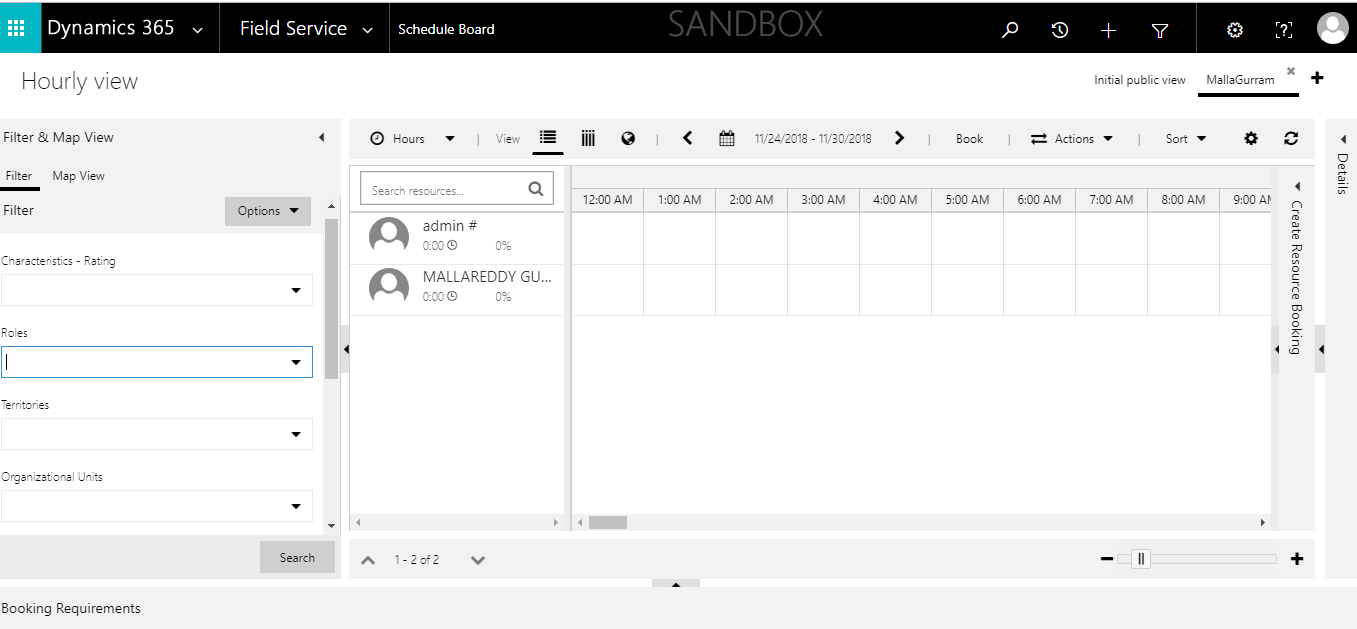
As you can see from above image “MallaGurram” tab is added , on the left hand side you can set filter for that user and save – “Filter & Map View area.
Resource = ” MallaGurram” and save filter.
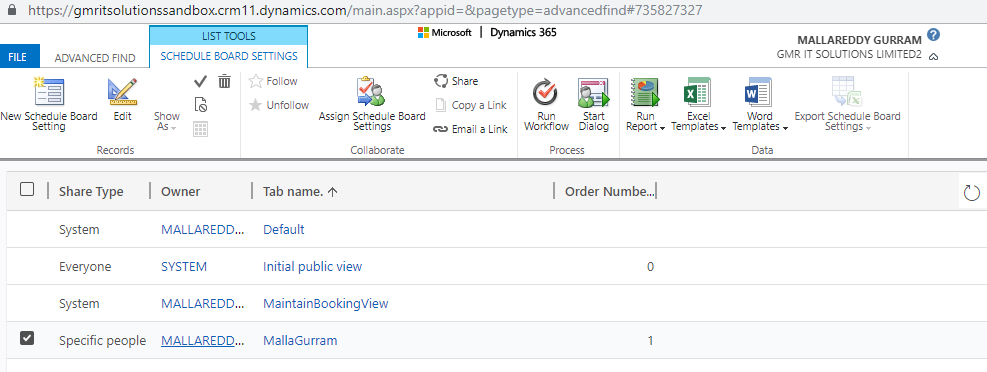
Assign the new created Scheduled Board to the user “MallaGurram”,  Go to Advanced Find and select the Schedule Board Setting and select the “Active Schedule Board Settings”, click result, see below:
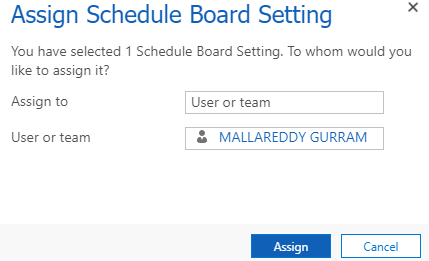
Select the user and click on the navigation menu ” Assign Schedule Board Settings” to the user.
Finally the Schedule Board is assigned to the user, Manager can login into the Microsoft Dynamics 365 Field Service and access the Schedule Board to check the “Resource” schedules.
I hope this helps.
For Microsoft Dynamics 365 Consultancy/Training/Support/Licensing
Contact us: https://www.gmritsolutions.co.uk
Email: admin@gmritsolutions.co.uk

Share this:

Microsoft Dynamics 365 Field Services Mobile App Setup

Hi Everyone,

Today i am going to discuss about the Microsoft Dynamics 365 Field Service Mobile App, where can we download, compatibility.

Field Service Mobile Options:

As we know Field Service Mobile Application is built on the Resco Mobile CRM platform, it has been built on Microsoft Dynamics 365.

The supported devices are as follows:
Windows 10
IOS 6+
Android Phone

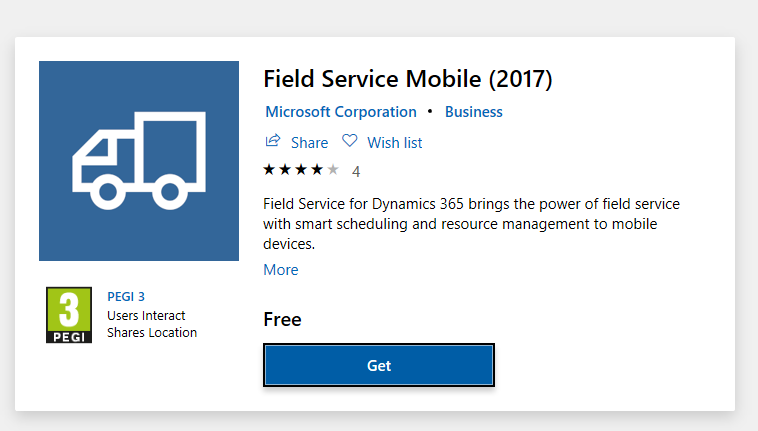
we can download the Mobile App from Microsoft Store and it is with a truck image on the App.
See image:

So the Mobile App can be used on the Personal Computers, Laptops, Tablets etc..

Field Services Mobile App Features:
With the Mobile App we can view the Bookable resource bookings views – agenda, day/week/month 
Combination of bookings and Work Orders forms
Embedded logic and business rules
-System status correlation
-Status change timestamps
-Booking start and end times
-Follow-up Work Orders
-Mandatory synchronization of WO’s created within last week.
When we launch the Mobile App for the first time, we need to configure the App with the Dynamics 365 see below image:
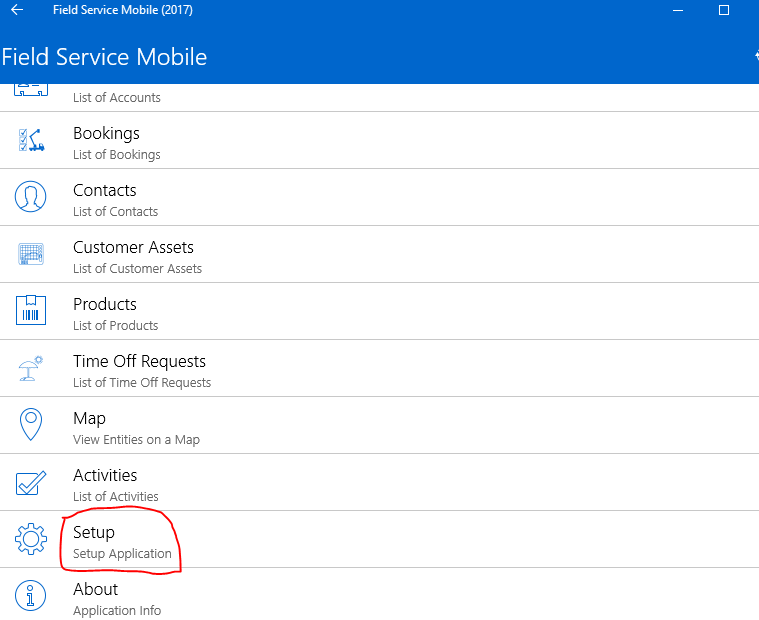
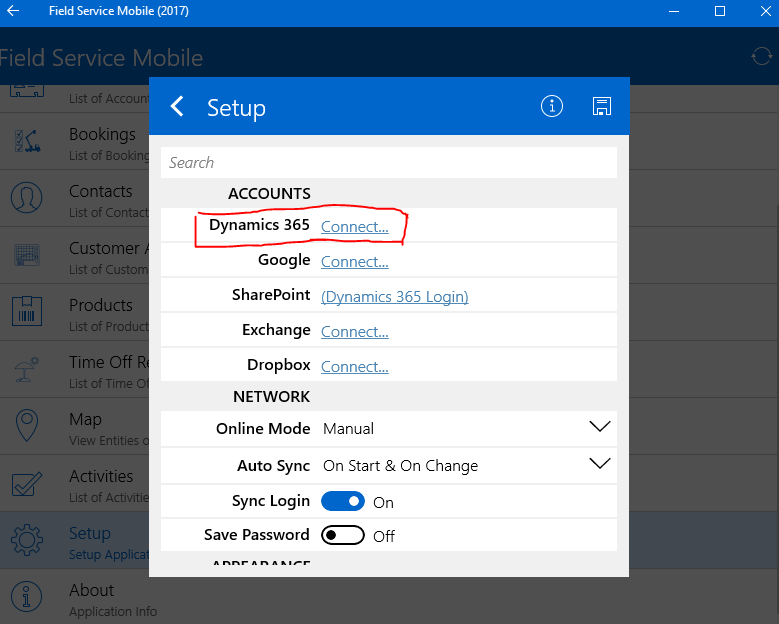
Once the Mobile App is launched then click on the “Setup” button to configure with our Dynamics 365 Organisation URL.
Click on the Dynamics 365 Connect and fill in the credentials of dynamics 365 user.
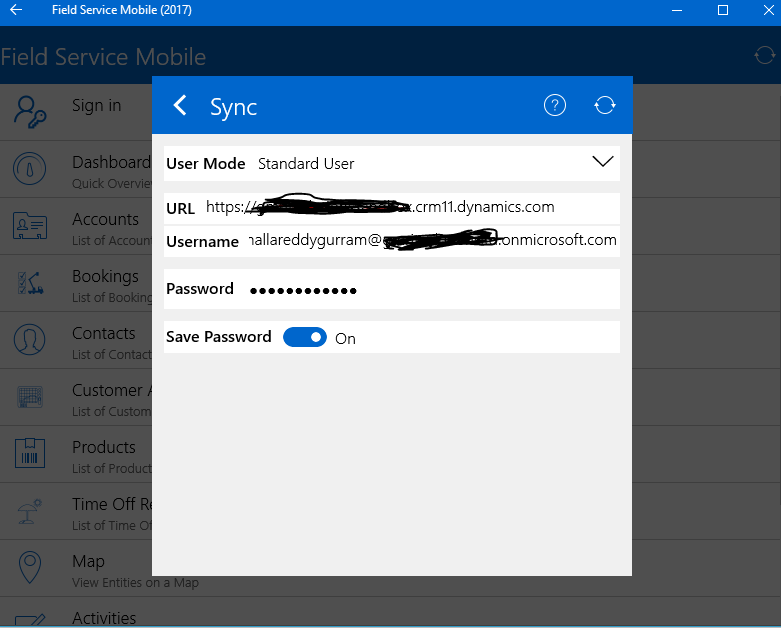
Fill in the URL, Username, Password, and click on save password for automatic login into Mobile App later sessions.
Then click on the refresh button to sync the credentials for the first  time.
Application Navigation


we will need Field Service Admin, dispatcher, inventory purchase, or resource to use the mobile app,may still require additional permissions to change data, can navigate to any of the items listed on the Mobile App.
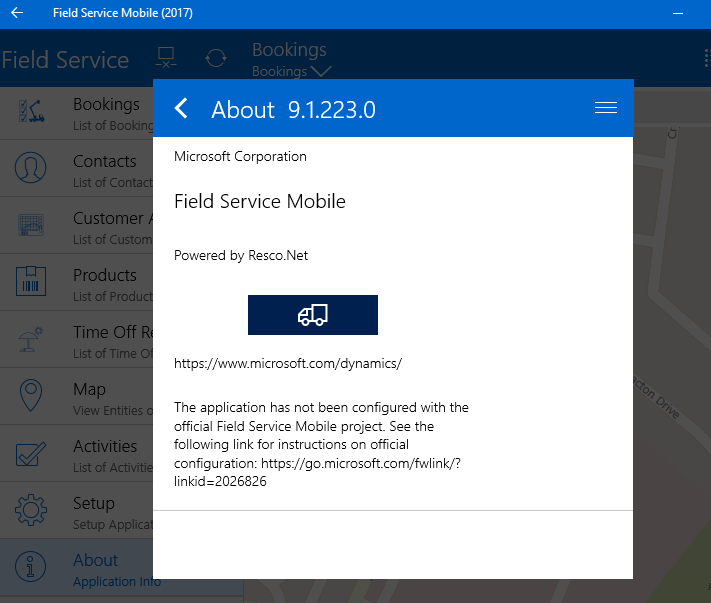
We can check the what version of Field Service Mobile App by clicking on the “About” icon on the App:

I hope this helps:

For Microsoft Dynamics 365 Consultancy/Training/Support/Licensing
Contact us: https://www.gmritsolutions.co.uk
Email: admin@gmritsolutions.co.uk

Share this:

Unable to view Schedule Board in Dynamics 365 Field Services

Hi Everyone,

Today i am going to discuss about the a scenario where the Service Manager can’t access the Schedule Board from Field Service.

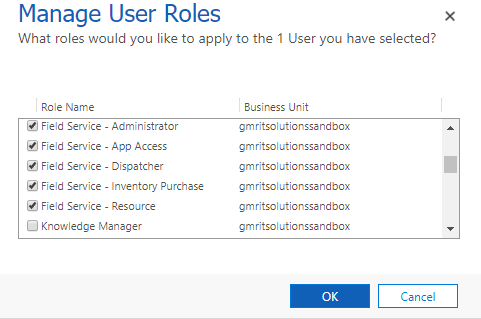
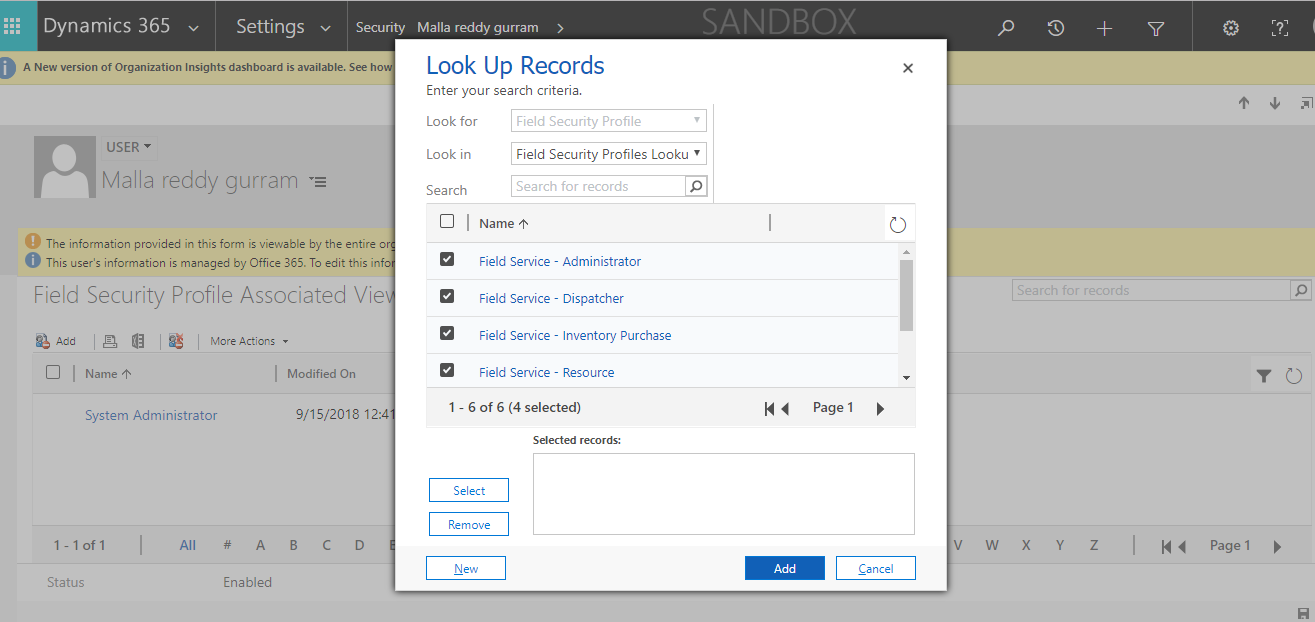
Common problem  whenever we make any changes to the security roles of the Service Manager’s in the Field Service then don’t forget make sure you select the Field Security Profile for that user in Dynamics 365 and select the roles, as shown in the below image.

Then the Service Manager can access the Schedule Board with all the Work Orders scheduled on the Schedule Board.

I hope this helps:

For Microsoft Dynamics 365 Consultancy/Training/Support/Licensing
Contact us: https://www.gmritsolutions.co.uk
Email: admin@gmritsolutions.co.uk
Share this:

Microsoft Dynamics 365 Field Services Schedule Assistant:

Microsoft Dynamics 365 Field Services Schedule Assistant:

Schedule Assistant will be used without doing a lot of the work order process.

> Allows applying constraints to query the resources
> Duration
> Radius
>Start and End Days
> Territory
> Resource Types

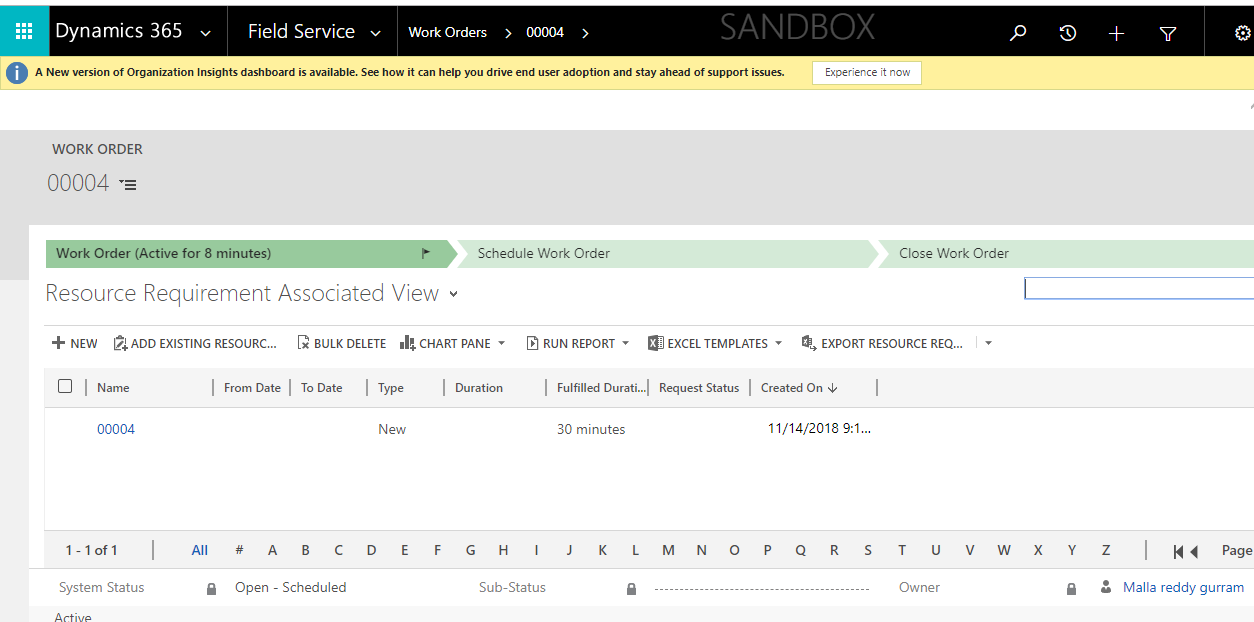
Just need to create the work order and save the record then select the related record of the “work order” created and select the requirement record where we can see the resource requirement details

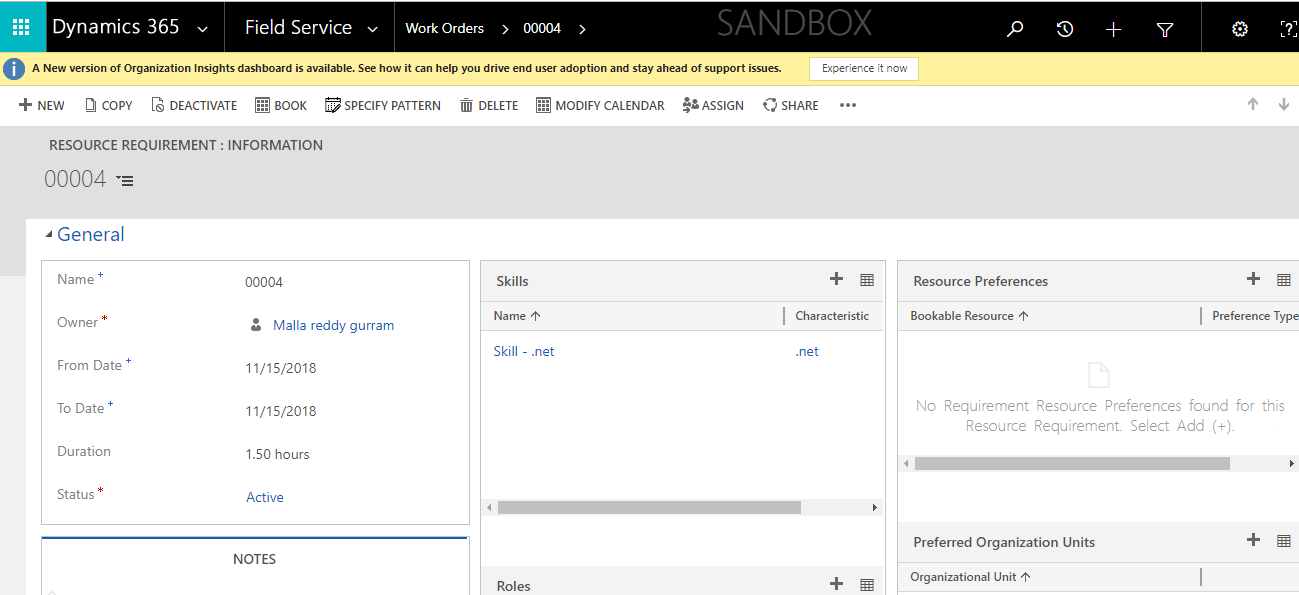
Open the Resource Requirement record and fill in the “from date”, “to date” ,” duration” and “status” fields.

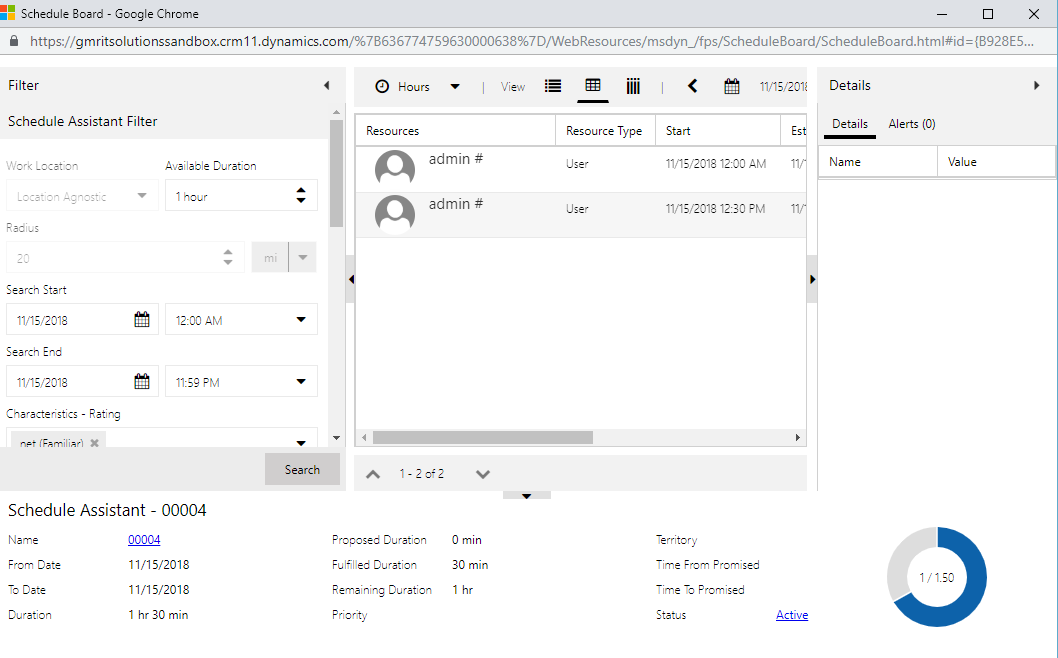
Once the record is saved click on the “Book” button on the navigation bar, the schedule assistant will be opened.

In the scheduled Assistant you can modify the time window and the resource will be booked with simple steps as shown above.

I hope this helps:

For Microsoft Dynamics 365 Consultancy/Training/Support/Licensing
Contact us: https://www.gmritsolutions.co.uk
Email: admin@gmritsolutions.co.uk
Share this:

Microsoft Dynamics 365 Field Services View Customizations

Hi Everyone,

I am going to discuss about the various views on the Field Service Schedule Board.

Lets get’s started.

View Configuration Options:

1) There is one default schedule board for the organisation.

2) Additional public and private schedule boards can be created and modified.

3) Views are tied to Dynamics 365 views that can be customized

Customizing the Schedule Board:

Items are populated on Schedule Board based on Dynamics 365 views

Views associated with the following entities:
> Resource Requirements
> Bookable Resources
> Organizational Units
> Booking Alerts

Default filters and view settings can be defined per view

Web resources can be created to define custom booking rules and can be added to board.

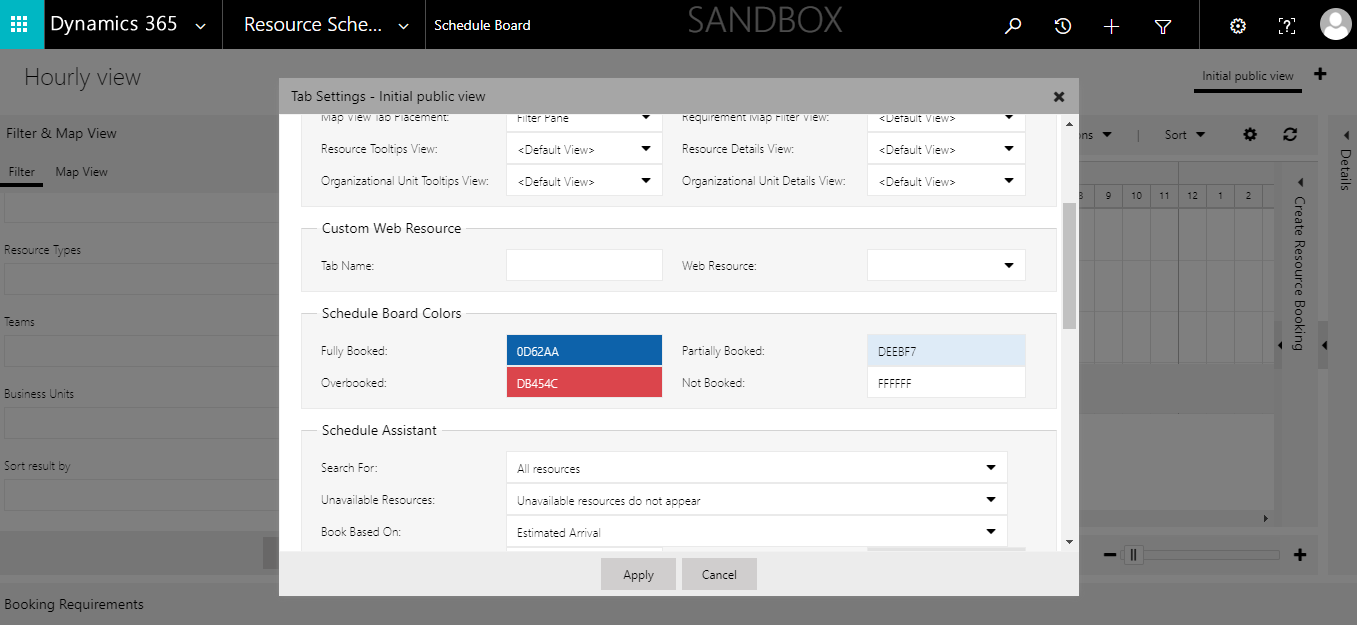
Once scheduled board is opened on the right hand side we can see the “Initial Public View” and “+” sign, if we need to create a schedule board for someone or specific people then click on the “+” sign and it will open new pop up window where we can configure accordingly.

The main use of the multiple Schedule boards is that if the Schedule manager looks after different regions then he can check the tabs to move into different views quite easily.

I hope this helps:

For Microsoft Dynamics 365 Consultancy/Training/Support/Licensing
Contact us: https://www.gmritsolutions.co.uk
Email: admin@gmritsolutions.co.uk
Share this: