Recently one of my client tenant had an issue:
Scenario: Microsoft Dynamics 365 Customer Engagement Application have only one License and one Global Administrator.
So there is a requirement to integrate Microsoft Dynamics 365 with Microsoft Dynamics 365 App for Outlook.
Microsoft Dynamics 365 Customer Engagement user(System Administrator) tried to approve email, test and enable mailbox, but the
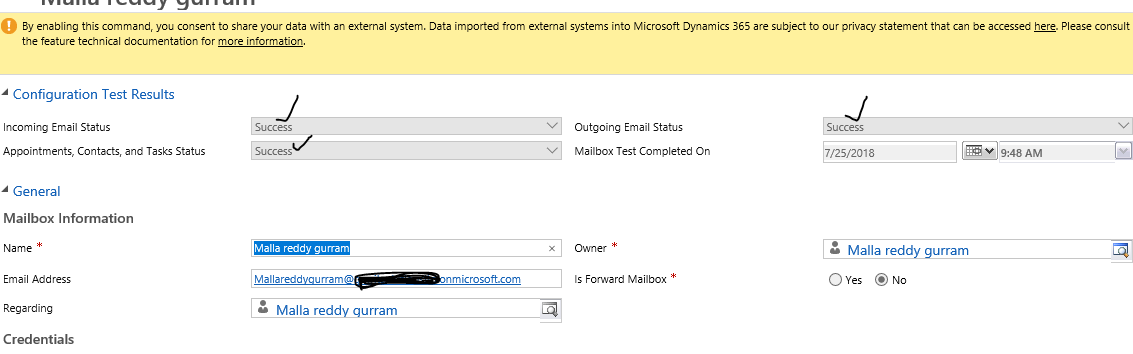
“Incoming Email Status = Fail”,
“Outgoing Email Status = Fail”,
“Appointment,Contacts and Task Status = Fail”,
So as a tenant Global Administrator tried to approve the Mailbox for the user, but because the Dynamics 365 license has not been assigned for Global Administrator, the Application is throughing error..
“Insufficient permissions to approve mailbox”.
So there is a work around for this issue..
The system administrator himself assign the Global Administrator rights and obviously he had Microsoft Dynamics 365 User License.
Then the system administrator became a Global Administrator with Microsoft Dynamics 365 License and he should be able to approve the Mailbox for the user..
As you can see the Incoming Email Status = Success, Outcoming Email Status = Success, Appointment, Contacts and Task Status = Success.
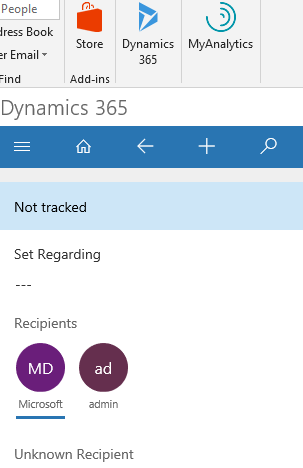
The system Administrator can install Microsoft Dynamics 365 App for Outlook and sync the email contacts, leads and tasks with outlook.
I hope this helps..
SMB’S and Enterprise Customers requires Support/Development/one off project
Contact us @ www.gmritsolutions.co.uk
Email : admin@gmritsolutions.co.uk
The following information is handy for developer when customizing Dynamics 365 with Javascript.
The following client APIs are Deprecated in the current release to reorganize the Xrm client, so replacement client API need to be used and the Deprecated Client APIs are continue to be supported unless the Microsoft issue the time limit to replace with new Client APIs
For the replacement of the Xrm Client APIs please refer to Microsoft document
https://docs.microsoft.com/en-us/dynamics365/get-started/whats-new/customer-engagement/important-changes-coming#some-client-apis-are-deprecated
I hope this helps..
SMB’s Enterprise customers, if you need help on project/support/training/licenses, please contact us
www.gmritsolutions.co.uk
email: admin@gmritsolutions.co.uk
Normally we download the Microsoft dynamics CRM SDK from Microsoft website until Microsoft Dynamics 365 version 9.0.
From Version 9.0 we have two options to download the SDK
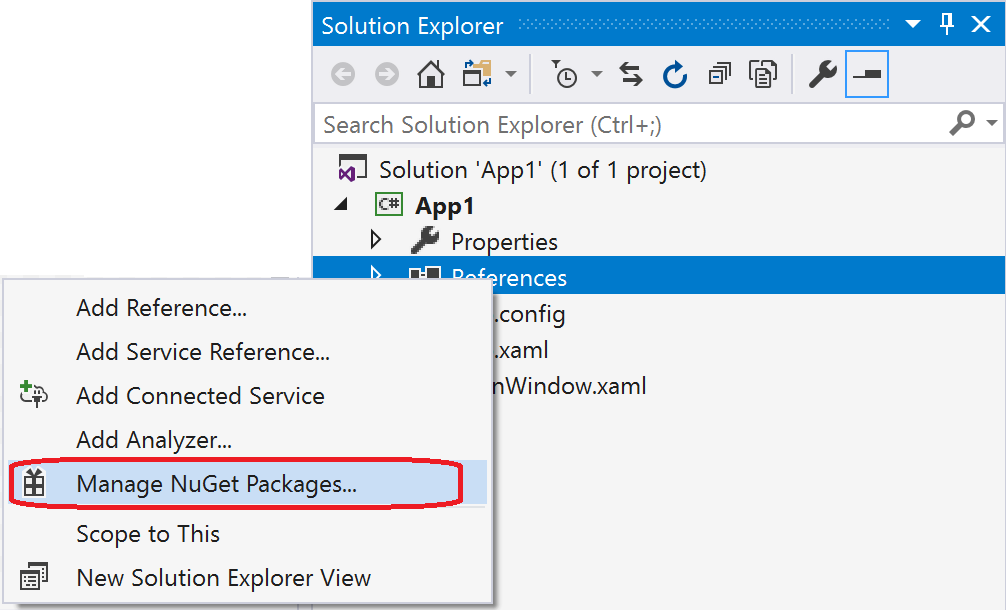
1) Using the visual studio Nuget package manager

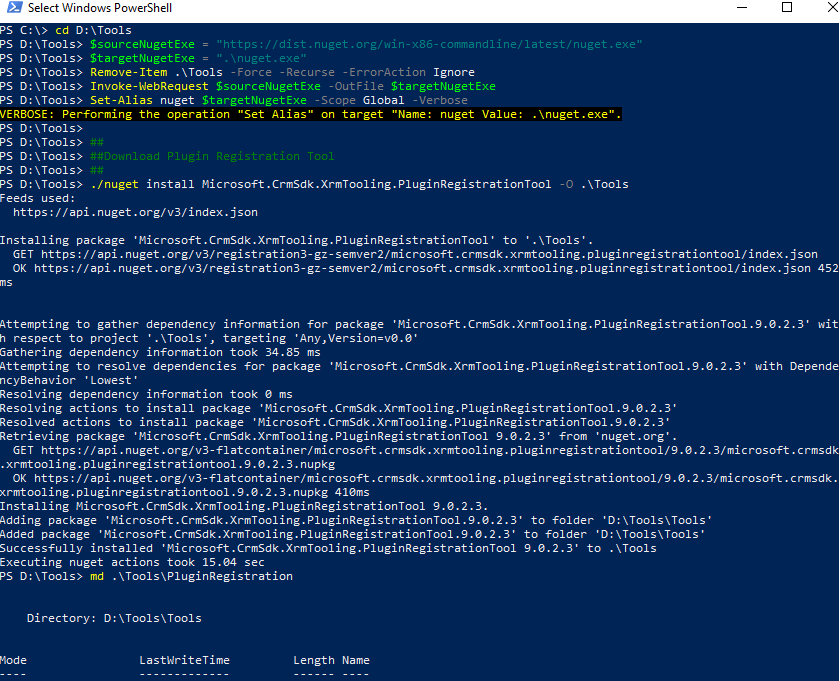
2) using the Powershell:
I am gonna show how to download it on to the local folder.
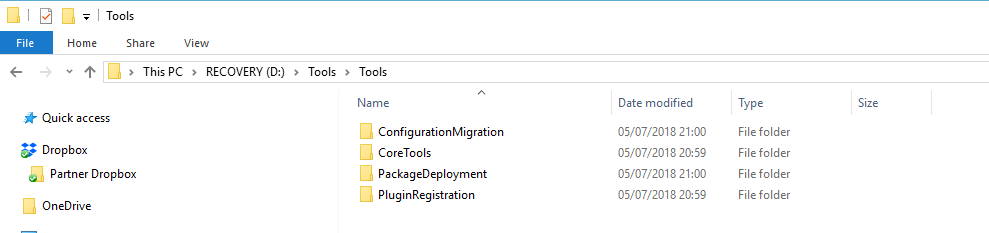
First create a folder in your local computer
Drive : D
Folder: Tool
So the path would be D:/Tools
Search for the “Powershell” on your computer start menu..
Change the directory to desired directory using cd..
cd D:Tools
Copy the powershell script from Microsoft website
$sourceNugetExe = “https://dist.nuget.org/win-x86-commandline/latest/nuget.exe”
$targetNugetExe = “.nuget.exe”
Remove-Item .Tools -Force -Recurse -ErrorAction Ignore
Invoke-WebRequest $sourceNugetExe -OutFile $targetNugetExe
Set-Alias nuget $targetNugetExe -Scope Global -Verbose
##
##Download Plugin Registration Tool
##
./nuget install Microsoft.CrmSdk.XrmTooling.PluginRegistrationTool -O .Tools
md .ToolsPluginRegistration
$prtFolder = Get-ChildItem ./Tools | Where-Object {$_.Name -match ‘Microsoft.CrmSdk.XrmTooling.PluginRegistrationTool.’}
move .Tools$prtFoldertools*.* .ToolsPluginRegistration
Remove-Item .Tools$prtFolder -Force -Recurse
##
##Download CoreTools
##
./nuget install Microsoft.CrmSdk.CoreTools -O .Tools
md .ToolsCoreTools
$coreToolsFolder = Get-ChildItem ./Tools | Where-Object {$_.Name -match ‘Microsoft.CrmSdk.CoreTools.’}
move .Tools$coreToolsFoldercontentbincoretools*.* .ToolsCoreTools
Remove-Item .Tools$coreToolsFolder -Force -Recurse
##
##Download Configuration Migration
##
./nuget install Microsoft.CrmSdk.XrmTooling.ConfigurationMigration.Wpf -O .Tools
md .ToolsConfigurationMigration
$configMigFolder = Get-ChildItem ./Tools | Where-Object {$_.Name -match ‘Microsoft.CrmSdk.XrmTooling.ConfigurationMigration.Wpf.’}
move .Tools$configMigFoldertools*.* .ToolsConfigurationMigration
Remove-Item .Tools$configMigFolder -Force -Recurse
##
##Download Package Deployer
##
./nuget install Microsoft.CrmSdk.XrmTooling.PackageDeployment.WPF -O .Tools
md .ToolsPackageDeployment
$pdFolder = Get-ChildItem ./Tools | Where-Object {$_.Name -match ‘Microsoft.CrmSdk.XrmTooling.PackageDeployment.Wpf.’}
move .Tools$pdFoldertools*.* .ToolsPackageDeployment
Remove-Item .Tools$pdFolder -Force -Recurse
##
##Remove NuGet.exe
##
Remove-Item nuget.exe
Today i am going to share my experience in this blog.
Recently i have faced an issue, customer is unable to login into the Microsoft Dynamics 365 Community Portal.
Scenario: Customer tried to login with her credentials and browser through’s an error message
” the website not found”.
Tried to troubleshoot with clearing the cache and history from the browser and closed all the browser and tried to login again..
Still there is no resolution.
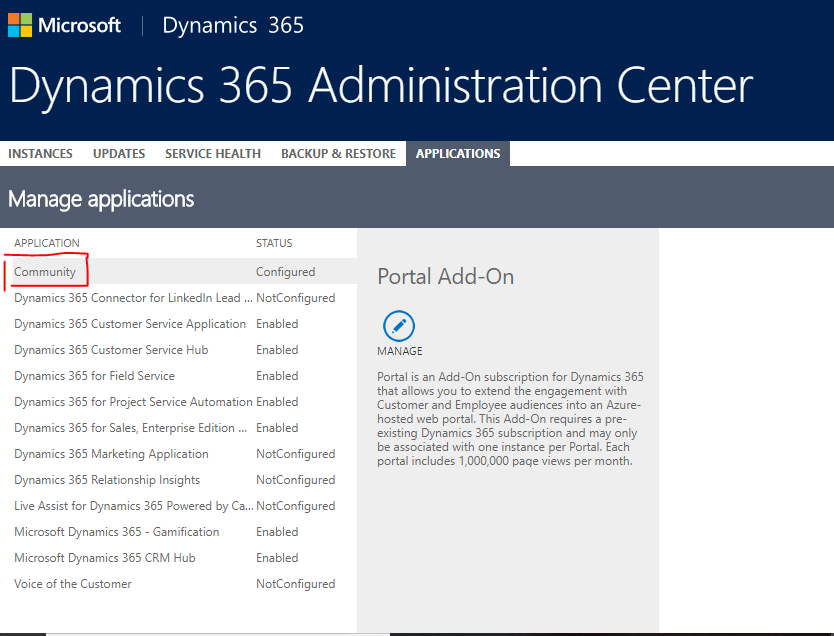
There is a fix for this with in the admin center in dynamics 365..
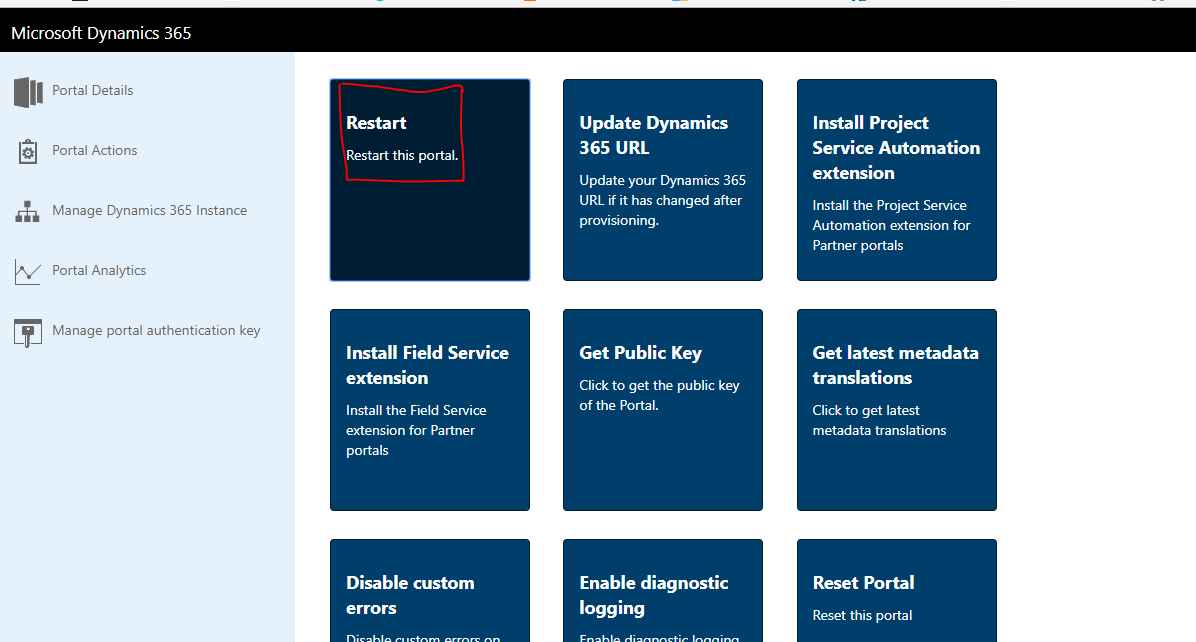
Select the Community Portal Action from the dynamics 365 admin center and Restart the Portal, as the portal is unavailable for sometime to resume the service again, so there might be some disruption between these times.
Finally customers will be able to login to Portal as normal.
I hope this helps:
Microsoft Dynamics 365 Customer Engagement : Training/Support/Licensing/Development
Please contact:
www.gmritsolutions.co.uk
Email: admin@gmritsolutions.co.uk