Menu Close

Author: uk365guy

MICROSOFT DYNAMICS 365 FREE UP STORAGE SPACE ON PRODUCTION OR INSTANCE LEVEL

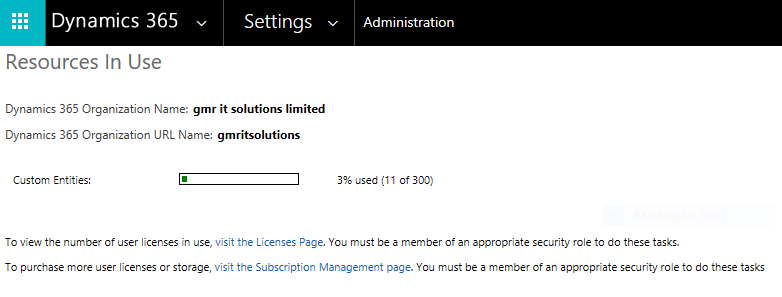
Manage storage

– Each subscription has a storage limit that applies across all instances (production and sandbox)

– Notifications are sent when the limit is reached and at a threshold(currently  80%)

– If the storage limit is reached new records cannot be created until data is removed or additional storage is purchased.

In order to free up space in Dynamics 365 follow below rules:

1) Method 1: Delete bulk email and workflow instances using a bulk deletion job
2)   Method 2: Evaluate and delete suspended workflows.
3) Method 3: Remove email attachments using Advanced Find
4) Method 4: Remove email messages with attachments using a bulk deletion job
5) Method 5: Remove notes with attachments using Advanced Find
6) Method 6: Remove notes with attachments using a bulk deletion job
7) Method 7: Remove bulk duplicate detection jobs and associated copies of duplicate records
8) Method 8: Delete bulk import instances using a bulk deletion job
9) Method 9: Delete bulk deletion job instances using a bulk deletion job
10) Method 10: Delete audit logs.

Share this:

MICROSOFT DYNAMICS 365 ONLINE SERVICE ADMINISTRATOR ROLES

Microsoft Online Service administrator roles

-Online Service administrator roles apply to management of subscriptions and not Dynamics 365


Adminstrative roles include:

– Global administrator

– Customized administrator:

 – Billing administrator
 – Exchange administrator
 – Password administrator
 – Skype for Business administrator
 – Service administrator
 – Sharepoint administrator
 – User management administrator

Administrative Access

– Office 365 Global administrators and Service administrators are added to Dynamics 365 for
   administrative access with the System Administrator role.

– A Dynamics 365 license is not used or required.

– Administrative access gives access to the Settings area but no access to records in Sales,
  Marketing or Service.

Share this:

MICROSOFT DYNAMICS 365 MANAGING USERS

Non – interactive users

–  A user record can be marked as non-interactive
– This means that it can be used for programmatic access to 
  Dynamics 365 only such as integration with an ERP system.

– Non -interactive users do not require a license
– Five non-interactive users can be created for an instance

User account Synchronization

-Users of Dynamics 365 must have accounts created in the office 365 admin portal

-These are different from accounts used on the company network.
-To reduce account administration, consider the following options:

    -Synchronize active directory with office 365

    -Use Active Directory Federation Services

Synchronize Active Directory with Office 365

– User logs on to their on-premise environment with their Active Directory account (Domainusername)
– For Office 365 (Including Dynamics 365 ) services, user logs in again with work               account(username@domain.com)
-Synchronization keeps the user name the same for both environments.

Use Active Directory Federation Services

– A single account(AD) is used for the on-premise network and Dynamics 365 
  providing a single sign – on (SSO) experience.

– User logs on to their on-premise environment with their AD 
  account(Domainusername)

– For Office 365 (Including Dynamics 365) services, the user is logged in automatically or logs      in with their AD account.

Configure user account synchronization

– Setting up synchronization and  SSO are both detailed processes.
– For more information on setting up account synchronization refer to 
  https://support.office.com

Share this:

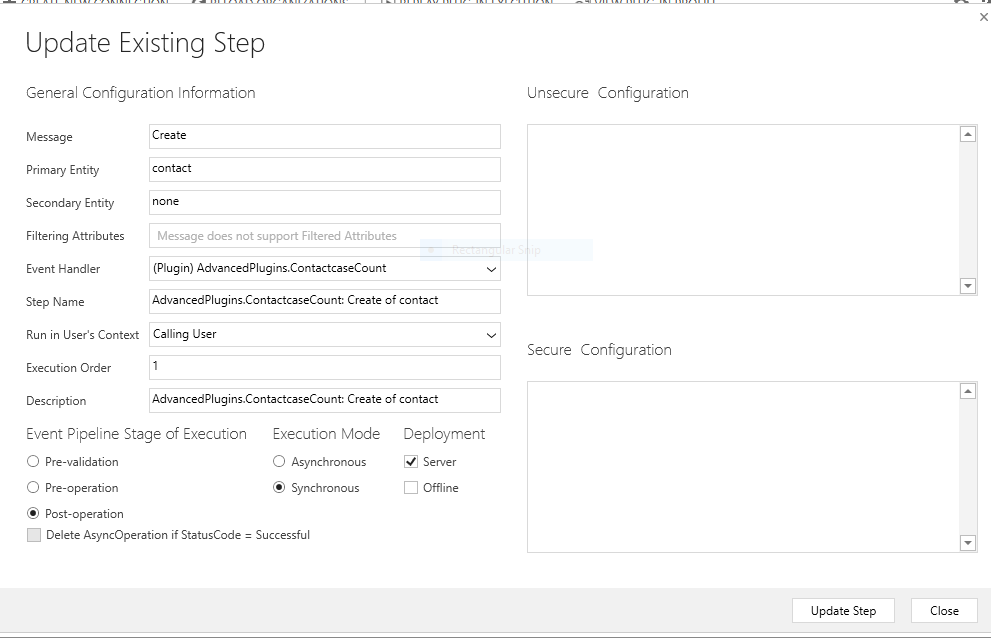
CONTACT CASE COUNT PLUGIN IN DYNAMICS 365

Contact Case Count  plugin dynamics 365

using System;
using System.Collections.Generic;
using System.Linq;
using System.Text;
using System.Threading.Tasks;
using Microsoft.Xrm.Sdk;
using Microsoft.Xrm.Sdk.Query;

namespace AdvancedPlugins
{
    public class ContactcaseCount : IPlugin
    {
        public void Execute(IServiceProvider serviceProvider)
        {
            IPluginExecutionContext context = (IPluginExecutionContext)
         serviceProvider.GetService(typeof(IPluginExecutionContext));

            IOrganizationServiceFactory serviceFactory =
                (IOrganizationServiceFactory)serviceProvider.GetService(typeof(IOrganizationServiceFactory));
            IOrganizationService service = serviceFactory.CreateOrganizationService(context.UserId);

            ITracingService tracingService =
            (ITracingService)serviceProvider.GetService(typeof(ITracingService));

            // The InputParameters collection contains all the data passed in the message request.

            if (context.InputParameters.Contains(“Target”) && context.InputParameters[“Target”] is Entity)
            {
                Entity contact = (Entity)context.InputParameters[“Target”];

                // getting Contact fullname and its emailaddress

                string name = contact[“fullname”].ToString();
                string email = contact[“emailaddress1”].ToString();

                // we have to get the created contact guid in order to mpa to newly creaing case

                Guid contactid = new Guid(context.OutputParameters[“id”].ToString());

                // Create a new case automatically
                Entity cse = new Entity(“incident”);
                cse[“title”] = “User whose name is ” + name + ” has created new case. Please contact him on hs email: ” + email;

                // lokkup –> refer to anoter table – entityname nad its record id

                cse[“customerid”] = new EntityReference(contact.LogicalName, contactid);

                service.Create(cse);

                // select case of a contact where conact is contactid
                QueryExpression qr = new QueryExpression();
                qr.EntityName = “incident”;
                qr.ColumnSet = new ColumnSet(“customerid”);

                // where conact is contactid
                ConditionExpression ce = new ConditionExpression();
                ce.AttributeName = “customerid”;
                ce.Operator = ConditionOperator.Equal;
                ce.Values.Add(contactid);

                // add cond to query
                qr.Criteria.AddCondition(ce);

                // Exceute query

                EntityCollection caseCollection = service.RetrieveMultiple(qr);


                // update case count on contact – 
                Entity newlyCreatedContact =  service.Retrieve(contact.LogicalName, contactid, new ColumnSet(“spousesname”));

                newlyCreatedContact[“spousesname”] = caseCollection.Entities.Count.ToString();

                service.Update(newlyCreatedContact);


            }
        }
    }
}


Go ahead and check inside crm about the case count on the contact.
I hope this helps..

Share this: