Menu Close

Blog

Slide 1

Microsoft Business Applications Blogposts, YouTube Videos and Podcasts

Helping Businesses with Technology

Slide 2

Microsoft Business Applications Blogposts, YouTube Videos and Podcasts

Helping Businesses with Technology

Slide 3

Microsoft Business Applications Blogposts, YouTube Videos and Podcasts

Helping Businesses with Technology

previous arrow
next arrow

{Resolved}Invalid xml string field is not accepting & symbol in power automate

Hello Everyone,

Today i am going to resolve an error message on Power Automate Invalid XML string field is not accepting “&” symbol.
Let’s get’s started.
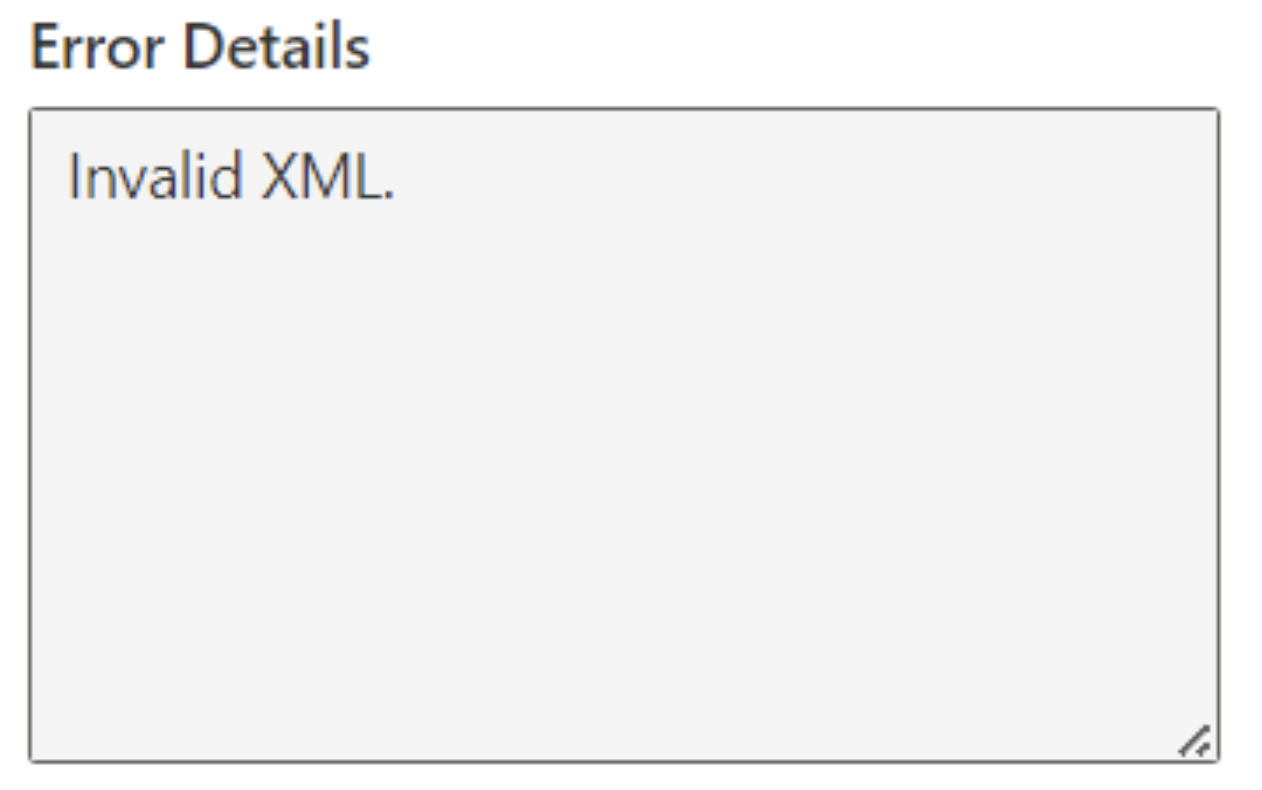
In XML, the ampersand symbol “&” is a reserved character that is used to indicate the start of an entity reference. if you want to include an actual ampersand symbol in an XML string, you should use the entity reference ‘&’ instead of the raw “&” symbol. this is because using “&” directly can result in a parsing error it’s not allowed in its raw form.

So in Power Automate, when working with XML data, make sure to replace the “&” symbol with ‘&’

wherever it occurs within your XML content to ensure that it’s a valid XML String.

Below XML i have separated the two string values by adding ‘&’

Update the Power Automate Flow with the updated XML and it will resolve the issue.

That’s it for today.

I hope this helps.

Malla Reddy Gurram(@UK365GUY)
#365BlogPostsin365Days
Share this:

{How to} Purge cache Power Pages

Hello Everyone,

Today i am going to show how to purge the Power Pages Cache.

Let’s get’s started.

Suppose you have made changes to your Power Pages Solution and you are accessing the pages and the changes are not reflecting on the page, because of the cache that is rendering old page.

So what is the solution?

We need to purge the cache on the Power Pages admin center.

Lets see how we can do that.

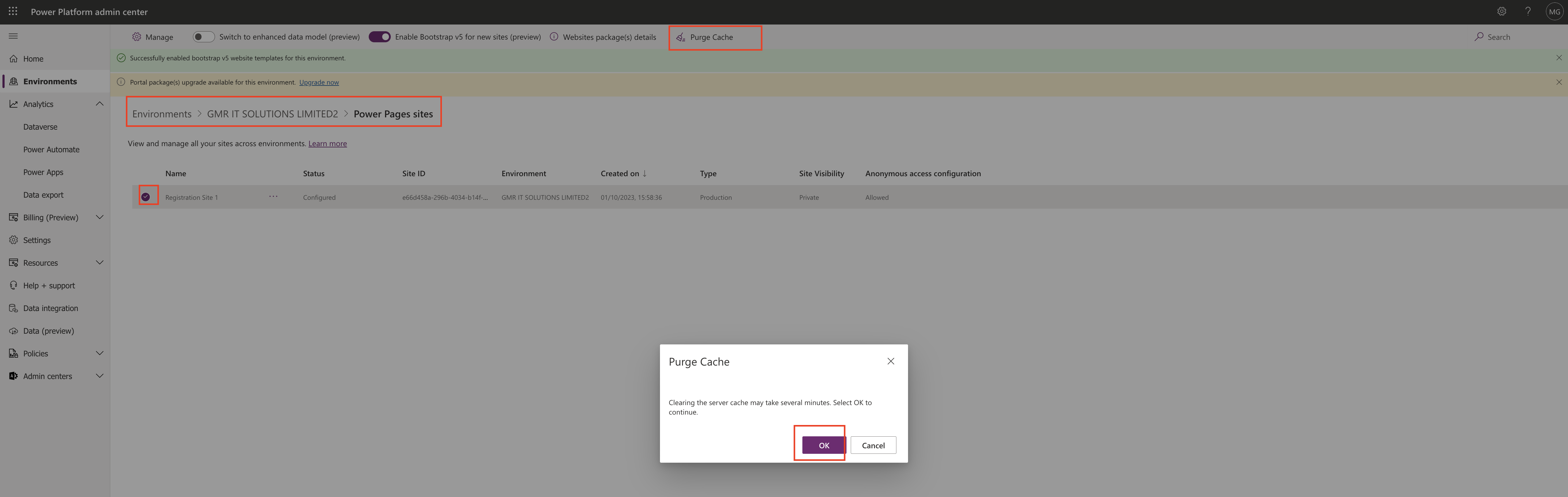
Login into www.admin.powerplatform.microsoft.com

Choose the environment and select the power page site and then click on purge cache.

A pop up will be displayed and click OK.

It will take several minutes to clear the cache and then you can access the power pages on the web browser and you can see the new changes.

That’s it for today.

I hope this helps.

Malla Reddy Gurram(@UK365GUY)
#365BlogPostsin365Days
Share this:

{How to} enable Bootstrap Version 5 for Power Pages

Hello Everyone,

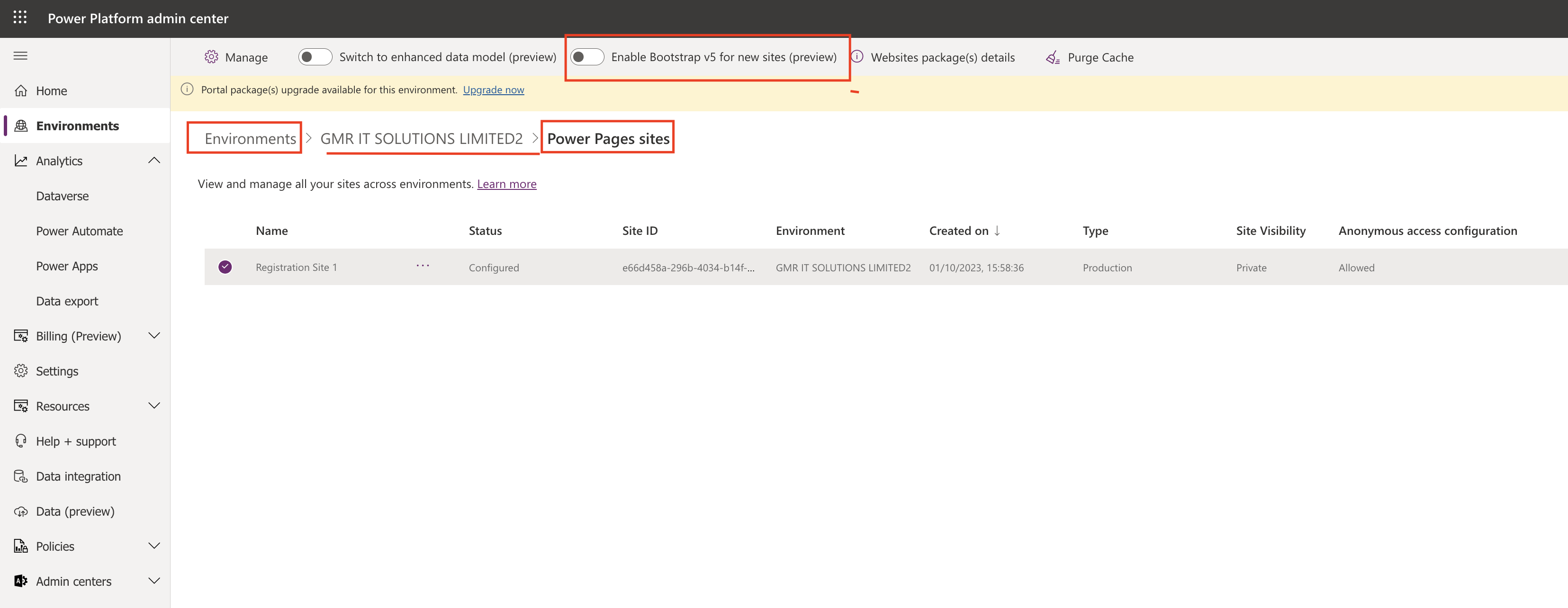
Today I am going to show how to enable Bootstrap Version 5 for your Power Pages.

Let’s get’s started.

As of now Power Pages have Bootstrap Version 3 in Power Pages.

Now new version : Bootstrap Version 5 is in preview and you can start testing your Power Pages.

Login into www.admin.powerplatform.microsoft.com

Select the environment where your power pages site exists.

What are the advantages of the Bootstrap Version 5:

You can add new functionality to your site, like CSS Flexbox and responsive layout using Bootstrap Version

That’s for today.

I hope this helps.
Malla Reddy Gurram(@UK365GUY)
#365BlogPostsin365Days
Share this:

{Do you know} Power Pages Trial period is for 90 days

Hello Everyone,

Today i am going to share Power Pages Trail period now extended to 90 days now.

Let’s get’s started.

When you want to do some PoC on Power Pages or get started with Power Pages, you usually get 30 days trial period and sometimes it’s not enough so now microsoft providing 90 days trial period.

So websites created in a PRODUCTION Power Platform environment will start as a 90- day trial. The longer trial duration will give makers a longer time to develop their websites without concerns of losing site access within 30 days or having to start paying for licenses by converting the websites to production mode.

That’s it for today.

I hope this helps

Malla Reddy Gurram(@UK365GUY)
#365BlogPostsin365Days
Share this:

{How to } Disable anonymous access to Power Pages

Hello Everyone,

Today i am going to show how to block anonymous users accessing the Power Pages.

Let’s get’s started.

For example your power pages have some anonymous users access and after sometime if you want to disable them. how do you do that?

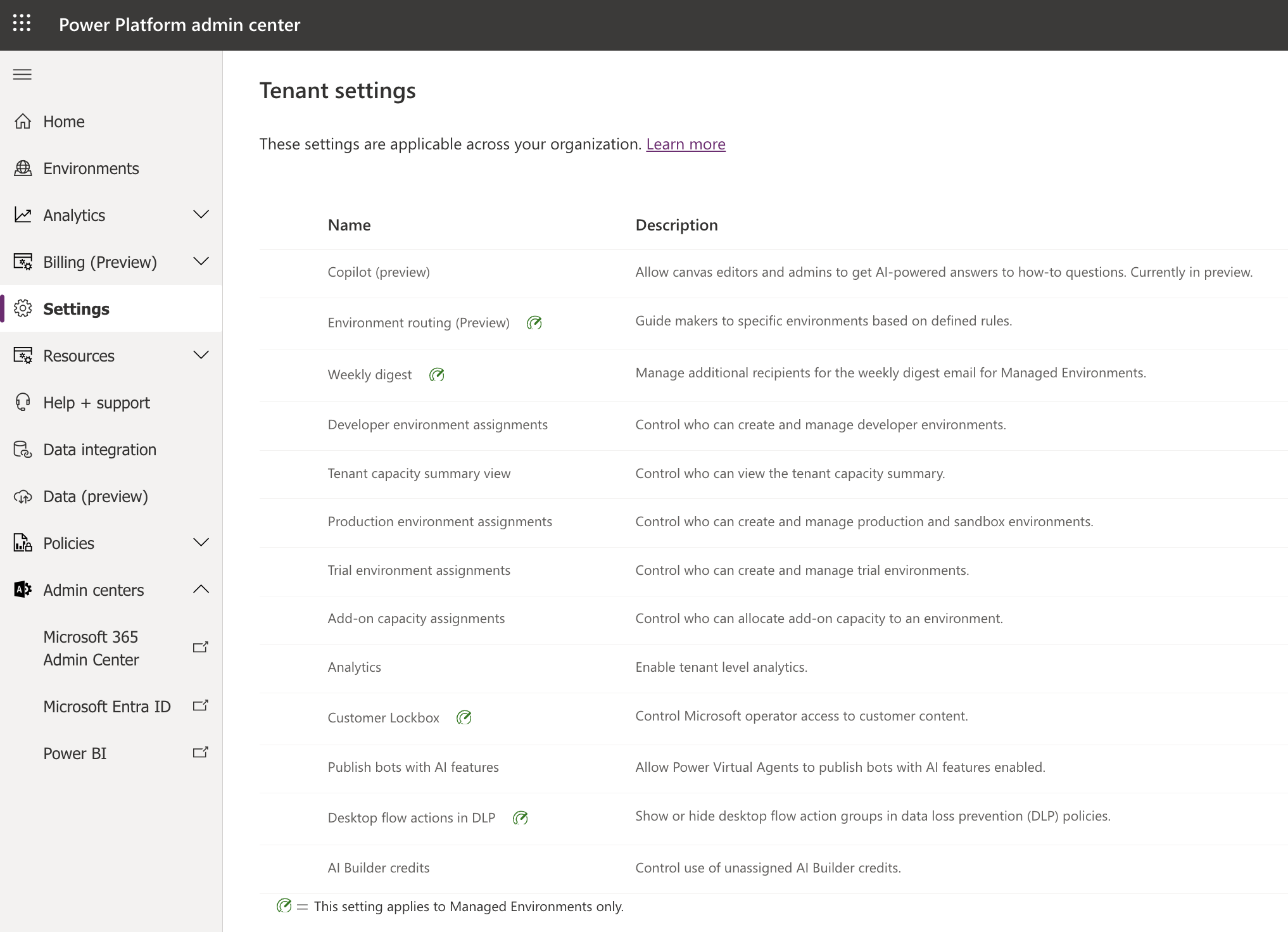
Login into Power Platform Admin Center

Click on the settings on the left handside of the page.

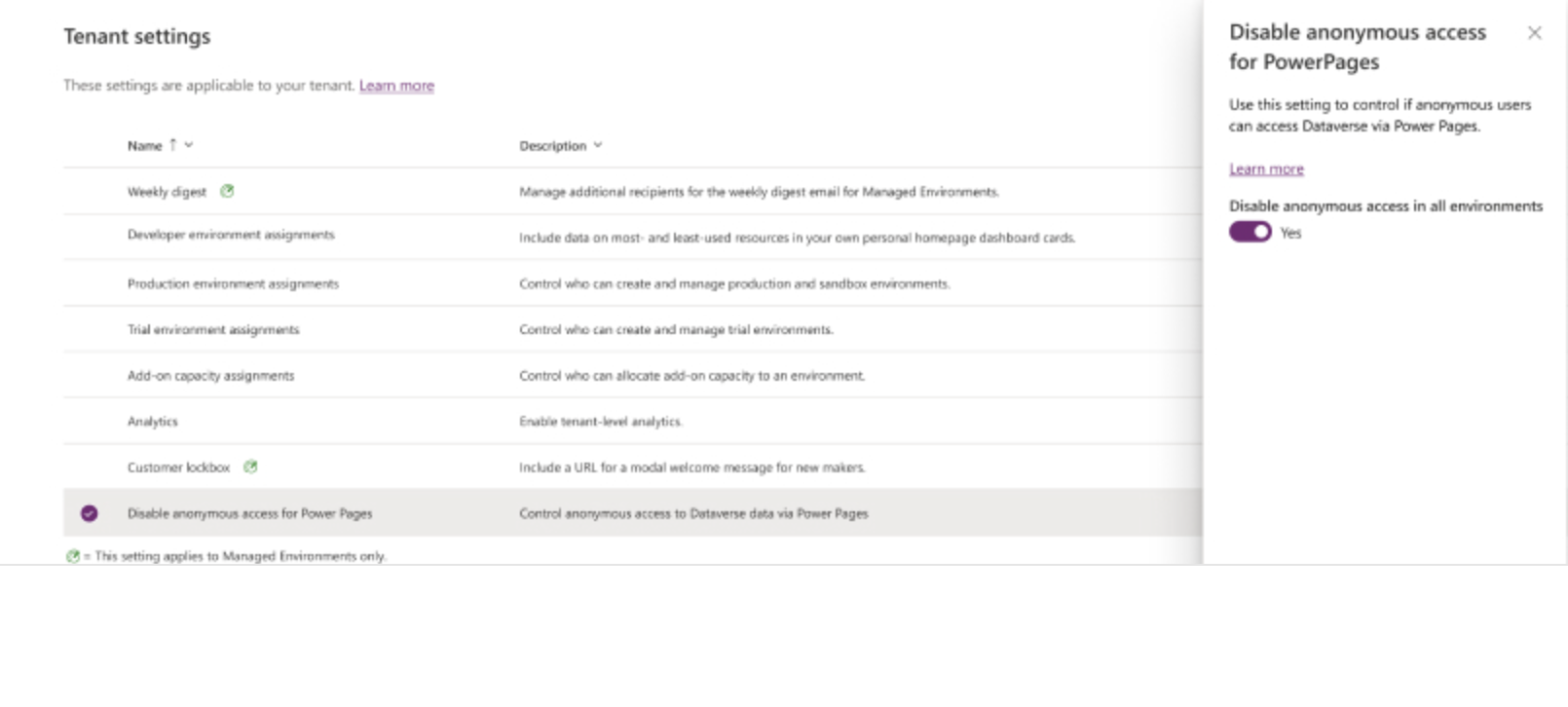
Tenant settings will be opened and select the disable anonymous user from power pages and set to YES.

Then anonymous users can’t access Power Pages.

That’s it for today.

I hope this helps.

Malla Reddy Gurram(@UK365GUY)
#365BlogPostsin365Days
Share this: