Menu Close

Category: Blog

Power Platform enthusiast must read documents

Hello Everyone,

Its been a while i am away from blogging.
Here i am today.
Everyone who are interested in learning Power Platform then the following documents are a must read once.
There are two documents:
1. Implementation Guide SUCCESS BY DESIGN Here
This document explains about how to approach a Power Platform projects and what are the steps needs to be followed.
2. Power Apps Creators Guide Here
This document will guide on how to leverage digital culture across the organisation.
I hope this helps
Malla Reddy aka UK365GUY
Share this:

{How to enable add products on order table Dynamics 365 Sales}

Hello Everyone,
Suppose there is a scenario to add multiple products on sales order. How do you do that?
Lets gets started.
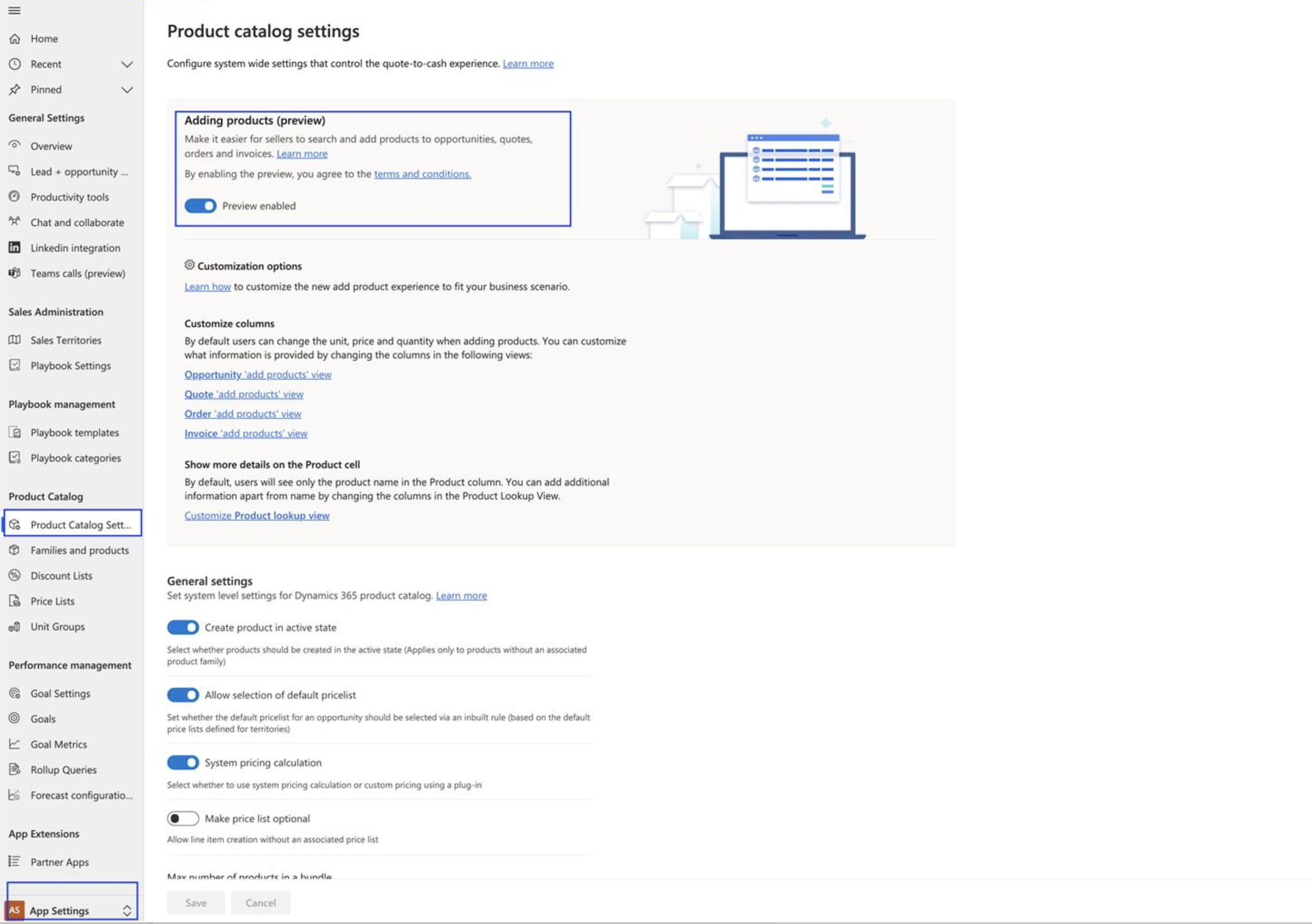
Login into your Dynamics 365 Sales Hub and then left bottom cornor change to App Settings and then click on PRODUCT CATALOG SETTINGS and toggle the “Adding Products” to enabled.
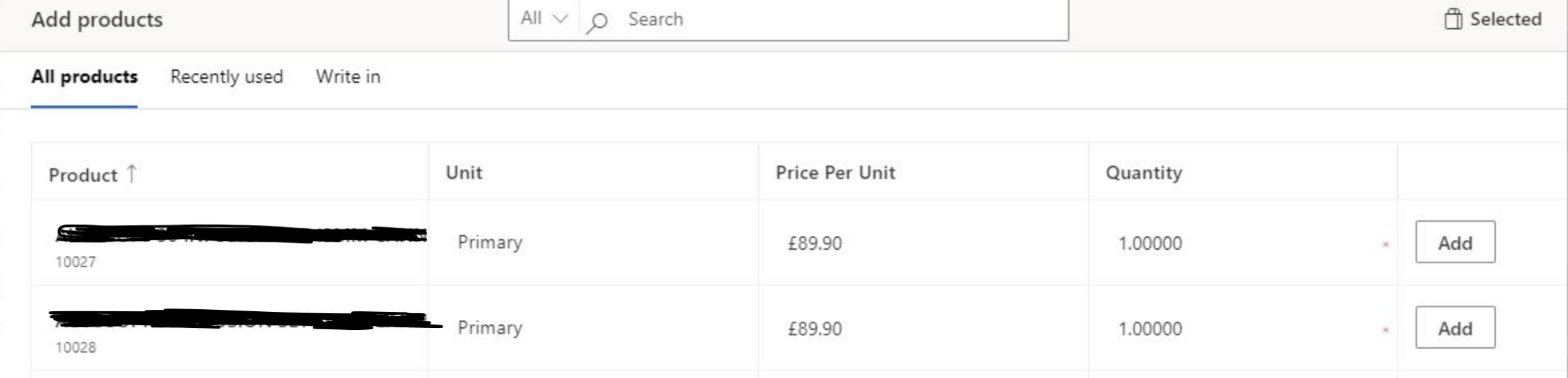
Then you should be able to add multiple products just a click of a button.


Hope this helps.
Malla Reddy(aka UK365GUY)
Share this:

{How to automate business process with Power Automate Desktop}

Hello Everyone,

Today I am going to show how to do simple business automation with Power Automate Desktop.
Things must have:
1. You should download Window Desktop or Laptop to download Power Automate Desktop
2. Download Power Automate Desktop for free from Here
Once Power Automate Desktop(PAD)  Installed, Pin it to your taskbar.
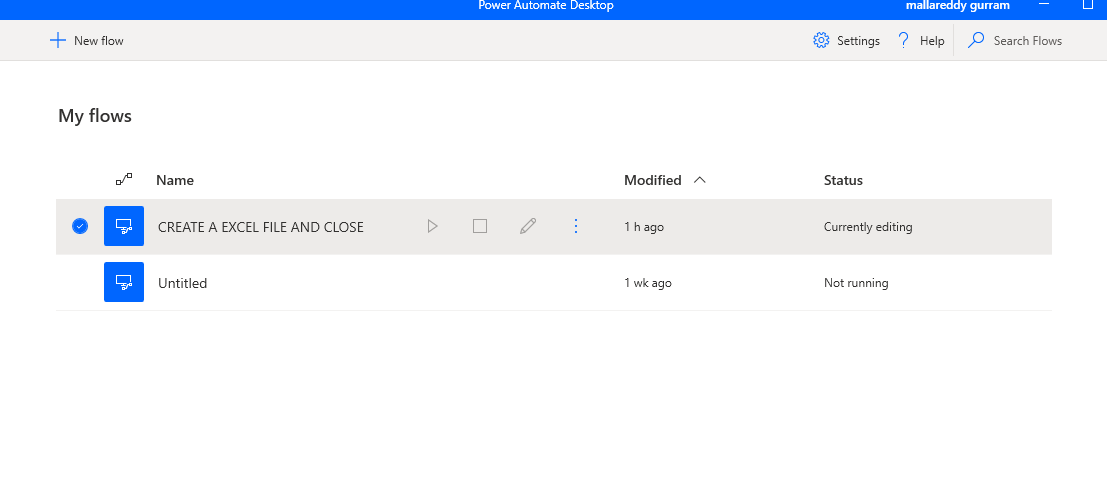
Open the PAD and cretae a new flow “Create a excel file and close”
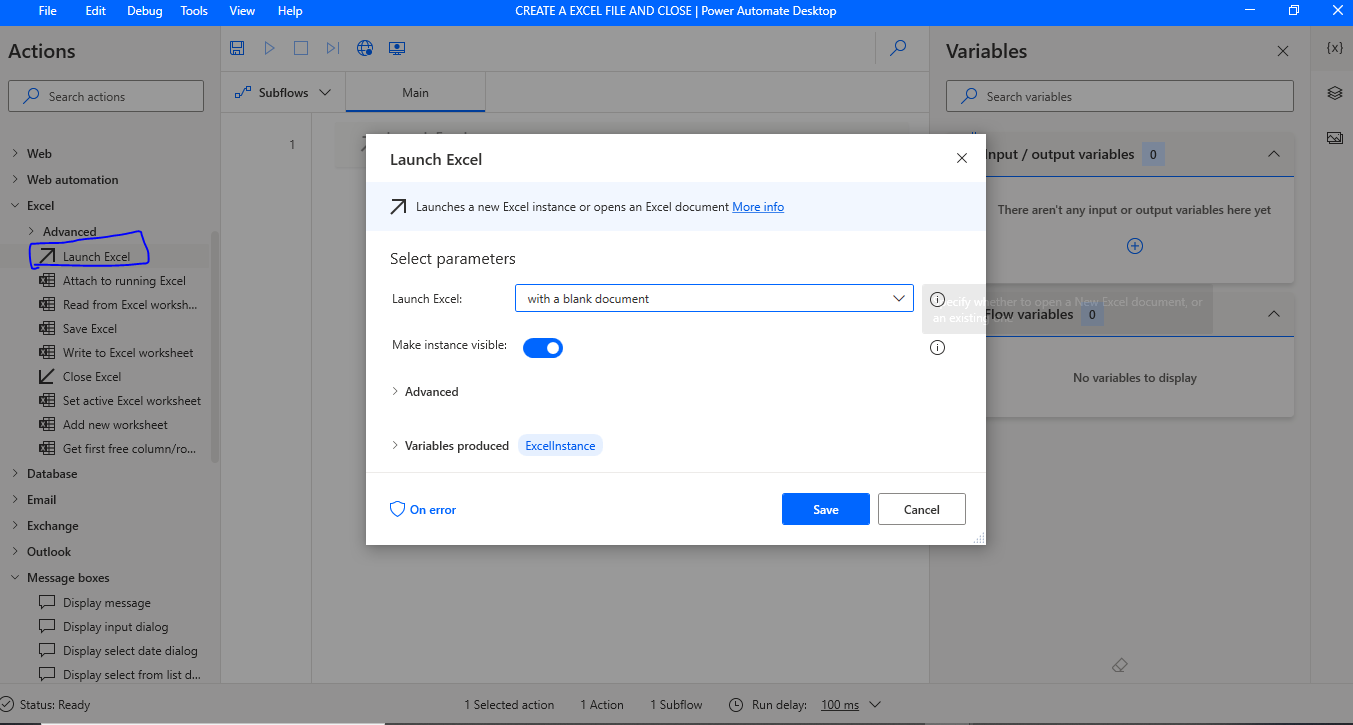
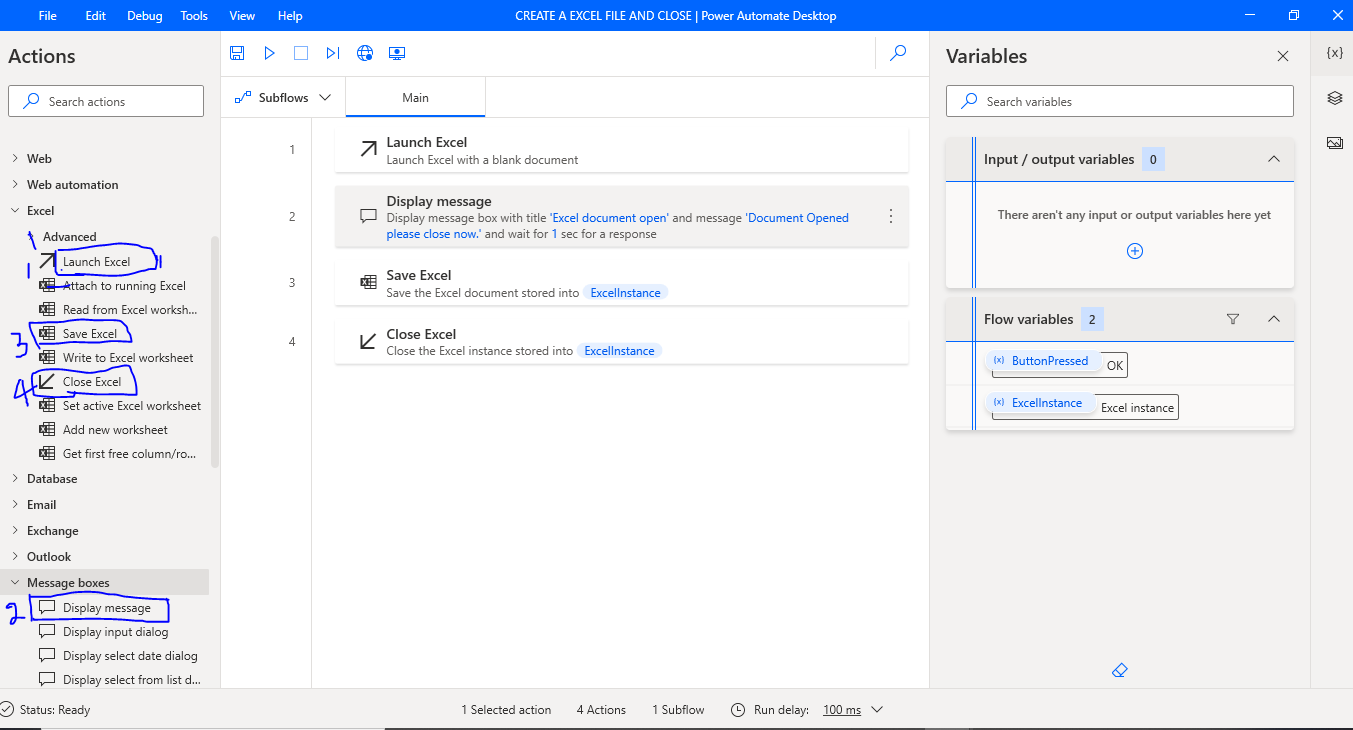
Open newly created flow and open the Excel tab, drag the “Launch Excel”.

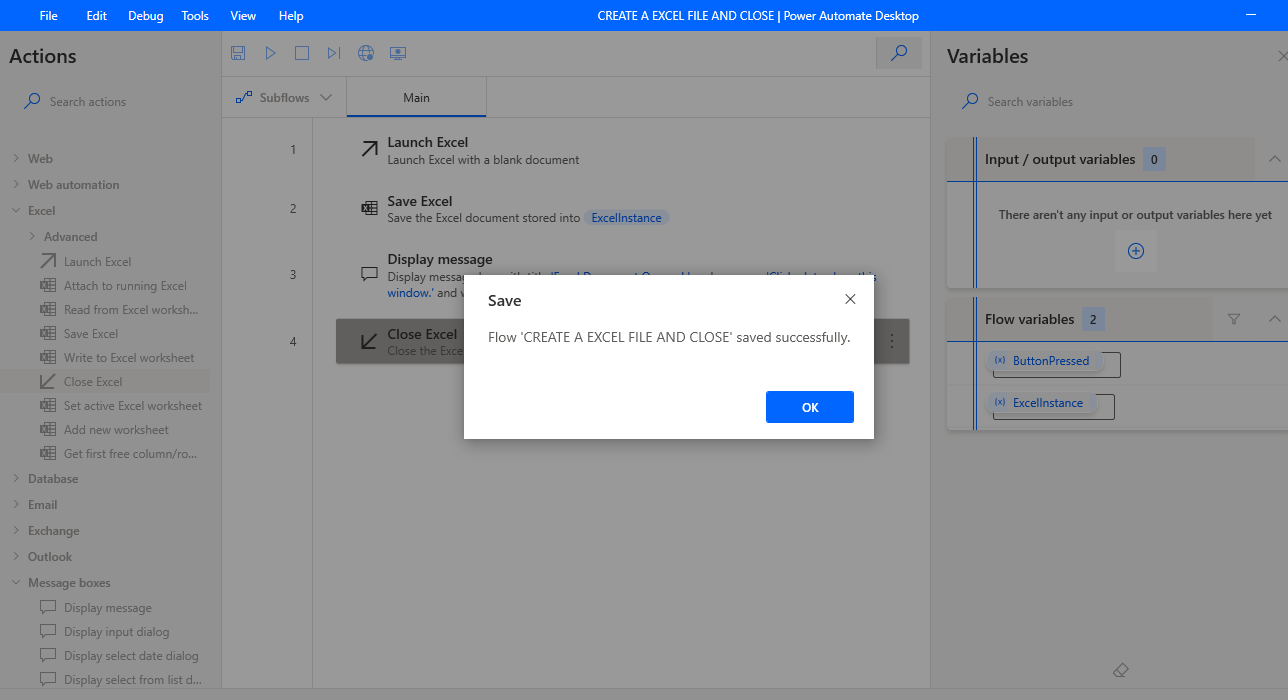
Click save…

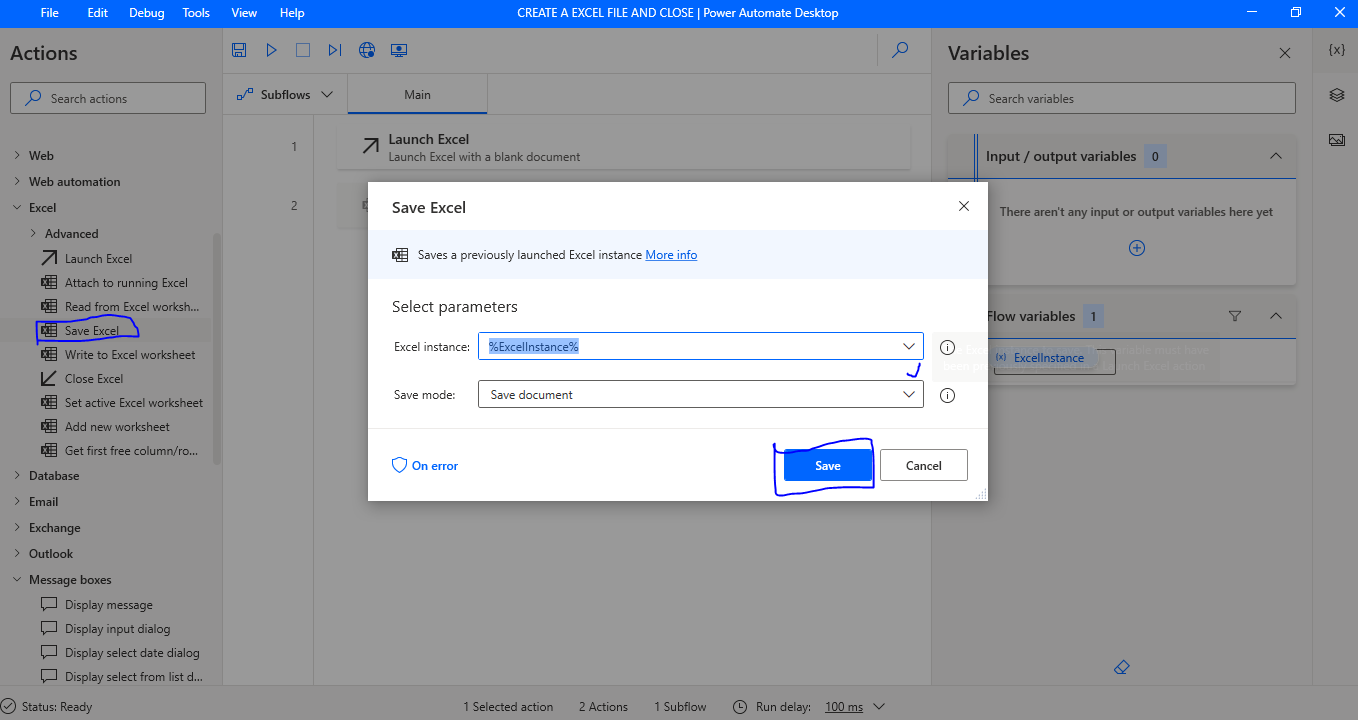
Then drag the “save file” from excel tab again, click on save button.
Drag the “Display Message”  box from  “Message boxes” Give message box title, message to display, “message box icon” i have chosen “information”,
Message box button “OK”.
Default button First button.
Keep Message box always on top slide button to yes.
Close message box automatically again a slide button to yes.
Timeout set to “1”.
Finally click Save.

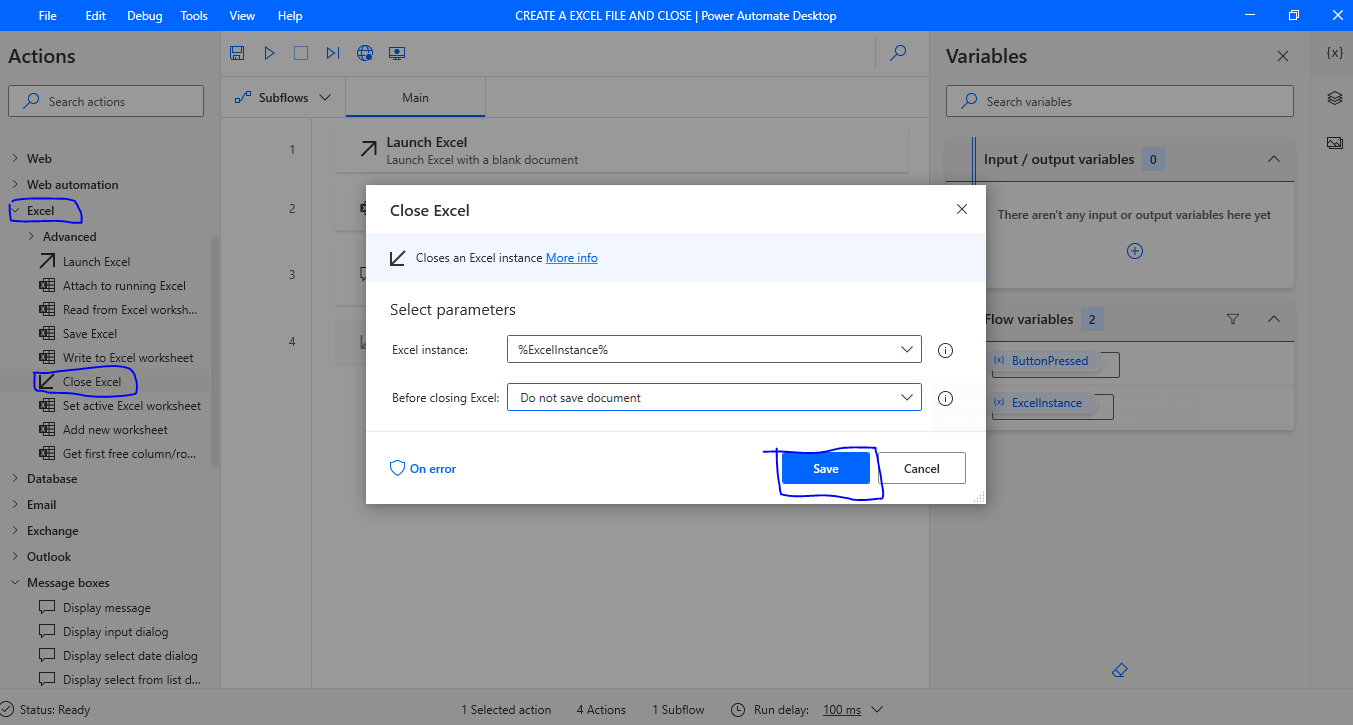
Lastly drag the “Close Excel” and  click save.

 
Click to Save the flow.


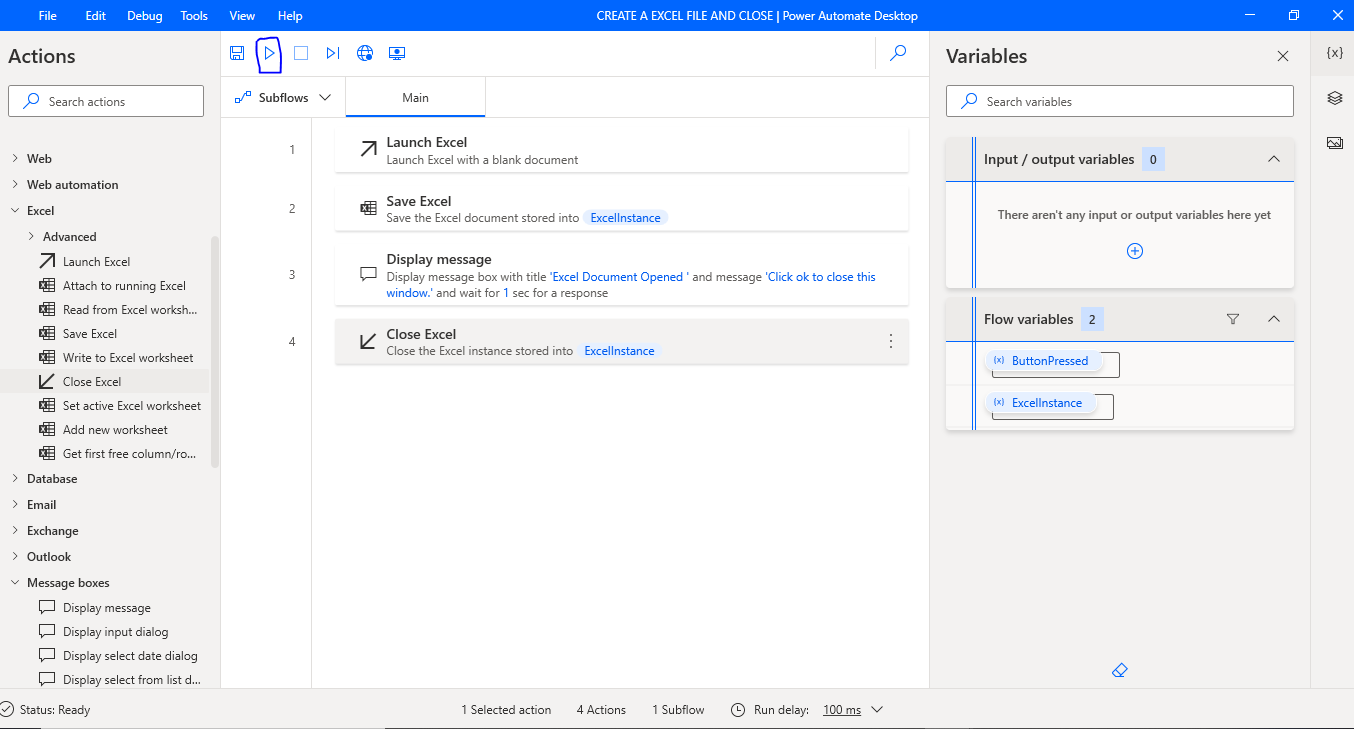
So you will see all the steps like below image:
Now you can click on play button to see the Power Automate Desktop process in action.
This is a simple PAD where you can automate to process with just click of a button.
I hope this helps.
Malla Reddy(aka UK365GUY)

Share this:

{How to stop Model Driven App user from exporting Confidential data into Excel}

Hello Everyone,

Suppose there is a requirement to not to allow users from exporting the data from Model Driven Apps ..
How would it be possible?
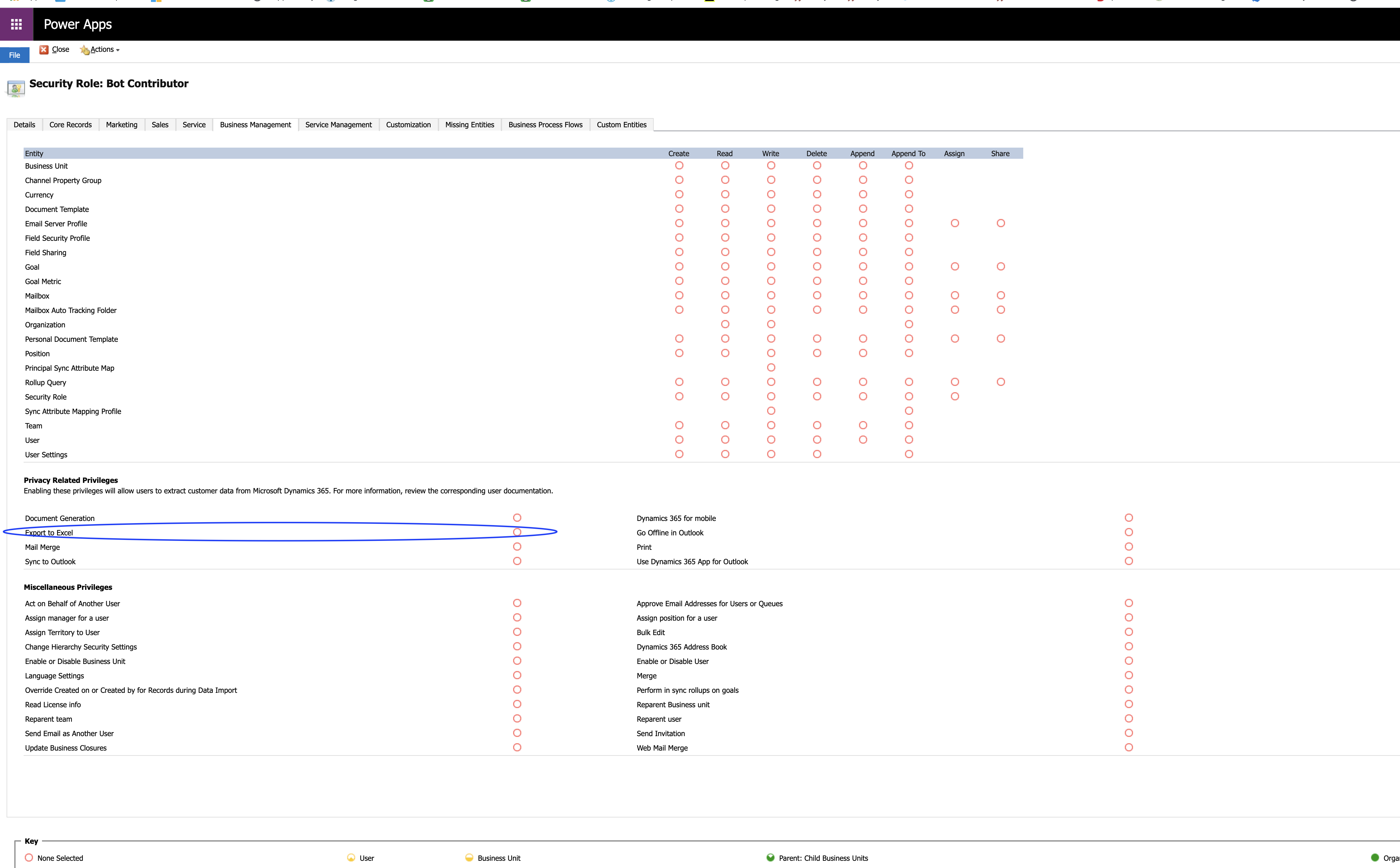
Its simple in security roles previleges there a previlege called ” Export to Excel”
You need to select none then only the users dont get the capacity to export the data to excel..
So any user who is having this kind role security role, they are not able to export the data into excel anymore.
Its as simple as that, no customizations required or Ribbon Workbench.
I hope this helps.
Malla Reddy(aka UK365GUY)
Share this:

{How to update security roles to the table forms on Model Driven Apps using unmanaged solution}

Hello Everyone,

Suppose there is requirement to apply security roles to the table forms by default, doing this manually on the Model Driven App tables is daunting task.
Simple solution is create a new solution and add all the tables required to apply security to all forms on those tables.
Follow these steps:
1. Create a solution.
2. Add tables required to apply security to the forms.
3. Publish all customizations.
4. Export the solution as unmanaged.
5. Import the solution into the other environments.
Bingo thats all your new security to the forms have been applied with out manual work of opening each table and apply security.
I hope this helps.
Malla Reddy(aka UK365GUY)
Share this: