Menu Close

Category: Blog

{How to apply security roles to model driven apps using unmanaged solution into other environments}

Hello Everyone,

I am going to share a scenario, there is a requirement to apply security roles to the Model Driven Apps in different environments.
Lets gets started.
Suppose there are 50 security roles that needs to be applied to Model Driven Apps in different environments as part of the solution deployment to the various stages of the software development life cycle.
1. Create a solution
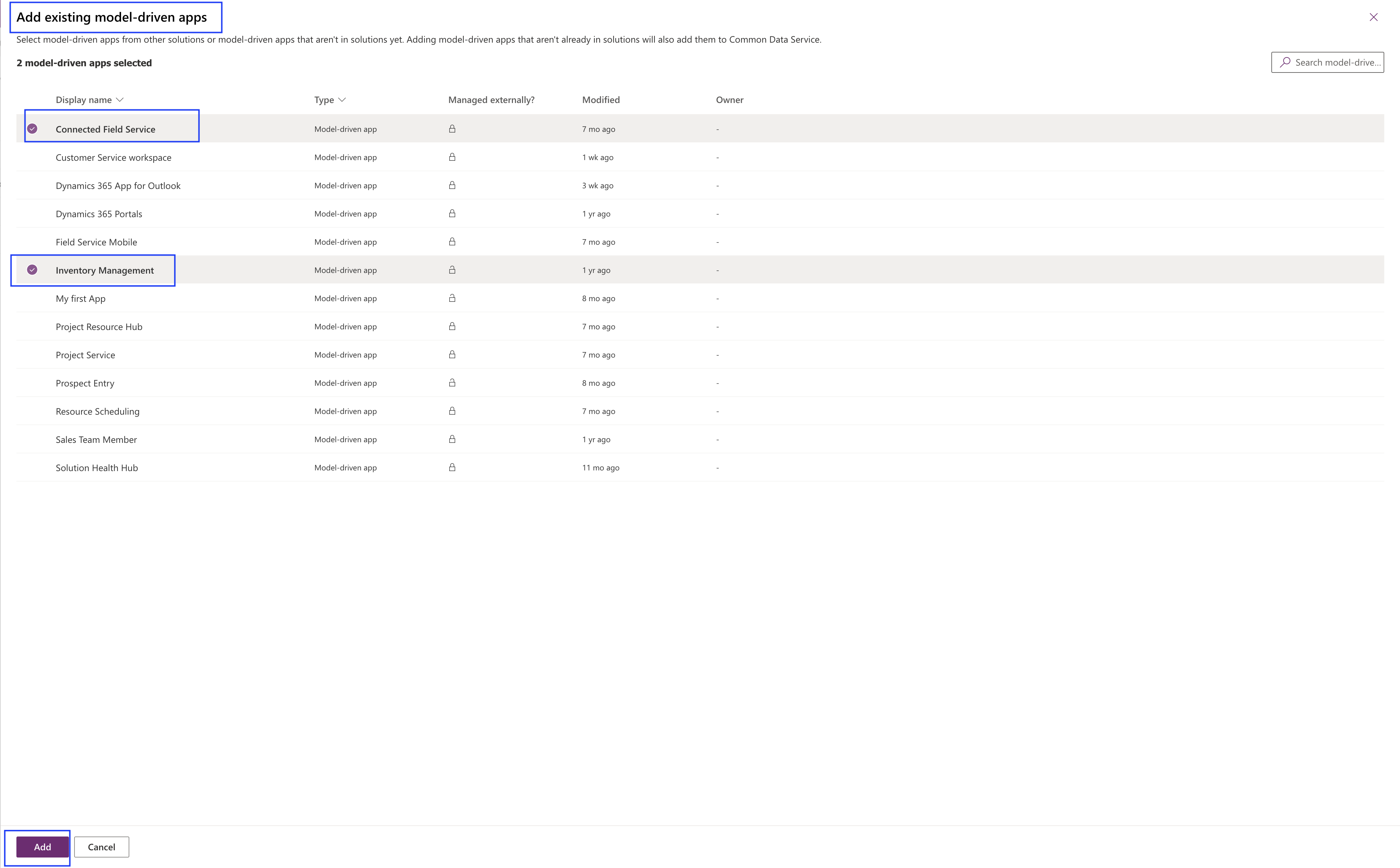
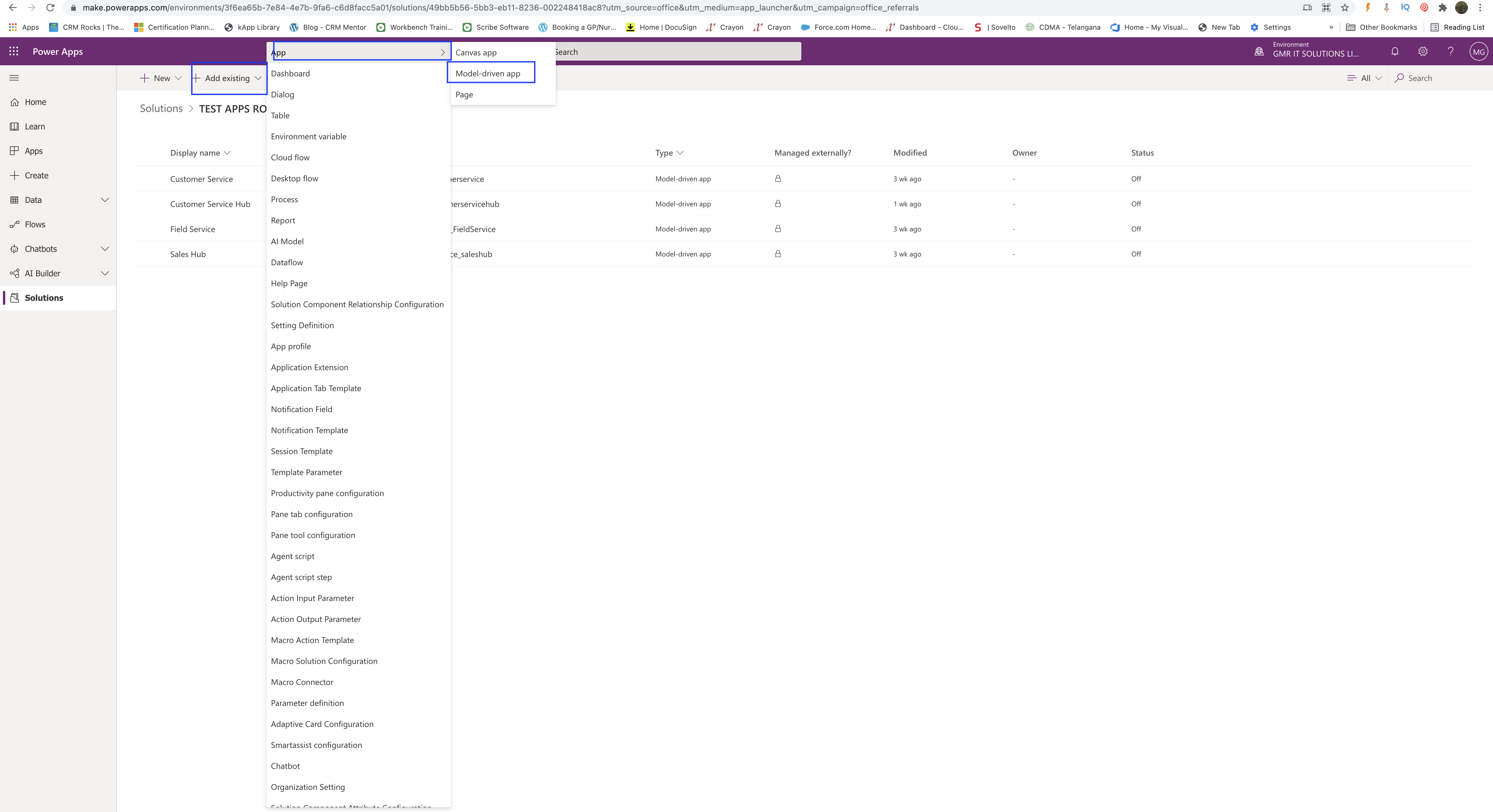
2. Click on add existing and select “App” then select the ” Model Driven App” see below image…
Then select the Model Driven Apps from the list of Apps and click add to the solution.

Once the required apps are selected then you can export the solution as unmanaged to different environments to make all the environments App looks identical.

I hope this helps.

Malla Reddy(aka UK365GUY)

Share this:

How to enable Mobile Offline Capabilities to users on new Power Platform Admin Centre for Dynamics 365 Field Service App

Hello Everyone,

Today i am going to show how to enable mobile offline capabilities in Power Platform Admin Centre.

Lets gets started.

Login into your power platform admin center Here

Then select the environment you want to enable this mobile offline capabilities.
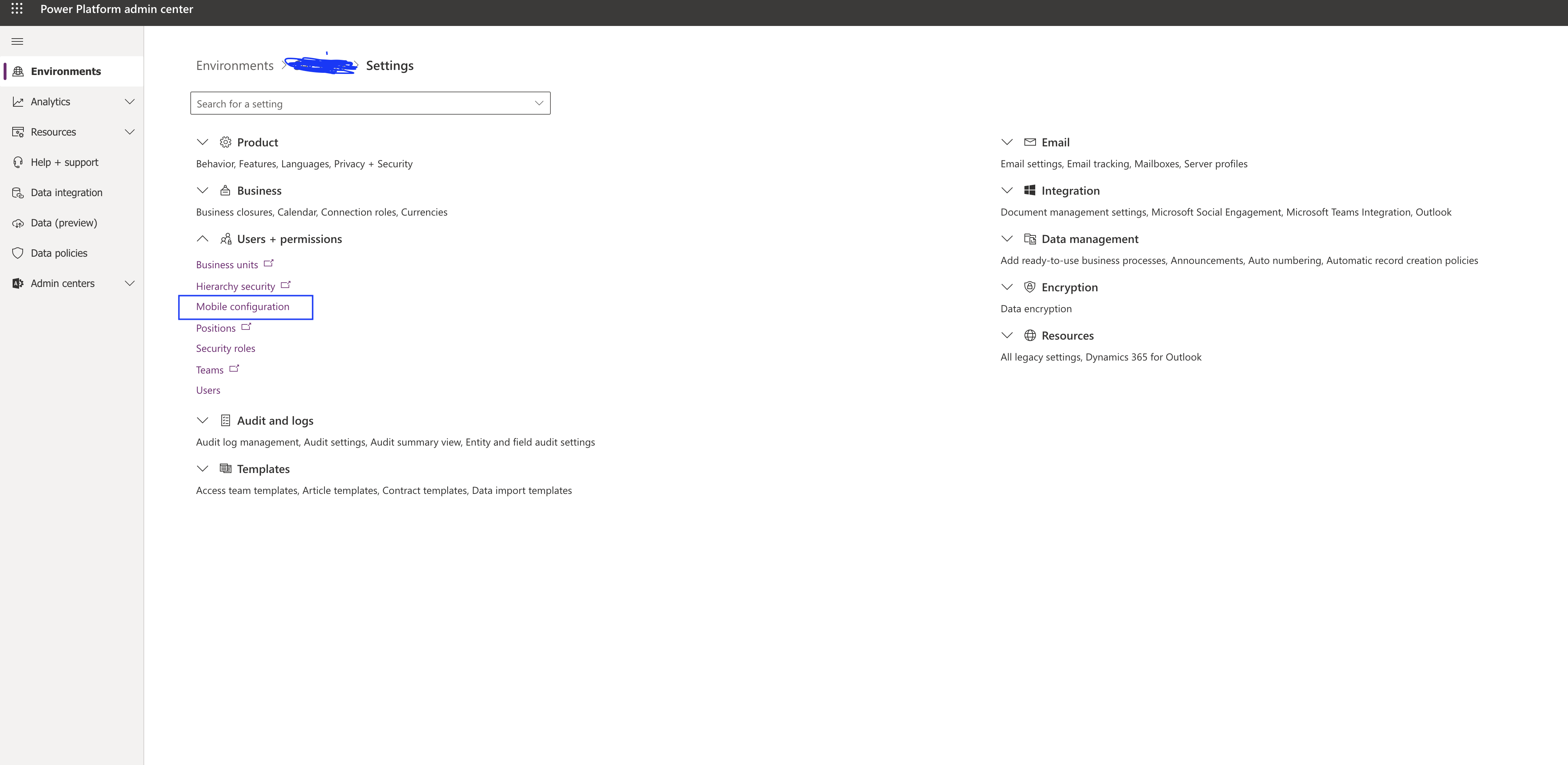
PowerPlatform Admin Centre

Click on Settings and under the users & permissions section click the drop down and select the “Mobile Configuration”.

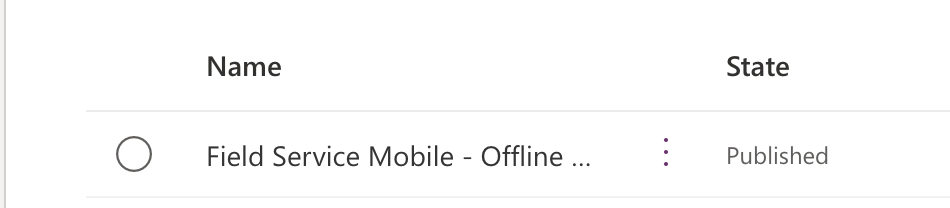
You will be presented with the below profile, if the profile is not created then create new one.

Profile

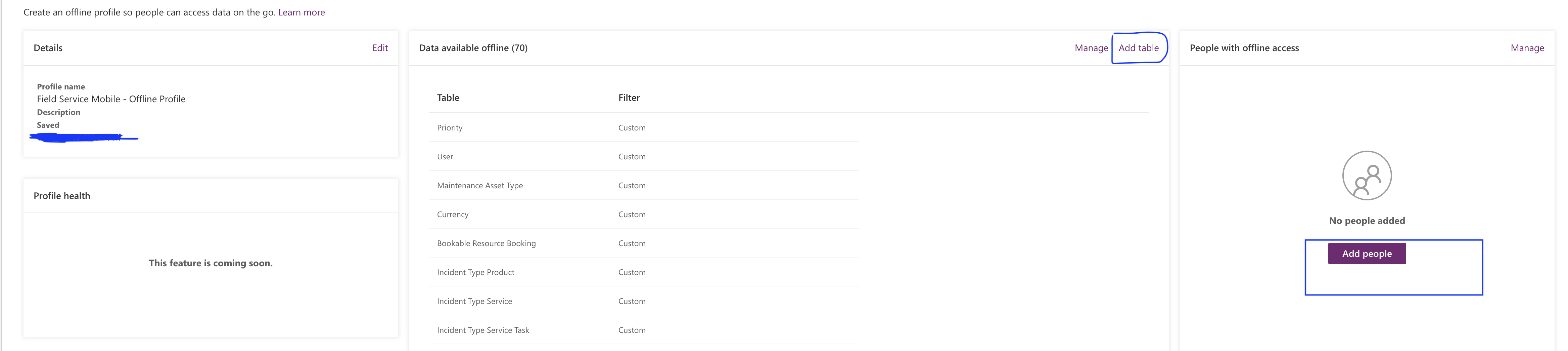
In this blog post i have created field service mobile- profile and i have chosen the required tables to show the user during the offline access to the Dynamics 365 field service app. It is mainly for the field service technicians and service technicians.

Also you can select the users who are required to get access to the Dynamics 365 Field Service App from on Mobile Offline.

I hope this helps.

I hope this helps
Malla Reddy( aka UK365GUY)

Share this:

New Terminology on Dataverse

Hello Everyone,

As you all know Microsoft make changes names to applications as and when required, so to just make you aware of those new terms related to Dataverse.

No more ” entity” term anymore now it is been called as “Table”.

No more ” field” term anymore now it is been called as “Column/Columns”.

No more “records” term anymore now it is been called as ” Row/Rows”.

No more “Optionsets, multiselect” term anymore it is been called as “Choices”

No more “Two Options” term anymore it is been called as “Yes/No”.

You can find more about latest updates on Microsoft Docs

I hope this helps.

Malla Reddy aka UK365GUY πŸ‡¬πŸ‡§

Share this:

How to turn on Quick Book on Work Order Field Service App Dynamics 365 CE

Hello Everyone,

Its been a while i haven’t blogged.

So today i am going to show how to turn on quick book on Work Order Record in Dynamics 365 CE Field Service.

I have been working on Field Service Project recently and while i am configuring security roles and testing them out, an issue appeared the “Book” button” not working when i tried to book a resource from the work order.

Error is spinning wheel appear on the screen and not loading anything.

Resolution:

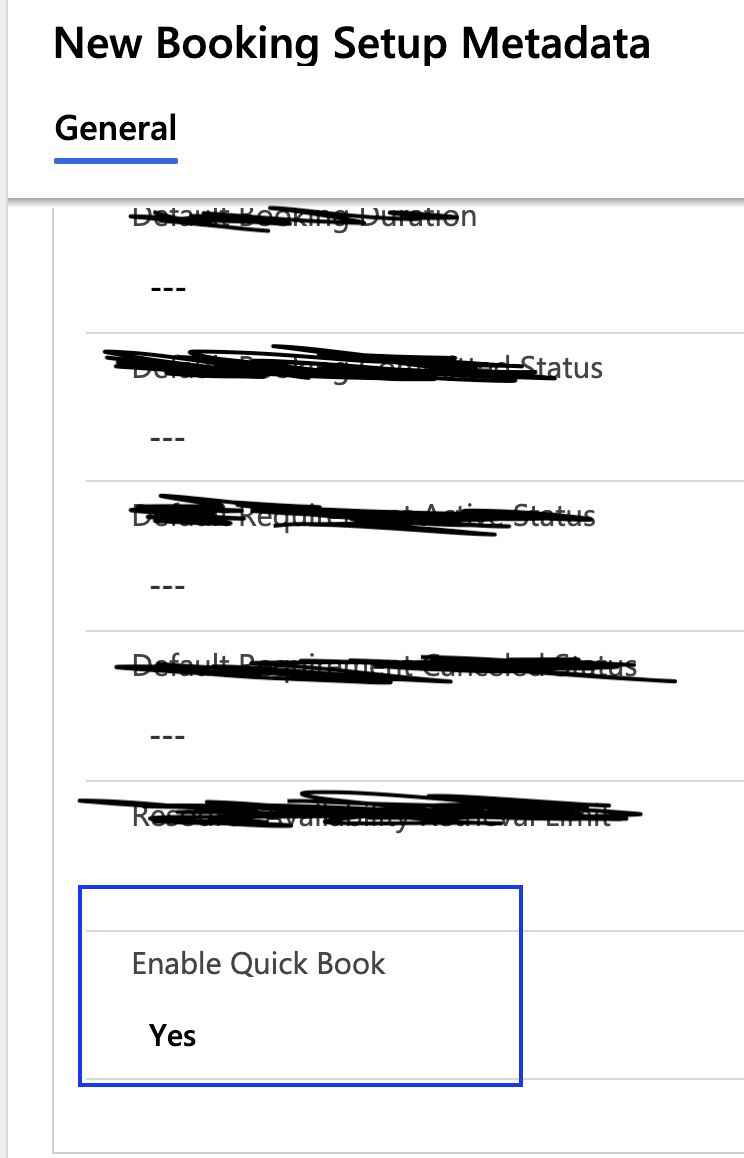
Go to advance find and select the “Booking Metadata Setup” entity and click on the create new record button on the advanced find UI.

Once opened the record and change the value on “Enable Quick Book” to YES. then save the record.

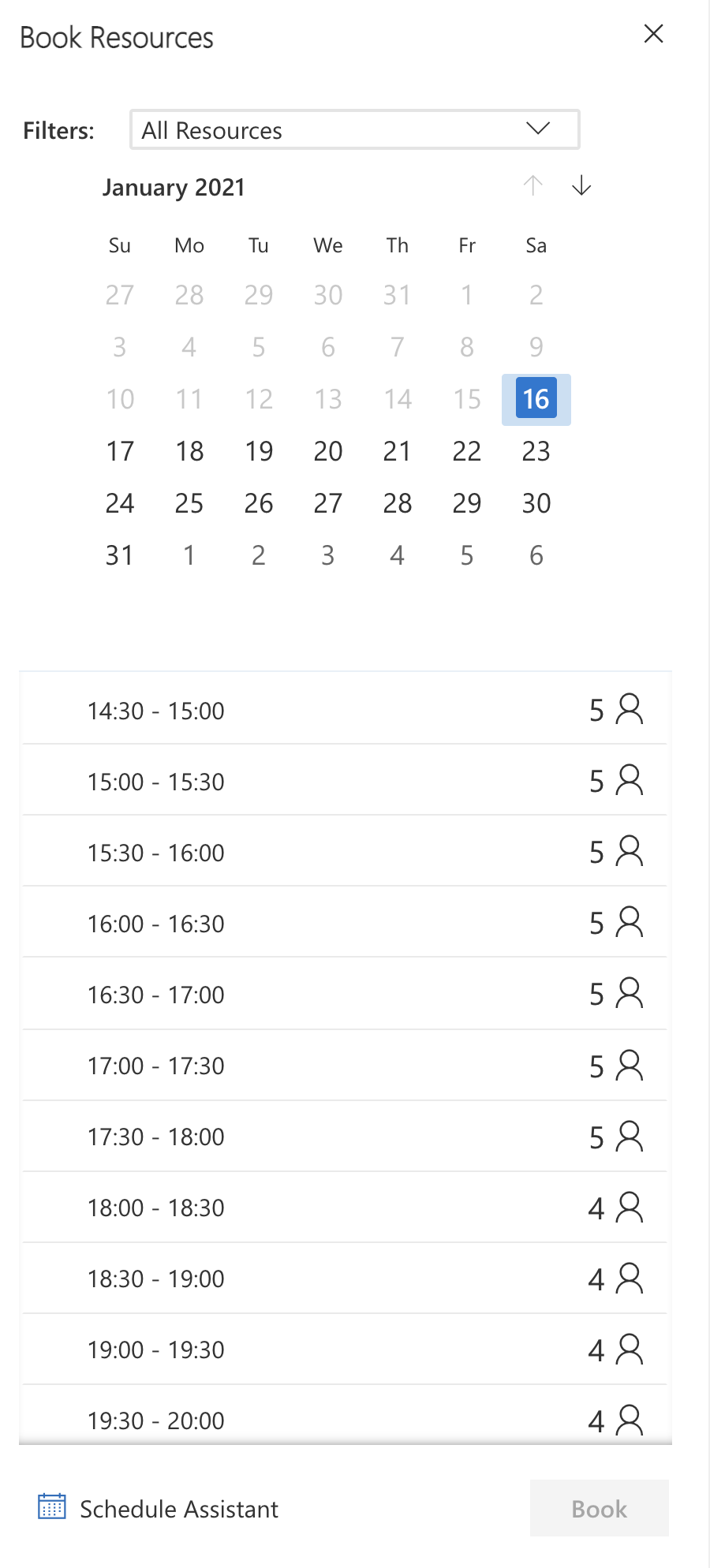
Now go back to the Work Order Entity and try to click on “Book” button then you will be presented with the right window with the available time.

Then you can select the time slot and book the resource accordingly.

I hope this helps.

Malla Reddy aka UK365GUY πŸ‡¬πŸ‡§

Share this:

How to integrate Power Virtual Agent with Microsoft Teams

Hello Everyone,

Today i am going to show you how to integrate Power Virtual Agent with Microsoft Teams.

Without further a do.. Let’s gets started..

Open up Microsoft Teams and click on “….” then search for Power Virtual Agent.
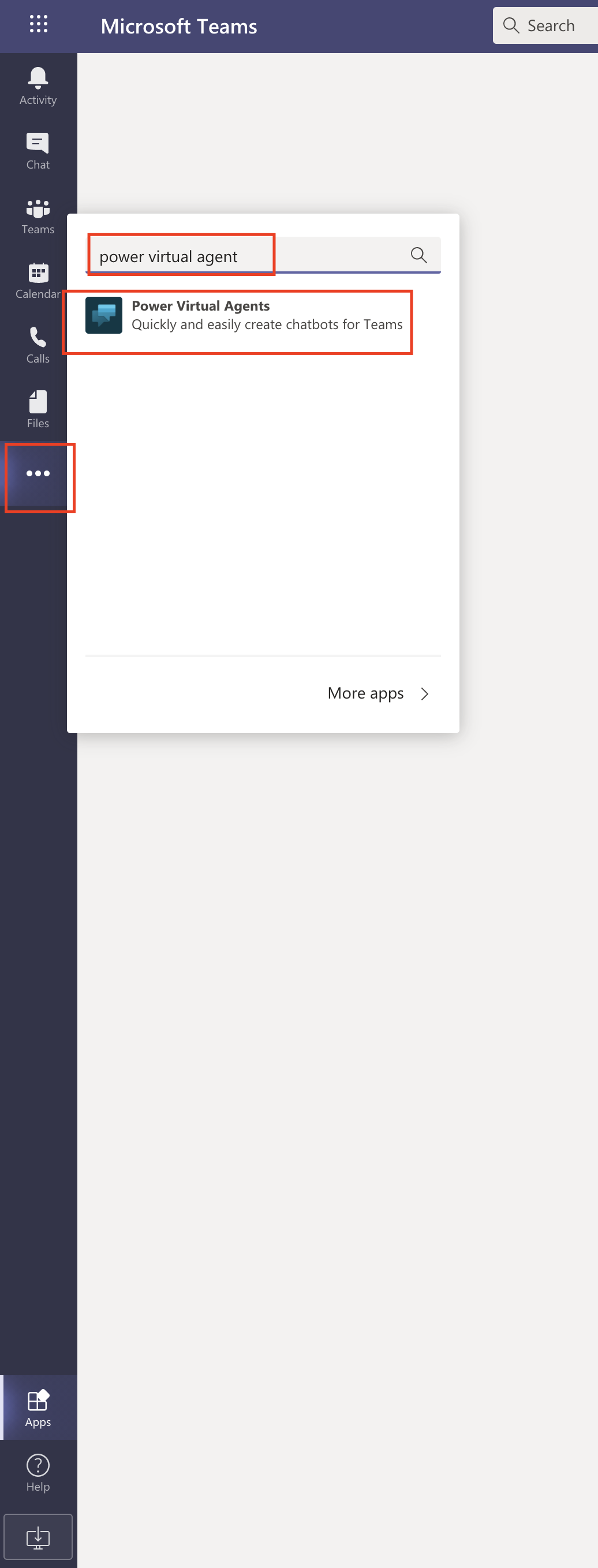
Then click on the Power Virtual Agent to install on the Microsoft Teams.

Power Virtual Agent will be installed on your Microsoft Teams.You can start creating your first chat bot for your teams to stay focused, productivity, do more, agile improve over all productivity of your business.

With the Power Virtual Agent you can improve:
Engagement
Efficiency
Productivity

With the Power Virtual Agent for Microsoft Teams, your team will have more productivity by not switching between the application for the communications. your people will get help 24/7.

Let’s create quick chat bot using Microsoft Teams and how that works.

Without further a do, lets gets started.

Now you are in the Microsoft Teams and Power Virtual Agent added to it.

Click on the start button as show below.
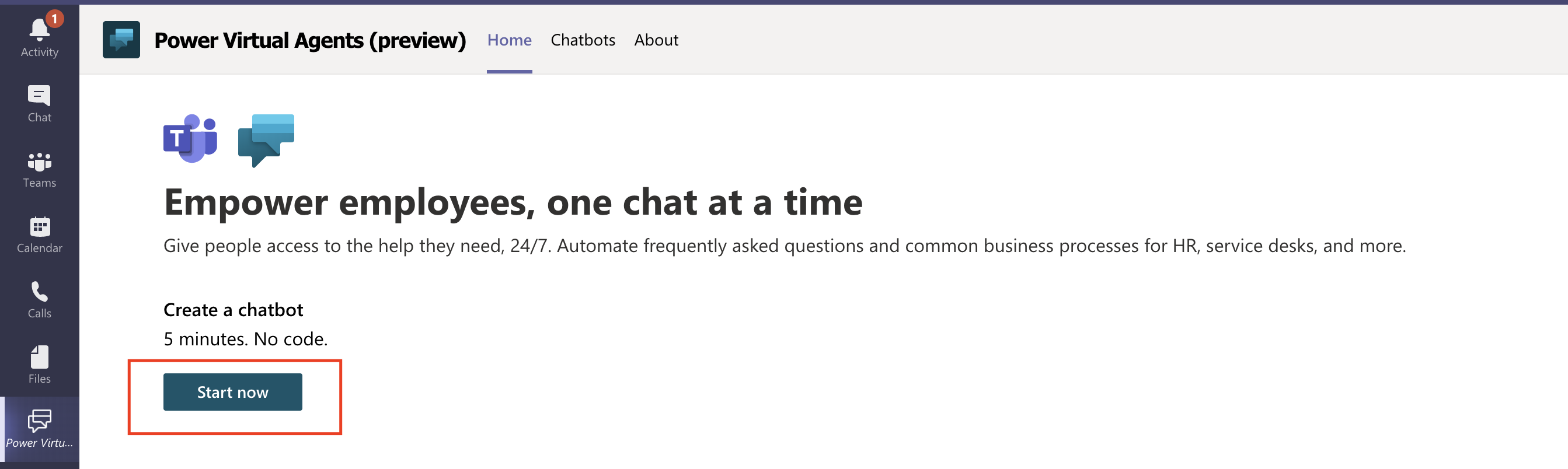
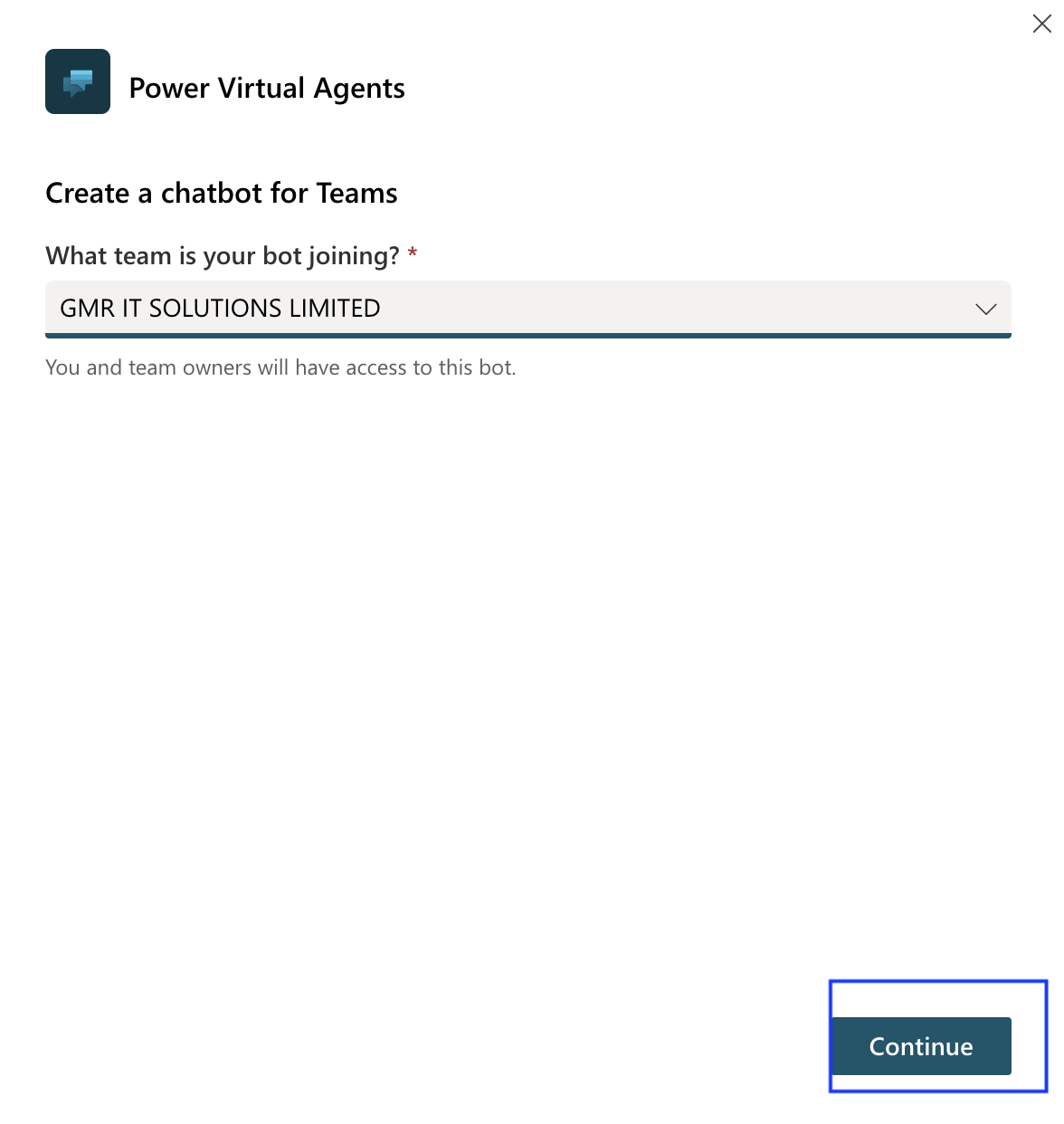
You can create a chat bot for your Teams from here, select the team for the team joining.

So i have selected the “GMR IT SOLUTIONS LIMITED” and click continue.. see below screenshot.
Then you will be prompted with new window and give it a name for New bot and select appropriate language.

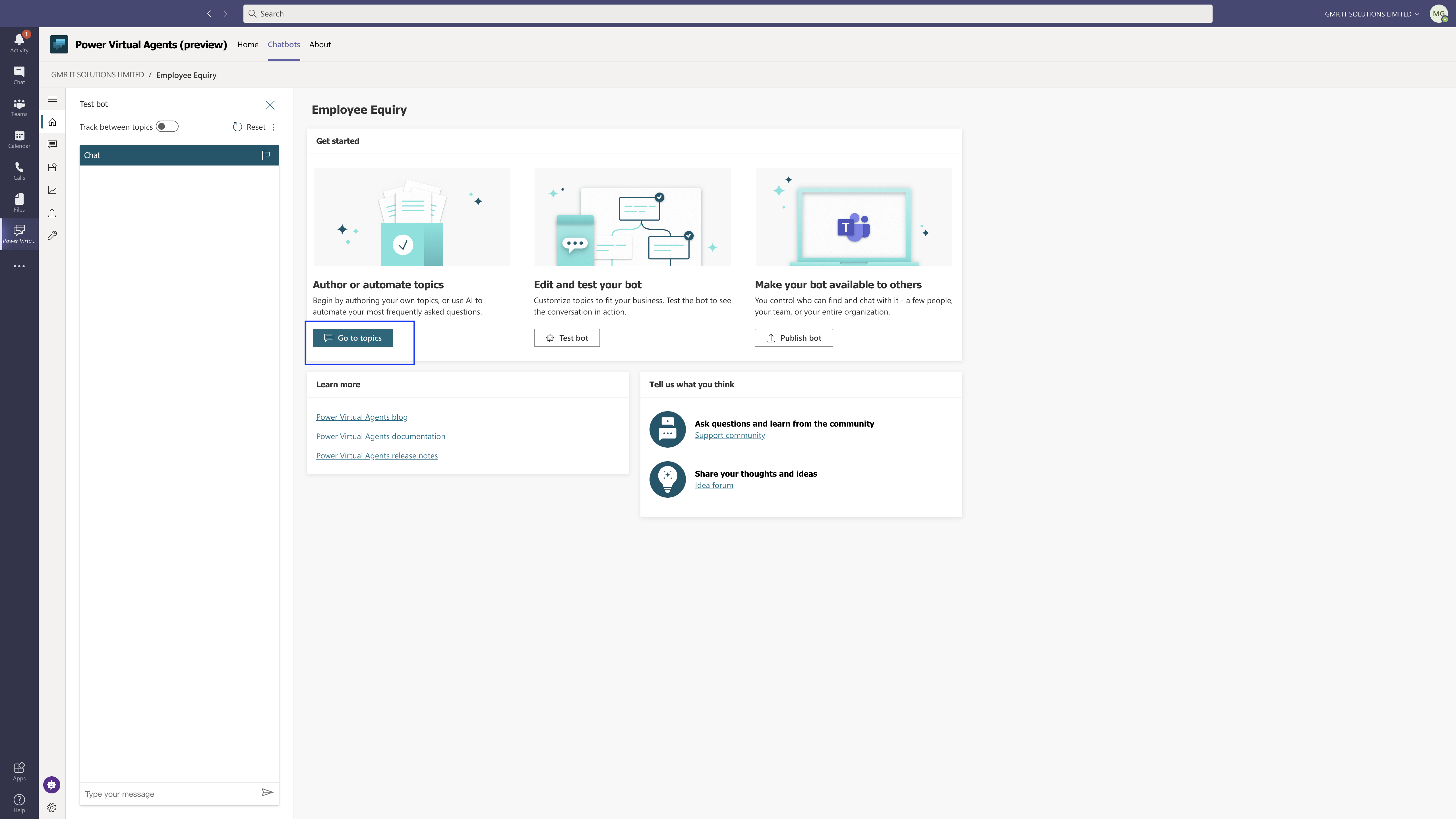
Now that i have created the “Employee Enquiry” chat bot, you can create your own topics or use AI to automate your most recently asked questions. Click on “Go to topics” to
Our next step is to set up your chat bot with the name, description and trigger phrases. as you can see in the below screen shot that i have created 3 simple trigger phrases.

1. Can i speak with HR Team?
2. I am i still on Furlough?
3. When would be offices opened?
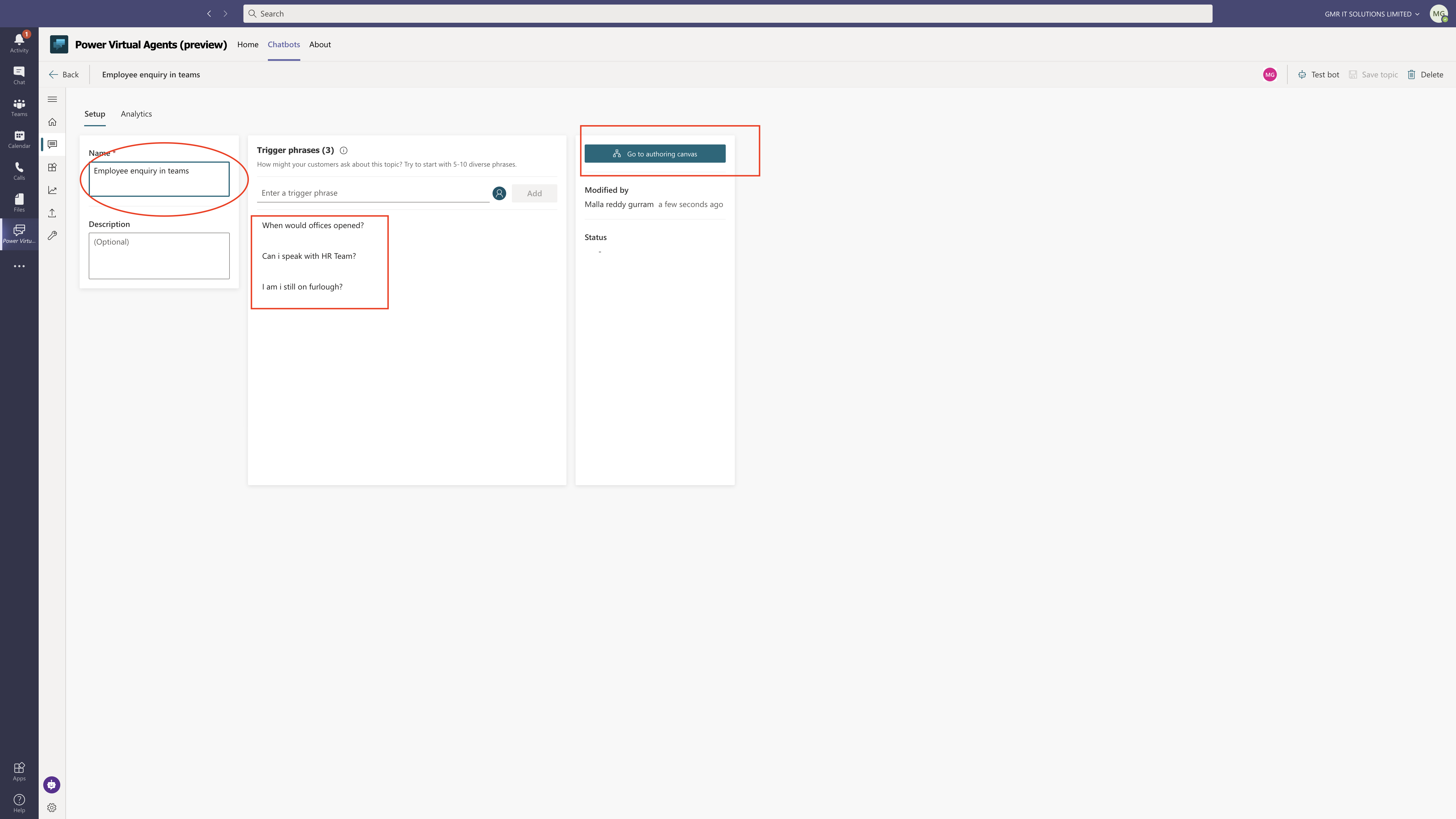
Then click on “Go to authoring canvas”.

You will be prompted with below screen where you can create “Trigger Phrases” so i have created 3 Phrases:
1. When would offices opened?
2. Can i speak with HR Team?
3. I am i still on Furlough?

Then i have created a message “Hello” then created a question “Hello how are you ? how can i help you” with the three options for the user..

1. Office opening date
2. Contact HR Team
3. Furlough Information.

If the user selects any one of them then the chat bot will answer accordingly.

Here in this example user selects “Office opening date”.

Then bot will answer ” Due to pandemic offices are closed until further communications from HR Team.

Then bot will ask question ” do you have any other questions? then options will be given to the user like “Contact HR Team”.

If the user selects “Contact HR Team” then bot answer will be ” HR Team only available on email until further notice”.

Then the conversation will end with short survey for the rating…

If the user initially selects “Contact HR Team” then bot message will be ” HR is available on email only until further notice, and end of conversation with short survey.

Again if the user initially selects “Furlough Information” then bot answers “Due to Covid 19 Central Government extended furlough until Nov 2nd 2020 ” and ends with end of conversation with short survey ratings.

I hope this helps.

Malla Reddy aka UK365GUY πŸ‡¬πŸ‡§

For Microsoft Dynamics 365 Consultancy|Power Apps|Training|Support|Licensing|Web Hosting|Websites
Contact us: https://www.uk365guy.com
Email: info@uk365guy.com

Share this: