Menu Close

Category: Blog

{How to} Power Platform Dynamic 365 Sales App settings render Unified Interface only

Hello Everyone,

Today i am going to show how you can quickly set the Unified Interface only for any Dynamic 365 App’s either it may be

Dynamic 365 Sales App
Dynamic 365 Customer Service App
Dynamics 365 Field Service App

For example:

Login into your Dynamic 365 Sales App and click on the little gear icon..
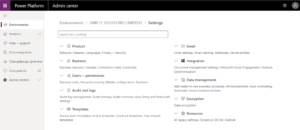
Now settings page is displayed on the Power Platform area.
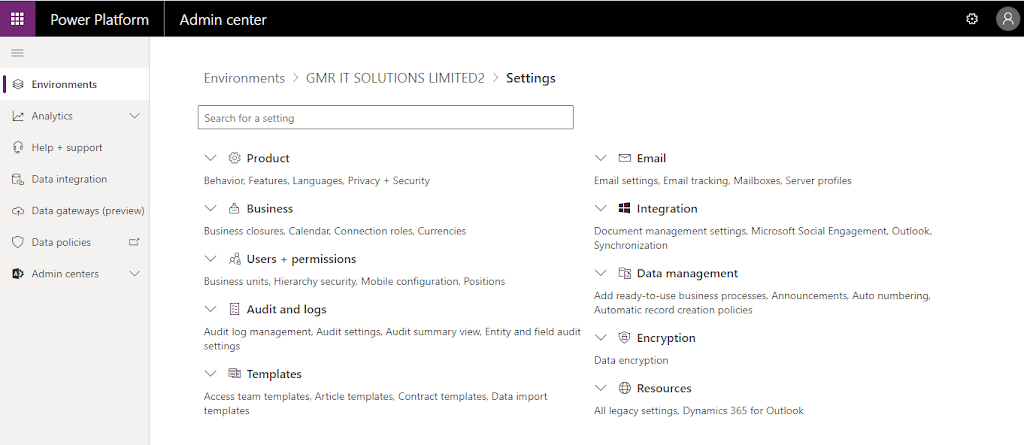
Click on the “Settings” with gear icon..
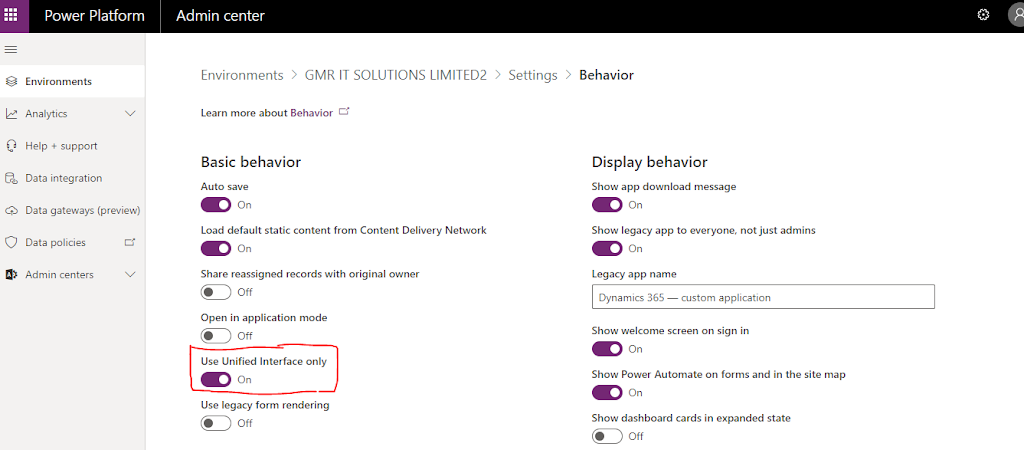
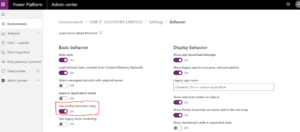
Now save the settings..

When you login into the dynamics 365 sales app it automatically renders Unified Interface only.

I hope this helps.

For Microsoft Dynamics 365 Consultancy|Power Apps|Training|Support|Licensing|Web Hosting|Websites
Share this:

{How to} Power Platform One place for reference for the latest videos and deck

Hello Everyone,

I thought this blog post might be very useful for quick reference for Power Platform consultants and administrators to get to know more about the Microsoft Power Platform.

Topics:

1. Latest best practices for Power Platform Center of Excellence (CoE)
Center of Excellence: Tried and tested techniques
2. Top tips
3. what’s new.

If you are looking for latest updates using mediums like videos and decks, then look no further here is the link.

Videos and PowerPoint Presentations.

I hope this helps.

For Microsoft Dynamics 365 Consultancy|Power Apps|Training|Support|Licensing|Web Hosting|Websites
Share this:

{Dynamic 365 Sales Hub} Add existing record button on Sub Grid

Hello Everyone,

Did you know on Dynamic 365 Sales Hub aa new feature has been added in 2020 release wave 1.

I was working on custom entity on the sales hub and there is a requirement to add a sub grid to fetch existing products from “product catalog”.

Here is the magic..

so you can add the products directly instead of clicking on the “+” sign on web client previously.

I hope this helps.

For Microsoft Dynamics 365 Consultancy|Power Apps|Training|Support|Licensing|Web Hosting|Websites
Share this:

{Power Apps} How to validate solutions in the developments for new UI Upgrade Dynamics 365 apps

Hello Everyone,

Today I am going to show on how to validate your solutions whether they are compatible with new Unified Interface of Dynamics 365 Apps for upgrade as Microsoft mentioned web client deprecated see here

So let’s get’s started then..

Head over to the https://make.powerapps.com/environments

choose the environment which you are trying to validate and then click on the solutions.

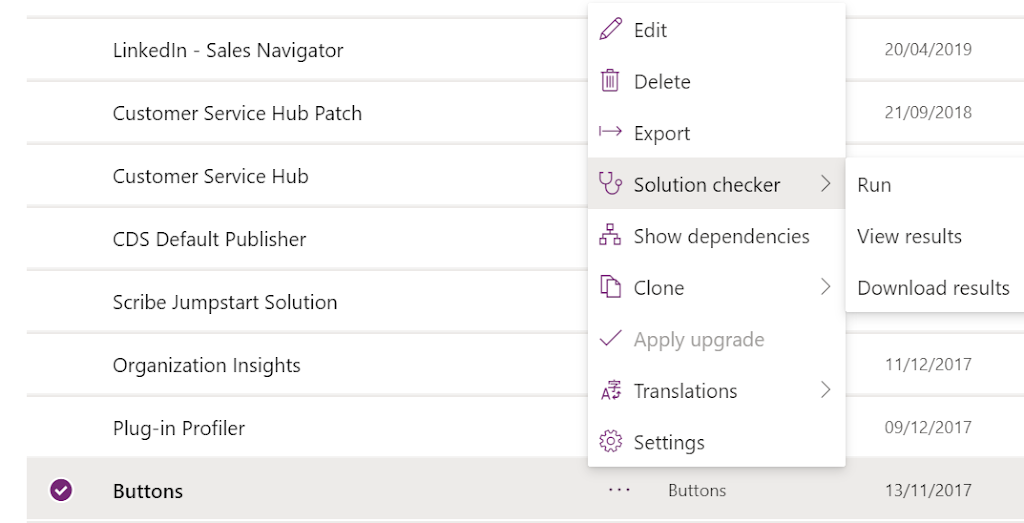
A list of solutions will be displayed and select the solution you want to validate with the “Solution Checker”.

Select the solution and click on “…” you will see “solution checker” and click on “Run”.

Then the solution will be checked by the solution checker and on top right hand corner a spinner will appear beside solution checker, once it is done.

You will get notification if you are system administrator with the solution and details or you can select the solution which is being checked and click on the “…” the you will see
> Run
> View Details
> Download

If your solution is not checked yet “View Details and Download” buttons will be disabled.

if you download you will get excel sheet along with high,medium and low warnings for that solution and how to resolve the compatibility issues.

I hope this helps.

For Microsoft Dynamics 365 Consultancy|Power Apps|Training|Support|Licensing|Web Hosting|Websites
Share this:

{power apps} Unable to view Business Process Flows on the Customer Service App New Unified Interface

Hello Everyone,

I have been working on new Unified Interface upgrade from web client of Dynamics 365 Customer Engagement..

Client have complained that they are not able to see the “Business Process Flow” on the case form when opened.

As you all know when you are transitioning from web client to New Unified Interface you will need to check your solution with solution checker.

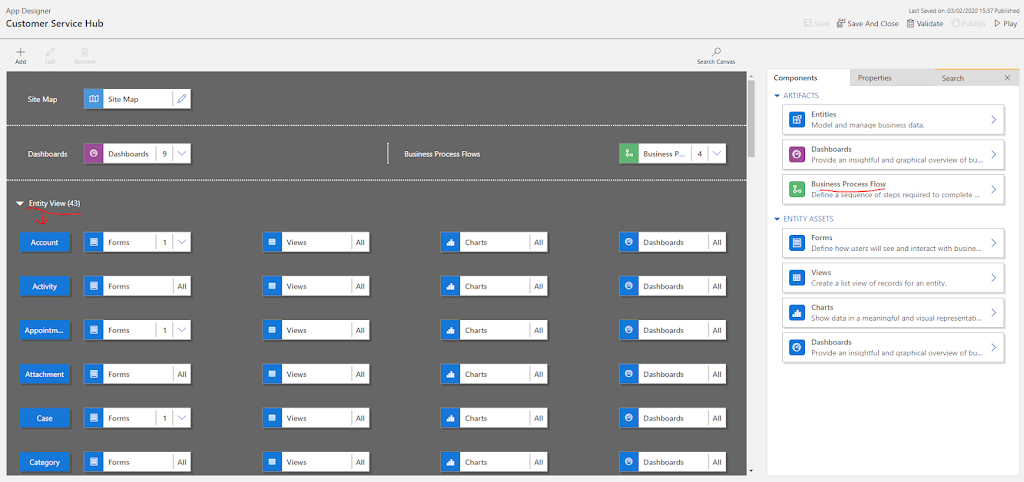
Simple solution is to open the “customer service” app on the app designer and select the Case entity and add the missing “Business Process Flows” to the entity.

similarly if there is any forms missing for particular entity just add them to the related entity then save, validate and publish.. finally “Play” the app from the app designer itself.

I hope this helps.

For Microsoft Dynamics 365 Consultancy|Power Apps|Training|Support|Licensing|Web Hosting|Websites

Share this: