Just a quick tip.
if you are checking default solution on the https://make.powerapps.com/environments/
Unable to view all entities? Don’t worry just reset the filter underneath the entities..
Just a quick tip.
if you are checking default solution on the https://make.powerapps.com/environments/
Unable to view all entities? Don’t worry just reset the filter underneath the entities..
A very happy new year 2020.
Today i am going to share a tip on how to populate custom entity on the Unified Interface of Dynamics 365.
Suppose you have created a custom entity on web client of Dynamics 365 and published the entity and when you see on the web client it is showing the entity, but when opened the Unified Interface is not.
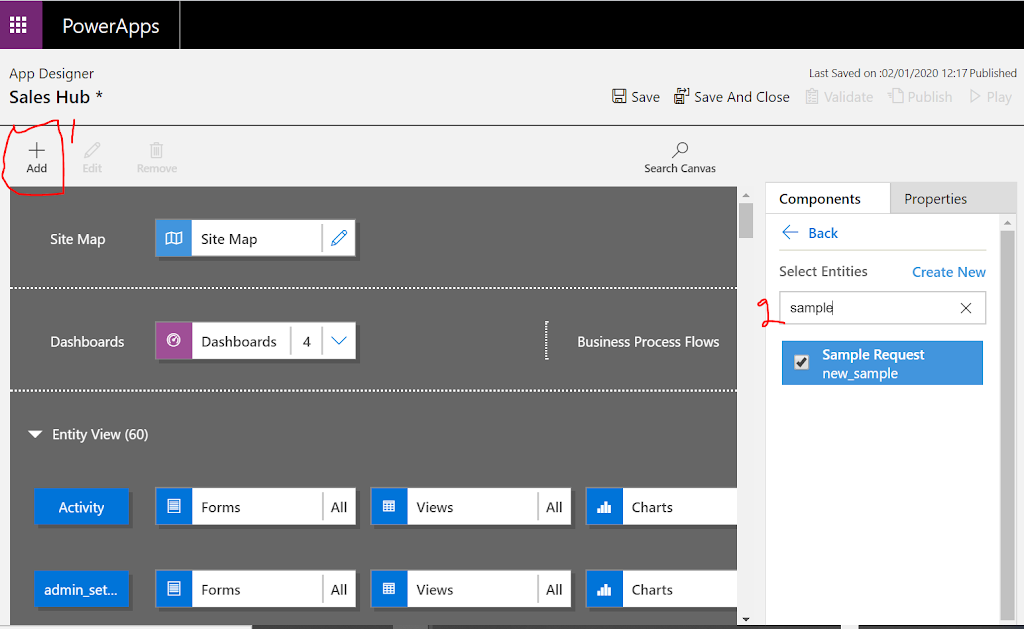
Resolution: open the Model driven App from the customizations area and add the custom entity over there and publish the entity app.
Dynamics 365 > Settings > Customizations > Model-Driven Apps
once you add the custom entity then save and publish.
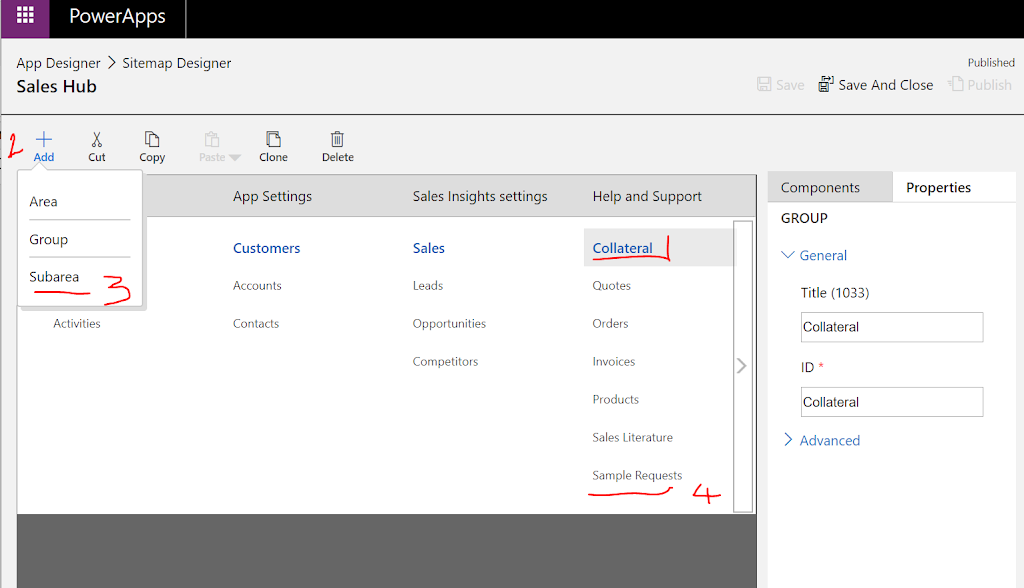
Finally add the custom entity to the site map.
Now open the Sales Hub navigate to the section, there you can see the Sample Request entity.
I hope this helps.
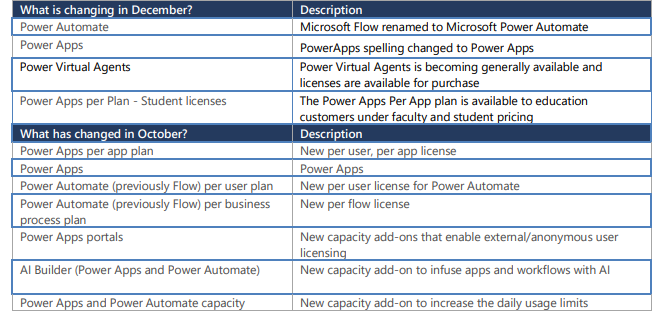
There has been a lot of changes happening on Power Platform.
Some of the changes reflects from October 2019 and what is changing in December 2019.
Please check in the below table for quick reference.
As Microsoft is transitioning from Legacy Dynamics 365 Admin Center to the Power Platform Admin Center.
So this morning i am helping one of our customers with setting the new environment(Sandbox).
I have copied Production Environment and set the Sandbox environment with full copy including all customizations and data schemas.
You can refer to the Microsoft Docs from here
Once target environment is successfully configured make sure you disable administrative mode and remove any outlook synchronization with the exchange as only one environment is integrated with outlook to avoid the email and activities being copied on to the both (Production and Sandbox) environment.
So i have tried to open the newly created Sandbox environment and i have noticed only, sales, service, marketing apps installed on to the SANDBOX environment.
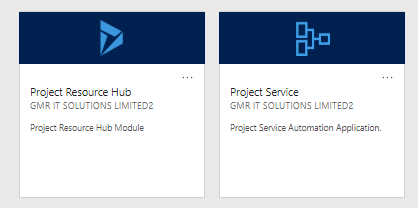
Project Service Automation and Field Service Application are missing from the Sandbox Environment.
There is a work around to get the missing application installed on the sandbox environment.
So lets gets started..
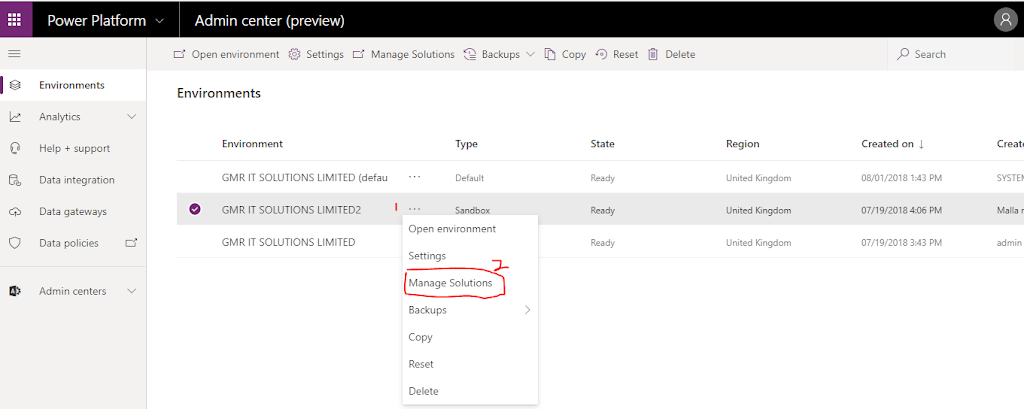
Go to the Power Platform Admin Center click here
https://admin.powerplatform.microsoft.com/environments
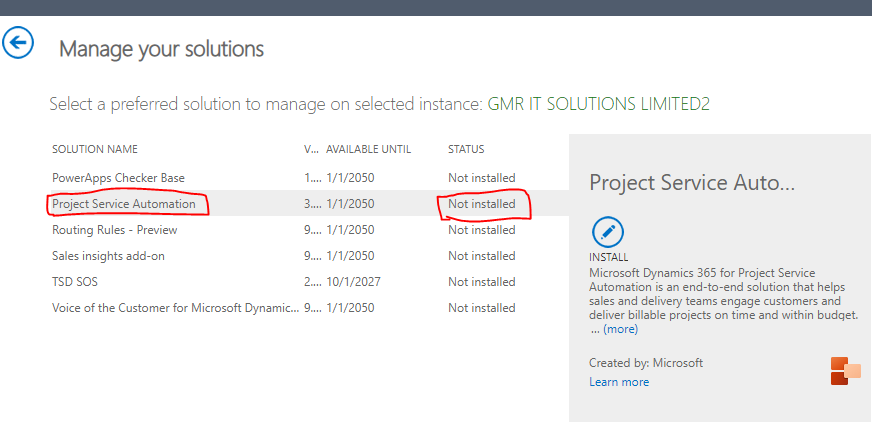
Select the Environment effected as below screen shot.
Select the Project Service Automation Application which is not installed and click install.
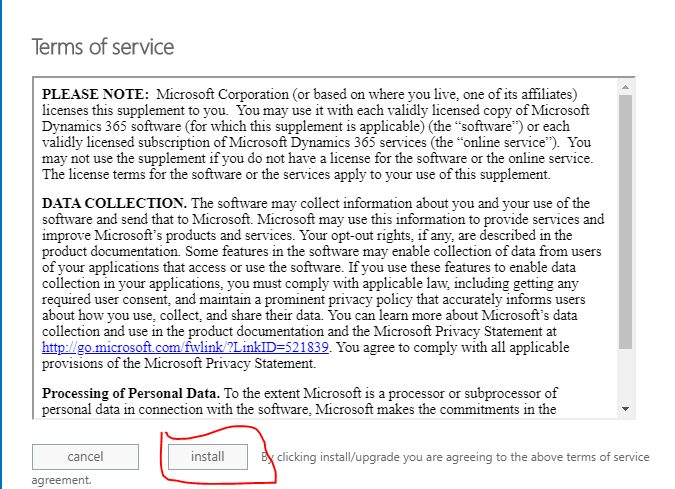
Accept terms and conditions of Microsoft.
I hope this helps.
Today i am going to share quick tip on how to view options when an Quote is created and clicked on “Create PDF or Email as PDF“, if no option available.
So let’s gets started.
Scenario: when a lead is qualified and Opportunity created, add products and create Quote, send Quote to the customer as PDF via email.
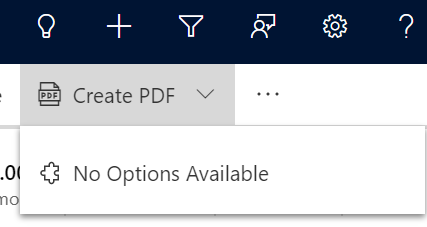
Check below image where Create PDF and Email as PDF.
When you click on Create PDF – No Options Avaiable..
Why you are not able to see because system administrator did not defined any template for the Quote Entity.
How can you achieve that?
Go to Dynamics 365 for sales Unified Interface and click on Settings and select “Advanced Settings”
– Templates -> create New Template for the Quote Entity and then you will be able to see template on the Quote -click on Create PDF -Options -> Quote Summary.
Same you can create Email as PDF as well.
I hope this helps.