Menu Close

Category: Blog

Unable to view Schedule Board in Dynamics 365 Field Services

Hi Everyone,

Today i am going to discuss about the a scenario where the Service Manager can’t access the Schedule Board from Field Service.
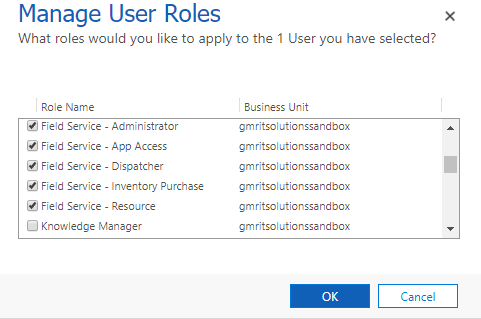
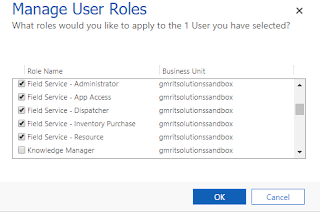
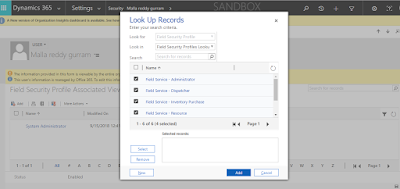
Common problem  whenever we make any changes to the security roles of the Service Manager’s in the Field Service then don’t forget make sure you select the Field Security Profile for that user in Dynamics 365 and select the roles, as shown in the below image.
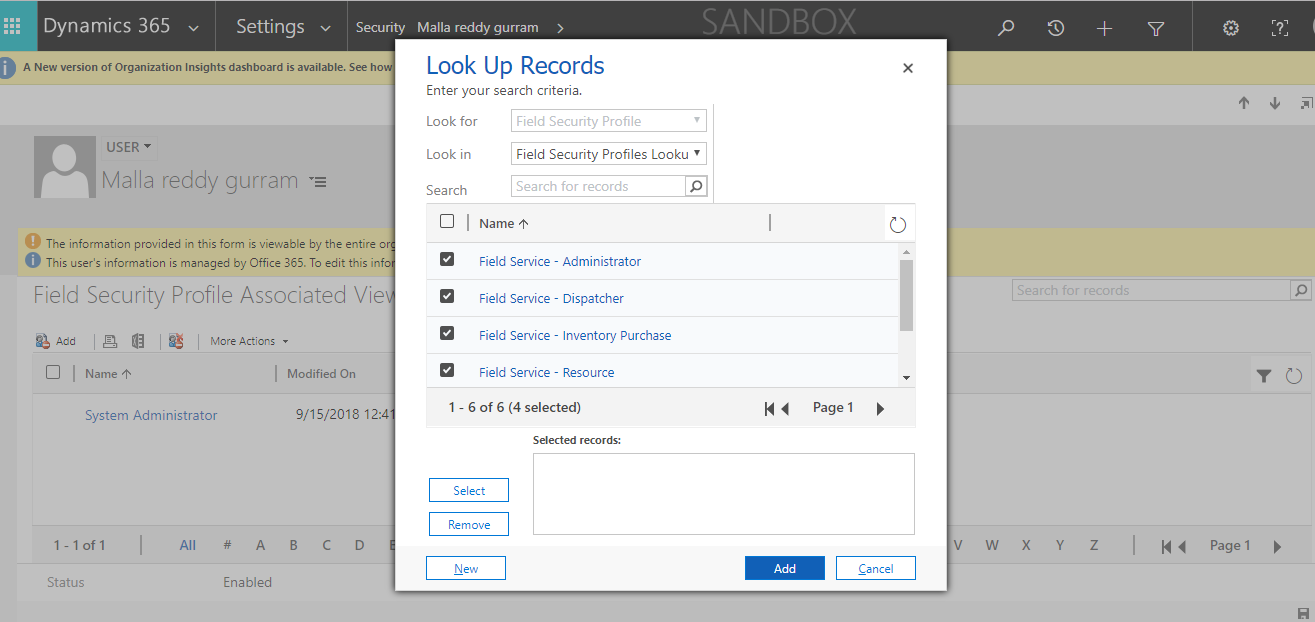
Then the Service Manager can access the Schedule Board with all the Work Orders scheduled on the Schedule Board.

I hope this helps:

For Microsoft Dynamics 365 Consultancy/Training/Support/Licensing
Contact us: https://www.gmritsolutions.co.uk
Email: admin@gmritsolutions.co.uk
Share this:

Microsoft Dynamics 365 Field Services Schedule Assistant:

Microsoft Dynamics 365 Field Services Schedule Assistant:

Schedule Assistant will be used without doing a lot of the work order process.

> Allows applying constraints to query the resources
> Duration
> Radius
>Start and End Days
> Territory
> Resource Types

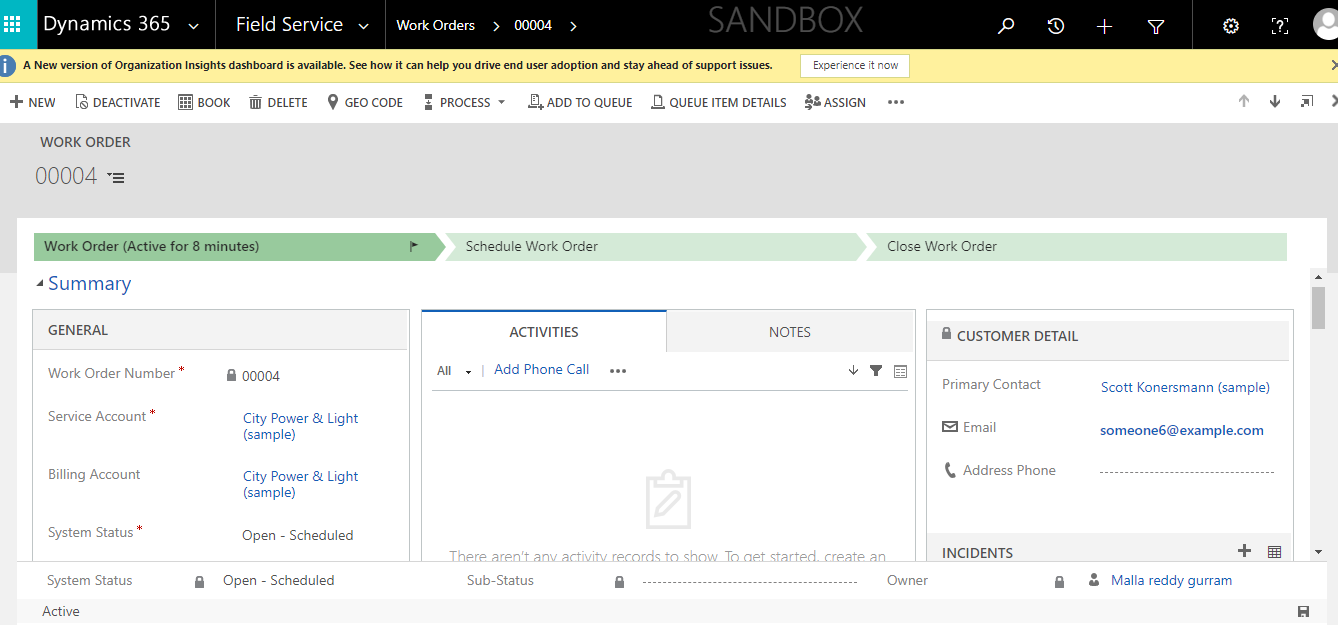
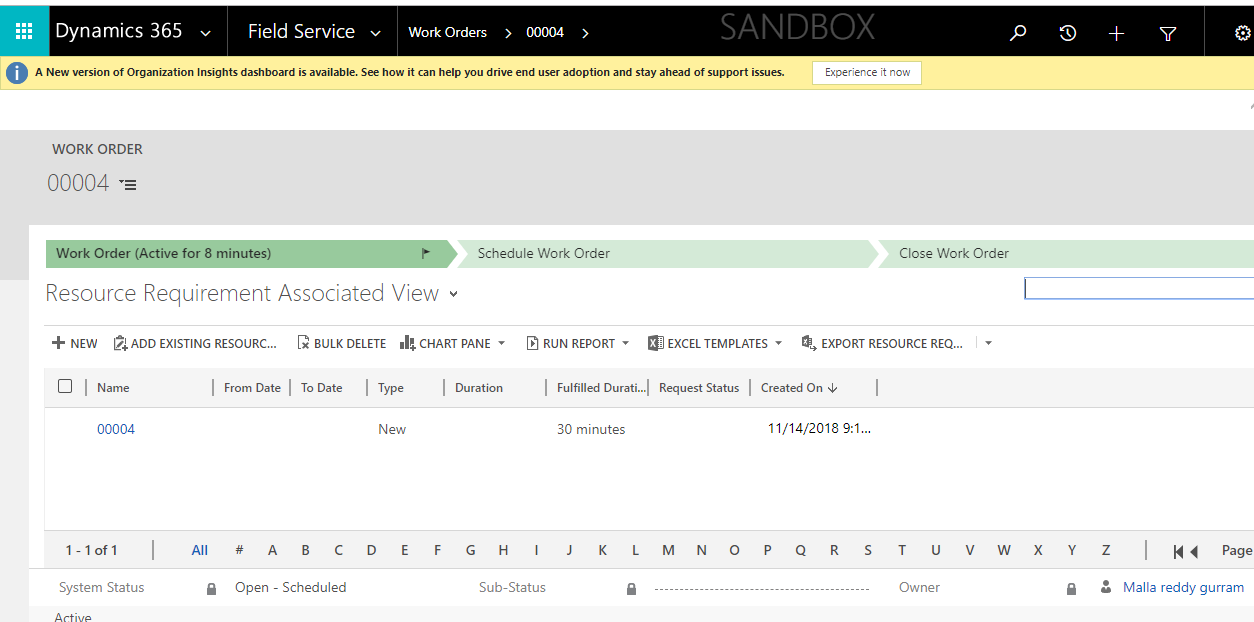
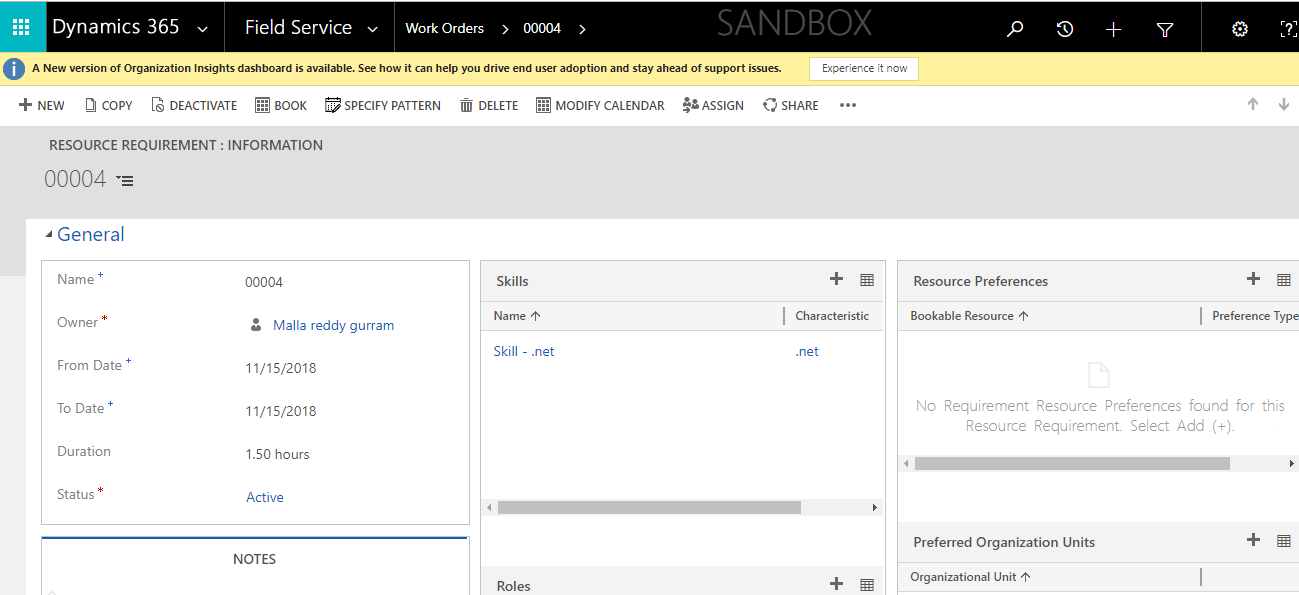
Just need to create the work order and save the record then select the related record of the “work order” created and select the requirement record where we can see the resource requirement details

Open the Resource Requirement record and fill in the “from date”, “to date” ,” duration” and “status” fields.

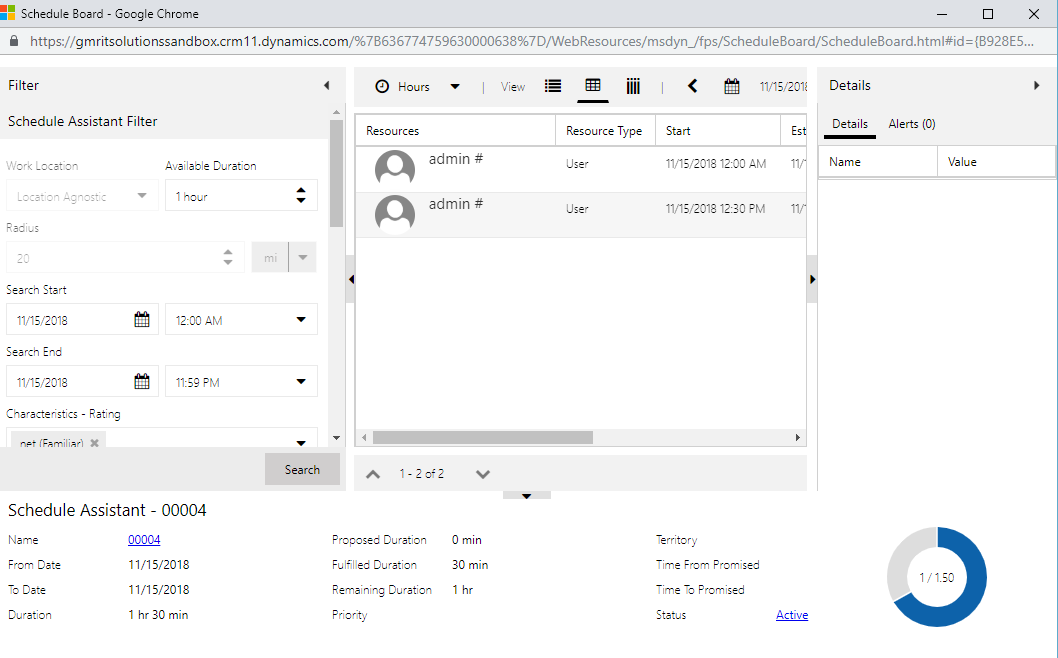
Once the record is saved click on the “Book” button on the navigation bar, the schedule assistant will be opened.

In the scheduled Assistant you can modify the time window and the resource will be booked with simple steps as shown above.

I hope this helps:

For Microsoft Dynamics 365 Consultancy/Training/Support/Licensing
Contact us: https://www.gmritsolutions.co.uk
Email: admin@gmritsolutions.co.uk
Share this:

Microsoft Dynamics 365 Field Services View Customizations

Hi Everyone,

I am going to discuss about the various views on the Field Service Schedule Board.

Lets get’s started.

View Configuration Options:

1) There is one default schedule board for the organisation.

2) Additional public and private schedule boards can be created and modified.

3) Views are tied to Dynamics 365 views that can be customized

Customizing the Schedule Board:

Items are populated on Schedule Board based on Dynamics 365 views

Views associated with the following entities:
> Resource Requirements
> Bookable Resources
> Organizational Units
> Booking Alerts

Default filters and view settings can be defined per view

Web resources can be created to define custom booking rules and can be added to board.

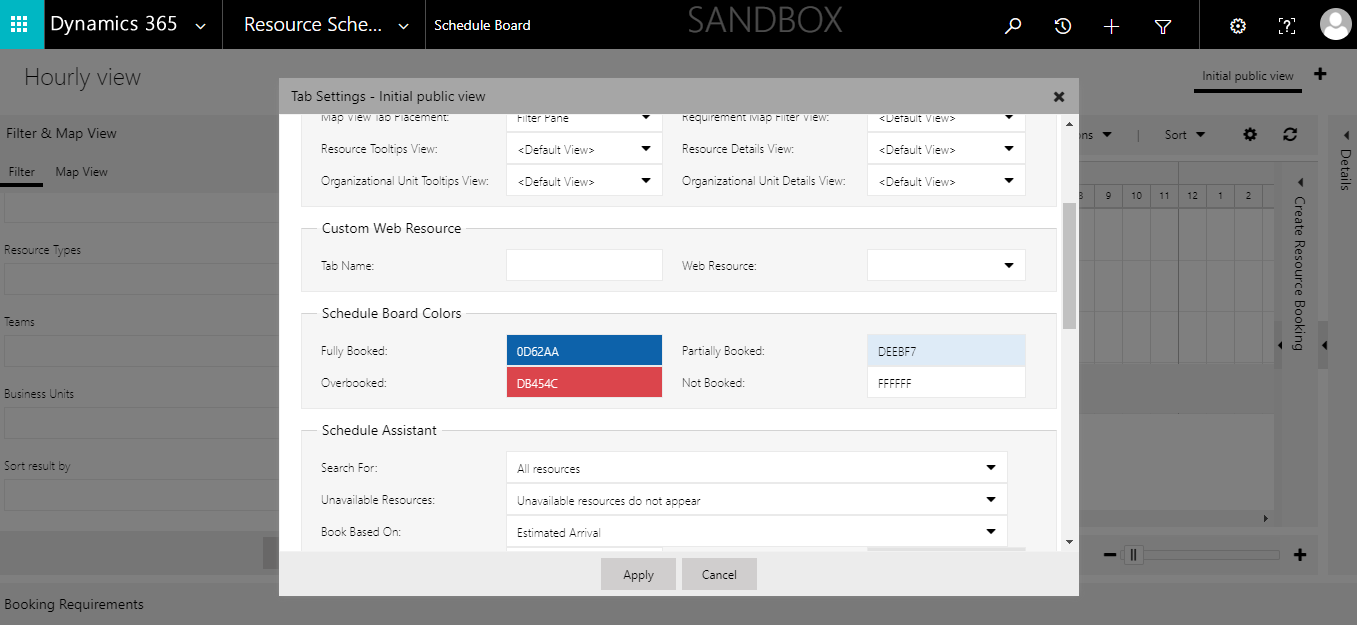
Once scheduled board is opened on the right hand side we can see the “Initial Public View” and “+” sign, if we need to create a schedule board for someone or specific people then click on the “+” sign and it will open new pop up window where we can configure accordingly.

The main use of the multiple Schedule boards is that if the Schedule manager looks after different regions then he can check the tabs to move into different views quite easily.

I hope this helps:

For Microsoft Dynamics 365 Consultancy/Training/Support/Licensing
Contact us: https://www.gmritsolutions.co.uk
Email: admin@gmritsolutions.co.uk
Share this:

Microsoft Dynamics 365 Field Services Manual Scheduling

Hi Everyone,

I am going to share information how  the Field Service Manual Scheduling will work

Field Service Manual Scheduling

Schedule Board can be customized out of the box as you can see on the image:

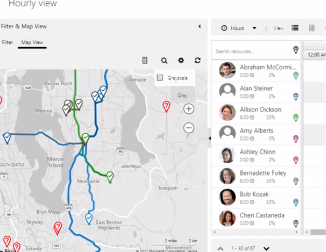
Filter & Map View

Filter :

You can filter the Characteristics – Rating
Roles
Territories
Organisational Units
Resource Types
Teams
Business Units
Sort result by

Map View:

We can see the where the resources are located and what scheduled work orders the current resource working etc.. we have the ability to drag and drop the resource booking to different dates on the schedule board.

Also the Views can be changed to “Horizontal and Vertical Views, Schedule can be viewed in hourly, days, weekly and  monthly views.

From the Tab Settings views can be configured according to our business requirements.

Unscheduled Work Orders can be drag and dropped on to the schedule board as well.

Some of the points about the Manual Schedule Work Order: 

Manually schedule a Work Order:

1) Drag unscheduled Work Order from list view
2) Drag unscheduled Work Order from map view
3) Block out a spot on the Schedule Board directly

Other Work Order Actions:

1) Reassign and Re-schedule previously scheduled Work Orders.
2) Update the status of Work Orders and change duration
3) Move Work Orders not complete to a future date
4) Print out or email driving directions for one or more field agents.

I hope this helps:

For Microsoft Dynamics 365 Consultancy/Training/Support/Licensing
Contact us: https://www.gmritsolutions.co.uk
Email: admin@gmritsolutions.co.uk
Share this:

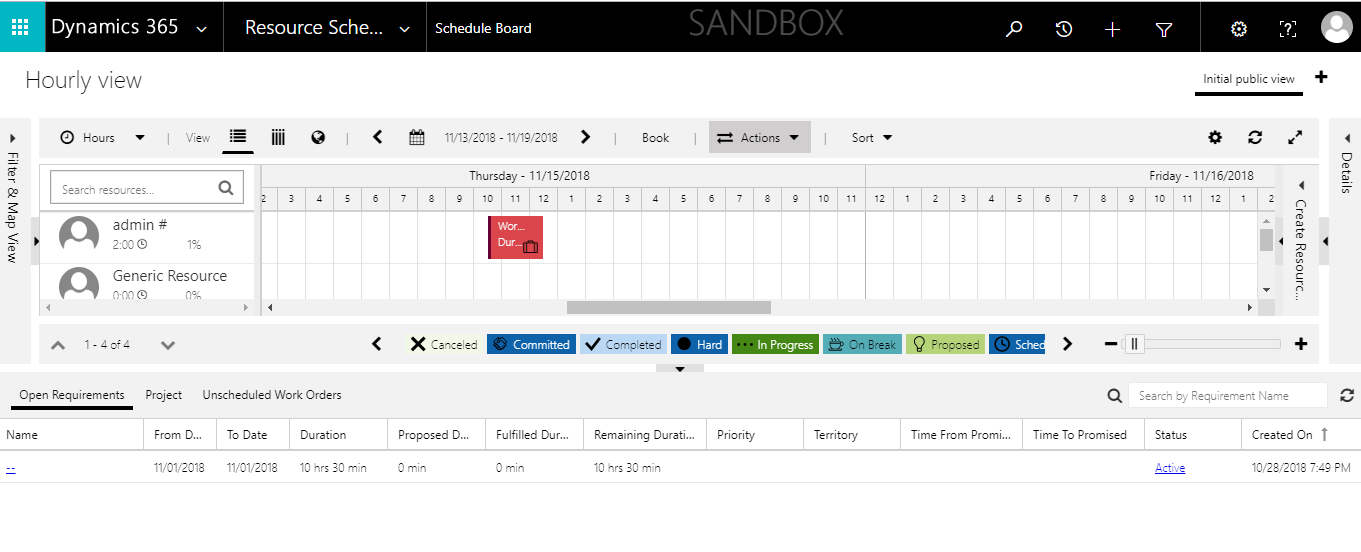
Microsoft Dynamics 365 Schedule Board

Hi Everyone,

I am going to discuss what is included in the Field Services Schedule Board

Let’s gets started.

Schedule Board:

Drag and drop interface for scheduling and rescheduling.

Filter by Resource Type, Services etc..

Scheduler settings allow configuration of dispatcher time zone, grouping etc.

Booking Requirements:

Unscheduled items are displayed at the bottom of the schedule board in booking requirements.

Will display all unscheduled requirements for any entity that has been enabled for the universal scheduling.

Predefined view for unscheduled work orders is included as part of the Field Service Solution

Additional requirement views can be defined to provide a more customized scheduling environment.

Integrated Map:

Helps  determine best resource for job based on proximity.

Each resource is color coded for easy identification.

Routes are created and updated as resources are assigned jobs.

I hope this helps.
For Microsoft Dynamics 365 Consultancy/Training/Support/Licensing
Contact us: https://www.gmritsolutions.co.uk
Email: admin@gmritsolutions.co.uk
Share this: