Menu Close

Category: Blog

Microsoft Dynamics 365 Global vs Service vs System Administrator

Hi Everyone,

Today i am going to explain the difference between the Microsoft Dynamics 365 Global Administrator vs Service Administrator vs System Administrator.

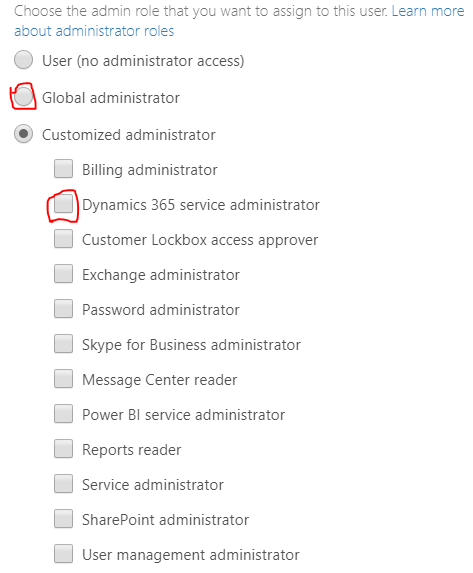
Global Administrator: When do you assign the Global Administrator to the Tenant(Office 365 + all the tenants under of the Office 365).

Global Administrator can access the instances without restrictions, GA have full admin rights on the Whole Tenant, user can Add users to the tenant, add the licenses to the user,
So the GA have full access on the below sections on the Office 365:
Users, Groups, Resources, Billing, Support, Settings, Setup, Reports, Health,
Admin centers:
Exchange
Teams & Skype
Sharepoint
Onedrive
Dynamics 365
Yammer
Social Engagement
PowerApps
Flow
Security & Compliance
Azure Active Directory

Just a touch base with Dynamics 365, Global Administrator have limited access to the Dynamics 365, like GA can not configure the Customer Engagement application
for example : Can not approve the mailbox  but GA can approve mailbox provided he/she have Dynamics 365 License have been assigned.

Let’s jump on to the Service Administrator:

Service Administrator is an Administrator the user can manage the Dynamics 365 tenant only no control over the Office 365 Admin Center

Use this new role to assign users to manage Dynamics 365 at the tenant level without having to assign the more powerful Office 365 global admin privileges. A Dynamics 365 service admin can sign in to the Dynamics 365 admin center to manage instances. A person with this role cannot do functions restricted to the Office 365 global admin such as manage user accounts, manage subscriptions, access settings for Office 365 apps like Exchange or SharePoint.

Finally Let’s discuss about the System Administrator:

System Administrator role is the security role which will be assigned to the Service Administrator inside Dynamics 365 Customer Engagement Application.

In order to assign the security role inside the Dynamics 365 :
Go to System Settings > Security > Users >
select the user and  click on the manage user on the ribbon then we can assign the system administrator / system customizer  role to the service administrator.

So in confusion regarding the Global Administrator/ Service Administrator/System Administrator..

I hope this helps.

For consultation/Training Visit www.gmritsolutions.co.uk or reach out to us at admin@gmritsolutions.co.uk

Share this:

Microsoft Dynamics 365 for Marketing vs Click Dimensions

Hi Everyone,

I quite often here a question about which Marketing tool is better for Sales and Marketing perspective.

Customers already using Microsoft Dynamics 365/CRM Application for their day to day sales and marketing ask the above question.

So i thought i can do a blog post and refer to customers which needs clarification on these two applications, i.e Microsoft Dynamics 365 for Marketing and Click Dimensions:

so let’s gets started:

Click dimensions

Click Dimension can be integrated with Dynamics 365 by deploying the click dimensions solution.

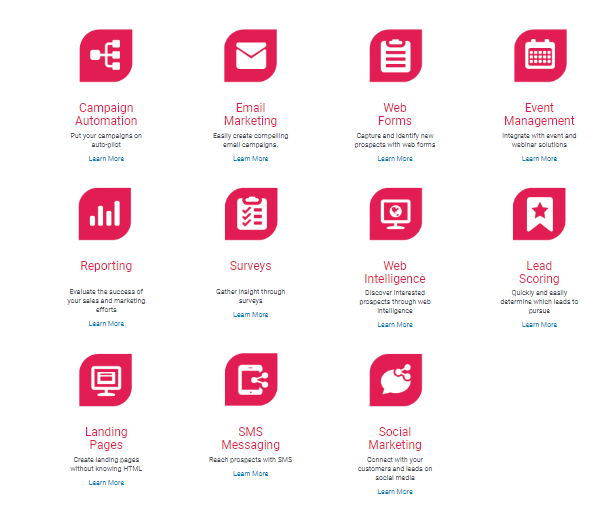
Specially built  for  Microsoft Dynamics 365/CRM  Application users worldwide bring together sales and marketing for bigger business wins. Click Dimensions marketing automation solution includes essential marketing tools like email marketing, campaign automation, web intelligence, surveys, web forms and landing pages, social marketing and more to help our customers attract more leads, close more sales and more effectively engage customers. Explore our full feature set below.

Campaign Automation: Put your campaigns on auto-pilot

Email Marketing: Easily create compelling email campaigns

Web Forms: Capture and identify new prospects with web forms.

Event Management: Integrate with event and webinar solutions.

Reporting : Evaluate the success of your sales and Marketing efforts.

Surveys: Gather insights through surveys

Web Intelligence : Discover interested prospects through web intelligence

Lead Scoring: Quickly and easily determine which leads to pursue.

Landing Pages: Create landing pages without knowing HTML

SMS Messaging: Reach Prospects with SMS

Social Marketing: Connect with your customers and leads on social media

Pricing:

Basic Price starts at $499/month.

Which includes unlimited contacts and unlimited users, no license required, users whi have access to dynamics can access click dimensions.
Email Volume- starts at 50,000 per year
Excluded features for basic price are – Campaign Automation, Landing pages, Lead scoring,
SMS Messaging, event management, surveys.
Products supported are CRM Online
Advanced social marketing / social engagement requires additional investment.

Business Price $ 699/month:

Unlimited users and contacts, email volume starting at 200,000 per year and includes all features, CRM Online, Partner Hosted or On-Premise Deployment, Advanced features cost additional investment.
Advanced Features:
Powerful and efficient B2B Social Media Tools for Microsoft Dynamics 365 – Click Dimensions Social Engagement Platform:
ClickDimensions social engagement is a complete social media marketing platform for Dynamics 365 users. Powered by Oktopost, the B2B social media industry leaders, ClickDimensions social engagement is designed for B2B marketers who need smart, time-saving solutions that maximize social media ROI.
With social engagement, you can manage all your social media activity — including scheduling, publishing, analytics and reporting, content curation, listening, campaign tracking and advocacy programs – in one convenient platform.
So Customers Who are interested in limited functionality which click dimensions offers then they can purchase the license of click dimensions.

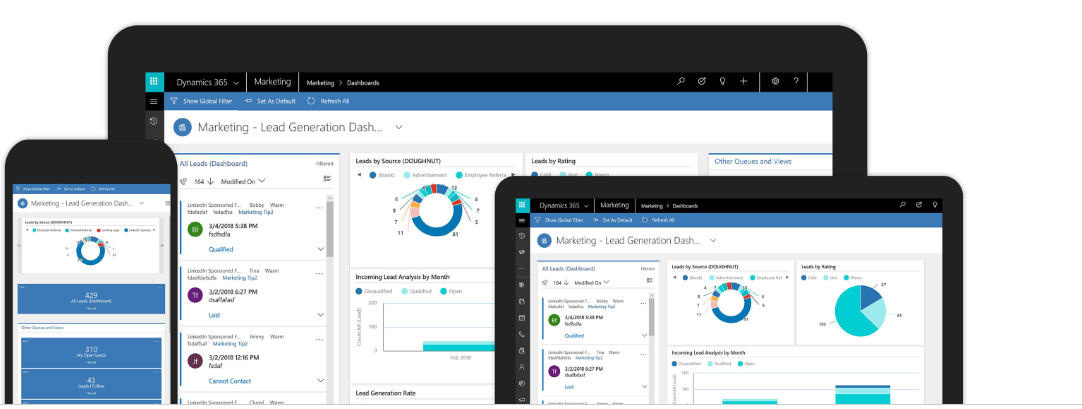
Microsoft Dynamics 365 for Marketing: 

This Marketing App is newly introduced and with enhanced features of the Marketing Module from earlier versions.
It’s Microsoft Product and no need of managed solution deployment, if you have Microsoft Dynamics 365 Customer Engagement then its quite nicely embed with it. Without any restriction as customer can purchase one license with subscription and 
Create and nurture leads: Run Multiple marketing campaigns.
> Run multichannel marketing campaigns
Attract the right prospects and nurture leads from email marketing, web landing pages, webinars, phone calls, and events using the Dynamics 365 Connector for LinkedIn Lead Gen Forms.
Personalise experiences
>Use configurable templates and designer tools to set up your buyer’s journey and personalise experiences based upon customer engagement.
Simplify event management
>Execute in-person and virtual events with ease by managing registrations, speakers, venue logistics, and attendance data in partnership with industry leading webinar provider ON24.
Engage customers across social channels:
Aligns sales and marketing
Track prospect throughout their journey
Hand off sales ready leads
Increase productivity
Make better decisions:
Focus on top priorities
Measure results in real time
Identify customer needs
Improve social engagement.
Innovate with a modern and adaptable marketing and sales software platform:
Adapt quickly
Accelerate time to market and adapt the application to your needs with no-code visual editors and tools that make it easy to build and deploy web and mobile apps.
Extend and connect
Invest with confidence
Drive innovation.

Pricing:

Customer Engagement Plan:
Get full use of applications that help build and support customer relationship
£86.70/month
with Marketing App with 2000 contacts included and with 10 or more customer engagement user licenses.
Dynamics 365 for Marketing only
£1131.10 per month for 10,000 contacts, additional contacts from £188.50 per month for 5,000 contacts

With any customer engagement application or customer engagement plan with fewer than 10 users from £565.60 per month for 10,000 contacts, Additional contacts from £188.50 per month for 5,000 contacts.
With Customer Engagement plan with 10 or more users Included and Additional contacts from £452.40 per month for first 8,000 contacts, From £188.50 per month for £5,000 additional contacts.
As I am Microsoft Dynamics die hard fan and live and breath Dynamics, so i would like to recommend Microsoft Dynamics 365 for Marketing. 
Because Microsoft as heavy investing on Dynamics and it’s evolving every release and customers who are interested in getting new features to reach there customers according to the marketing trends then why wait for anything else..
Contact us and we can help.
Visit our website: www.gmritsolutions.co.uk
I hope this helps for SMB’s and Enterprise Customers.

Share this:

TOP 20 BLOG ON THE WEB FOR 2018

Hi Everyone,

I would like to share my happy moments with the community:

Recently my blog has been awarded “top 20 Dynamics 365/CRM blogs in the world 2018”.

From Feedspot:

https://blog.feedspot.com/microsoft_dynamics_crm_blogs/

Many thanks for Feedspot team for recognizing my efforts in helping the Microsoft Dynamics 365/CRM Community in the form of blogging and other social medium channels.

Once again i am very happy that this is the second year i am receiving the ” top blogger award” from “Feedspot”.

Looking forward to helping  the  Microsoft Dynamics 365/CRM Community throughout my career.

All SMB’s and Enterprise Customers:
Development/Training/Support/Project specific/Licensing
Contact:
www.gmritsolutions.co.uk
Email: admin@gmritsolutions.co.uk

Share this:

Create an Power App using Data from Excel

Hi Everyone,

I would like to show how to create a simple App using a Excel Data.
First create the excel file
In the above excel file there two excel files Purchase sheet  and Supplier sheet.
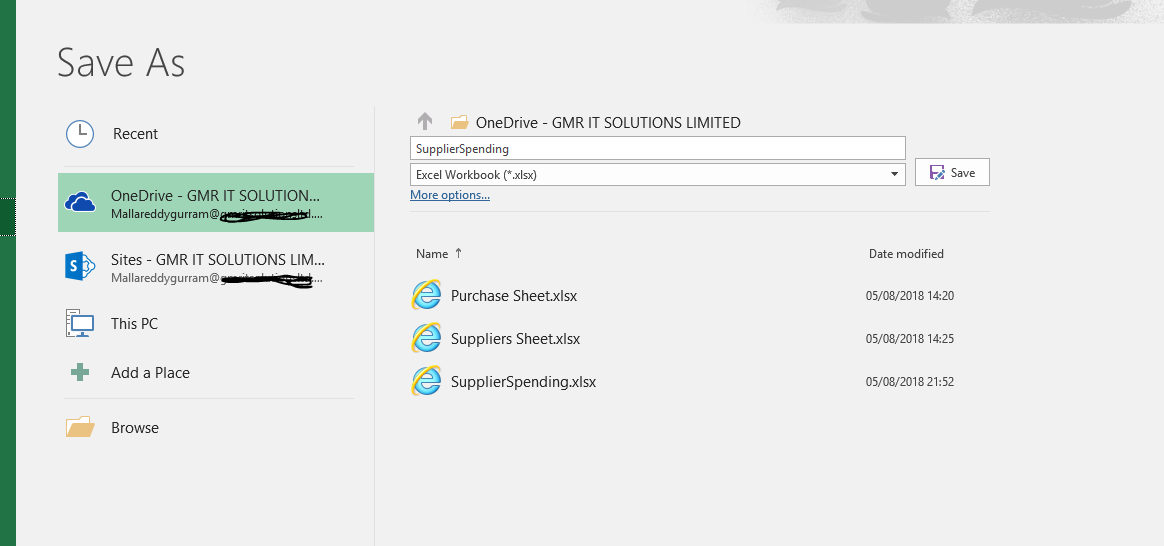
Save the file on the “onedrive for business” 
As you can see from above image, onedrive for business,select that and save the file.
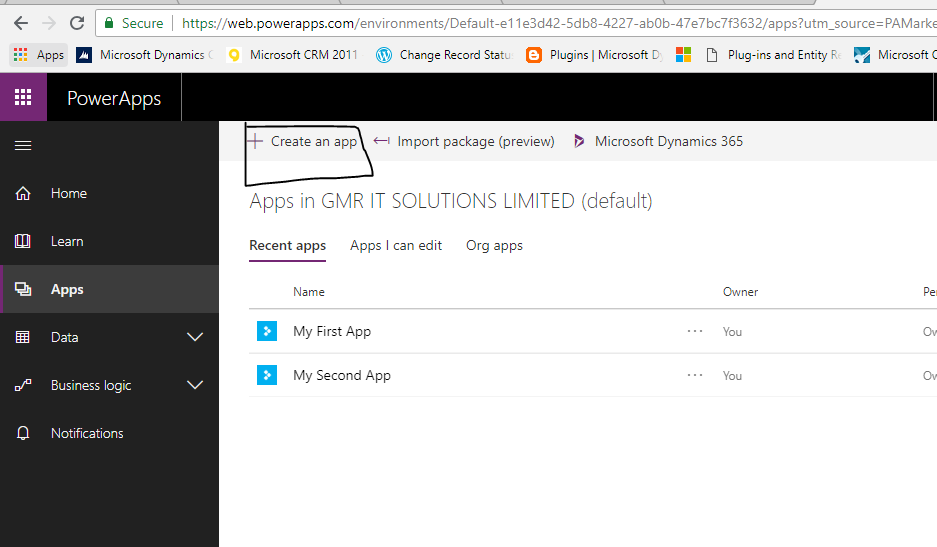
Open the powerapps website: https://powerapps.microsoft.com/en-us/
You should have an account to sign in otherwise you can sign up for free.
Once you are on the landing page click on the “create an app”..
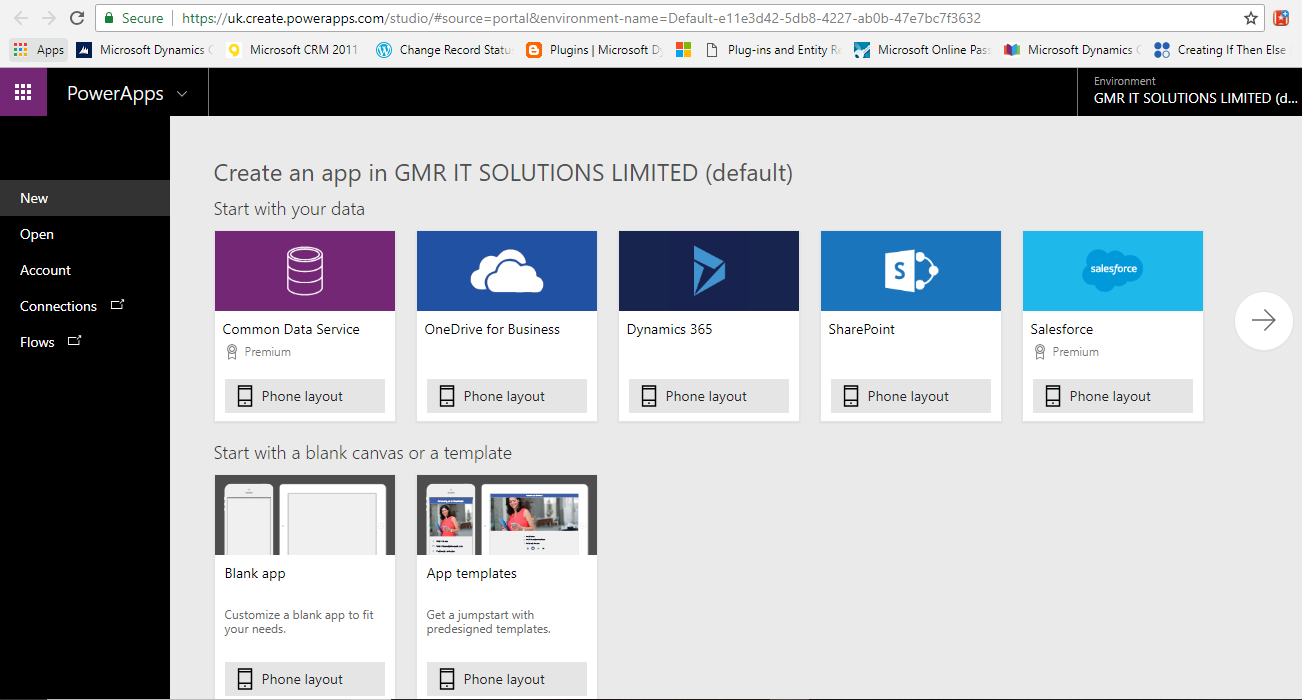
Then you will be landed on the below web page:
Select the “OneDrive for Business Phone Layout” tile from the web page:
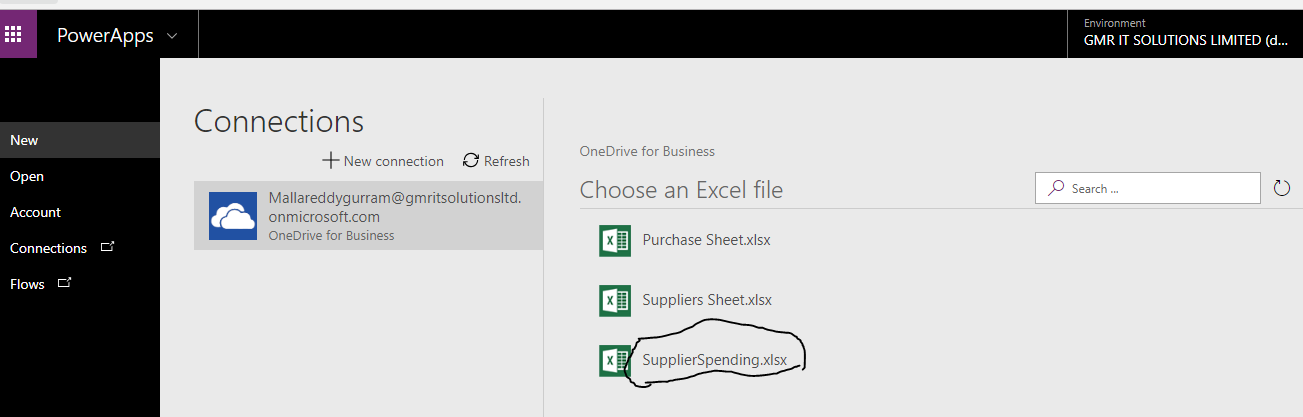
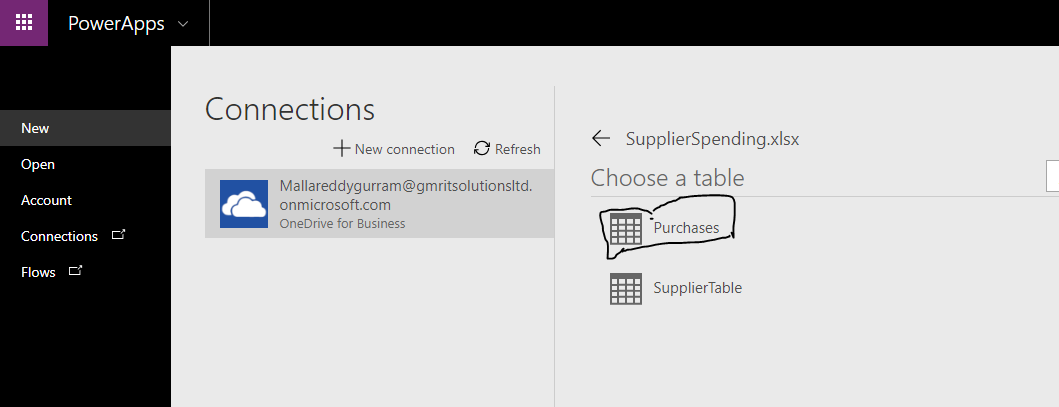
As you can see the excel file “supplierspending.xlsx” , select the file>
You will be prompted another web page, chose the table “Purchases”  and click “connect”:
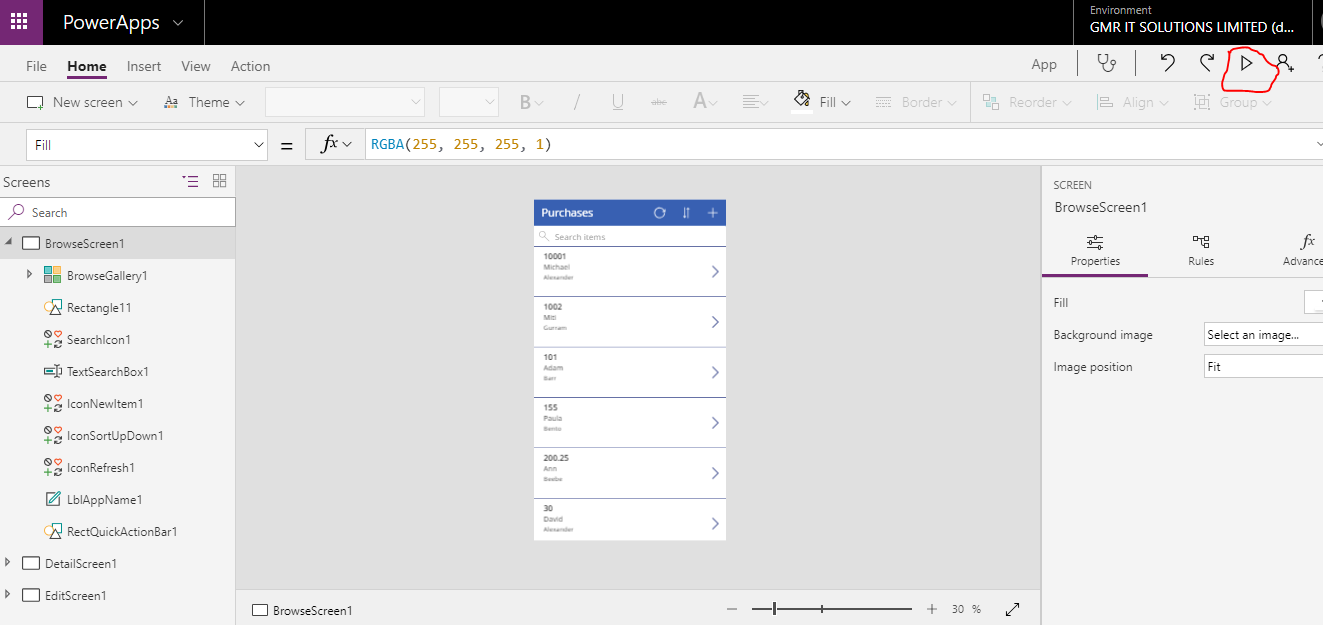
Here you go the new app is been building on the fly:-)
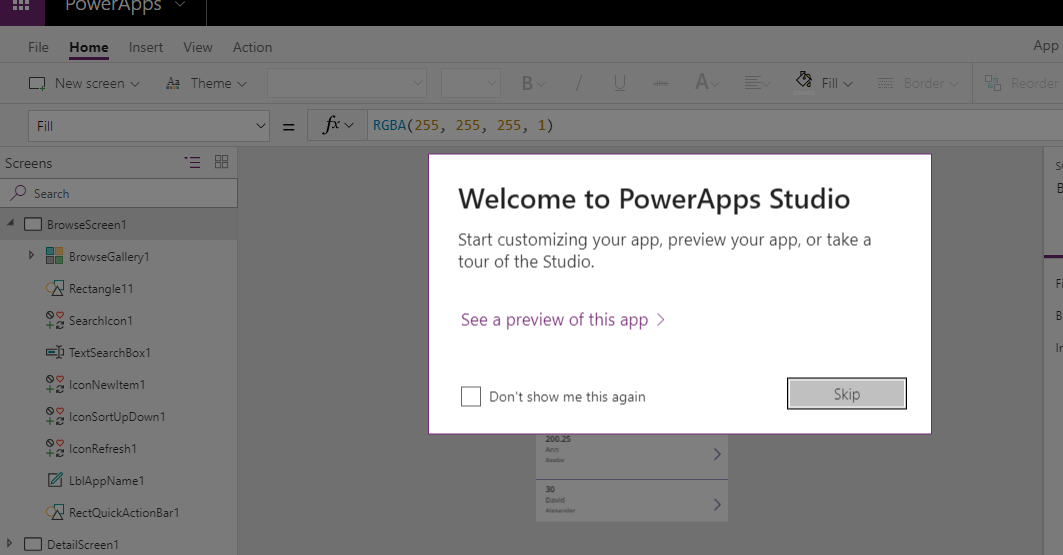
Skip the “Welcome to PowerApps Studio” pop up>
As you can see the new app is ready on the power app design page and click on the preview the power app on the upper right hand side play symbol or F5.
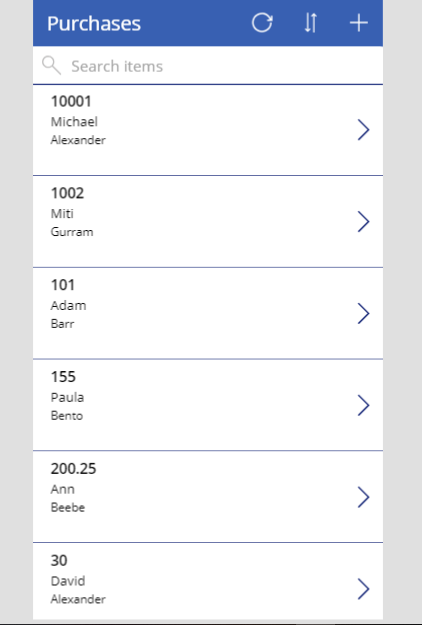
The above image is the preview mode of the app. you can edit by clicking the view the item details and make changes click save.
 Also you can add new data into the table and it is automatically saved on the OneDrive for Business”.
Note on the excel  the auto save functionality will only work once the record is saved initially.
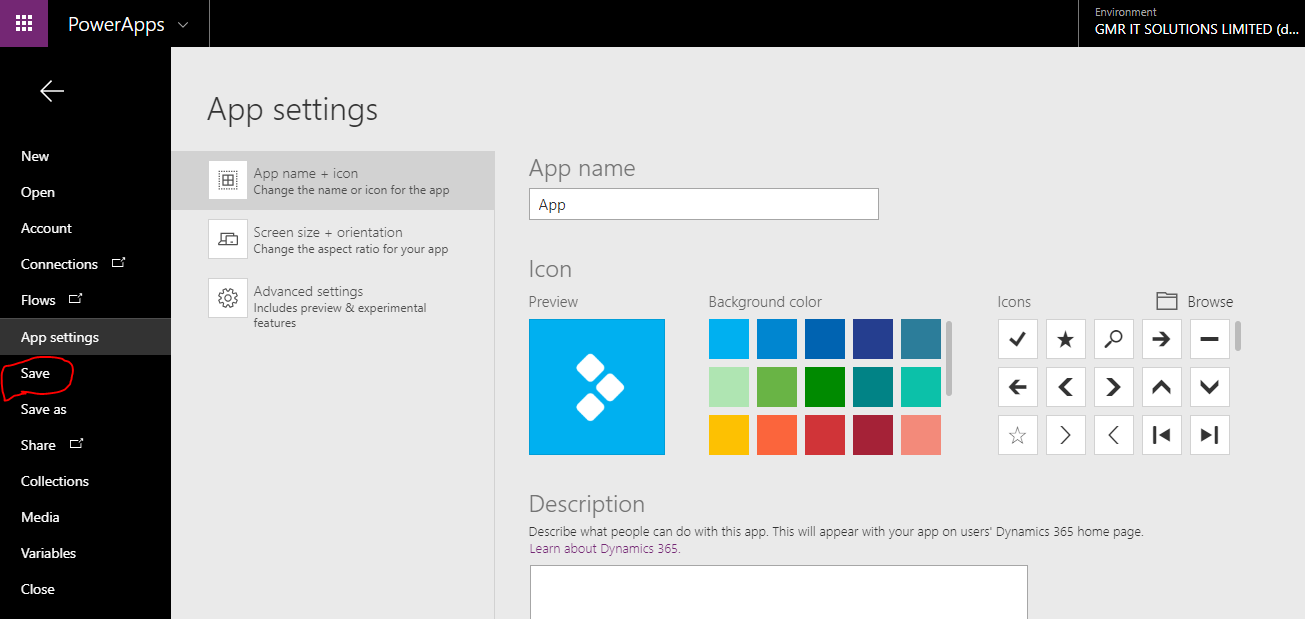
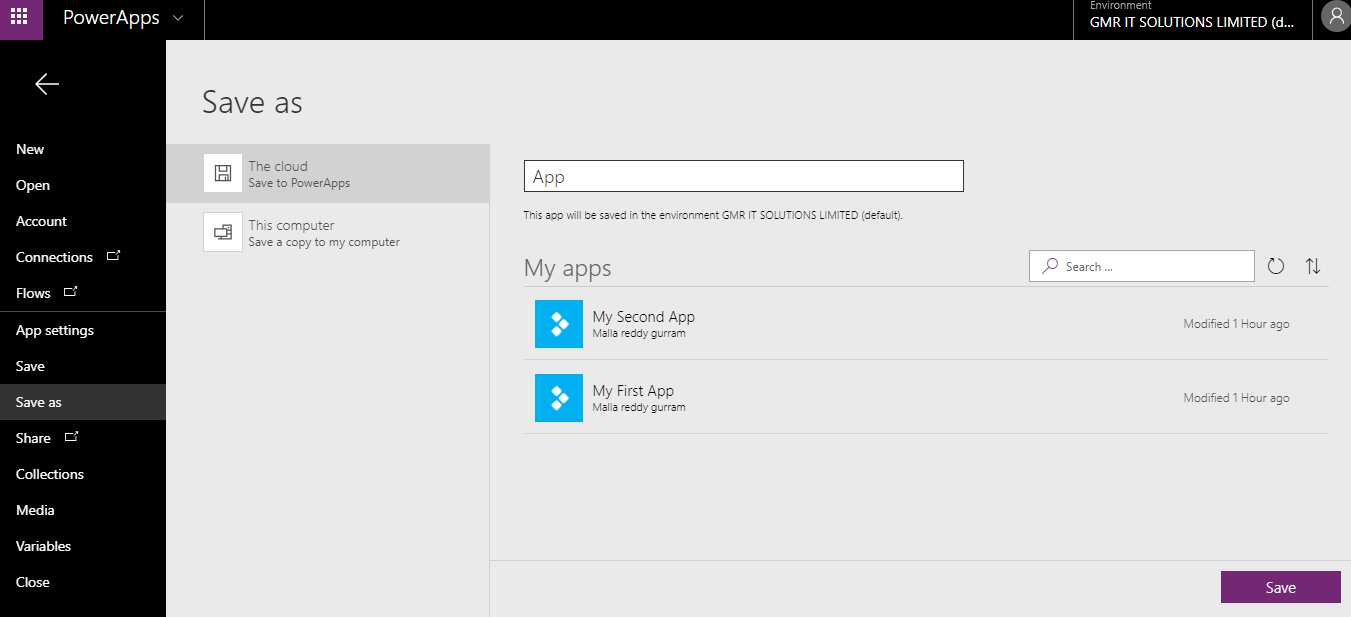
Once the new data entered on to the file and name the App, save the App,
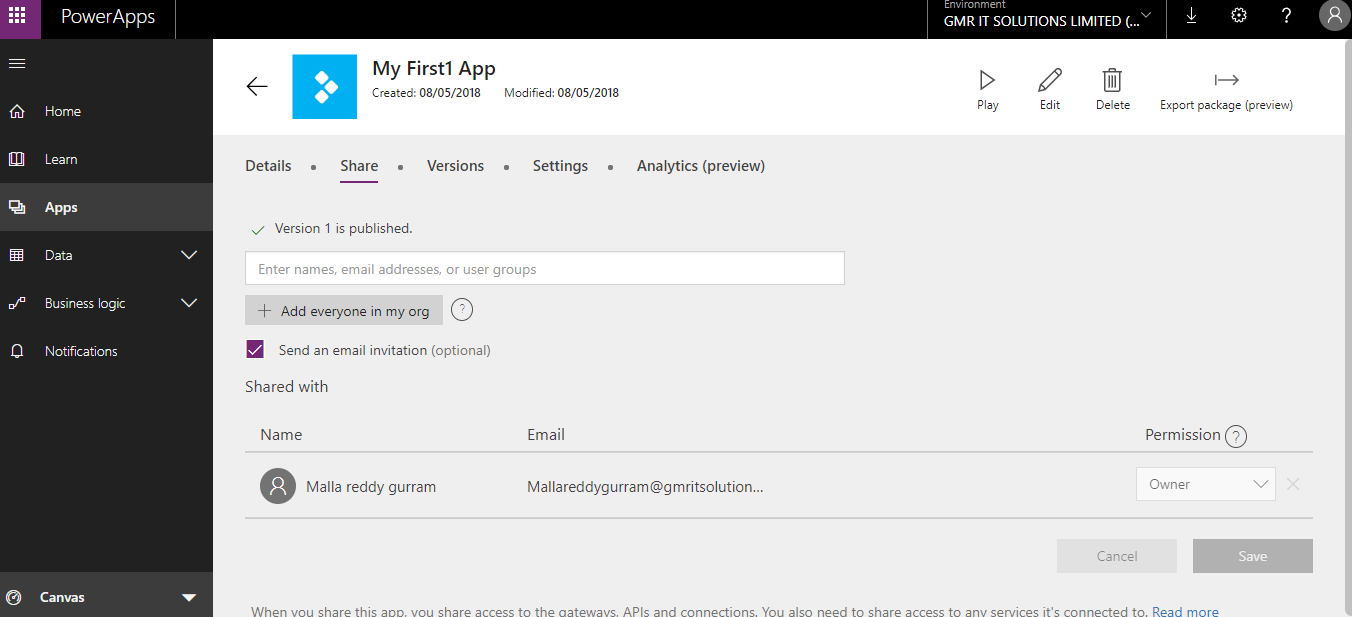
As soon as you save the App, you will land on another web page 
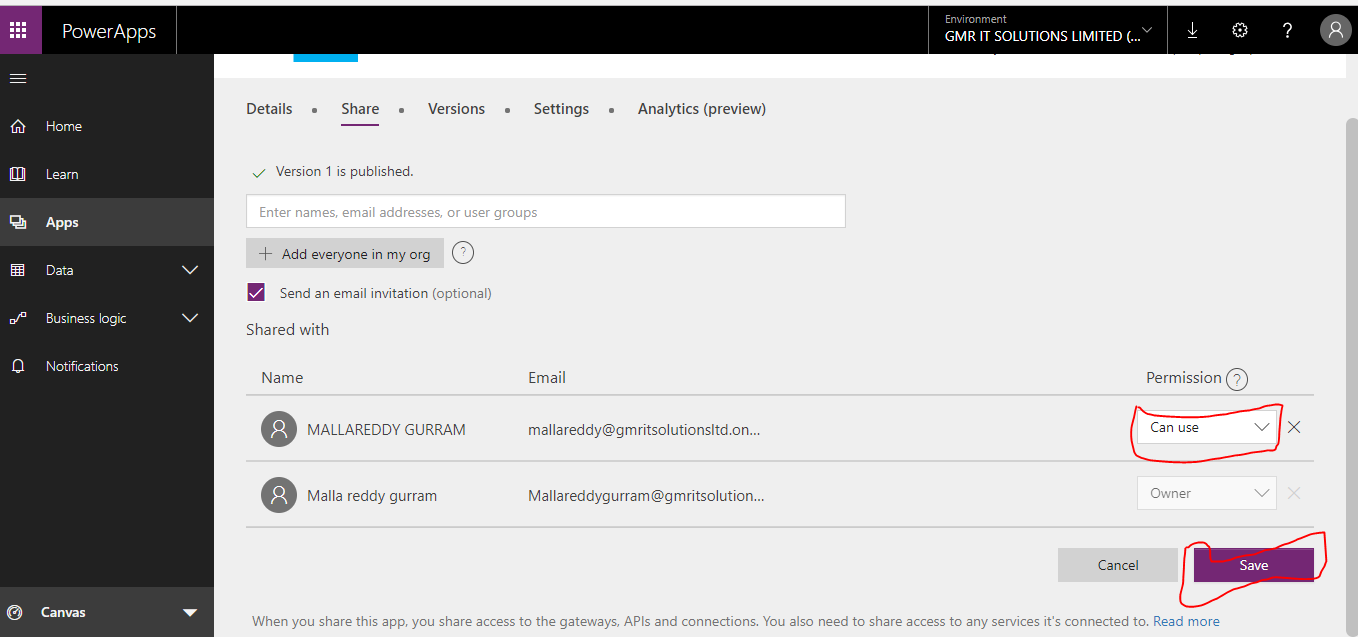
As you can share the app with your team and restrict or give full access to the app, 
then the user who is being shared this app can see the App on the phone, can edit or view based on the access rights.
So finally the user can see or edit according on their mobile phone by clicking on the “Power App” icon..
I hope this helps.
SMB’s customers who needs Microsoft Dynamics 365/CRM Support/Development/Integrations/one of project work 
contact:
Share this:

Microsoft Dynamics 365 Global Administrator Unable to Approve Mailbox for CRM User

Hi Everyone,

Recently one of my client tenant had an issue:

Scenario: Microsoft Dynamics 365 Customer Engagement Application have only one License and one Global Administrator.

So there is a requirement to integrate Microsoft Dynamics 365 with Microsoft Dynamics 365 App for Outlook.

Microsoft Dynamics 365 Customer Engagement user(System Administrator) tried to approve email, test and enable mailbox, but the
                    “Incoming Email Status =  Fail”,
                    “Outgoing Email Status =  Fail”,
          “Appointment,Contacts and Task Status = Fail”,

So as a tenant Global Administrator tried to approve the Mailbox for the user, but because the Dynamics 365 license has not been assigned  for Global Administrator, the Application is throughing error..

“Insufficient permissions to approve mailbox”.

So there is a work around for this issue..

The system administrator himself assign the Global Administrator rights and obviously he had Microsoft Dynamics 365 User License.

Then the system administrator became a Global Administrator with Microsoft Dynamics 365 License and he should be able to approve the Mailbox for the user..

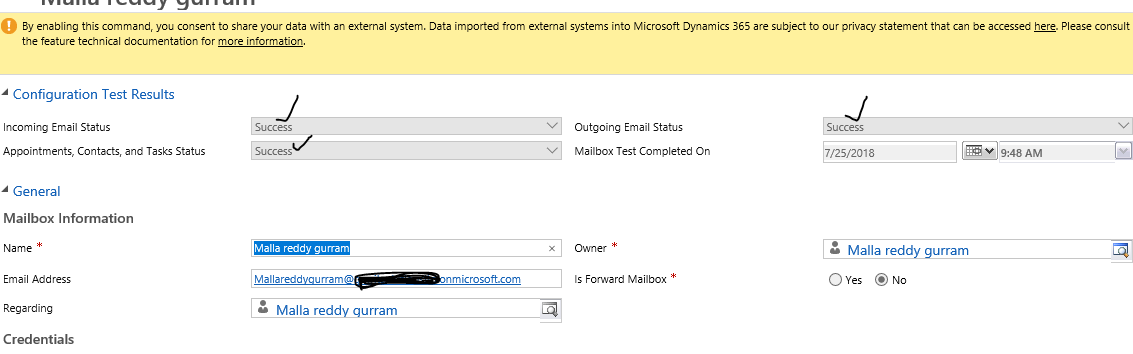
As you can see the Incoming Email Status = Success, Outcoming Email Status = Success, Appointment, Contacts and Task Status = Success.

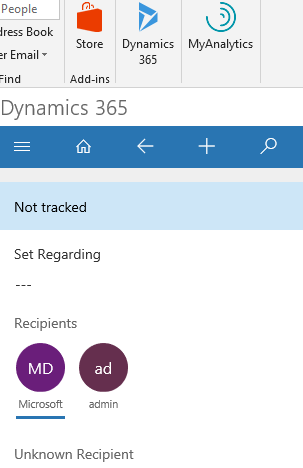
The system Administrator can install Microsoft Dynamics 365 App for Outlook and sync the email contacts, leads and tasks with outlook.

I hope this helps..

 SMB’S  and Enterprise Customers requires Support/Development/one off project
Contact us @ www.gmritsolutions.co.uk
Email :           admin@gmritsolutions.co.uk

Share this: