Menu Close

Category: Blog

Javascript Deprecated in Dynamics 365

Hello Everyone,

The following information is handy for developer when customizing Dynamics 365 with Javascript.

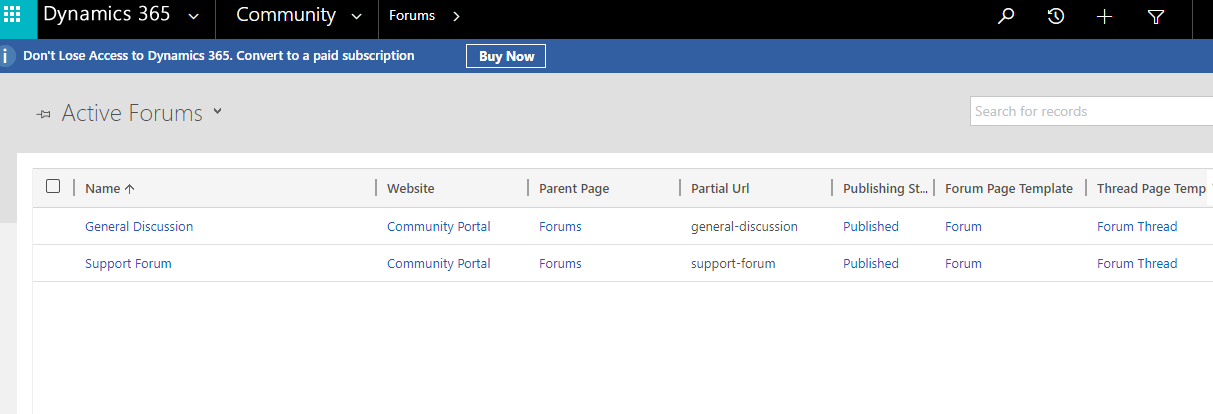
The following client APIs are Deprecated in the current release to reorganize the Xrm client, so replacement client API need to be used and the Deprecated Client APIs are continue to be supported unless the Microsoft issue the time limit to replace with new Client APIs

Deprecated:

For the replacement of the Xrm Client APIs please refer to Microsoft document
https://docs.microsoft.com/en-us/dynamics365/get-started/whats-new/customer-engagement/important-changes-coming#some-client-apis-are-deprecated

I hope this helps..
SMB’s Enterprise customers, if you need help on project/support/training/licenses, please contact us
www.gmritsolutions.co.uk
email: admin@gmritsolutions.co.uk

Share this:

Microsoft Dynamics 365 SDK download using Powershell

Hello Everyone,

Normally we download the Microsoft dynamics CRM SDK from Microsoft  website until Microsoft Dynamics 365 version 9.0.

From Version 9.0 we have two options to download the SDK

1) Using the visual studio Nuget package manager
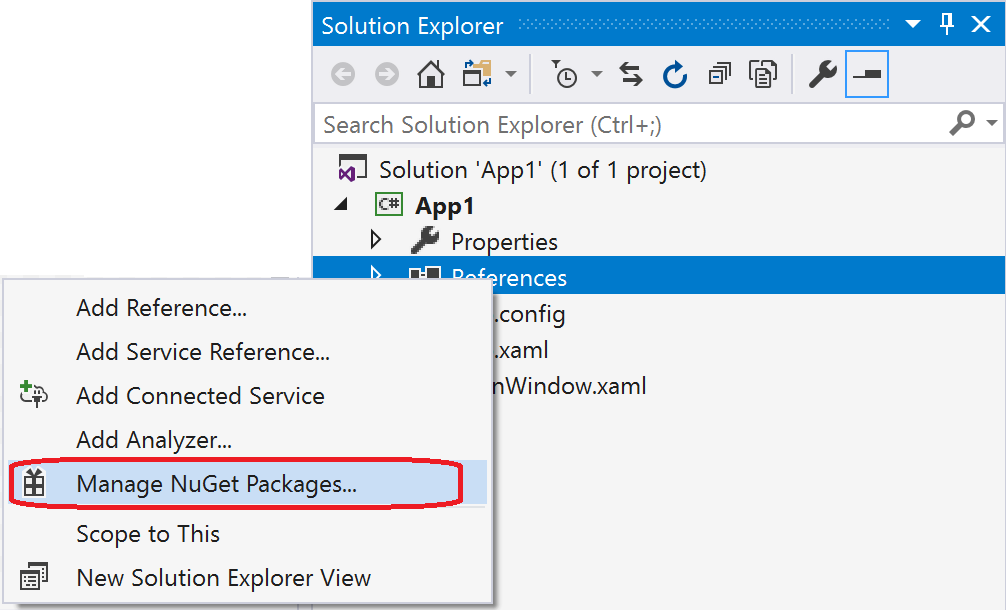
Manage NuGet Packages command for project References

2)  using the Powershell:

I am gonna show how  to download it on to the local folder.

First create a folder in your local computer
Drive : D
Folder: Tool

So the path would be D:/Tools

Search for the “Powershell” on your computer start menu..
Change the directory to desired directory using cd..
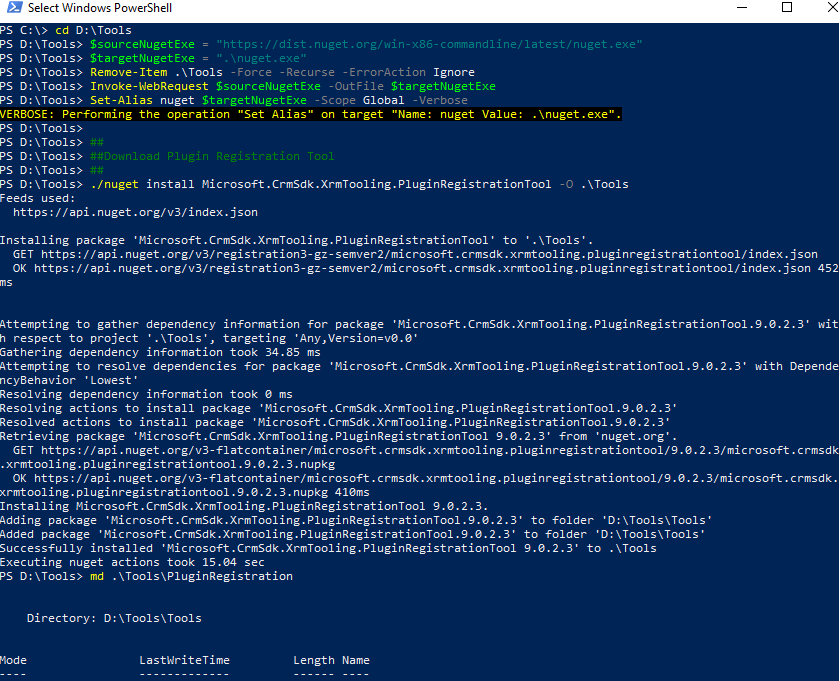
  cd D:Tools

Copy the powershell script from Microsoft website

$sourceNugetExe = “https://dist.nuget.org/win-x86-commandline/latest/nuget.exe”
$targetNugetExe = “.nuget.exe”
Remove-Item .Tools -Force -Recurse -ErrorAction Ignore
Invoke-WebRequest $sourceNugetExe -OutFile $targetNugetExe
Set-Alias nuget $targetNugetExe -Scope Global -Verbose

##
##Download Plugin Registration Tool
##
./nuget install Microsoft.CrmSdk.XrmTooling.PluginRegistrationTool -O .Tools
md .ToolsPluginRegistration
$prtFolder = Get-ChildItem ./Tools | Where-Object {$_.Name -match ‘Microsoft.CrmSdk.XrmTooling.PluginRegistrationTool.’}
move .Tools$prtFoldertools*.* .ToolsPluginRegistration
Remove-Item .Tools$prtFolder -Force -Recurse

##
##Download CoreTools
##
./nuget install  Microsoft.CrmSdk.CoreTools -O .Tools
md .ToolsCoreTools
$coreToolsFolder = Get-ChildItem ./Tools | Where-Object {$_.Name -match ‘Microsoft.CrmSdk.CoreTools.’}
move .Tools$coreToolsFoldercontentbincoretools*.* .ToolsCoreTools
Remove-Item .Tools$coreToolsFolder -Force -Recurse

##
##Download Configuration Migration
##
./nuget install  Microsoft.CrmSdk.XrmTooling.ConfigurationMigration.Wpf -O .Tools
md .ToolsConfigurationMigration
$configMigFolder = Get-ChildItem ./Tools | Where-Object {$_.Name -match ‘Microsoft.CrmSdk.XrmTooling.ConfigurationMigration.Wpf.’}
move .Tools$configMigFoldertools*.* .ToolsConfigurationMigration
Remove-Item .Tools$configMigFolder -Force -Recurse

##
##Download Package Deployer
##
./nuget install  Microsoft.CrmSdk.XrmTooling.PackageDeployment.WPF -O .Tools
md .ToolsPackageDeployment
$pdFolder = Get-ChildItem ./Tools | Where-Object {$_.Name -match ‘Microsoft.CrmSdk.XrmTooling.PackageDeployment.Wpf.’}
move .Tools$pdFoldertools*.* .ToolsPackageDeployment
Remove-Item .Tools$pdFolder -Force -Recurse

##
##Remove NuGet.exe
##
Remove-Item nuget.exe

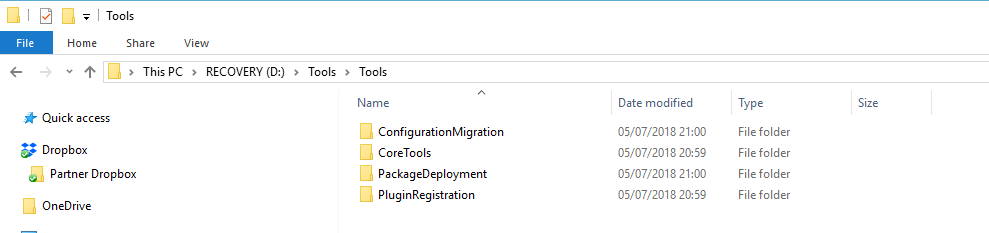
Then you can see on the screen shot SDK will be downloaded to the local folder:
As you can see the plugin registration tool, package deployment, CoreTools, ConfigurationMigration folder from  the image.
Then you start using the SDK for the development work.
I hope this helps..
SMB’s and Enterprise Customers need of Support/Development/Consultancy/Licenses 
Contact us 

Share this:

Unable to login into Microsoft Dynamics 365 Portal

Hi Everyone,

Today i am going to share my experience in this blog.

Recently i have faced an issue, customer is unable to login into the Microsoft Dynamics 365 Community Portal.

Scenario: Customer tried to login with her credentials  and browser through’s an error message
” the website not found”.

Tried to troubleshoot with clearing the cache and history from the browser and closed all the browser and tried to login again..

Still there is no resolution.

There is a fix for this with in the admin center in dynamics 365..

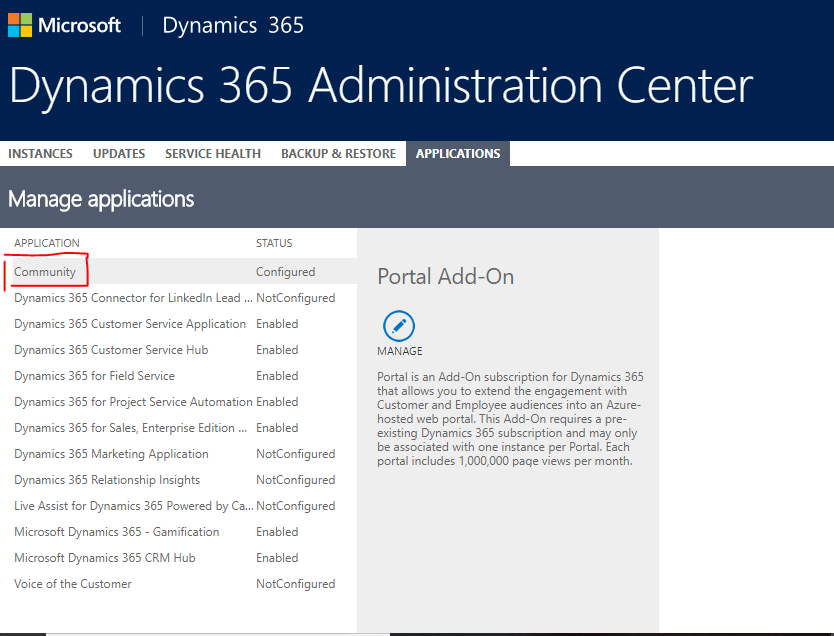
Select the Community Portal from the Application area and click manage.
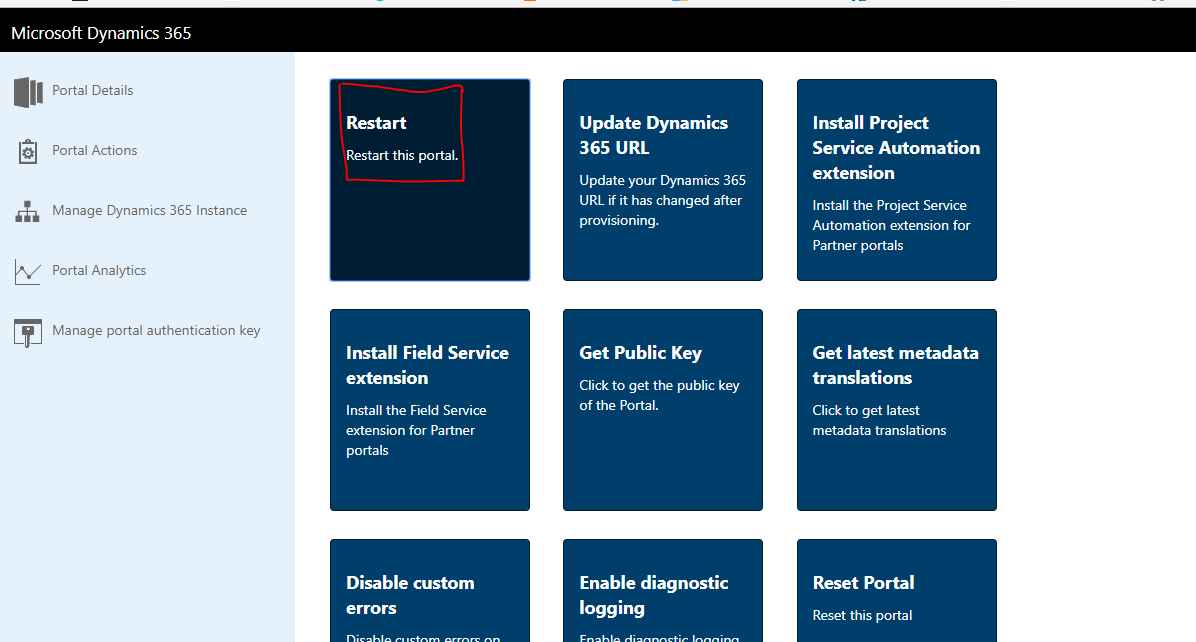
Then the following screen pop’s up:

Select the Community Portal Action from the dynamics 365 admin center and Restart the Portal, as the portal is unavailable for sometime to resume the service again, so there might be some disruption between these times.

Finally customers will be able to  login to Portal as normal.

I hope this helps:

Microsoft Dynamics 365 Customer Engagement : Training/Support/Licensing/Development
Please contact:
www.gmritsolutions.co.uk
Email: admin@gmritsolutions.co.uk

Share this:

Customize Subgrid Color on the Entity in Dynamics 365

Hello Everyone,

Today i am going to show how to customize the color for a Subgrid on the “Account” Entity.

Let’s gets started..

Go to Dynamics 365 > Settings > Customization > Customize the system

Select the Account Entity Main form and double click on the contact subgrid on the Account form.

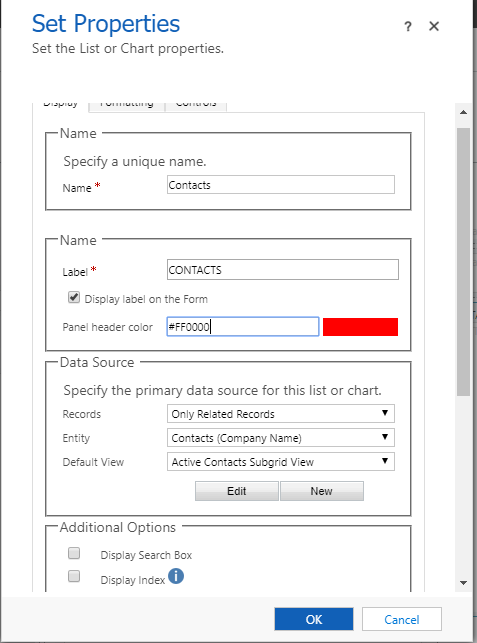
Pop up will come up like the below image and then make the changes as explained below:

On the “Name” section – Panel header color = give it any hexadecimal color to it, in this example
i am going to change “red” color and its hexadecimal color code is  #FF0000

Click ok, save the form and click publish customization.


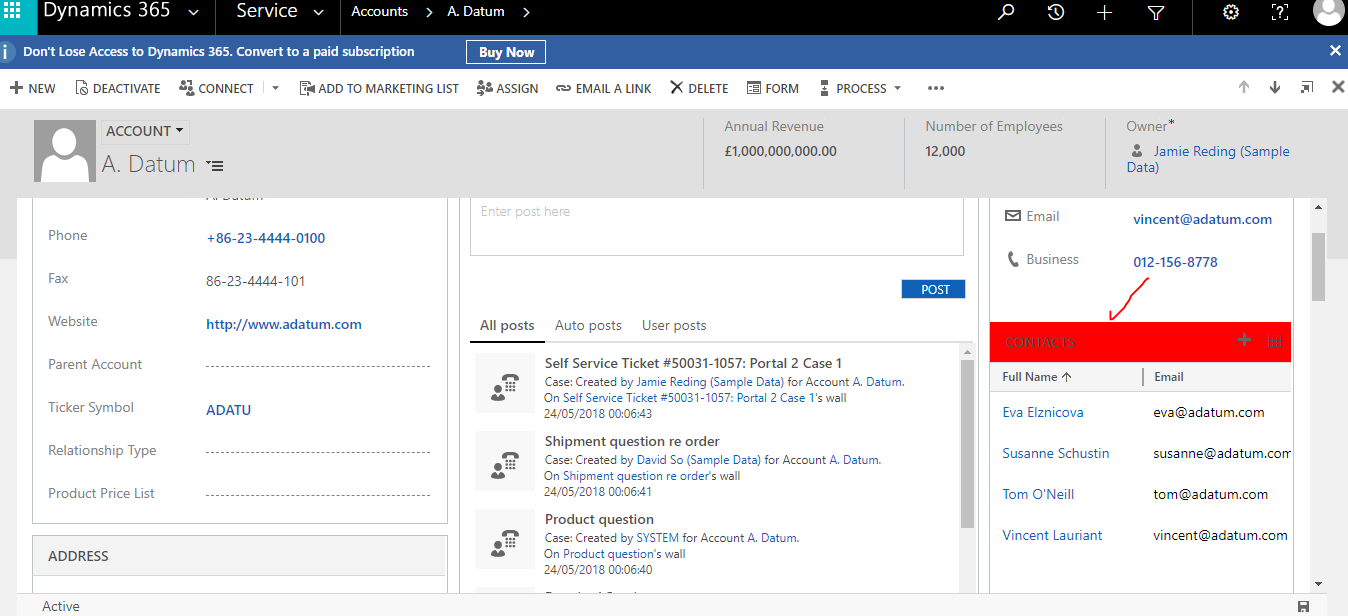
To check the changes, Open the Account Record and you will see the Subgrid color changed to “Red”.


Finally the subgrid color has been changed on the Account Record  to “red” color..

I hope this help

Any Microsoft Dynamics 365 Customer Engagement project work 
Contact us www.gmritsolutions.co.uk
Email : Admin@gmritsolutions.co.uk

Share this:

Quick Campaign from Advanced Find in Dynamics 365 Customer Engagement

Hi Everyone..

Today i  will show how to do quick campaign and send letters to all contacts from Microsoft Dynamics 365 Customer Engagement..

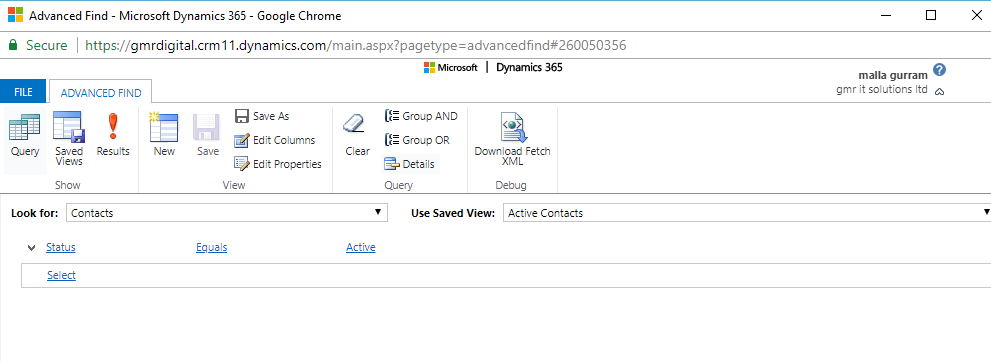
Go to Advanced Find

Click on the results:

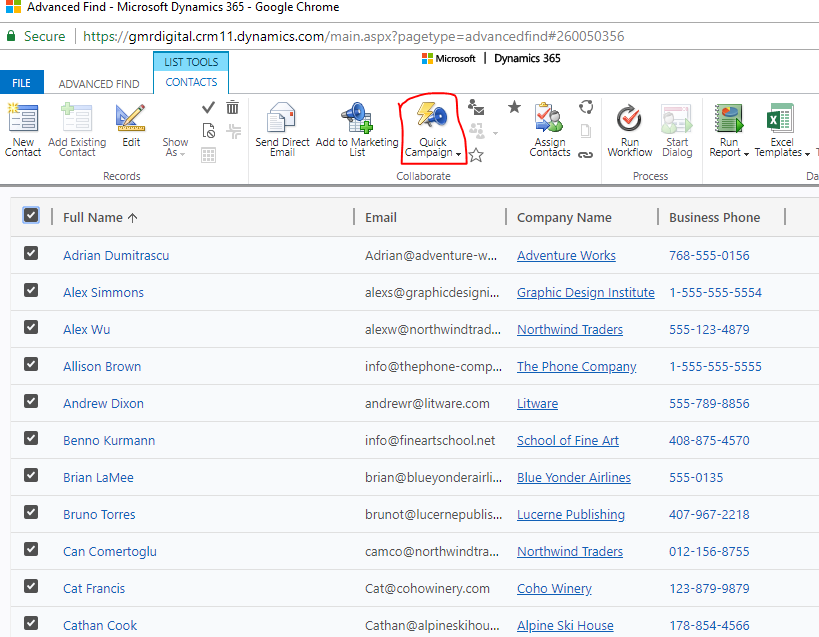
You will see the all contacts which are active in CRM, then select the right top check box then it will automatically selects all the contacts, click on the “Quick Campaign” button on the navigation pane which is highlighted as you can see from the above image..

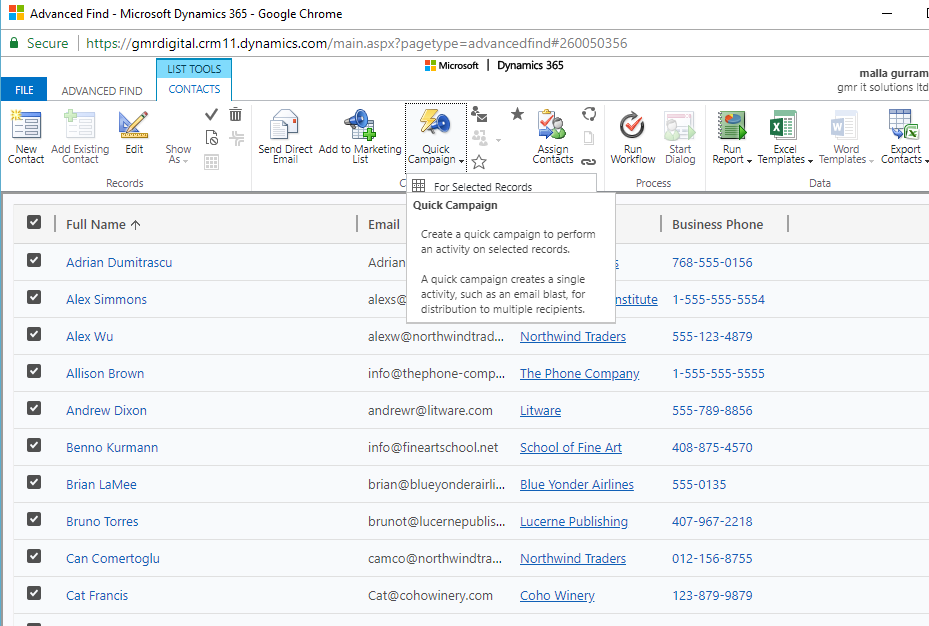
We can see three options:
> For selected records: If we select few records from current view then select this option.
> For all records on current page: If we select all the records from the current view.
> For all records on all pages: All records from all pages..

So for now i will select the all records on current page..

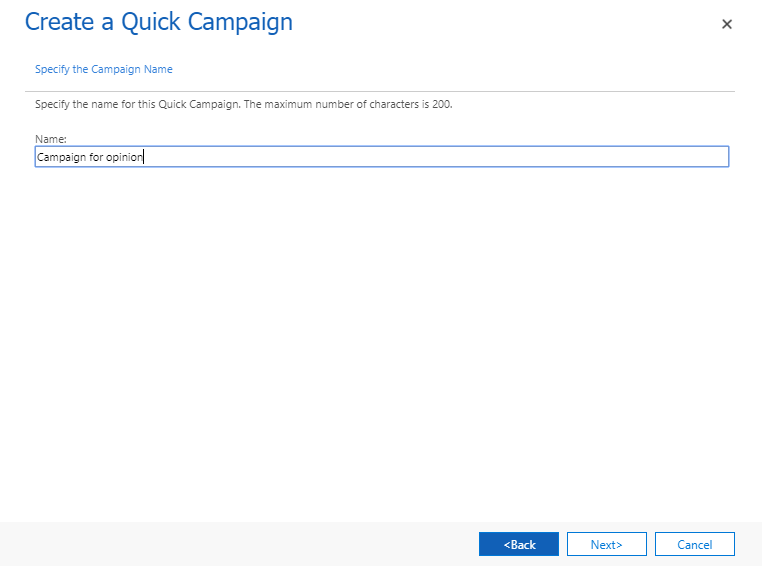
Once clicked then you will be prompted with a new window “Create a Quick Campaign”

We can you the wizard to communicate with contacts directly for sending bulk emails, or to assign activities to others for completion, i.e phonecalls, also you can track the responses to these activities..

when you fill in the quick campaign, you will be asked to:
specify the name of the campaign,
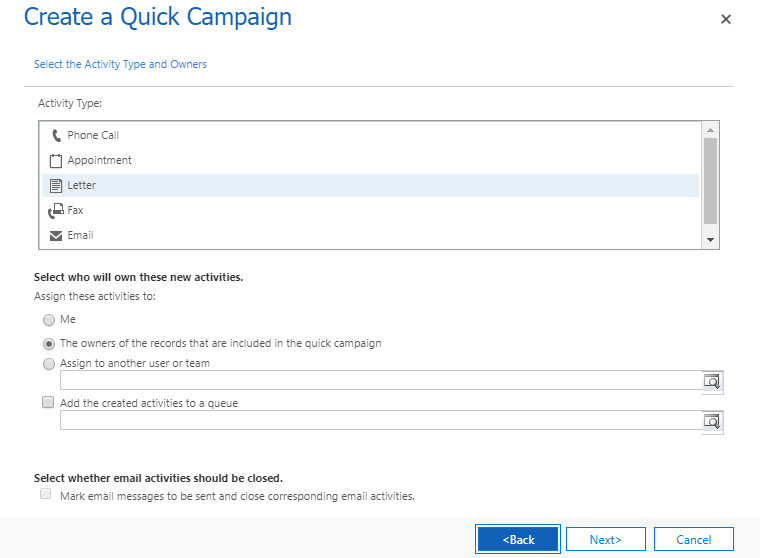
select an activity and who to assign the activity to,
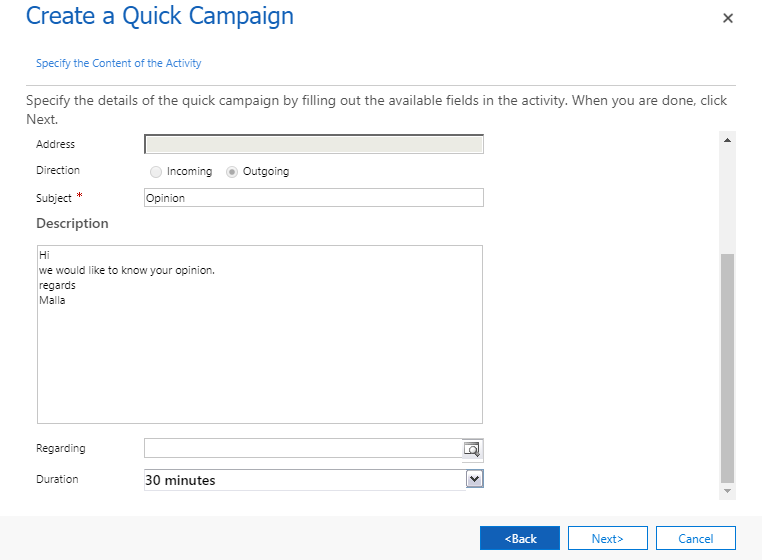
specify the content for the activity.

Give it a name and click Next..

Select the “Letter” and select  who will own the activities..
Fill in the subject and description then click Next..
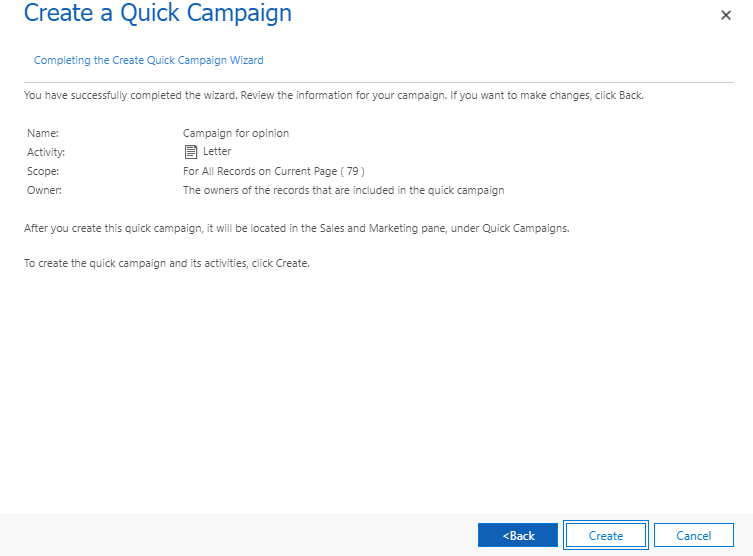
We have successfully completed the wizard..
we can click back if we need to make any changes.. as we can see the purpose of this quick campaign ..
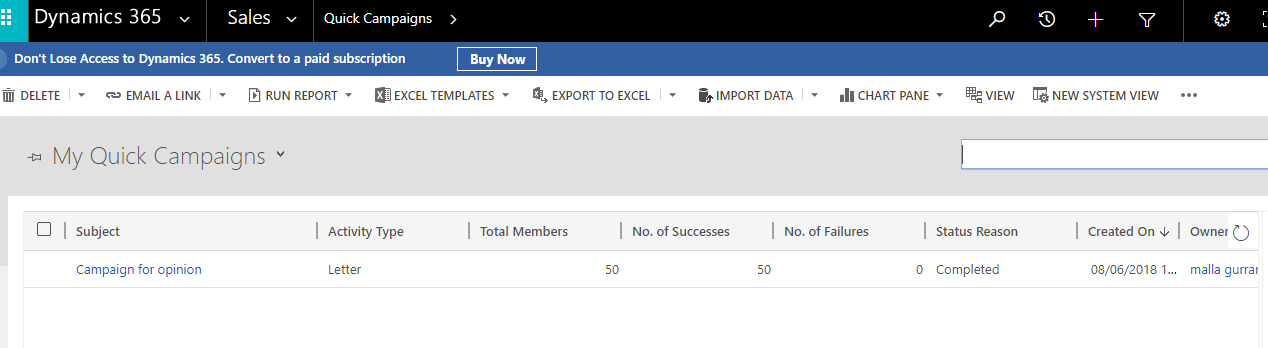
Also once the campaign is created then it will appear in sales and marketing pane, under the quick campaign
we can check the campaign in sales and marketing ..
I hope this helps..
Companies  requires Microsoft Dynamics 365 Customer Engagement or cloud products and services..
contact us

Share this: