Menu Close

Category: Blog

Microsoft Dynamics 365 Portal Login Error

Hi Everyone,

Today I am going to tell you how to resolve the Microsoft Dynamics 365 Portal Login Error.

So let’s get’s started:

Scenario: if the organisation want to give access to external company users access to portal, then we simply give URL of the Microsoft Dynamics 365 Portal URL.

So the external users click on the URL provided then the user is getting an error message
                                           “The Email is already taken”

What’S that mean : if the external user is a “contact” record inside Microsoft Dynamics 365 Application then the above message will pop’s up.

So in order to overcome this error we need to create portal invitation from Dynamics 365 Portal.

Then send the invitation to the external user and once the user access the invitation code and
Redeem it..

External user will be able to login successfully

I hope this helps someone.

**If anyone have requirement of Microsoft Dynamics 365 consultancy work, support or short term requirements, you can contact us at www.gmritsolutions.co.uk

Share this:

Microsoft Dynamics 365 Portal External Users Access

Hey Everyone,

I have encountered a situation when a new portal user is  invited  and the user is unable to login into the Microsoft Dynamics 365 Portal..

Let’s look into the situation with an example, let’s get’s started..

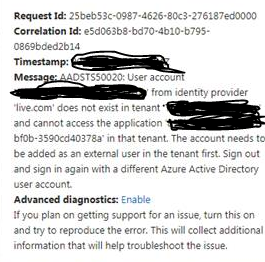
Suppose there is  cosmo.com tenant   and gmr.com tenant,  if  gmr.com tenant want to access the Cosmo tenant portal then the user getting an error message that the user can’t access the portal due to
identity provider.. does not exist in Azure AD,

Error will be “the account needs to be added as an external user in the tenant first , sign out and sign in again with a different Azure Active Directory user account.

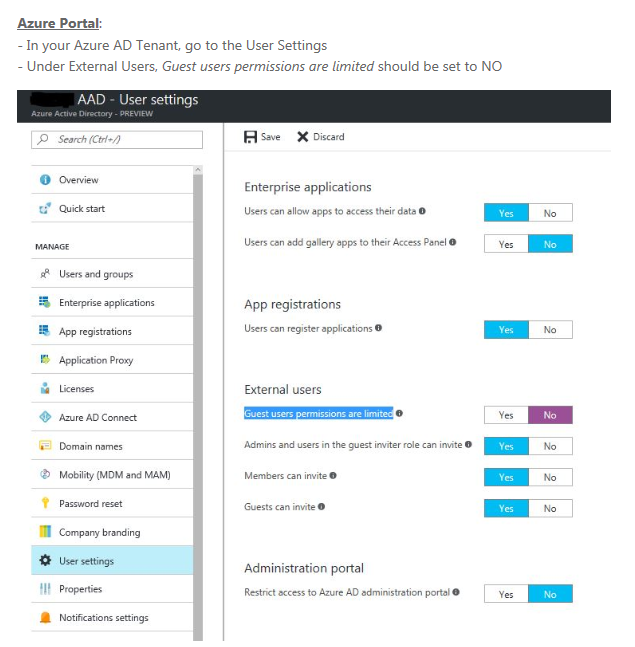
The issue will be in the Azure System, Guest user permissions are limited to NO, also follow the below screen for configuration..


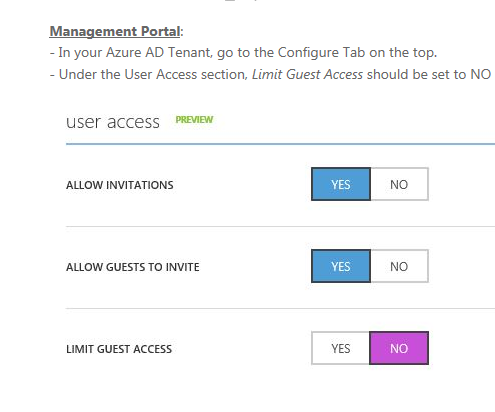
In the Management Portal, Limit Guest Access to “No”.


This will resolve the issue and new portal user invited will be able to login successfully into Microsoft Portal.
I hope this helps.
Share this:

Microsoft Dynamics 365 Upgrade from Version8.2 to Version 9.0

Hello Everyone,

Today we are going to discuss about the process of upgrade from Microsoft Dynamics 365 Version 8.2 to Version 9.0 online.
Firstly this upgrade is done by Microsoft as it is cloud hosted.
The Organisation’s System Administrator or Global Administrator have to allow permission for a upgrade.
Here is the latest upgrade scenario:
Here are the recent versions.
Version Name
n 9.0 Dynamics 365, version 9.0
n-1 8.2 Dynamics 365, version 8.2
n-2 8.1 Microsoft Dynamics CRM Online 2016 Update 1
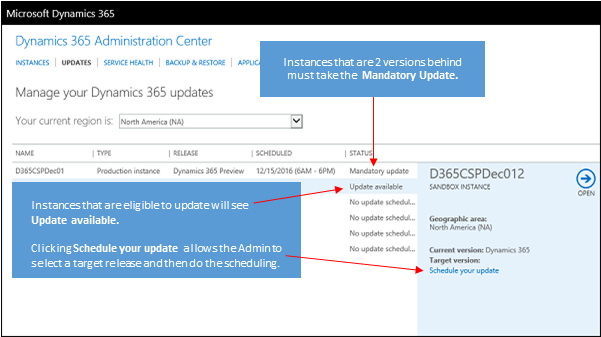
There is an option for any organisation, optional upgrade is available and a mandatory upgrade..
if you skip one version then  next one version should be mandatory.
You can schedule date of upgrade and rest is assured by Microsoft.
If you change your mind of the upgrade date, you can still postpone the date until the final call for the upgrade date.
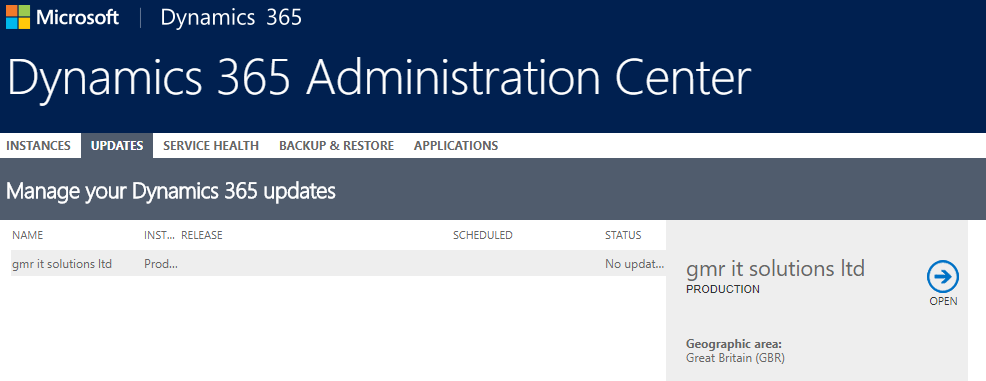
An Organisation can find out whether the application is due for the upgrade:
Manage Dynamics 365 Online instances
 System Administrator or Global Administrator have to schedule for update..
Best Practice:
First upgrade sandbox instance of your organisation, if everything goes smoothly then you are good to processed with your production Instance upgrade.
If there is any issues with the Sandbox Instance upgrade then you can revert back to previous state of the instance.
With the above scenario’s the end users should approach the Microsoft Partners for the smooth handling of the upgrade process.
I hope this helps:
Share this:

MICROSOFT DYNAMICS 365 ORGANISATION INSIGHT

Hi Everyone,

Microsoft Dynamics 365 Organisation Insight is cool feature for the Dynamics 365 Customers for the  Microsoft Dynamics 365 Version 1612 (9.0.2.54) (DB 9.0.2.54) online.

As it will give more insight into the usage of the Storage, Plugin, Workflow, API calls,  Most active users for particular period and so on..

I will show step by step instructions to into how the Organisation Insight can be installed into Dynamics 365.

So let’s get started:

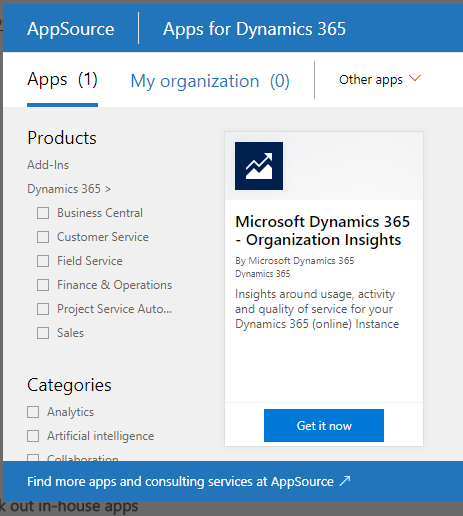
First of all go to Dynamics 365 AppSource:

Search for Organisation Insight:

Click on the Get it now button then you will be prompted with a form to fill in your organisation details and email etc.. click on submit.

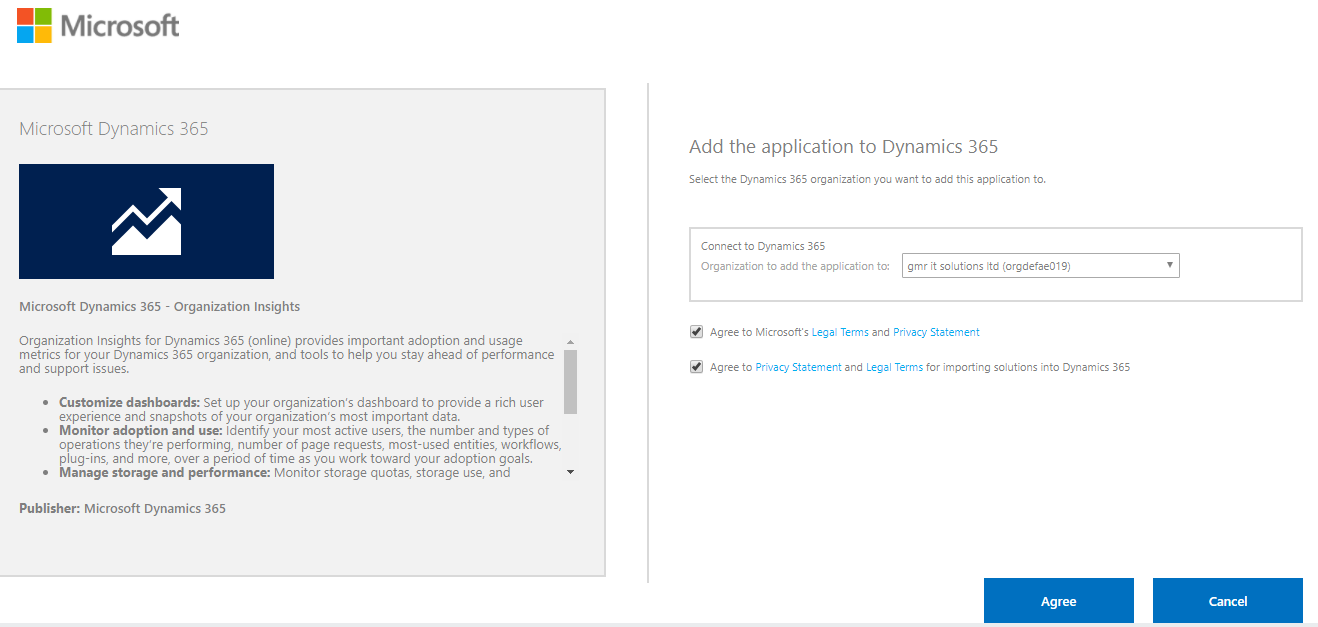
After successfully filling the initial submission form. you will be prompted with the following screen shot.

Check the terms and condition buttons and click on Agree button.

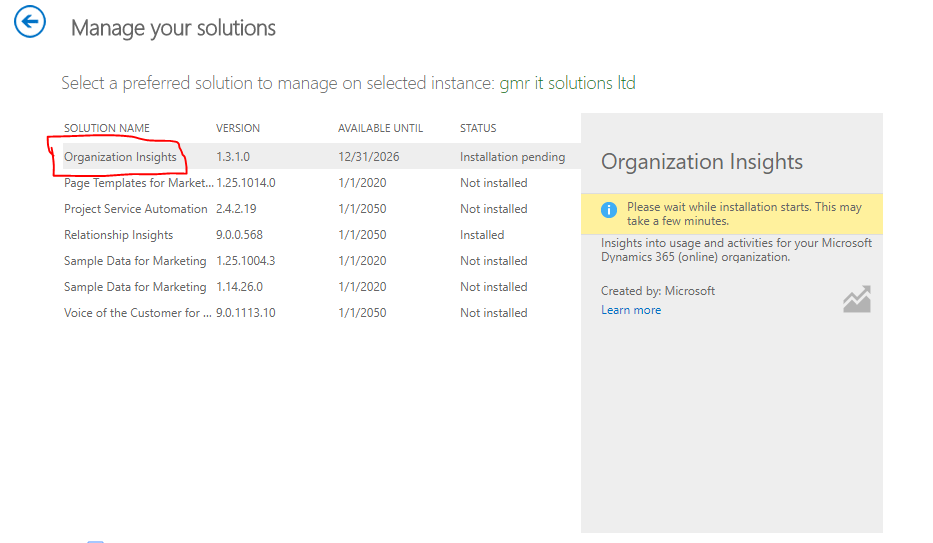
Then on the Dynamics 365 Administration Center

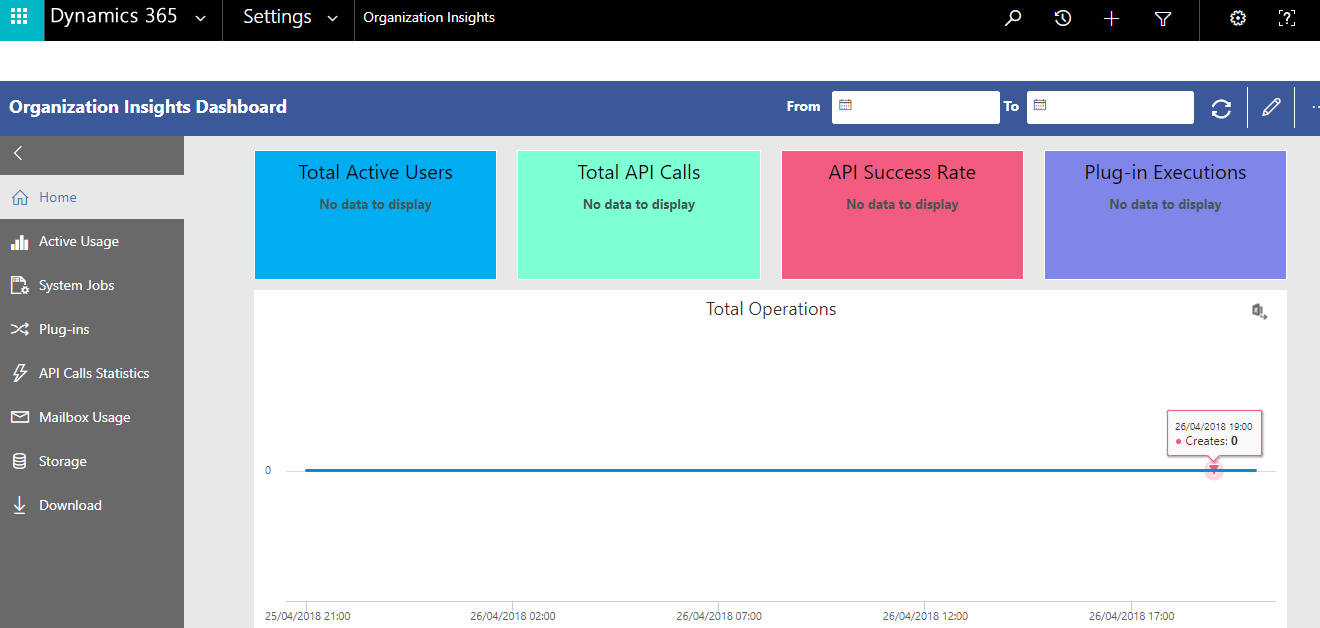
After few minute, go to dynamics 365 > Settings > Organisation Insights>

Total Active Users
Total API Calls
API Success Rate
Plug-in Executions

Statistics will be displayed..

On the Left hand side

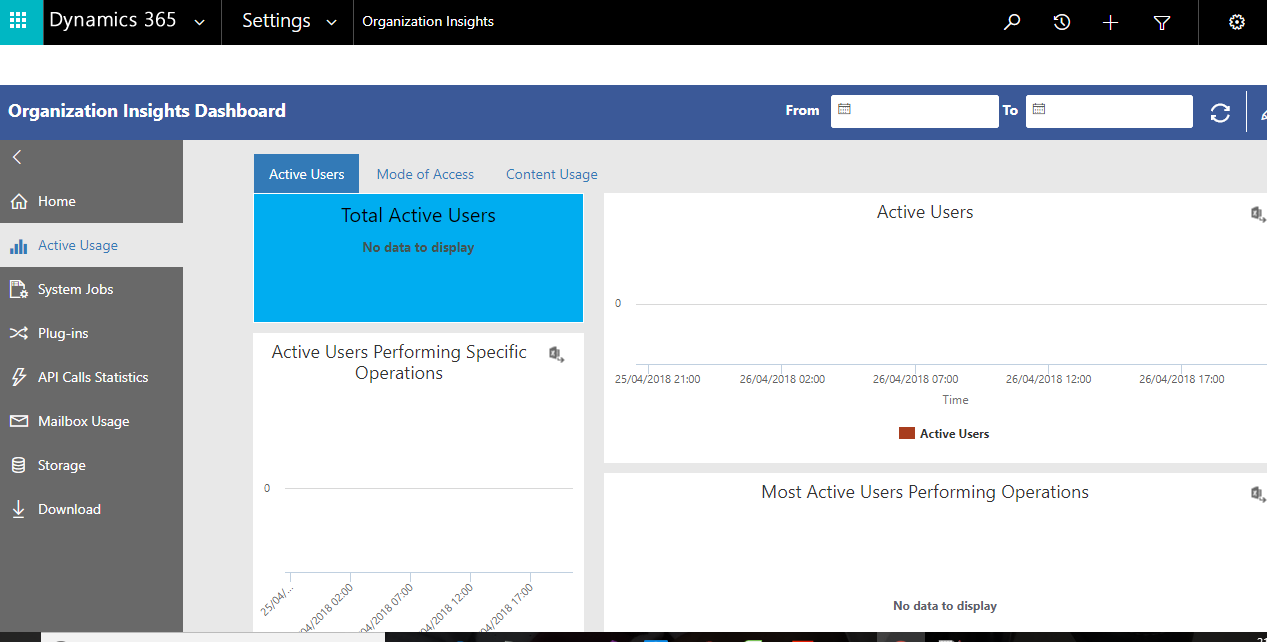
Click on the Active Usage:

you will be prompted with the statistics of Active Users:

Total Active Users, Active Users Performing Specific Operations, Most Active Users Performing Operations, Total Operations, Total Page Requests.

Cool feature is you can download the statistics into the excel  sheet.

Also we can see Mode of access, Content Usage.

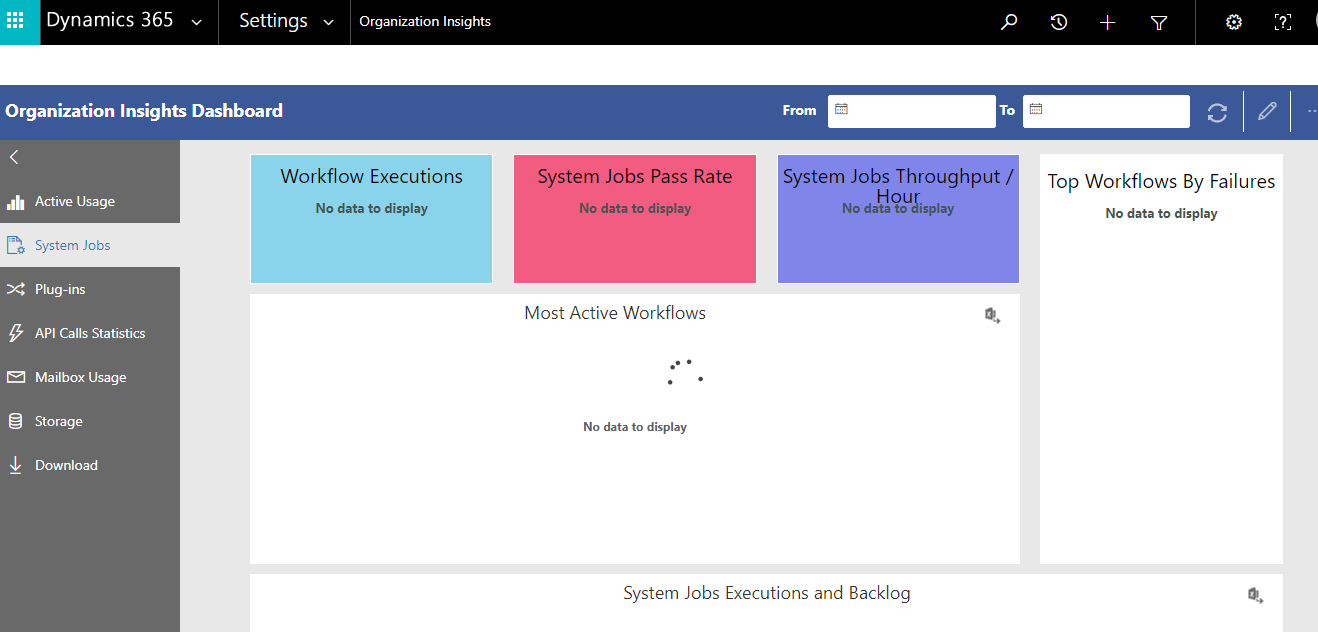
We can still find out about the system jobs,

System jobs  statistics :
Workflow executions, System Jobs Pass Rate, System Jobs Throughput/Hour, Top Workflows By Failures, Most Active Workflows, System Jobs Executions and Backlog.
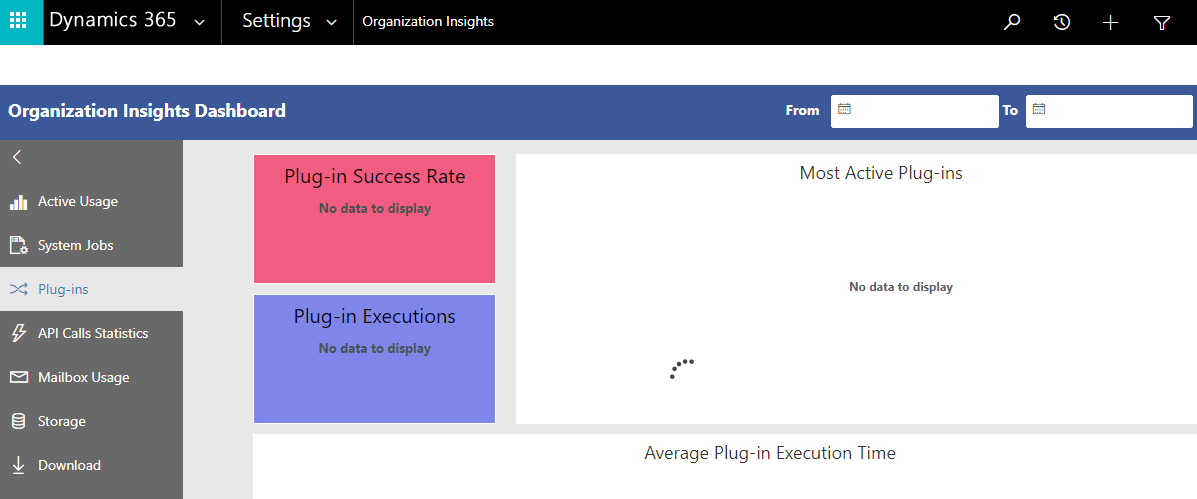
Click on the Plug-ins statistics:

Plug-ins

Plug-in Success Rate

Plug-in Executions, Most Active Plug-ins, Average Plug-in Execution Time
Top Plug-in By Failures

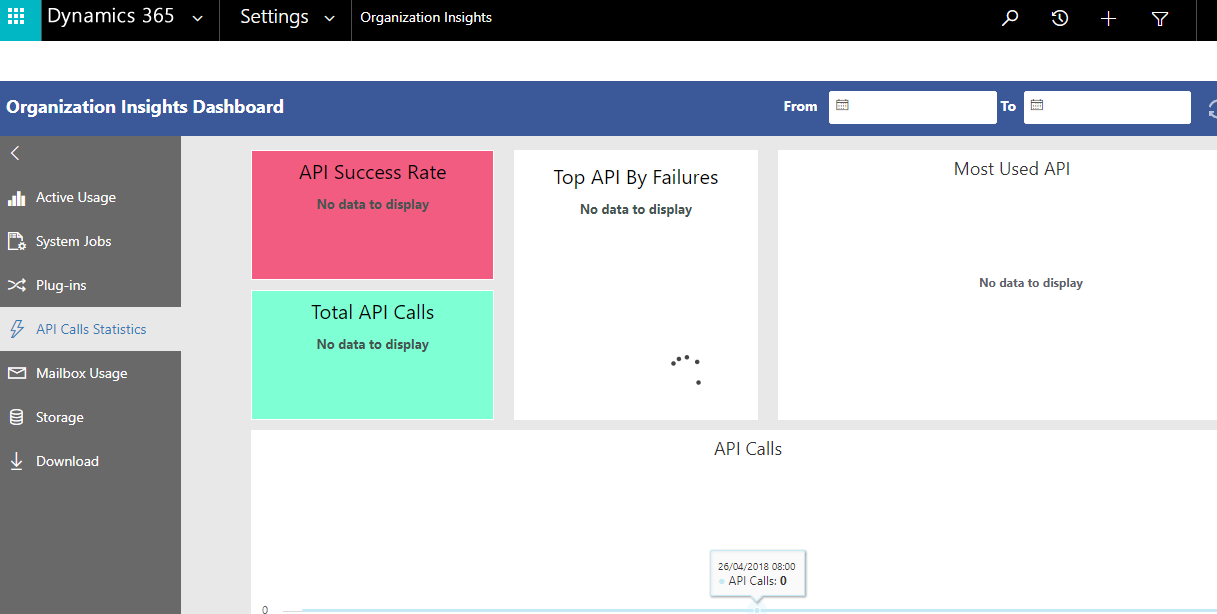
Click on the API Calls Statistics:

Then Mailbox Usage Statistics:

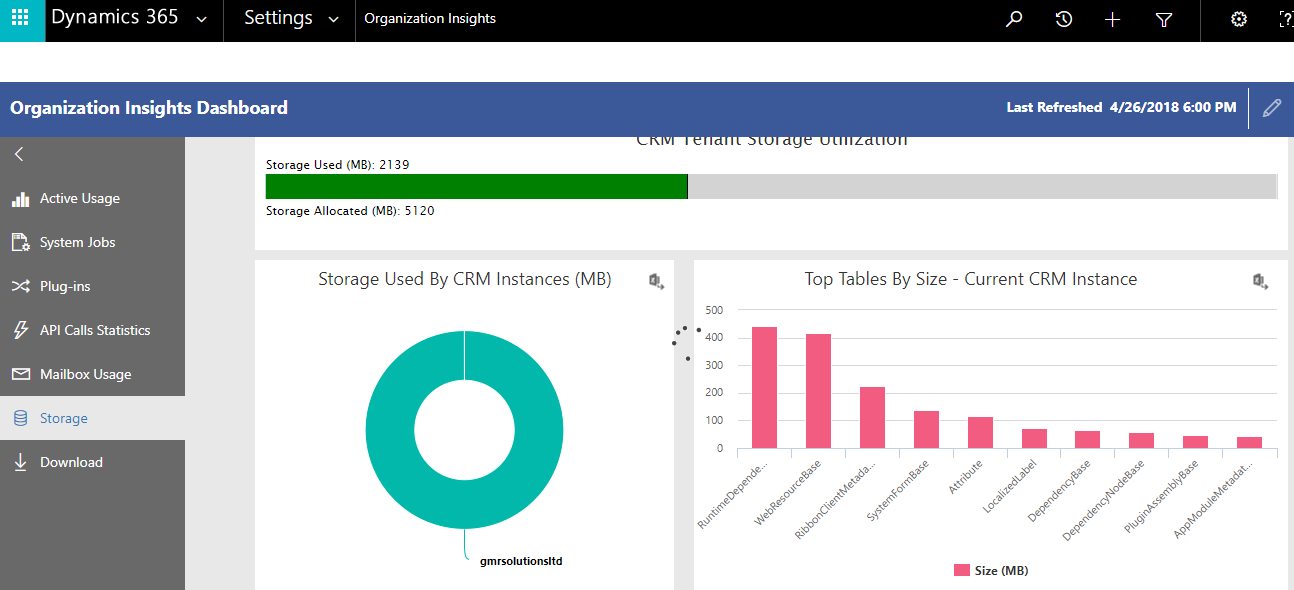
Similarly Storage Usage Statistics:

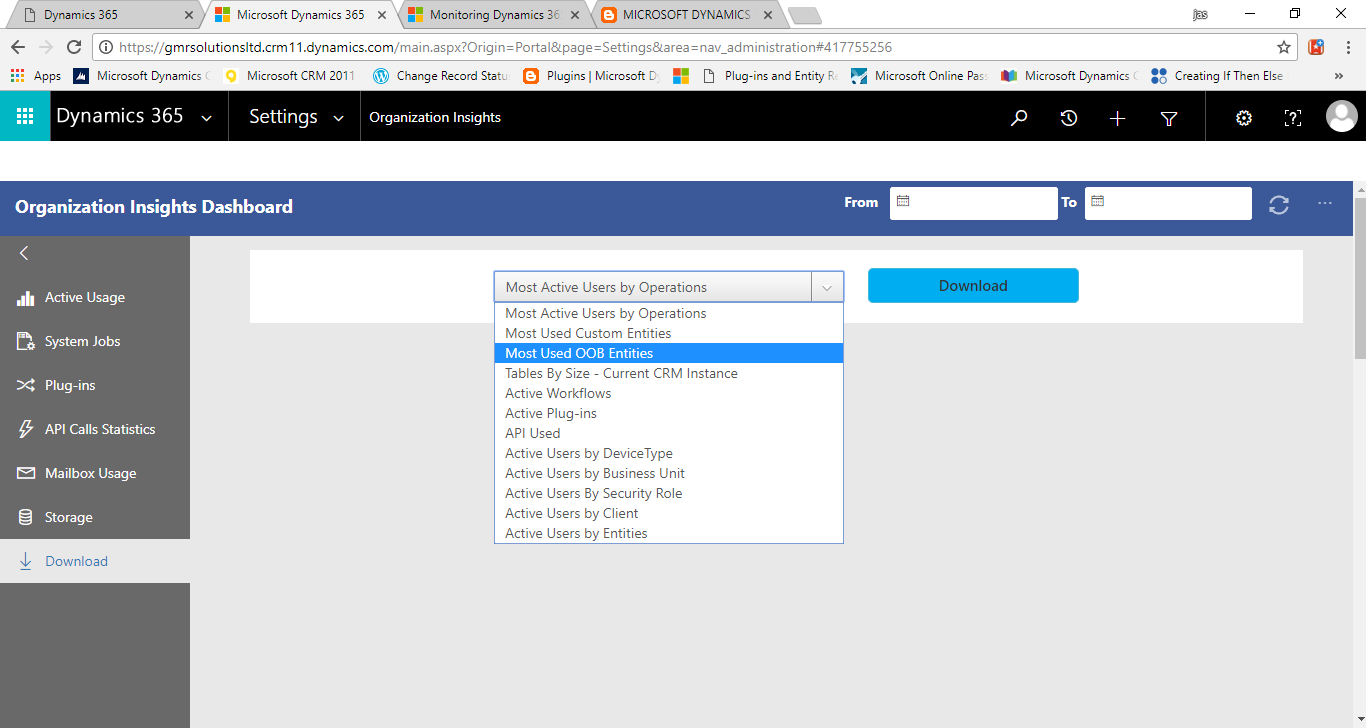
Lastly we can Download the different types of usage list

These are the cool features for the Global Administrator of the Enterprise Clients.

Organisations can use this Organisation Insights statistics for reporting purposes.

Share this:

MICROSOFT DYNAMICS 365 PORTAL USERS COUNT

Hi Everyone,

Microsoft Portal are used to give special access to KB Articles or self service etc..

But inside the organization, client want to know how many users are actually accessing portal.

In Order to get that information then

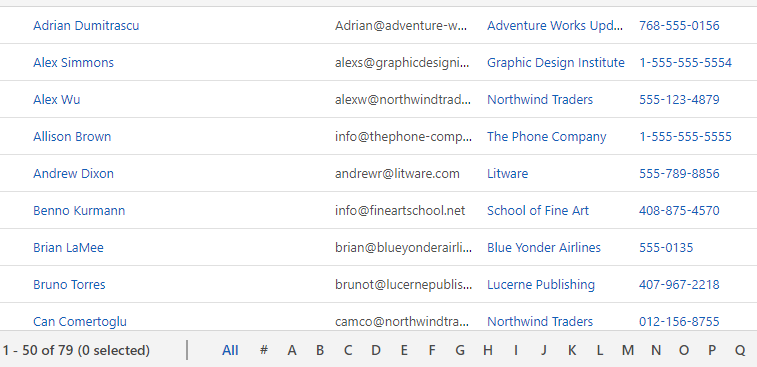
Just go to advance find > select the contact entity and view active user

select the field “username” contains data..

You will get the count of the users..

I hope this helps.

Share this: