
Menu Close

Category: Blog

MICROSOFT DYNAMICS 365 FOR FIELD SERVICES TRIAL SOLUTION STEPS

Install Dynamics 365 for Field Service Trial Solution High Level Steps
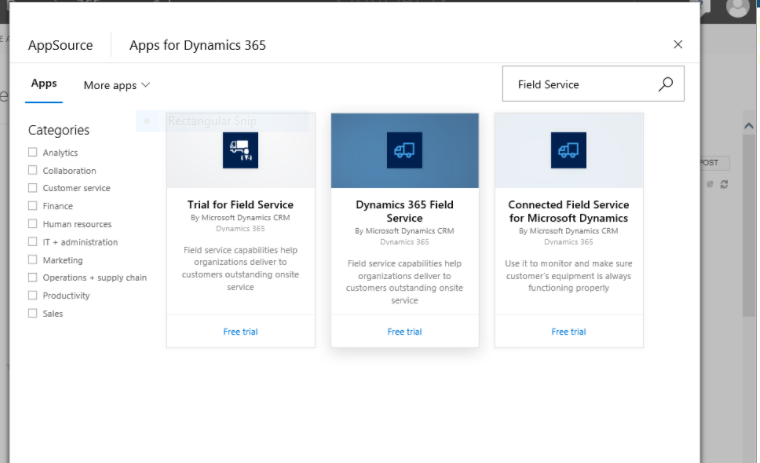
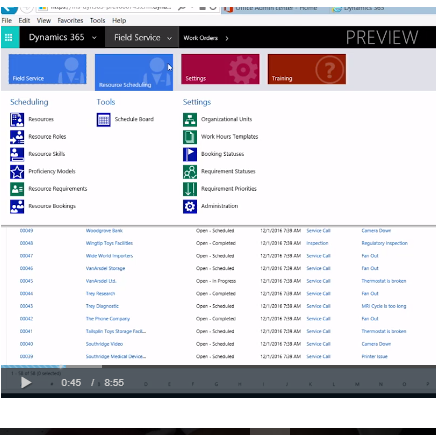
1. In the Dynamics 365 Organisation, click the module drop-down selector
2. Click settings
3. Click Dynamics Marketplace
4. Click the search field
5.Type “Field Service”.
6. Select Dynamics 365 Field Service
7. Click Free trial.
8. Click Continue to agree with the terms and conditions.
9. Scroll down to see the Add the application to Dynamics 365 section.
10. In the Organisation to field, ensure your organisation is selected to install Field Service in.
11.Select the Agree to Microsoft’s Legal Terms and Privacy Statement check box
12. Select the Agree to Privacy Statement and Legal Terms for importing solutions into Dynamics 365 check box.
13. Click Agree.
Share this:

MICROSOFT DYNAMICS 365 FIELD SERVICES SETUP AND CONFIGURATION

SETUP AND CONFIGURATION:

> Field Service Security Roles
> Initial Configuration Settings
> Using Products and Price Lists in Field Service
> Setting up and Defining Field Service Resources

>> Field Service Security Roles
> 5 Security Roles are created as part of Field Service
>> Field Service –Administrator
>> Field Service –App Access
>> Field Service –Dispatcher
>> Field Service –Inventory Purchase
>> Field Service — Resource

Field Service Administration:

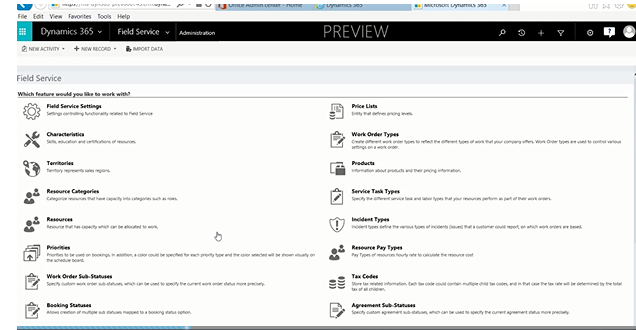
Several administrative settings can be defined to allow greater flexibility and customization for use with Field Service

>> This colud Include:
>>Characteristics
>>Territories
>>Priorities
>>Warehouses
>>Postal Codes
>>Products
>>Bookable Resources
>>Price Lists
>>Time Groups
>>Payment Terms
>>Incident Types
>>Tax Codes
>>Booking Statuses
>>Service Task Types
>>Booking Rules

Share this:

MICROSOFT DYNAMICS 365 FIELD SERVICES KEY AREAS

>Dynamics 365 Field service a full feature set of field service capabilities including scheduling.

> You want to make sure that you are taking time to consider how your implementation will work in the 4 key Areas:

>> Work Order Creation
>>Scheduling and Dispatching
>> Service Delivery
>> Reviewing and Billing

Share this:

MICROSOFT DYNAMICS 365 FIELD SERVICE

Field Service at a Glance

work order generation –> Schedule & Dispatch –> Service Delivery –> Review & Bill   

Field Service Capabilities help organisations deliver to customers outstanding onsite service
> Work Oders
> Schedule Assistant 
> Schedule Board
> Resource Management 
> Asset Tracking 
> Multi – Warehouse Inventory
>Mobile
> Geocoding
> Manage RMAs and RTVs

>> Work Oders
> Captures essence of what needs to be preformed
> Used to coordinate and schedule resource and activities
> Can be used for different types of work such as installations , repairs, or preventative maintenance

>> Smart Scheduling:
Schdule the right resource with the right equipment to the right location,
meeting SLAs and ensuring a fast first time fix.

>> Schedule Board
> Drag & drop interface for scheduling and rescheduling
> Filter by resource type services etc,,
> Scheduler settings allow configuration of dispatcher time zone, grouping etc..

>> Schedule Assistant
> Allows applying constraints to query the for resources
> Duration
> Radius
> Start & End Days
> Territory
> Resource Types

>> Resource Management
> Define Users,Equipment, Accounts, Contacts, etc.
that are used to service work orders
> Use Characteristics (skills & certifications) and category associations can be included for better scheduling.
> Manage Schedules

>> Mobile field enablement
> Keep your technicians nimble and in the know whether they are using a hand-held device, smartphone or laptop.

Share this:

BUSINESS PROCESS FLOW ENTITIES IN DYNAMICS 365

What kind of entities you can use while creating BPF?

Entities that can use business process flows in Dynamics 365

Only entities that use the updated forms can use business process flows. This includes custom entities and the following system entities:
  • Account
  • Appointment
  • Campaign
  • Campaign Activity
  • Campaign Response
  • Competitor
  • Contact
  • Email
  • Entitlement
  • Fax
  • Case
  • Invoice
  • Lead
  • Letter
  • Marketing List
  • Opportunity
  • Phone Call
  • Product
  • Price List Item
  • Quote
  • Recurring Appointment
  • Sales Literature
  • Social Activity
  • Order
  • User
  • Task
  • Team
To enable a custom entity for business process flows, select the Business process flows (fields will be created)check box in the entity definition. Note that you can’t undo this action.

Note
If you navigate to the business process flow stage that contains the Social Activity entity and choose the Next Stage button, you’ll see the Create option. When you choose Create, the Social Activity form loads. However, because Social Activity isn’t valid for Create from the Dynamics 365 application user interface, you won’t be able to save the form and you’ll see the error message: “Unexpected error.”
I hope this helps..
Share this: