
The options of installing Dynamics CRM On Premises or going with CRM Online. In this post i have compared both platforms, and compared the differences.
Core Application Functionality
The core application functionality is at parity, with the same core application entities and extensibility features.
Extensibility
Customizations developed in a supported way for CRM on premise can be moved to CRM Online (and vice versa), and plugins, workflows and any custom extension can be used in either Online or On Premises deployments. Any supported code will work in both CRM online and On Premises.
Mobility
CRM clients for phone, tablet, and Outlook (including offline) work exactly the same between CRM Online and CRM On Premises.
Integrations with other Microsoft platforms
Integration with other Microsoft platforms such as Sharepoint, Exchange, Lync, and Yammer work with both CRM On Premises as well as CRM Online
If you currently use Office 365 for Exchange or SharePoint, CRM Online will allow you to standardize user management and offer enhanced server side integration with SharePoint Online, Exchange Online, and PowerBI.
Data Integration Options
Integration options are similar between CRM online and On Premises. Third party integration tools like Scribe Insight and SSIS with Kingswaysoft work with both CRM On Premises and CRM Online. Integration performance will vary based on the data loaded. Very large data integrations are typically faster with CRM On Premises if the integration server is close to the CRM server as latency is very low. CRM Online integration performance can be improved by optimizing the integration, using the bulk load API, or by reducing latency to the cloud by running the integration from a Microsoft Azure server.
|
Capability
|
CRM Online
|
CRM On Premises
|
|
Exchange Synchronization
|
CRM for Outlook, Email Router, or Server Synchronization (if using Exchange Online/O365)
|
CRM for Outlook, Email Router, or Server Synchronization (if using Exchange on premise)
|
|
SharePoint Integration
|
Server Side with SharePoint Online (if using O365)
|
Client-side integration
|
|
Inside View (Insights)
|
Included
|
Additional cost
|
|
Social Listening
|
Included
|
Additional cost
|
|
Workflows/dialogs
|
200
|
Unlimited
|
|
Custom Entities
|
300
|
Unlimited
|
|
SSRS Reporting
|
FetchXML, or T-SQL from a locally replicated reporting server
|
FetchXML or T-SQL
|
|
Power BI Reporting
|
Yes
|
No
|
|
Upgrade/Update process
|
Office 365 admin approves the upgrade before it is installed, update rollups applied automatically
|
Upgrades and update rollups installed my your administrator
|
|
Direct server access
|
No
|
Yes
|
|
Phone App
|
Yes
|
Yes if environment externally facing via ADFS
|
|
Tablet App
|
Yes
|
Yes if environment externally facing via ADFS
|
|
Storage
|
Limited to the amount of CRM Online storage purchased
|
Limited to the amount of storage available on your server
|
|
Release cycle
|
Two releases per year. Spring release functionality exclusive to CRM Online, so new functionality available online first.
|
Fall release released to both CRM Online and On Premises, includes the functionality released in the Spring release.
|
|
Migrating
|
CRM Online customers can migrate On Premises at any time. SQL database provided to client at scheduled time that can be imported to an On Premises deployment.
|
CRM On Premises customers can migrate to CRM Online and customization for entities can be imported; however, on premises database cannot be moved to Online data center, so a data migration is required.
|
|
Sandbox environments
|
CRM Online provides non production environments as part of your subscription that can be used for dev/test/UAT. The number of organizations received depends on the number of users.
|
Non production environments can be installed, depending on local server availability.
|
C# coding conventions
1) Naming conventions
2)Layout conventions
3)commenting conventions
4)Language guidelines
a) String Data Type
b)Implicitly typed local variables
c)using data type
arrays
delegates
try-catch and using statements in exception handling
&& and || Operators
New Operator
Event Handling
Static Members
LINQ Queries
Editable Grid was released as a new feature in Dynamics 365. I would like to explain some of the core concepts of the editable grid advantages and disadvantages.
1. What is editable grid?
It’s a custom control on an entity. It’s not enabled out of the box for any entity, you have to set it up. It’s easy (see below). It allows you to amend values on a view inline without going into the form.
2. Once you set up editable grid for an entity, can you still use the traditional read only views?
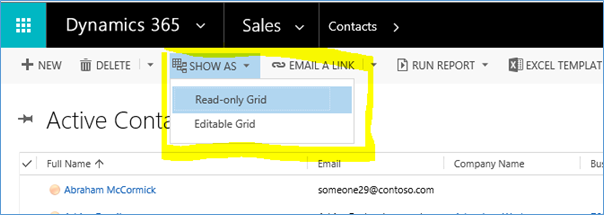
Yes. Once you set it up on an entity, you can toggle back and forth from editable to read only grid via a ‘Show as’ button on the view command bar.
3. Can it be used on out of the box and custom entities?
Yes
4. Can it be used on personal views?
Yes
5. Can it be used on mobile clients?
Yes, both tablet and phone. In fact, when you enable it, you enable for web, tablet and phone all together.
6. Can you apply it to just some view on an entity and not others?
Not exactly. It is set up at either entity or form level (i.e. applies to a specific subgrid). But you can’t just apply it to some views on an entity and not others.
7. How do you set it up?
In Customisations, in the entity configuration screen, there’s a new tab called ‘Controls’.
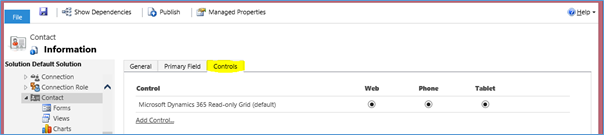
Select ‘Add control’ and select the type you want, in this case, obviously ‘Editable Grid’.
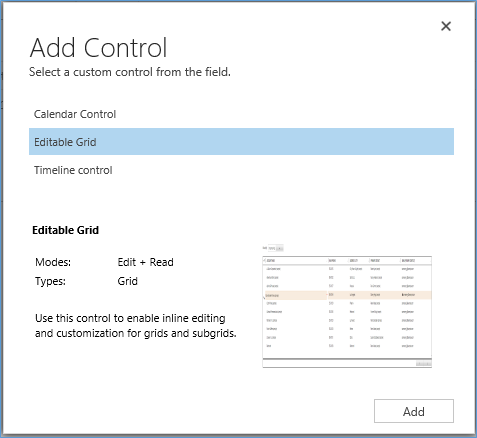
Don’t forget to save your changes. Then publish.
Please also note that it seems it is possible to add multiple editable grids to the same entity, but this would appear to be a bug, as it seems to have no impact. Of course, it only makes sense to have 1 editable grid control per entity.
8. What can you do on an editable grid?
You can (and this list is not exhaustive):
Change values on the view columns, obviously. See example below where I’m about to change the email field for Abraham McCormick.
Change values on the view columns, obviously. See example below where I’m about to change the email field for Abraham McCormick.

Move columns around in the view by dragging and dropping. Please note, these persist across sessions, and users, i.e. if I move a column, it is moved for all users, and will still be like that when I log out and back in again. Not sure I like this functionality, particularly the fact that it moves it for all users.
Group records by a column in the view. Below, I’ve grouped by Company Name, and collapsed the contacts attached to no company and to A.Datum.

Again, these changes persist across sessions and users. Please note, you can enable editable grid for an entity but disable grouping if you want. Not sure why you would ever do this though.
9. What can’t you do on an editable grid?
You can’t (and again this list is not exhaustive):
Select a lookup field on a view and be taken to that record. It’s not a link, like it is in read only grid.
Select a lookup field on a view and be taken to that record. It’s not a link, like it is in read only grid.
Change the owner of a record – this is still done through ‘Assign’ on the command bar. As you can see it is locked:
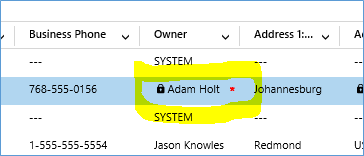
Change a value on a field of a parent entity, e.g. phone number of parent account on an editable grid of contacts. As you can see below, it’s locked:
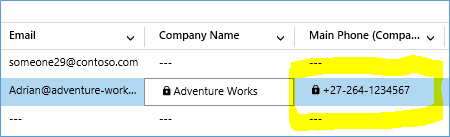
Click to call phone numbers. Again, they’re not links. When you click on them, you can change them, but not call them.

Click to send email. Again, they’re not links.
Change customer lookups (you can change all other lookups on the primary entity).
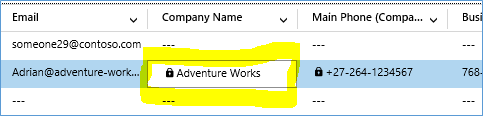
Change composite fields, e.g. full name:

You can of course list out each component of the composite field in their own columns and change those individually.
Change party list fields.
See more than 25 records per page, regardless of your personal setting for records per page, unless you use the grouping function, in which case it will respect your personal options for records per page.
Perform a secondary sort, unless the grid is grouped, in which case you can do a maximum of 2 levels of sorting (unlike read only grid where you can sort by many columns).
See how many records are in the view, i.e. there is no record count at the bottom. You just see this for paging back and forth:
10. Can you set an entity to default to editable or read only grid?
Yes you can. You create the control for editable grid, and then select whether you want the default to be editable grid or read only grid for each client, i.e. web, phone or tablet. In the example below, I’ve set the default for web client to be editable grid, but for phone and tablet to be read only grid.
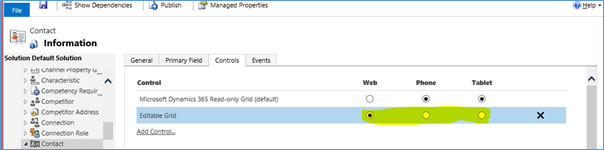
Please note, if you go to another entity and then back, you will be taken back to the grid type you were on when you left, not your default. However, if you sign out of CRM and back in, you will be taken to your default. So, the default grid type is only for when you first view that entity in a new session.
This isn’t an exhaustive list of editable grid’s features and limitations, but it’s a decent start.
MICROSOFT DYNAMICS CRM ROLLUP AND CALCULATED FIELDS LIMITATIONS:
Calculated fields specifically are subject to the following limitations :
- Can only go one level up in an N:1 relationship
- Can only have all ANDs or all ORS in conditional logic.
- Not available for offline
- Calculations only refresh OnSave of the Form
Rollup fields are subject to the following :
- Only available using a single directly related 1:N related entity (Opportunity and Opportunity Products for instance)
- Rollup using another rollup field is not supported.
- Rollups are asynchronous and so the latest value will not always be available if changes are made to child records.