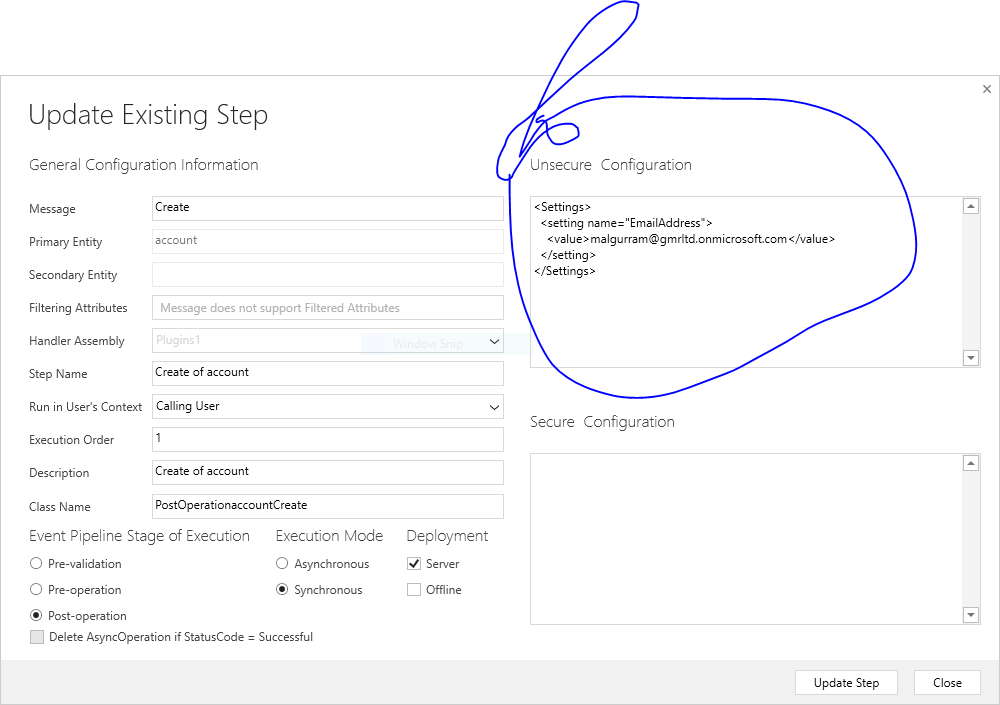
Usecure Configuration, dynamically assign the task to the system users based on the email configuration on the plugin step.
// <copyright file=”PostOperationaccountCreate.cs” company=””>
// Copyright (c) 2017 All Rights Reserved
// </copyright>
// <author></author>
// <date>3/13/2017 9:26:51 PM</date>
// <summary>Implements the PostOperationaccountCreate Plugin.</summary>
// <auto-generated>
// This code was generated by a tool.
// Runtime Version:4.0.30319.1
// </auto-generated>
using System;
using System.Runtime.Serialization;
using System.ServiceModel;
using Microsoft.Crm.Sdk.Messages;
using Microsoft.Xrm.Sdk;
using Microsoft.Xrm.Sdk.Query;
using System.Text;
using System.Linq;
using System.Collections.Generic;
using System.Xml;
namespace CrmPackage1.Plugins1
{
/// <summary>
/// PostOperationaccountCreate Plugin.
/// </summary>
public class PostOperationaccountCreate: PluginBase
{
private XmlDocument configure;
/// <summary>
/// Initializes a new instance of the <see cref=”PostOperationaccountCreate”/> class.
/// </summary>
/// <param name=”unsecure”>Contains public (unsecured) configuration information.</param>
/// <param name=”secure”>Contains non-public (secured) configuration information.
/// When using Microsoft Dynamics 365 for Outlook with Offline Access,
/// the secure string is not passed to a plug-in that executes while the client is offline.</param>
public PostOperationaccountCreate(string unsecure, string secure)
: base(typeof(PostOperationaccountCreate))
{
// TODO: Implement your custom configuration handling.
// setting the xml configuration
configure = new XmlDocument();
configure.LoadXml(unsecure);
}
private static string GetValueNode(XmlDocument doc, string key)
{
XmlNode node = doc.SelectSingleNode(String.Format(“Settings/setting[@name='{0}’]”, key));
if (node != null)
{
return node.SelectSingleNode(“value”).InnerText;
}
return string.Empty;
}
/// <summary>
///
/// </summary>
/// <param name=”doc”></param>
/// <param name=”label”></param>
/// <returns></returns>
///
public static string GetConfigDataString(XmlDocument doc, string label)
{
return GetValueNode(doc, label);
}
/// <summary>
///
/// </summary>
/// <param name=”doc”></param>
/// <param name=”key”></param>
/// <returns></returns>
/// <summary>
/// Main entry point for he business logic that the plug-in is to execute.
/// </summary>
/// <param name=”localContext”>The <see cref=”LocalPluginContext”/> which contains the
/// <see cref=”IPluginExecutionContext”/>,
/// <see cref=”IOrganizationService”/>
/// and <see cref=”ITracingService”/>
/// </param>
/// <remarks>
/// For improved performance, Microsoft Dynamics 365 caches plug-in instances.
/// The plug-in’s Execute method should be written to be stateless as the constructor
/// is not called for every invocation of the plug-in. Also, multiple system threads
/// could execute the plug-in at the same time. All per invocation state information
/// is stored in the context. This means that you should not use global variables in plug-ins.
/// </remarks>
protected override void ExecuteCrmPlugin(LocalPluginContext localContext)
{
if (localContext == null)
{
throw new InvalidPluginExecutionException(“localContext”);
}
if (localContext.PluginExecutionContext.InputParameters.Contains(“Target”) && localContext.PluginExecutionContext.InputParameters[“Target”] is Entity)
{
// Obtain the target entity from the input parameters.
Entity entity = (Entity)localContext.PluginExecutionContext.InputParameters[“Target”];
//</snippetFollowupPlugin2>
// Verify that the target entity represents an account.
// If not, this plug-in was not registered correctly.
if (entity.LogicalName != “account”)
return;
try
{
// Create a task activity to follow up with the account customer in 7 days.
Entity followup = new Entity(“task”);
followup[“subject”] = “Send e-mail to the new customer.”;
followup[“description”] =
“Follow up with the customer. Check if there are any new issues that need resolution.”;
followup[“scheduledstart”] = DateTime.Now.AddDays(7);
followup[“scheduledend”] = DateTime.Now.AddDays(7);
followup[“category”] = localContext.PluginExecutionContext.PrimaryEntityName;
// Refer to the account in the task activity.
if (localContext.PluginExecutionContext.OutputParameters.Contains(“id”))
{
Guid regardingobjectid = new Guid(localContext.PluginExecutionContext.OutputParameters[“id”].ToString());
string regardingobjectidType = “account”;
followup[“regardingobjectid”] = new EntityReference(regardingobjectidType, regardingobjectid);
}
//<snippetFollowupPlugin4>
// Obtain the organization service reference.
//</snippetFollowupPlugin4>
// Create the task in Microsoft Dynamics CRM.
localContext.Trace(“FollowupPlugin: Creating the task activity.”);
Guid taskid = localContext.OrganizationService.Create(followup);
// Assign the task created to #malla (another user when new account is created.)
string emailAddress = GetConfigDataString(configure, “EmailAddress”);
String fetchXml = @”<fetch version=’1.0′ output-format=’xml-platform’ mapping=’logical’ distinct=’false’>
<entity name=’systemuser’>
<attribute name=’fullname’ />
<attribute name=’businessunitid’ />
<attribute name=’title’ />
<attribute name=’address1_telephone1′ />
<attribute name=’positionid’ />
<attribute name=’systemuserid’ />
<order attribute=’fullname’ descending=’false’ />
<filter type=’and’>
<condition attribute=’internalemailaddress’ operator=’eq’ value='” + emailAddress + “‘ /></filter></entity></fetch>”;
FetchExpression query = new FetchExpression(fetchXml);
AssignRequest assign= new AssignRequest();
EntityCollection entcollection = localContext.OrganizationService.RetrieveMultiple(query);
for (int i = 0; i < entcollection.Entities.Count; i++)
{
assign = new AssignRequest
{
Assignee = new EntityReference(“systemuser”, entcollection.Entities[i].Id),
Target = new EntityReference(“task”,taskid)
};
localContext.OrganizationService.Execute(assign);
}
}
//<snippetFollowupPlugin3>
catch (FaultException<Microsoft.Xrm.Sdk.OrganizationServiceFault> ex)
{
throw new InvalidPluginExecutionException(“An error occurred in the FollowupPlugin plug-in.”, ex);
}
}
}
}
}
// <copyright file=”PostOperationaccountCreate.cs” company=””>
// Copyright (c) 2017 All Rights Reserved
// </copyright>
// <author></author>
// <date>3/13/2017 9:26:51 PM</date>
// <summary>Implements the PostOperationaccountCreate Plugin.</summary>
// <auto-generated>
// This code was generated by a tool.
// Runtime Version:4.0.30319.1
// </auto-generated>
using System;
using System.Runtime.Serialization;
using System.ServiceModel;
using Microsoft.Crm.Sdk.Messages;
using Microsoft.Xrm.Sdk;
using Microsoft.Xrm.Sdk.Query;
using System.Text;
using System.Linq;
using System.Collections.Generic;
using System.Xml;
namespace CrmPackage1.Plugins1
{
/// <summary>
/// PostOperationaccountCreate Plugin.
/// </summary>
public class PostOperationaccountCreate: PluginBase
{
private XmlDocument configure;
/// <summary>
/// Initializes a new instance of the <see cref=”PostOperationaccountCreate”/> class.
/// </summary>
/// <param name=”unsecure”>Contains public (unsecured) configuration information.</param>
/// <param name=”secure”>Contains non-public (secured) configuration information.
/// When using Microsoft Dynamics 365 for Outlook with Offline Access,
/// the secure string is not passed to a plug-in that executes while the client is offline.</param>
public PostOperationaccountCreate(string unsecure, string secure)
: base(typeof(PostOperationaccountCreate))
{
// TODO: Implement your custom configuration handling.
// setting the xml configuration
configure = new XmlDocument();
configure.LoadXml(unsecure);
}
private static string GetValueNode(XmlDocument doc, string key)
{
XmlNode node = doc.SelectSingleNode(String.Format(“Settings/setting[@name='{0}’]”, key));
if (node != null)
{
return node.SelectSingleNode(“value”).InnerText;
}
return string.Empty;
}
/// <summary>
///
/// </summary>
/// <param name=”doc”></param>
/// <param name=”label”></param>
/// <returns></returns>
///
public static string GetConfigDataString(XmlDocument doc, string label)
{
return GetValueNode(doc, label);
}
/// <summary>
///
/// </summary>
/// <param name=”doc”></param>
/// <param name=”key”></param>
/// <returns></returns>
/// <summary>
/// Main entry point for he business logic that the plug-in is to execute.
/// </summary>
/// <param name=”localContext”>The <see cref=”LocalPluginContext”/> which contains the
/// <see cref=”IPluginExecutionContext”/>,
/// <see cref=”IOrganizationService”/>
/// and <see cref=”ITracingService”/>
/// </param>
/// <remarks>
/// For improved performance, Microsoft Dynamics 365 caches plug-in instances.
/// The plug-in’s Execute method should be written to be stateless as the constructor
/// is not called for every invocation of the plug-in. Also, multiple system threads
/// could execute the plug-in at the same time. All per invocation state information
/// is stored in the context. This means that you should not use global variables in plug-ins.
/// </remarks>
protected override void ExecuteCrmPlugin(LocalPluginContext localContext)
{
if (localContext == null)
{
throw new InvalidPluginExecutionException(“localContext”);
}
if (localContext.PluginExecutionContext.InputParameters.Contains(“Target”) && localContext.PluginExecutionContext.InputParameters[“Target”] is Entity)
{
// Obtain the target entity from the input parameters.
Entity entity = (Entity)localContext.PluginExecutionContext.InputParameters[“Target”];
//</snippetFollowupPlugin2>
// Verify that the target entity represents an account.
// If not, this plug-in was not registered correctly.
if (entity.LogicalName != “account”)
return;
try
{
// Create a task activity to follow up with the account customer in 7 days.
Entity followup = new Entity(“task”);
followup[“subject”] = “Send e-mail to the new customer.”;
followup[“description”] =
“Follow up with the customer. Check if there are any new issues that need resolution.”;
followup[“scheduledstart”] = DateTime.Now.AddDays(7);
followup[“scheduledend”] = DateTime.Now.AddDays(7);
followup[“category”] = localContext.PluginExecutionContext.PrimaryEntityName;
// Refer to the account in the task activity.
if (localContext.PluginExecutionContext.OutputParameters.Contains(“id”))
{
Guid regardingobjectid = new Guid(localContext.PluginExecutionContext.OutputParameters[“id”].ToString());
string regardingobjectidType = “account”;
followup[“regardingobjectid”] = new EntityReference(regardingobjectidType, regardingobjectid);
}
//<snippetFollowupPlugin4>
// Obtain the organization service reference.
//</snippetFollowupPlugin4>
// Create the task in Microsoft Dynamics CRM.
localContext.Trace(“FollowupPlugin: Creating the task activity.”);
Guid taskid = localContext.OrganizationService.Create(followup);
// Assign the task created to #malla (another user when new account is created.)
string emailAddress = GetConfigDataString(configure, “EmailAddress”);
String fetchXml = @”<fetch version=’1.0′ output-format=’xml-platform’ mapping=’logical’ distinct=’false’>
<entity name=’systemuser’>
<attribute name=’fullname’ />
<attribute name=’businessunitid’ />
<attribute name=’title’ />
<attribute name=’address1_telephone1′ />
<attribute name=’positionid’ />
<attribute name=’systemuserid’ />
<order attribute=’fullname’ descending=’false’ />
<filter type=’and’>
<condition attribute=’internalemailaddress’ operator=’eq’ value='” + emailAddress + “‘ /></filter></entity></fetch>”;
FetchExpression query = new FetchExpression(fetchXml);
AssignRequest assign= new AssignRequest();
EntityCollection entcollection = localContext.OrganizationService.RetrieveMultiple(query);
for (int i = 0; i < entcollection.Entities.Count; i++)
{
assign = new AssignRequest
{
Assignee = new EntityReference(“systemuser”, entcollection.Entities[i].Id),
Target = new EntityReference(“task”,taskid)
};
localContext.OrganizationService.Execute(assign);
}
}
//<snippetFollowupPlugin3>
catch (FaultException<Microsoft.Xrm.Sdk.OrganizationServiceFault> ex)
{
throw new InvalidPluginExecutionException(“An error occurred in the FollowupPlugin plug-in.”, ex);
}
}
}
}
}
=======================================================================
Unsecure Configuration code on the plugin step
<Settings>
<setting name=”EmailAddress”>
<value>malgurram@gmrltd.onmicrosoft.com</value>
</setting>
</Settings>