Menu Close

Category: Blog

ADDING A BUTTON TO A MS CRM FORM

Adding a Button to a CRM 2011 Form Ribbon
Here’s a shortcut guide to customising the Form ribbon in CRM 2011.  Rather than explaining all of the intricacies of the ribbon here’s a set of instructions that will get a button added to a form with the least amount of steps/complexity.  In this scenario we will add a button to the Account form that will launch an external web page (if you prefer the button executes a jscript function keep reading as I cover that as well)… 
Here’s the steps:
1. Create a new Solution called Ribbon.
2. Add to your Solution the Account entity and then export the Solution.
3. Determine the location ID for where you want your button to sit (note: this take a bit of research, keep reading…)
3a. Download and install the CRM SDK.  Then go to the following SDK folder:
sdksamplecodecsclientribbonexportribbonxmlexportedribbonxml
Here you will see Ribbon definitions for each entity (e.g. accountribbon.xml)
[UPDATE: 14 Dec 2011 – The latest SDK did not include the ribbon definition XML files forcing you to build and run an app from source code provided in order to generate them for your self. I provide instructions on this process here]
3b. Open accountribbon.xml in Visual Studio.
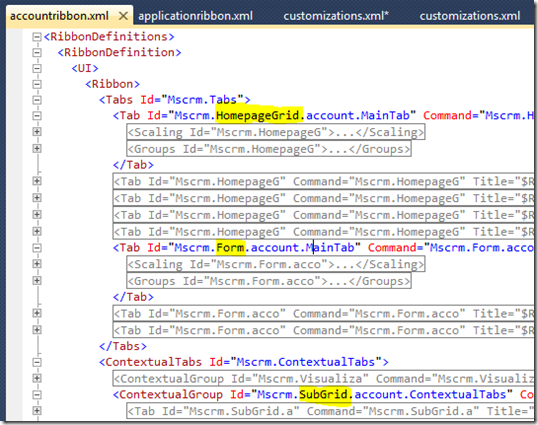
Now we need to find the relevant bit of XML that defines the ribbon component we want to customise.  Each entity has ribbon definitions for it’s form ribbon (“Form”), for the ribbon that appears when the entity’s grid view is selected from the main CRM menu (“HomePageGrid”) and for the ribbon that appears when the entity is displayed as an in-line grid on either a dashboard on another entity’s form (“SubGrid”).  You will see Tab definitions for each of this:
image
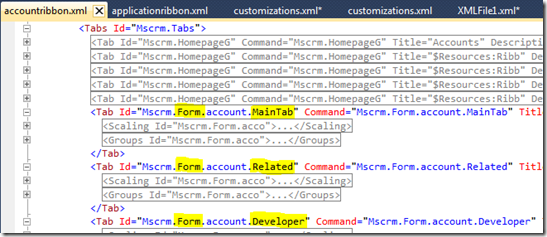
We are interested in the Form ribbon so minimise the other XML elements and have a look at the Tab definitions for the Account Form.  You will see 3 tabs are defined:
image
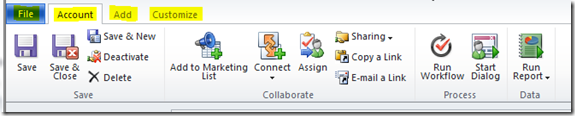
These are the definitions behind the “Account”, “Add” and “Customize” tabs you see when looking at the Account form in CRM:
(Note: As the “File” tab is generic it is defined in the application.ribbon.xml rather than inside each entity’s ribbon xml file)
image
The Tab that we want is the one that appears as “Account”.  The Tab definition for this is:
Tab Id=”Mscrm.Form.account.MainTab”
(Note: look at the Buttons defined under each Tab  to help figure out the correct Tab)
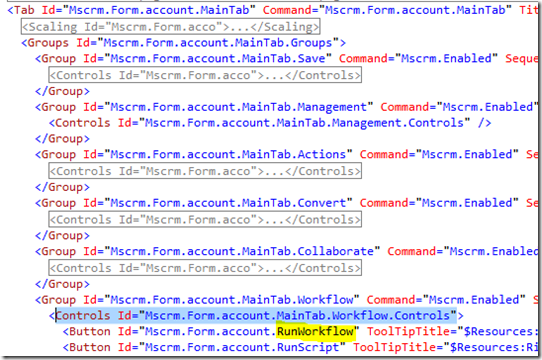
To add a button to the CRM ribbon we need to specify a location.  The value we need is the “Controls Id”.   Find the button you want your button added next to and grab the “Controls ID” that button sits under.  We will add our button to the “Process” Group next to the “Run Workflow” button so the Controls ID value we want is:
Controls Id=”Mscrm.Form.account.MainTab.Workflow.Controls”
image
3c. Copy the Controls Id value to NotePad
3d.  Close accountribbon.xml
That’s our research done, let’s get back to defining our button…

4. Open the customisation.xml file that was included in your exported Solution zip file (open in Visual Studio).
5. From the XML menu, click Schemas and then add from .. sdkschemas the 3 xsd files that have “ribbon” in their name and also customizationssolution.xsd (this gives us intellisense)
7. Back in the main window of VS do a Find on “RibbonDiff” and then swap out: “<CustomActions />”  with:


01


02


03


04


05


06


07


08


09


10


11


12


13


14


15


16


17


<CustomActions>


  <CustomAction Id="GT.account.Form.Star.CustomAction"


                Location="Mscrm.Form.account.MainTab.Workflow.Controls._children"


                Sequence="1">


    <CommandUIDefinition>


      <Button Id="GT.account.Form.Star.Button"


              Command="GT.account.Form.Star.Command"


              LabelText="Star"


              ToolTipTitle="Tip"


              ToolTipDescription="This is a Star"


              TemplateAlias="o1"


              Image16by16="$webresource:new_star16x16"


              Image32by32="$webresource:new_star32x32"


      />


    </CommandUIDefinition>


  </CustomAction>


</CustomActions>


If you want to deviate from my scenario of customising the Account form the relevant bit in the above is the Location reference.  This is where the Controls ID value that we we obtained from our research goes.  Note: The Controls ID value needs to be appended with “._children” e.g.:
Location=”Mscrm.Form.account.MainTab.Workflow.Controls._children”
8.  If you have 16×16 and 32×32 icons for your button go and add those into CRM as web resources and then change the references in the above code snippet.  Otherwise, remove theImage16by16 and Image32by32 lines (they’re optional, the button will still show).
9. Scroll down a bit and replace: “<CommandDefinitions />”  with:


1


2


3


4


5


6


7


8


9


10


11


<CommandDefinitions>


  <CommandDefinition Id="GT.account.Form.Star.Command">


    <EnableRules>


    </EnableRules>


    <DisplayRules>


    </DisplayRules>


    <Actions>


      <Url Address="http://www.google.com" />


    </Actions>


  </CommandDefinition>


</CommandDefinitions>


10.Adjust the Url reference to whatever you want.  You can use use a relative reference if you want to launch a CRM URL or an HTML page you have loaded into CRM.
or:
If you want to execute a jscript function instead swap out the <Actions> node with a jscript web resource and function name reference like the below:


1


2


3


4


5


<Actions>


  <JavaScriptFunction Library="$webresource:new_getcontact"


                      FunctionName="NewCaseOnClick"


                      />


</Actions>


11. Save your customisation.xml changes.
12. Re-zip your unzipped solution back into a solution zip file, import, publish all and then refresh your browser.
Done.  Smile
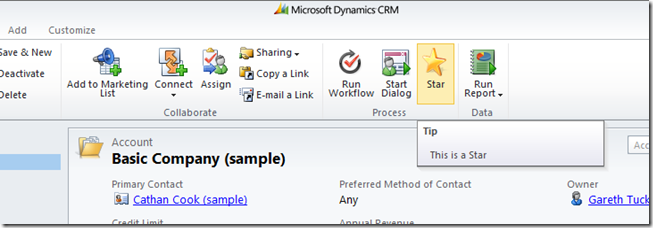
End result:
image
This solution is available for download in both managed and unmanaged formats.
Share this:

ADDING A BUTTON TO A MS CRM FORM

Adding a Button to a CRM 2011 Form Ribbon
Here’s a shortcut guide to customising the Form ribbon in CRM 2011.  Rather than explaining all of the intricacies of the ribbon here’s a set of instructions that will get a button added to a form with the least amount of steps/complexity.  In this scenario we will add a button to the Account form that will launch an external web page (if you prefer the button executes a jscript function keep reading as I cover that as well)… 
Here’s the steps:
1. Create a new Solution called Ribbon.
2. Add to your Solution the Account entity and then export the Solution.
3. Determine the location ID for where you want your button to sit (note: this take a bit of research, keep reading…)
3a. Download and install the CRM SDK.  Then go to the following SDK folder:
sdksamplecodecsclientribbonexportribbonxmlexportedribbonxml
Here you will see Ribbon definitions for each entity (e.g. accountribbon.xml)
[UPDATE: 14 Dec 2011 – The latest SDK did not include the ribbon definition XML files forcing you to build and run an app from source code provided in order to generate them for your self. I provide instructions on this process here]
3b. Open accountribbon.xml in Visual Studio.
Now we need to find the relevant bit of XML that defines the ribbon component we want to customise.  Each entity has ribbon definitions for it’s form ribbon (“Form”), for the ribbon that appears when the entity’s grid view is selected from the main CRM menu (“HomePageGrid”) and for the ribbon that appears when the entity is displayed as an in-line grid on either a dashboard on another entity’s form (“SubGrid”).  You will see Tab definitions for each of this:
image
We are interested in the Form ribbon so minimise the other XML elements and have a look at the Tab definitions for the Account Form.  You will see 3 tabs are defined:
image
These are the definitions behind the “Account”, “Add” and “Customize” tabs you see when looking at the Account form in CRM:
(Note: As the “File” tab is generic it is defined in the application.ribbon.xml rather than inside each entity’s ribbon xml file)
image
The Tab that we want is the one that appears as “Account”.  The Tab definition for this is:
Tab Id=”Mscrm.Form.account.MainTab”
(Note: look at the Buttons defined under each Tab  to help figure out the correct Tab)
To add a button to the CRM ribbon we need to specify a location.  The value we need is the “Controls Id”.   Find the button you want your button added next to and grab the “Controls ID” that button sits under.  We will add our button to the “Process” Group next to the “Run Workflow” button so the Controls ID value we want is:
Controls Id=”Mscrm.Form.account.MainTab.Workflow.Controls”
image
3c. Copy the Controls Id value to NotePad
3d.  Close accountribbon.xml
That’s our research done, let’s get back to defining our button…

4. Open the customisation.xml file that was included in your exported Solution zip file (open in Visual Studio).
5. From the XML menu, click Schemas and then add from .. sdkschemas the 3 xsd files that have “ribbon” in their name and also customizationssolution.xsd (this gives us intellisense)
7. Back in the main window of VS do a Find on “RibbonDiff” and then swap out: “<CustomActions />”  with:


01


02


03


04


05


06


07


08


09


10


11


12


13


14


15


16


17


<CustomActions>


  <CustomAction Id="GT.account.Form.Star.CustomAction"


                Location="Mscrm.Form.account.MainTab.Workflow.Controls._children"


                Sequence="1">


    <CommandUIDefinition>


      <Button Id="GT.account.Form.Star.Button"


              Command="GT.account.Form.Star.Command"


              LabelText="Star"


              ToolTipTitle="Tip"


              ToolTipDescription="This is a Star"


              TemplateAlias="o1"


              Image16by16="$webresource:new_star16x16"


              Image32by32="$webresource:new_star32x32"


      />


    </CommandUIDefinition>


  </CustomAction>


</CustomActions>


If you want to deviate from my scenario of customising the Account form the relevant bit in the above is the Location reference.  This is where the Controls ID value that we we obtained from our research goes.  Note: The Controls ID value needs to be appended with “._children” e.g.:
Location=”Mscrm.Form.account.MainTab.Workflow.Controls._children”
8.  If you have 16×16 and 32×32 icons for your button go and add those into CRM as web resources and then change the references in the above code snippet.  Otherwise, remove theImage16by16 and Image32by32 lines (they’re optional, the button will still show).
9. Scroll down a bit and replace: “<CommandDefinitions />”  with:


1


2


3


4


5


6


7


8


9


10


11


<CommandDefinitions>


  <CommandDefinition Id="GT.account.Form.Star.Command">


    <EnableRules>


    </EnableRules>


    <DisplayRules>


    </DisplayRules>


    <Actions>


      <Url Address="http://www.google.com" />


    </Actions>


  </CommandDefinition>


</CommandDefinitions>


10.Adjust the Url reference to whatever you want.  You can use use a relative reference if you want to launch a CRM URL or an HTML page you have loaded into CRM.
or:
If you want to execute a jscript function instead swap out the <Actions> node with a jscript web resource and function name reference like the below:


1


2


3


4


5


<Actions>


  <JavaScriptFunction Library="$webresource:new_getcontact"


                      FunctionName="NewCaseOnClick"


                      />


</Actions>


11. Save your customisation.xml changes.
12. Re-zip your unzipped solution back into a solution zip file, import, publish all and then refresh your browser.
Done.  Smile
End result:
image
This solution is available for download in both managed and unmanaged formats.
Share this:

ADDING A BUTTON TO A MS CRM FORM

Adding a Button to a CRM 2011 Form Ribbon
Here’s a shortcut guide to customising the Form ribbon in CRM 2011.  Rather than explaining all of the intricacies of the ribbon here’s a set of instructions that will get a button added to a form with the least amount of steps/complexity.  In this scenario we will add a button to the Account form that will launch an external web page (if you prefer the button executes a jscript function keep reading as I cover that as well)… 
Here’s the steps:
1. Create a new Solution called Ribbon.
2. Add to your Solution the Account entity and then export the Solution.
3. Determine the location ID for where you want your button to sit (note: this take a bit of research, keep reading…)
3a. Download and install the CRM SDK.  Then go to the following SDK folder:
sdksamplecodecsclientribbonexportribbonxmlexportedribbonxml
Here you will see Ribbon definitions for each entity (e.g. accountribbon.xml)
[UPDATE: 14 Dec 2011 – The latest SDK did not include the ribbon definition XML files forcing you to build and run an app from source code provided in order to generate them for your self. I provide instructions on this process here]
3b. Open accountribbon.xml in Visual Studio.
Now we need to find the relevant bit of XML that defines the ribbon component we want to customise.  Each entity has ribbon definitions for it’s form ribbon (“Form”), for the ribbon that appears when the entity’s grid view is selected from the main CRM menu (“HomePageGrid”) and for the ribbon that appears when the entity is displayed as an in-line grid on either a dashboard on another entity’s form (“SubGrid”).  You will see Tab definitions for each of this:
image
We are interested in the Form ribbon so minimise the other XML elements and have a look at the Tab definitions for the Account Form.  You will see 3 tabs are defined:
image
These are the definitions behind the “Account”, “Add” and “Customize” tabs you see when looking at the Account form in CRM:
(Note: As the “File” tab is generic it is defined in the application.ribbon.xml rather than inside each entity’s ribbon xml file)
image
The Tab that we want is the one that appears as “Account”.  The Tab definition for this is:
Tab Id=”Mscrm.Form.account.MainTab”
(Note: look at the Buttons defined under each Tab  to help figure out the correct Tab)
To add a button to the CRM ribbon we need to specify a location.  The value we need is the “Controls Id”.   Find the button you want your button added next to and grab the “Controls ID” that button sits under.  We will add our button to the “Process” Group next to the “Run Workflow” button so the Controls ID value we want is:
Controls Id=”Mscrm.Form.account.MainTab.Workflow.Controls”
image
3c. Copy the Controls Id value to NotePad
3d.  Close accountribbon.xml
That’s our research done, let’s get back to defining our button…

4. Open the customisation.xml file that was included in your exported Solution zip file (open in Visual Studio).
5. From the XML menu, click Schemas and then add from .. sdkschemas the 3 xsd files that have “ribbon” in their name and also customizationssolution.xsd (this gives us intellisense)
7. Back in the main window of VS do a Find on “RibbonDiff” and then swap out: “<CustomActions />”  with:


01


02


03


04


05


06


07


08


09


10


11


12


13


14


15


16


17


<CustomActions>


  <CustomAction Id="GT.account.Form.Star.CustomAction"


                Location="Mscrm.Form.account.MainTab.Workflow.Controls._children"


                Sequence="1">


    <CommandUIDefinition>


      <Button Id="GT.account.Form.Star.Button"


              Command="GT.account.Form.Star.Command"


              LabelText="Star"


              ToolTipTitle="Tip"


              ToolTipDescription="This is a Star"


              TemplateAlias="o1"


              Image16by16="$webresource:new_star16x16"


              Image32by32="$webresource:new_star32x32"


      />


    </CommandUIDefinition>


  </CustomAction>


</CustomActions>


If you want to deviate from my scenario of customising the Account form the relevant bit in the above is the Location reference.  This is where the Controls ID value that we we obtained from our research goes.  Note: The Controls ID value needs to be appended with “._children” e.g.:
Location=”Mscrm.Form.account.MainTab.Workflow.Controls._children”
8.  If you have 16×16 and 32×32 icons for your button go and add those into CRM as web resources and then change the references in the above code snippet.  Otherwise, remove theImage16by16 and Image32by32 lines (they’re optional, the button will still show).
9. Scroll down a bit and replace: “<CommandDefinitions />”  with:


1


2


3


4


5


6


7


8


9


10


11


<CommandDefinitions>


  <CommandDefinition Id="GT.account.Form.Star.Command">


    <EnableRules>


    </EnableRules>


    <DisplayRules>


    </DisplayRules>


    <Actions>


      <Url Address="http://www.google.com" />


    </Actions>


  </CommandDefinition>


</CommandDefinitions>


10.Adjust the Url reference to whatever you want.  You can use use a relative reference if you want to launch a CRM URL or an HTML page you have loaded into CRM.
or:
If you want to execute a jscript function instead swap out the <Actions> node with a jscript web resource and function name reference like the below:


1


2


3


4


5


<Actions>


  <JavaScriptFunction Library="$webresource:new_getcontact"


                      FunctionName="NewCaseOnClick"


                      />


</Actions>


11. Save your customisation.xml changes.
12. Re-zip your unzipped solution back into a solution zip file, import, publish all and then refresh your browser.
Done.  Smile
End result:
image
This solution is available for download in both managed and unmanaged formats.
Share this:

HOW TO SHARE THE FILES FROM WINDOWS TO VIRTUAL MACHINE

How-To Geek

How to Share Your Computer’s Files With a Virtual Machine

access-host-operating-system-folders-in-virtualbox-virtual-machine
Virtual machines are isolated containers, so the guest operating system in the virtual machine doesn’t have access to your computer’s file system. You’ll have to set up shared folders in a program like VirtualBox or VMware to share files.
To help the guest operating system understand what’s going on, virtual machine programs present these shared folders as network file shares. The guest operating system accesses a folder on your PC like it would a shared folder on a network.

VirtualBox

RELATED ARTICLE

The HTG Guide To Speeding Up Your Virtual Machines
Virtual machines are demanding beasts, providing virtual hardware and running multiple operating systems on your computer at once. Upgrading your… [Read Article]

VirtualBox’s Shared Folders feature works with both Windows and Linux guest operating systems. To use this it, you’ll need VirtualBox’s Guest Additions installed in the guest virtual machine. Click the Devices > Insert Guest Additions CD image option while a virtual machine is running and run the installer from the virtual disc to install it.
install-virtualbox-guest-additions
Next, click the Machine > Settings option in a virtual machine’s window and select Shared Folders. Here you can see any shared folders you’ve set up. There are two types of shared folders — Machine Folders are permanent folders that will be shared until you remove them, while Transient Folders are temporary and will be removed when the virtual machine restarts or shuts down.
virtualbox-shared-folders
Click the Add button or right-click in the list and select Add Shared Folder to add a new shared folder. The folder path is the location of the shared folder on your host operating system, while the name is how it will appear inside the guest operating system.
By default, the virtual machine has full read-write access to the shared folder. Enable the Read-only checkbox if you want the virtual machine to only be able to read files from the shared folder.
The Auto-mount checkbox makes the guest operating system attempt to automatically mount the folder when it boots. The Make Permanent checkbox makes the shared folder a Machine Folder — by default, it’s a transient folder.
add-shared-folder-to-virtualbox-virtual-machine
You should see the shared folders appear as network file shares if you’re using a Windows guest operating system. Open Windows Explorer or File Explorer, select Network, and look under the VBOXSRV computer.
access-virtualbox-shared-folders-in-windows-network
You can also mount these folders with the appropriate commands. Hover over the list of shared folders in the virtual machine’s settings window if you ever need to double-check the commands you’ll need.
Use the following command on Windows, replacing NAME with the name of the share:
net use x: \vboxsvrNAME
Use the following command on Linux, replacing NAME with the name of the share and /mnt/folder with the path to a folder. You’ll need to create this folder first if it doesn’t exist:
mount -t vboxsf NAME /mnt/folder
virtualbox-network-share-mount-commands

VMware

VMware’s Shared Folders work with both Windows and Linux operating systems, too. You’ll need VMware Tools installed in your virtual machine to use this feature. Select the option in your virtual machine’s menu to install VMware Tools or update your virtual machine’s VMware Tools to the latest version.
vmware-player-install-vmware-tools
Next, open your virtual machine’s settings window. For example, in VMware Player, click Player > Manage > Virtual Machine Settings. Click the Options tab, select Shared Folders, and enable the feature.
Add folders you want to share here. They’ll appear in the virtual machine with the name you provide. By default, the virtual machine will have full read-write access to the folder. Check the Read-only box in the wizard to prevent the virtual machine from writing to the folder.
add-shared-folders-to-virtualbox
The shared folders will then appear as a network file share in your Windows guest operating system. Look under the vmware-host computer.
access-shared-folder-in-vmware-windows-network
Check the “Map as a network drive in Windows guests” option to speed things up. Instead of digging through the network file shares, your shared folders will get their own drive letter and appear in the Computer window. This just uses the “map network drive” feature in Windows.
map-vmware-shared-folder-as-network-drive
On a Linux guest system, you should find VMware Shared Folders under /mnt/hgfs in the root directory.

If you have multiple virtual machines, you’ll need to set up file sharing separately for each one. Be careful when using shared folders — if your virtual machine becomes compromised, the malware could escape your virtual machine by infecting files in your shared folders.
Chris Hoffman is a technology writer and all-around computer geek. He’s as at home using the Linux terminal as he is digging into the Windows registry. Connect with him on Google+.
  • Published 05/31/14
GET ARTICLES BY EMAIL
Enter your email address to get our daily newsletter.
Disclaimer: Most of the pages on the internet include affiliate links, including some on this site.

Copyright © 2006-2016 How-To Geek, LLC  All Rights Reserved

Share this:

PLUGIN STEP BY STEP MS CRM 2O13

For the scope of this article, I assume that you are familiar with C# OOP concepts and C# projects.
  • We will create a plug-in in the C# Class library, you can also use a portable class library.
  • Add a class library project into the C# solution and name your class “MyDynamicPlugin”. 


  • Now add references to the 2 DLLs. 

    • Microsoft.Crm.Sdk.Proxy.dll
    • Microsoft.Xrm.Sdk.dll
  • And you will find both of the DLLs in the SDK/bin folder of your Microsoft SDK. 
  • And inherit the IPlugin interface. 

    create IPlugin
  • Implement the IPlugin Interface and you will get an Execute method with the IserviceProvider interface object as a parameter.
  • Execute method: This method runs as an entry point for any plugin in Microsoft Dynamic CRM.
  • IserviceProvider interface: This interface provides access to various services of dynamic, this interface has a method called GetService() that uses the reflection feature of .NET and allows us to get any type of service we want. 

    cs code
  • This Execute method is all the code you need to fire before or after any event occurred.
Let’s see how 
For this article I will create a default Contact whenever anyone creates an account.

For example, If an employee of an organization creates an account then a default contact with basic details should be added to that account automatically (using a plug-In).

Procedure

Step 1
Since we need to trigger our plug-in when an event is executed, we need to get the service of IPluginExecutionContext using the IServiceProvider object.
  1. IPluginExecutionContext context = (IPluginExecutionContext)serviceProvider.GetService(typeof(IPluginExecutionContext));  
And the GetService method returns an object of the specified type. We need to type caste that object. 

Step 2
Plugin execution is an object with a property called InputParameter. 
  • Using this Inputparamter we can get the entity and other types of dynamic CRM. 
  • Target is one of the main parameters of this IPluginExecutionContext object.
  • All the plug-in events are first stored in this variable called “Target”.
  • So when any events occur we need to check if this variable is there in our current context execution.
  • And if so then we need to check if it’s an entity. Because for this article we will trigger a plug-in if a new account (Entity) is created.
Entity

Step 3
Now when you know, we have a value in the target and it’s an Entity. 

We can typecast it into an Entity and using its logicalname property we can determine if the current executing event is for an account Entity or not.

And if it’s an account entity we can write our creation of contact code here and associate that contact with the currently executing account.

executing account

Step 4: The last step is to create an Organizationservicefactory instance and we need to create a new plug-in, add a pluginexecutioncontext object ID to create an Organization service and based on that service client we can create our custom Event. 
  1. IOrganizationServiceFactory servicefactory = (IOrganizationServiceFactory)serviceProvider.GetService(typeof(IOrganizationServiceFactory));  
  2. IOrganizationService client = servicefactory.CreateOrganizationService(context.UserId);   
  3. client.Create(createcontact);  

Your Microsoft Dynamic CRM plug-in is created. 

This is the sample code, you can find the attachment of this code with my article. 

code

Build your Project. 

Important Step 
Once you build your project, you need to generate a key that will act as certificate for your plug-in. Without this key you cannot deploy a plug-in onto a server. 

To create a key, go to project property (ALT+ Enter) and go to the signing tab and check sign the assembly. 

Select new in the drop down and add a key name and your dynamic CRM Password. And select save (CTRL+ S).

If you have done this then it will add a pfx encrypted key for your current project. 

Rebuild your project 
Procedure to deploy this assembly using SDkToolsPluginRegistrationPluginRegistration.exe.

Step 1 

  • Run it and Click Create New connection,
  • Enter your Login Credentials for Connection with Dynamic CRM.
  • The first time you login, you need to pass all the details of your CRM Account.
Step 2
After logging in successfully, click Register > Register New Assembly.

Register New Assembly

Browse to the DLL you just created and click OK. 

Step 3
  • Now we need to add steps of this DLL execution.
  • So select the assembly and again click Register > Register new Steps.
  • Or just right-click the assembly you just added and select Register new Steps.

    Register New
This Window includes an option for how and when you want to execute or fire your assembly or plug-in. 

Message: It defines on which event you want to run the plug-in.

Example: Create.

Primary Entity: It define on which Entity execution you want to run the plug-in.

Example: account.

Event pipeline stage of Execution: It defines when you want to run the DLL, before the core operations or after the core operations.

Execution Mode:
 Execution can be synchronous by default or can be asynchronous (that will be handled further by the Dynamic CRM Queue manager).

Deployment: Server where every plug-in is deployed.

Offline where you can deploy it on Outlook for offline use. 

Click Register New Step and whoo, it’s done.

Your assembly or plug-in is deployed on the server. Now go to Dynamic CRM and create an account, an automated contact will be added by default in that account without any manual entry from employees. 
Share this: