Menu Close

Category: Blog

{How to} Export Dynamics 3765 CE table columns along its data types

Hello Everyone,

Today I am going to show how to export the Dynamics 365 CE table columns and its data types.
Let’s get’s started.

Suppose you have a request from business to export the dynamics 365 CE data along with its data types.

How do you do that?

Certainly! To export Dynamics 365 CE table columns along with their data types, follow these stepss:
1. Open the Dynamics 365 CE Environment.

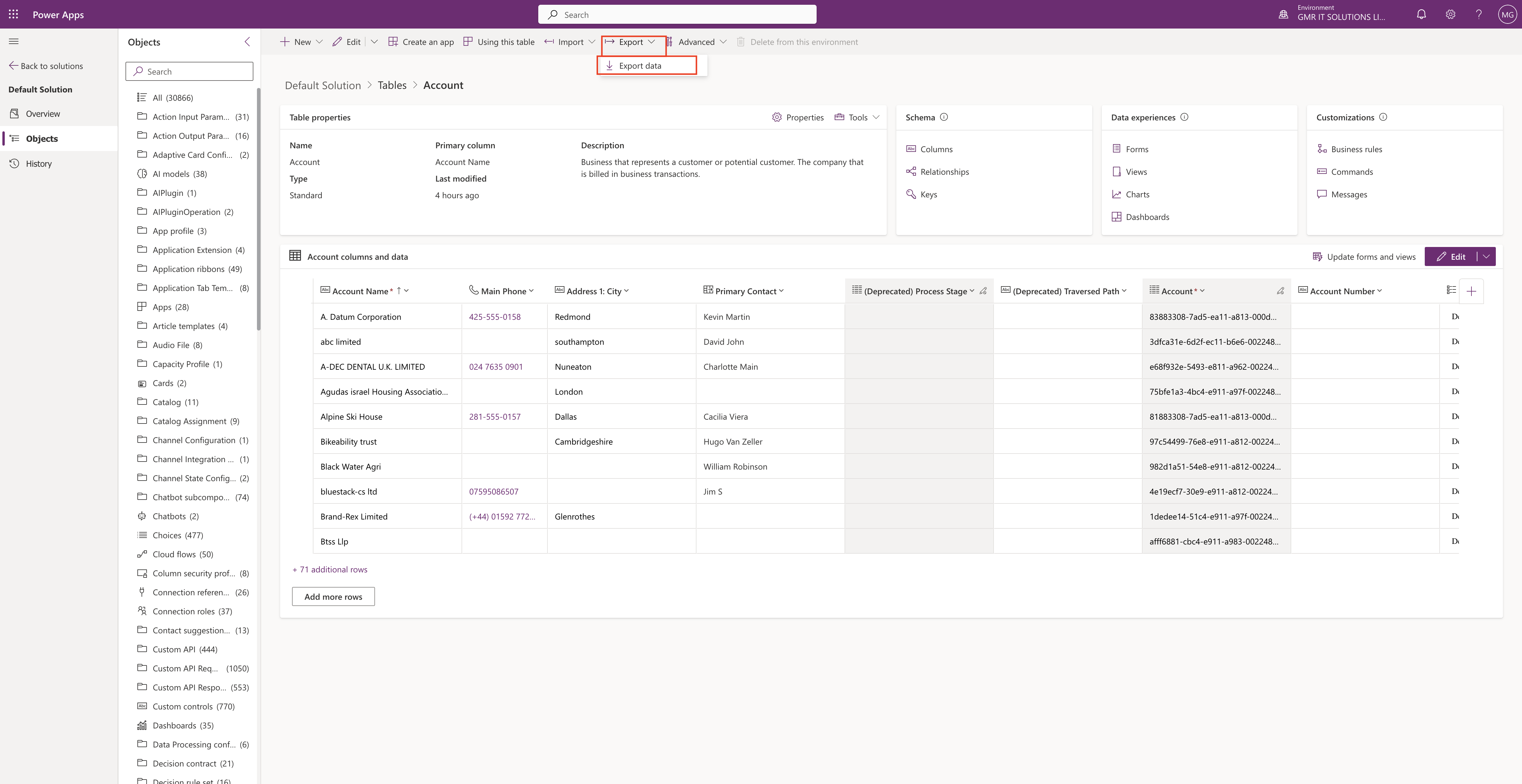
2. Navigate to the specific table you want to export.

3. Click on the Data tab.

4. From the submenu, select “Export data”.

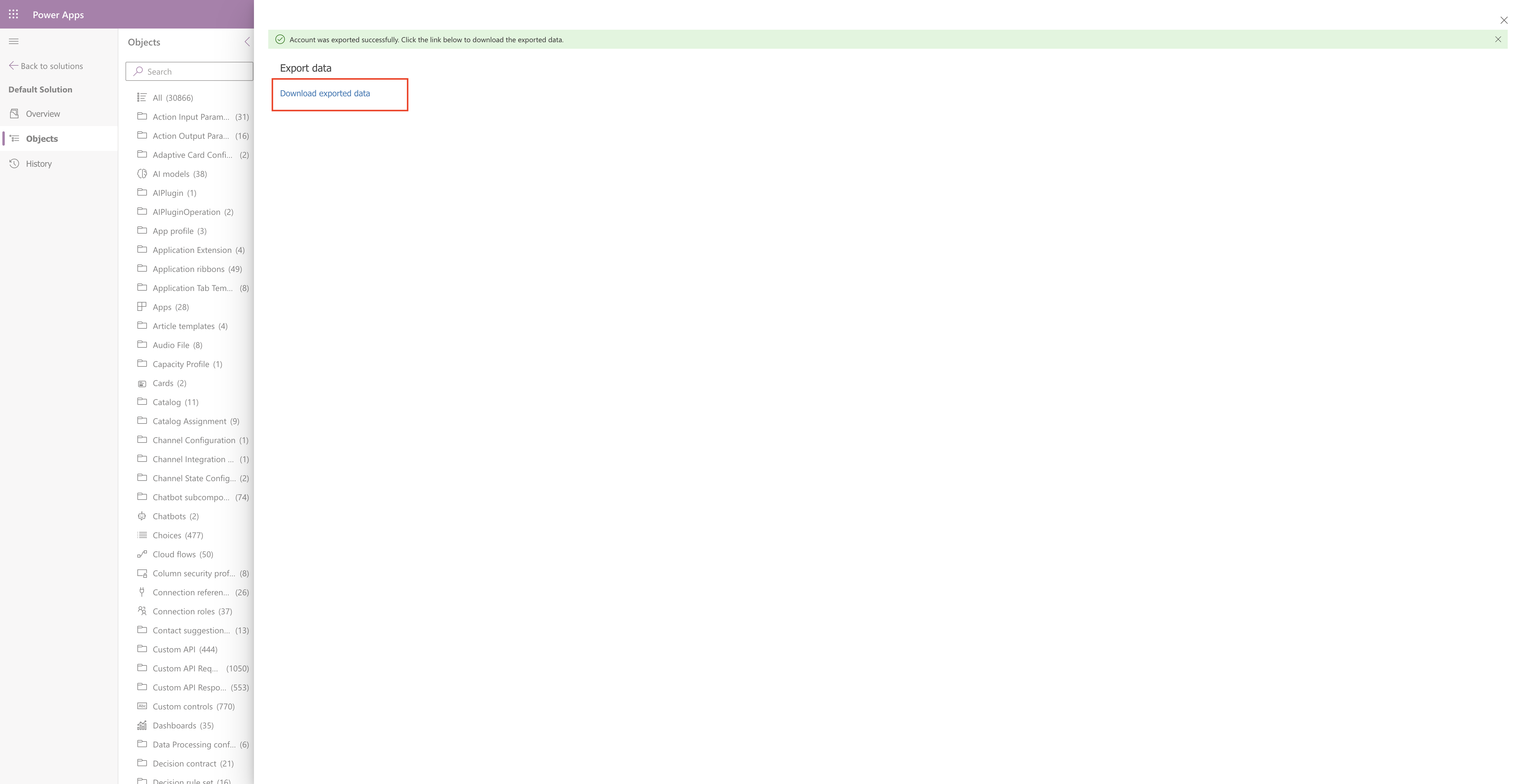
5. Wait a few moments for the process to complete.

6. Click the link that says “Download exported data” on the left side.
7. Extract the downloaded zip file to a folder.

8. Inside the folder, you’ll find a CSV file. Each column in the CSV corresponds to a table column, including its name and data type.
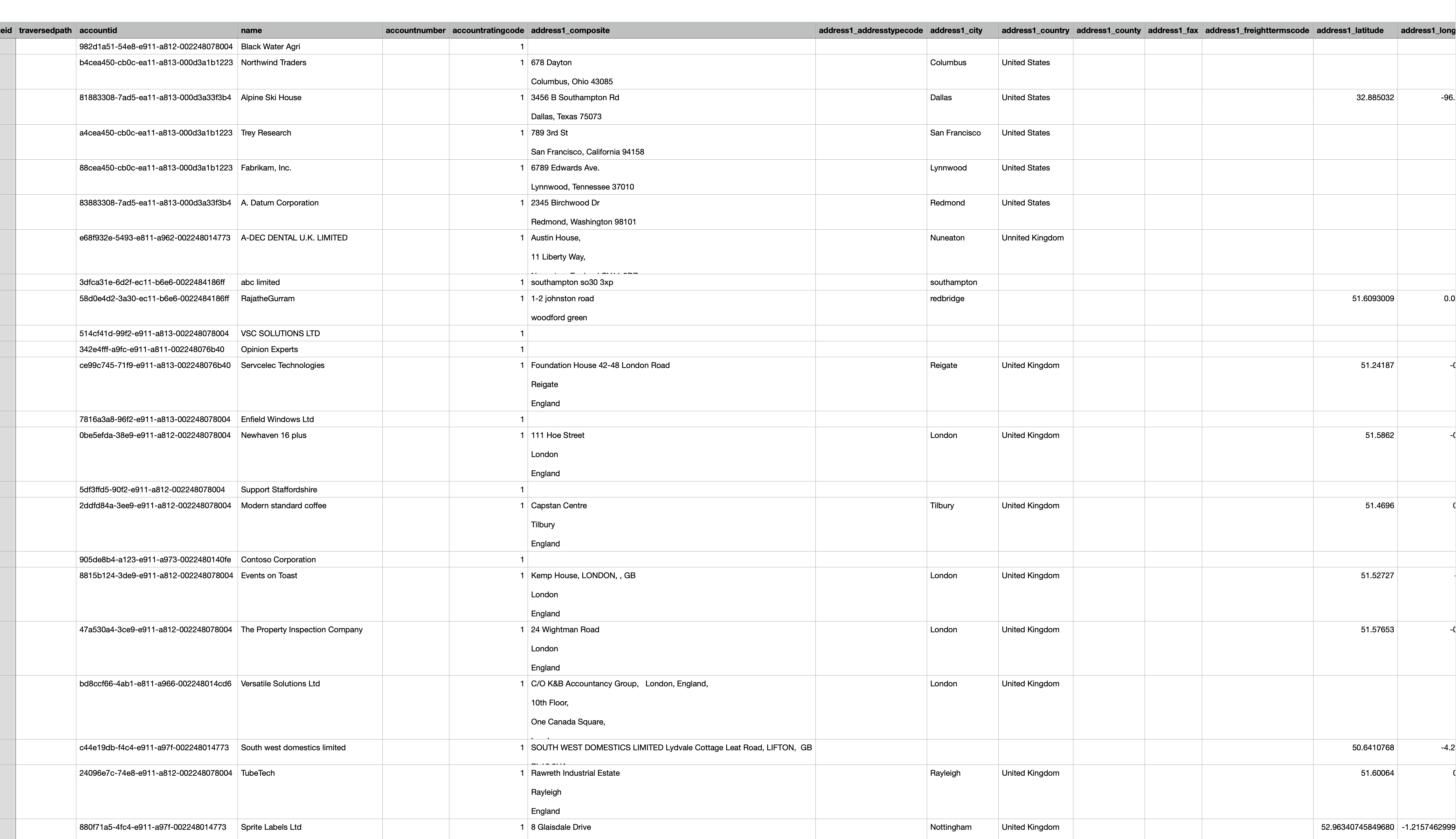
Alternatively, you can use third-party tools like XrmToolBox with free plugins(such as Metadata related ones) to achieve similar results. However, the built-in method described above is provided by Microsoft and is straightforward. Happy exporting!.

That’s it for today.

I hope this helps.

Malla Reddy Gurram(@UK365GUY)
#365BlogPostsin365Days

Share this:

{Speaking} Let’s gets started with Copilot Global Power Platform Bootcamp Aba – Nigeria

Hello Everyone,

Today I am going share my upcoming speaking session at Global Power Platform Bootcamp Aba – Nigeria.

Let’s gets started.

Today I will be speaking at Global Power Platform Bootcamp Aba – Nigeria.

If you are interested join us at: link

My session at 4:15pm UK time.

All about Microsoft Copilot how it can be used in Dynamics 365 & Power Platform.

That’s it for today.

I hope this helps

Malla Reddy Gurram(@UK365GUY)
#365Blogpostsin365days

Share this:

{How to} Trigger email based on the customer behavior on Dynamics 365 Customer Insights Journey

Hello Everyone,

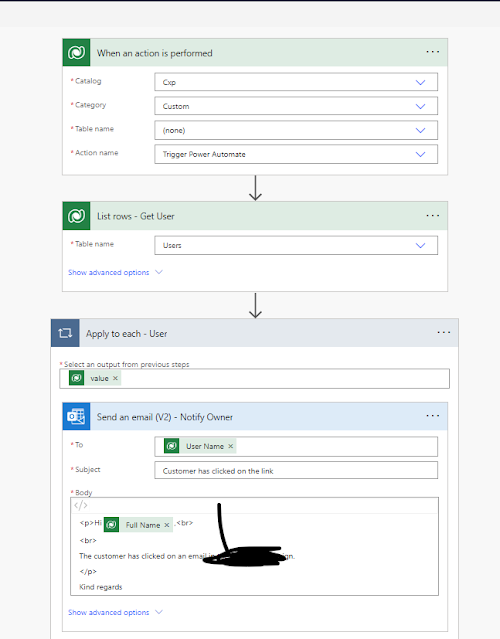
Today I am going to show how to trigger email to the Account Manager when an email is clicked by the customer using Power Automate Flow which will trigger based on the customer action on the email sent.

Let’s gets started.

Suppose there is a requirement to track the customer behavior on the marketing email sent to the potential customer and you want to get some customer insights on the behavior then continue reading this blog post.

“Trigger Power Automate” its based on the Journey

When an action is performed, based on the category of particular action.

Follow the above steps and add this Flow in your Customer Insights Journey.

Email will be sent each time customer clicks on it, notification email will be sent along with who have clicked on the email then Account Managers can follow up with customer to nuture to qualify them into sales pipeline.

That’s it for today.

I hope this helps.

Malla Reddy Gurram(@UK365GUY)
#365BlogPostsin365Days

Share this:

{Do you know} Dynamics 365 Customer Insights would consider business days five or seven days

Hello Everyone,

Today I am going to share my thoughts on the Dynamics 365 Customer Insights working days as five or seven days.

Let’s get’s started.

In Dynamics 365 Marketing, the concept of business days typically aligns with Standard working days, which are Monday through Friday. Let’s break it down:

1. Entity -Level Calendars:

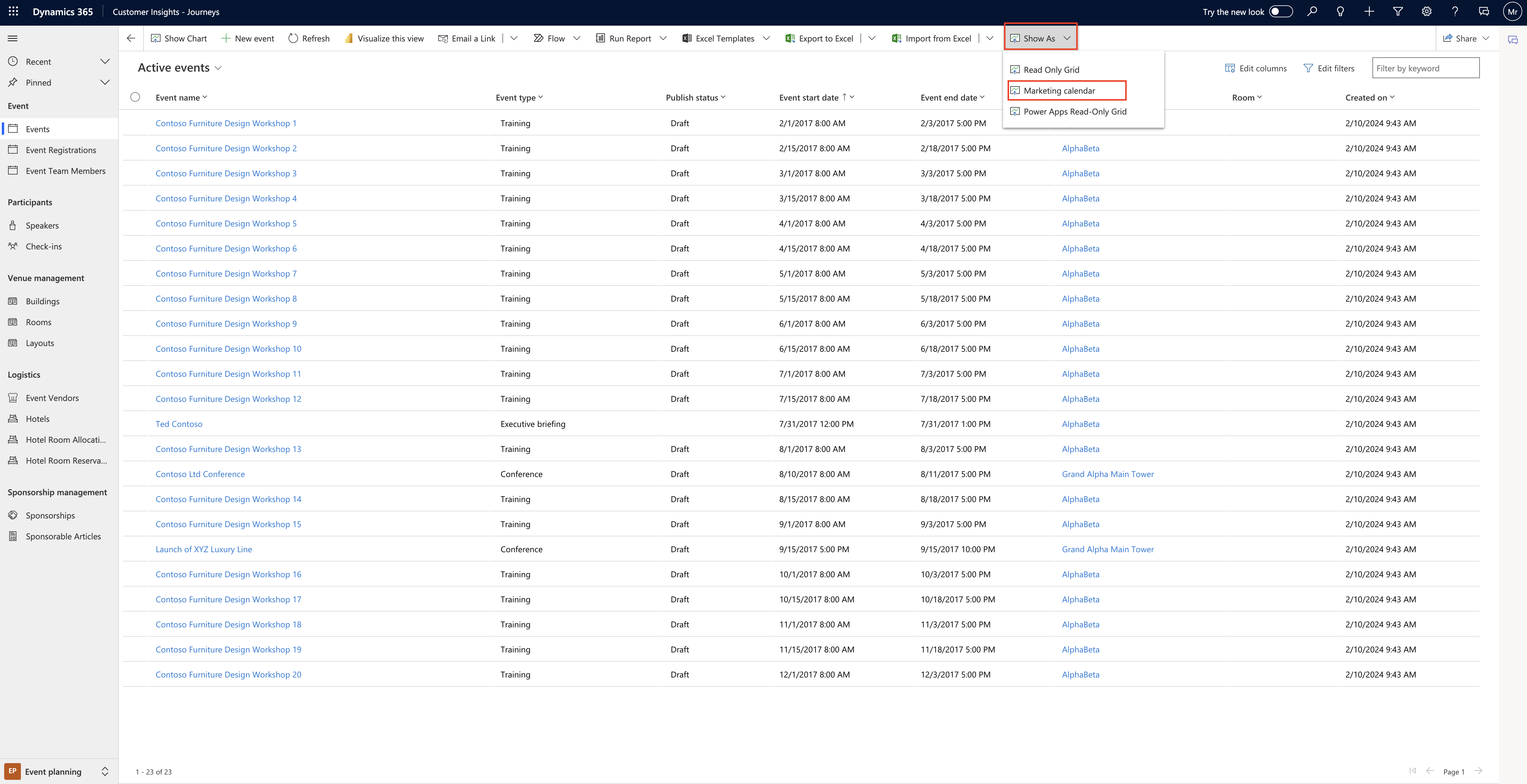
When you open an entity like events, customers journeys or the main marketing calendar, you’ll see a list view where you can switch between the calendar view and list view.

Relevant records (such as events or sessions) are plotted on the calendar based on their scheduled dates.

This types of calendar provides a system view selector for filtering the record shown.

2. Room-Level Calendars:

These calendars appear while viewing a specific record(e.g., a specific event).

They are integrated into the form view and might appear in their own tab or as a section alongside other settings.

Form-level calendars can only show and create records of one type of entity and are often related to the specific record where they appear.

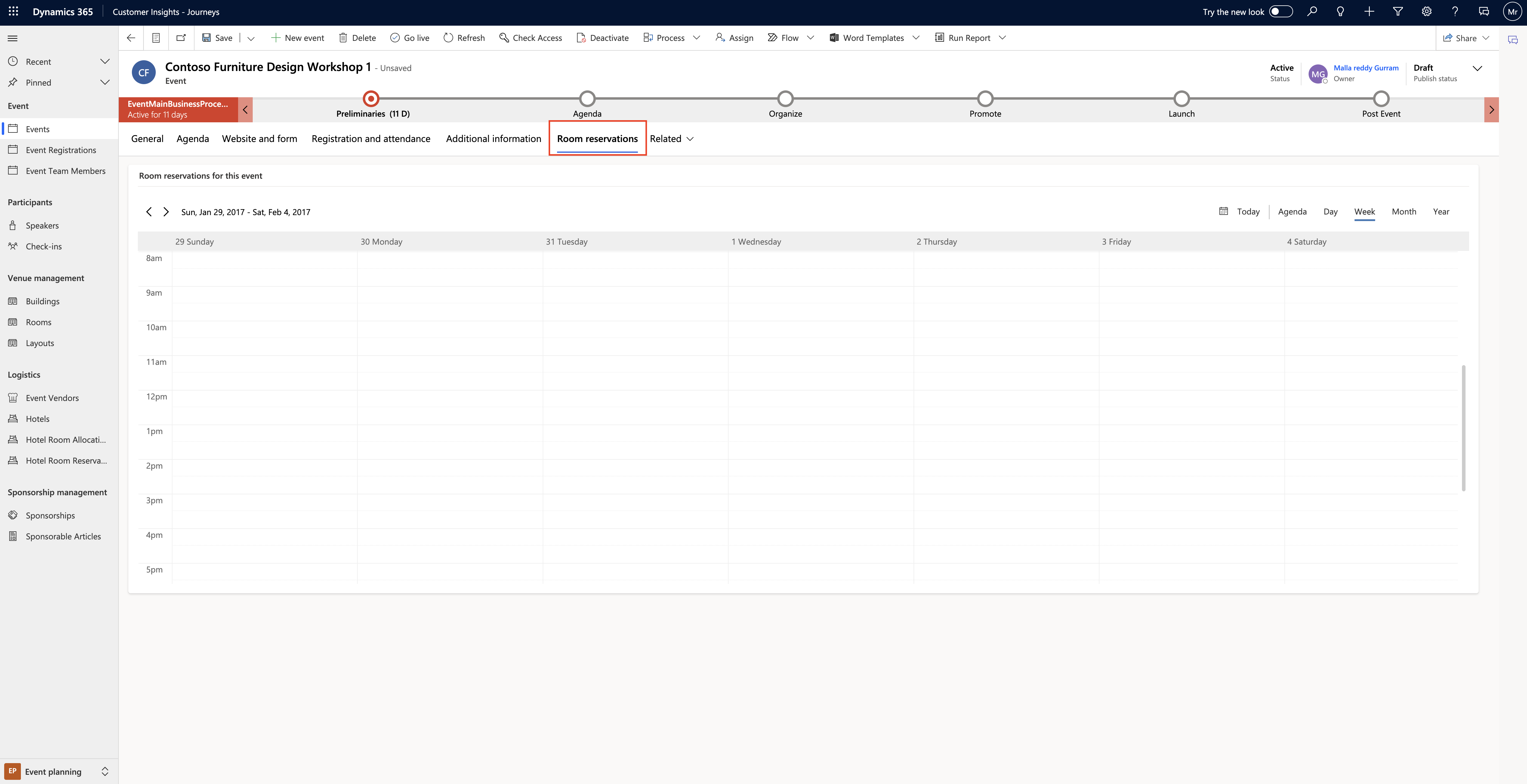
3. Room-Reservation Calendar:

Specifically for event records, the room reservation calendar shows all room reservations assigned to the displayed event and its sessions.

Unreserved rooms are not shown, and the calendar is read-only( no session or reservation creation here).

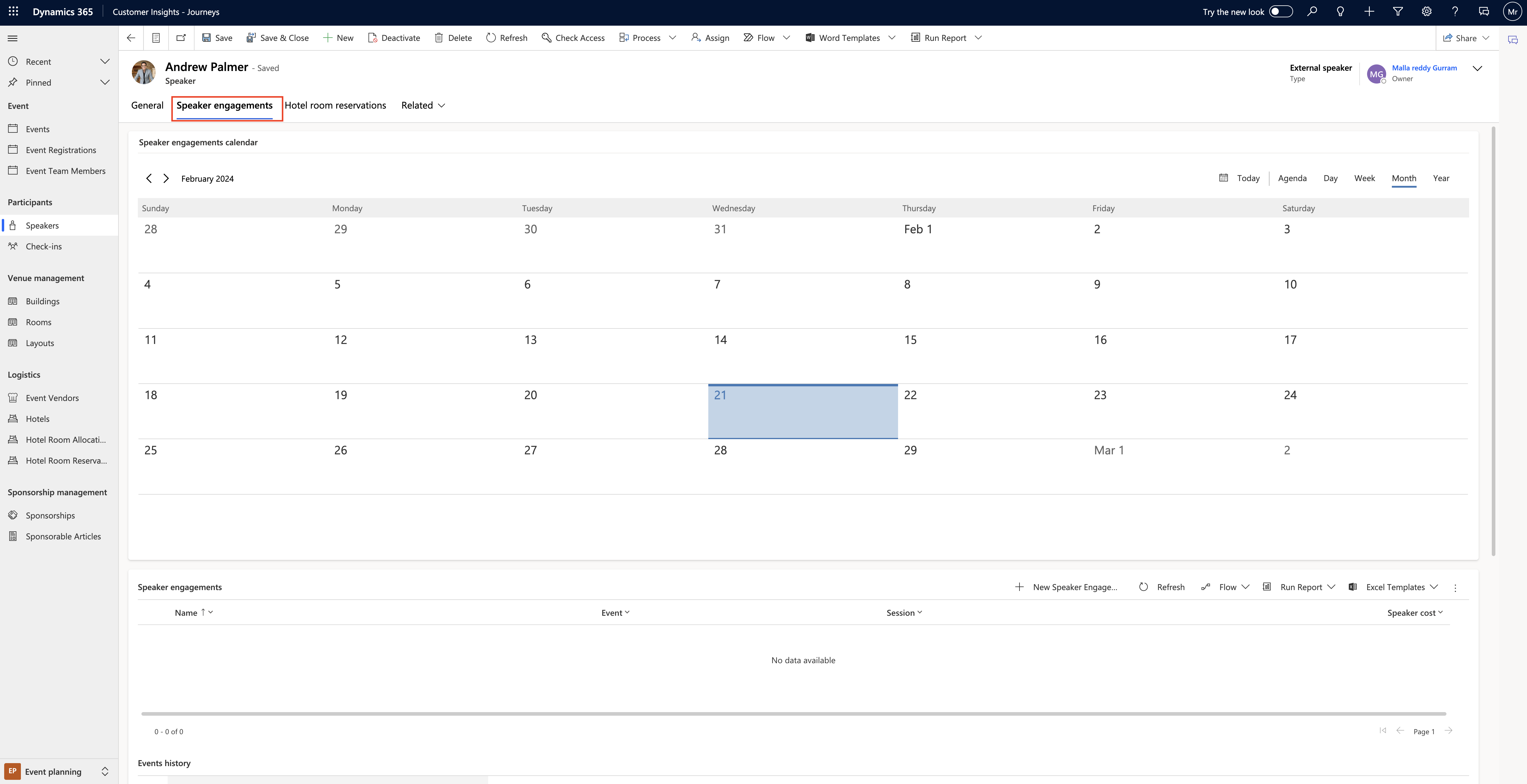
4. Speaking Engagement Calendar:

For speakers records, this form-level calendar displays all speaking engagements associated with the currently displayed speaker.

5. Custom Calendars:

System customizers can add custom calendars to nearly any entity or form.

These custom calendars can extend the funtionality beyond the basic types described above.

Now, regarding processing times, most requests within Dynamics 365 Customer Insights are typically handled in about three business days once all necessary information is available.

So, whether it’s configuring marketing calendars or handling other tasks, keep those business days in mind!.

That’s it for today.

I hope this helps.

Malla Reddy Gurram(@UK365GUY)
#365BlogPostsin365Days

Share this:

{How to} Build Lead Scoring model in Dynamics 365 Customer Insights

Hello Everyone,

Today I am going to share my thoughts on how to build lead scoring model in Dynamics 365 Customer Insights.

Let’s get’s started.

To create a lead scoring model in Dynamics 365 Customer Insights, follow these steps:

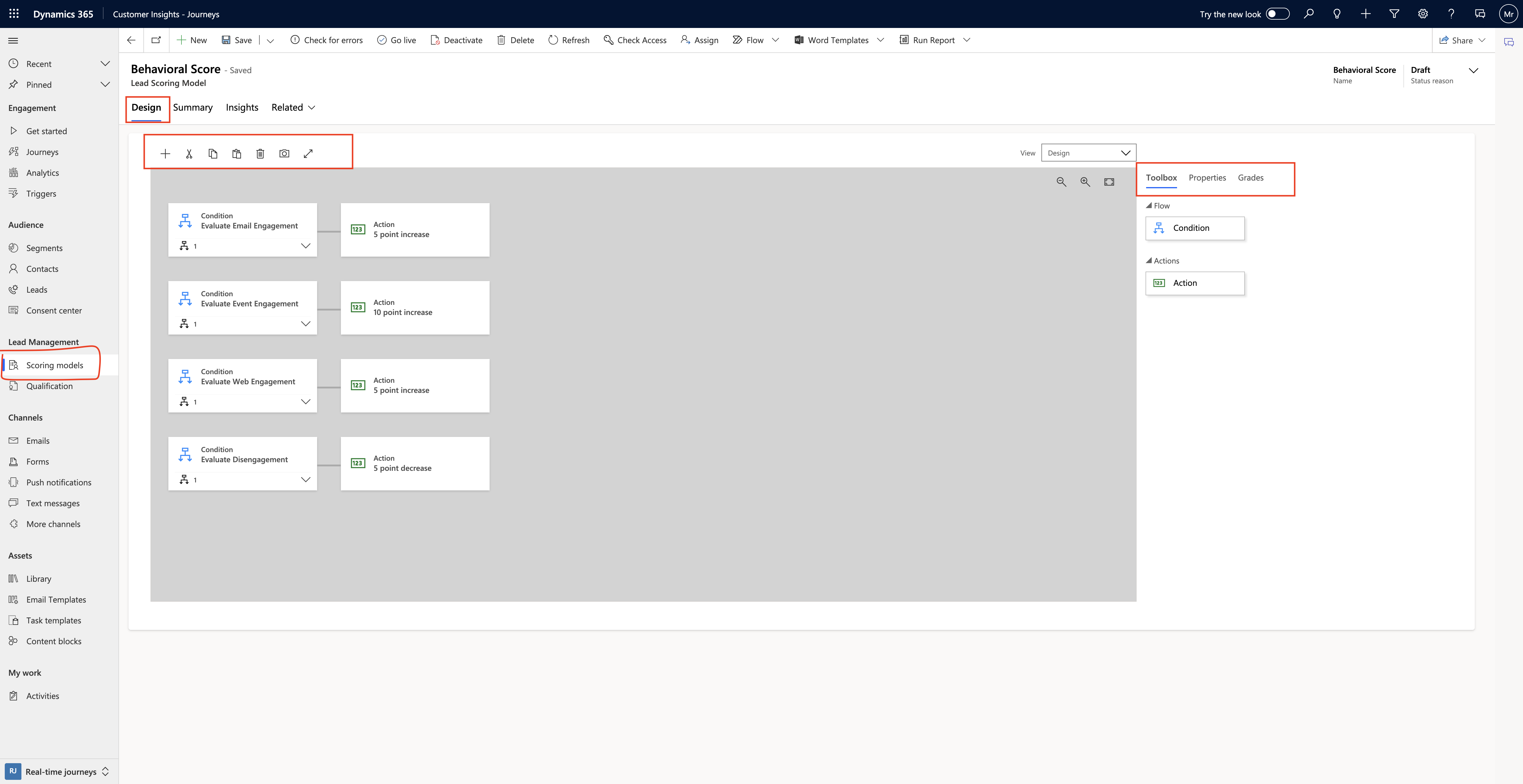
1. Navigate to Outbound marketing > Lead management > Scoring models. This will take you to a list of existing models.

2. On the command bar, select New. The New Lead Scoring Model page opens, with the Design tab shown. This designer is similar to other designers in Customer Insights – Journeys.

Here are some additional details to consider when creating lead -scoring models:

Lead -scoring prerequisites and requirements:

The Lead-scoring feature integrates various aspects of Customer Insights – Journeys, including contacts, leads, customer journeys, marketing forms, interactions and insights.

Only leads associated with parent contacts or accounts can be scored. Automatic lead scoring works for leads that have a parent contact or account associated with them.

For leads generated or updated by marketing forms configured to update both leads and contacts, the marketing form establishes the lead/contact pair.

Users can manually associate a lead with a parent contact or account using the inquiry stage of the lead to opportunity marketing sales process business process.

Scoring Interactions:

Dynamics 365 Customer Insights – Journeys calculates a score for each lead based on demographics details, firmographic details, and actions taken by the associated contacts(or for account-based leads, contacts belonging to the associated account).

Score interactions include opening an email, submitting a landing page, visiting your website or attending an event.

Each scoring model includes a sales-ready threshold. when a lead’s score passes this threshold, it gets marked as sales ready, triggering other events within Dynamics 365, such as advancing the lead through its business process or alerting tele prospectors or salespeople.

That’s it for today.

I hope this helps.

Malla Reddy Gurram(@UK365GUY)
#365BlogPostsin365Days

Share this: