Menu Close

Category: Blog

Environment Maker and Basic User Security roles are not updateable anymore

Hello Everyone,

Today i am going to share one key information which is released by Microsoft for Power Platform.
Let’s gets started.
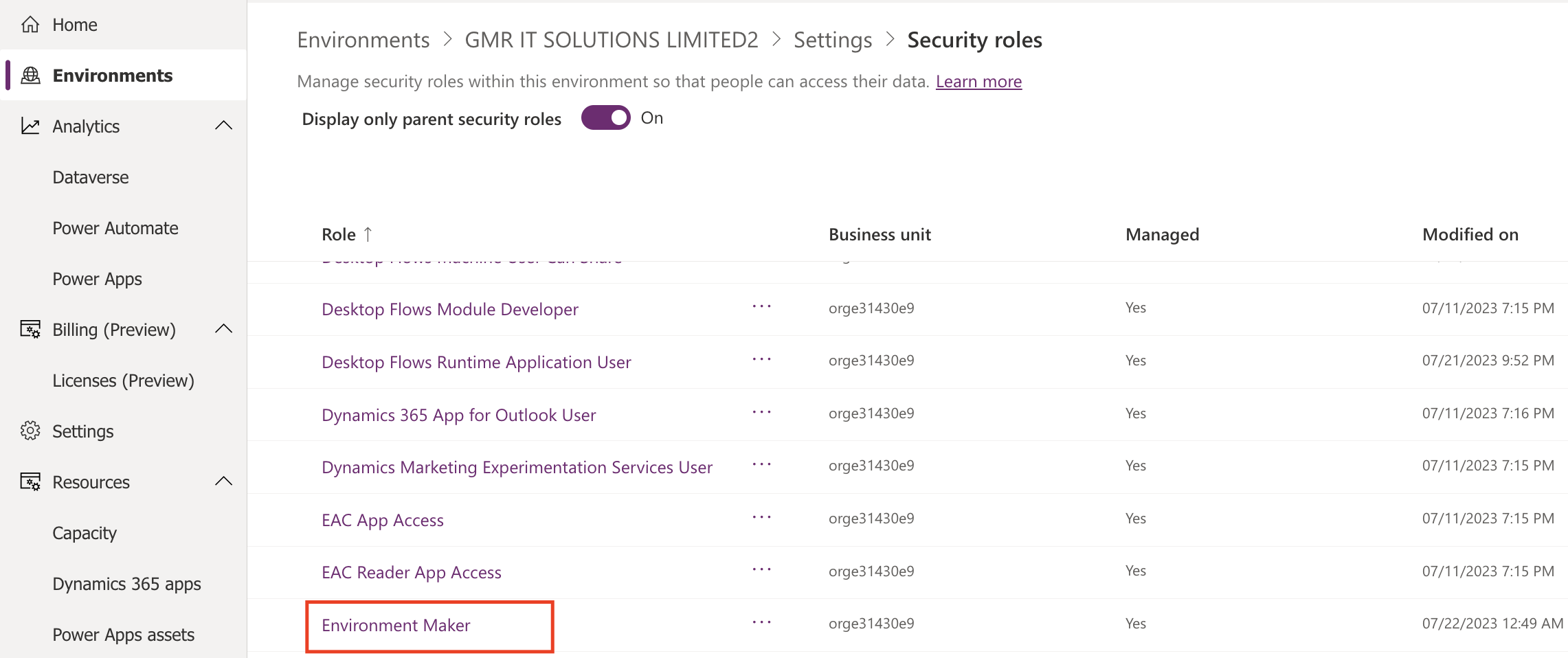
Normally if you want to create a new security role with some previleges to be applied, then we are going to copy the existing and make changes to the new security role. So new update is you can’t update the Environment maker and basic roles directly.

There is new update from Microsoft that Environment and Basic users role are non customizable as to meet SLA and only be maintained when these roles are protected from being updated.

The environment maker and basic user security roles are managed and shipped by the platform and are marked as non updateable. These security roles are maintained by Microsoft services and privileges are continuosly updated by them to run their services smoothly.

Power Platform admins can view the list of privileges of these security roles from the admin role form, but they can’t update the privileges. Power Platform admins can continue to copy these privileges to another role. but they can’t update the role.

That’s it for today

I hope this helps
Malla Reddy(@UK365GUY)
#365BlogPostsin365Days
Share this:

Automatic deletion of inactive developer environments

Hello Everyone,

Today i am going to show how the automatic delete the developer environments works.

Let’s gets started.

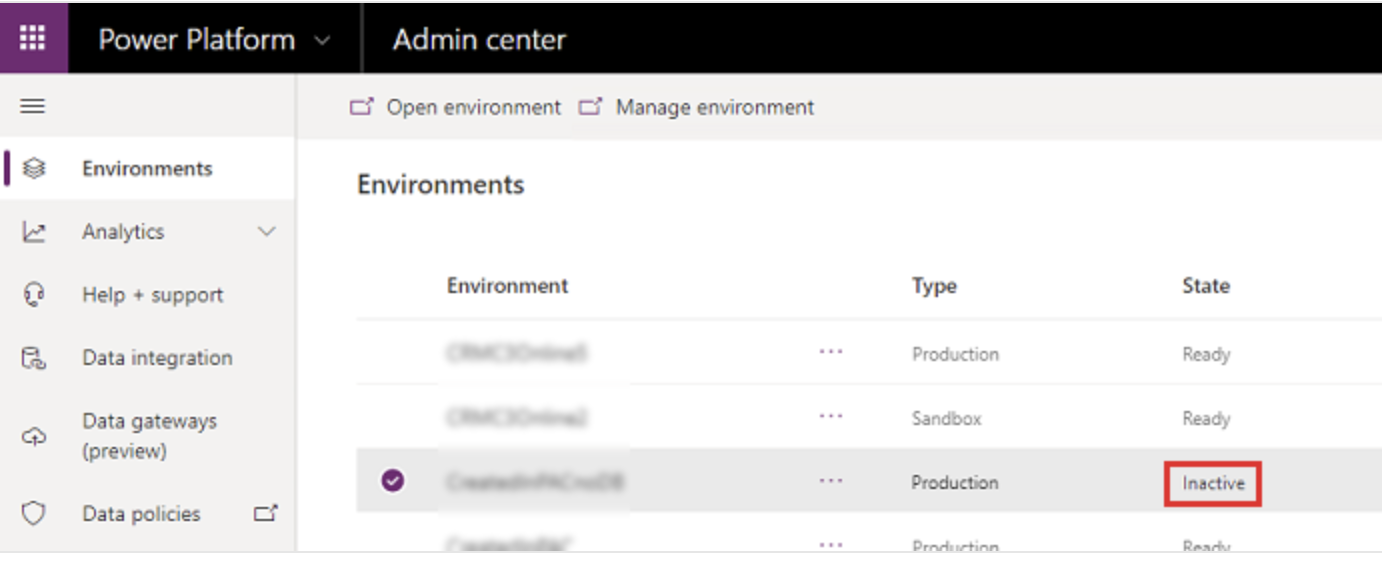
Normally users can create a developer environment in a tenant for learning purpose, so Microsoft came up with clean up strategy to free up storage space, if they are not used in 90 days.

The system sends an email notification to all admins in your organization 14 days, 7 days, and 1 day before the environment is disabled. if no action is taken, then the environment is deleted 10 days after the final email is sent.

Note: Only Production and sandbox environments are affected by the subscription based automatic cleanup.

For more information about the clean up click here
Thats it for today.

I hope this helps
Malla Reddy(@UK365GUY)
#365BlogPostsin365Days
Share this:

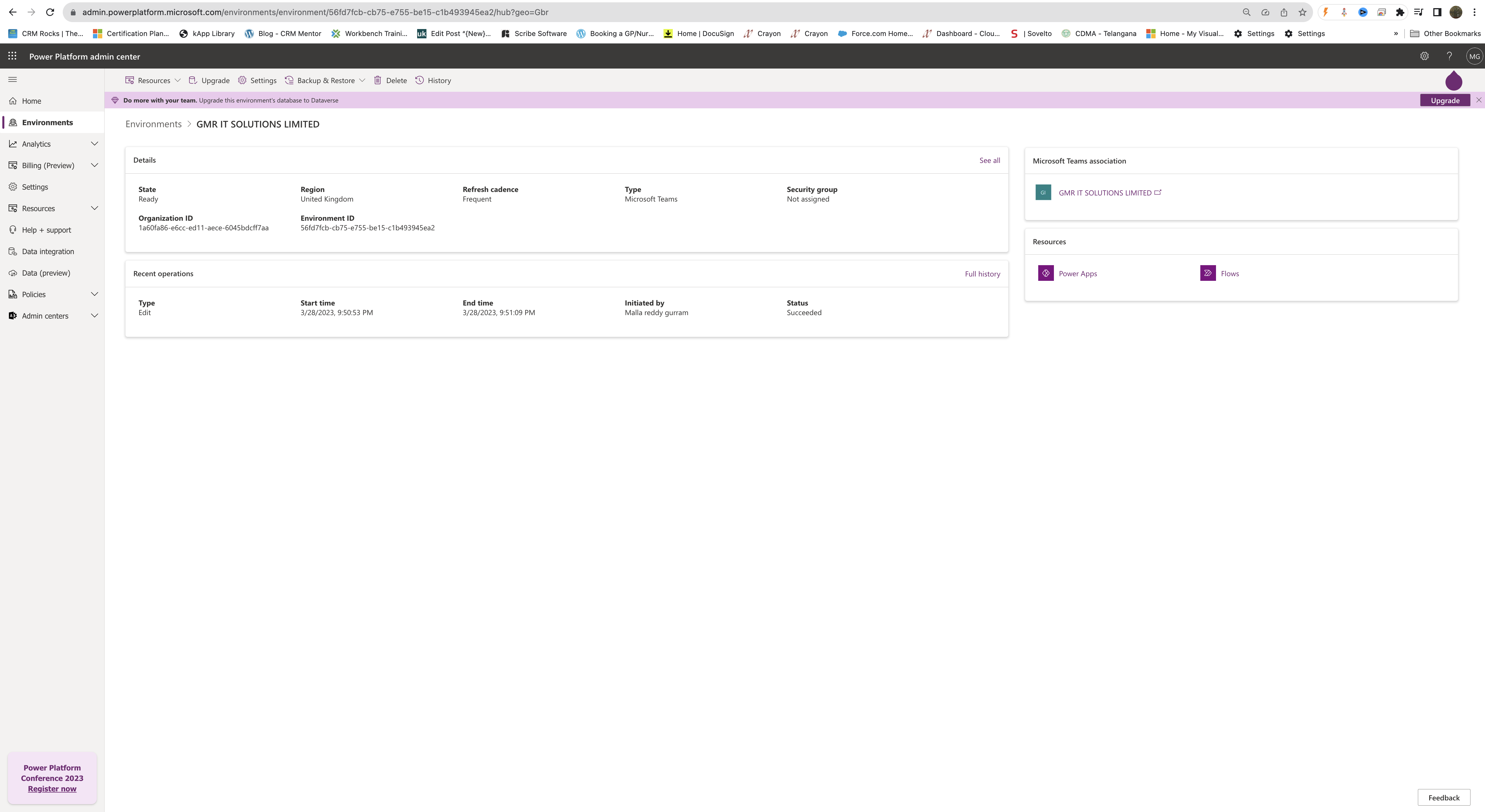
{Resolved} Upgrade this environment for database to dataverse

Hello Everyone,

Today i am going to show how to upgrade an evironment database to dataverse.

Reason why you are getting this message: If an attempt is made to upgrade Dataverse for Teams environment when the tenant doesn’t have enough capacity, the upgrade operation will be blocked and an error message will be displayed.

For example: You have an environment of type Microsoft Teams and you want to upgrade the database to dataverse for teams.

You need to click on the UPGRADE and you need to have enough dataverse capactity to upgrade.

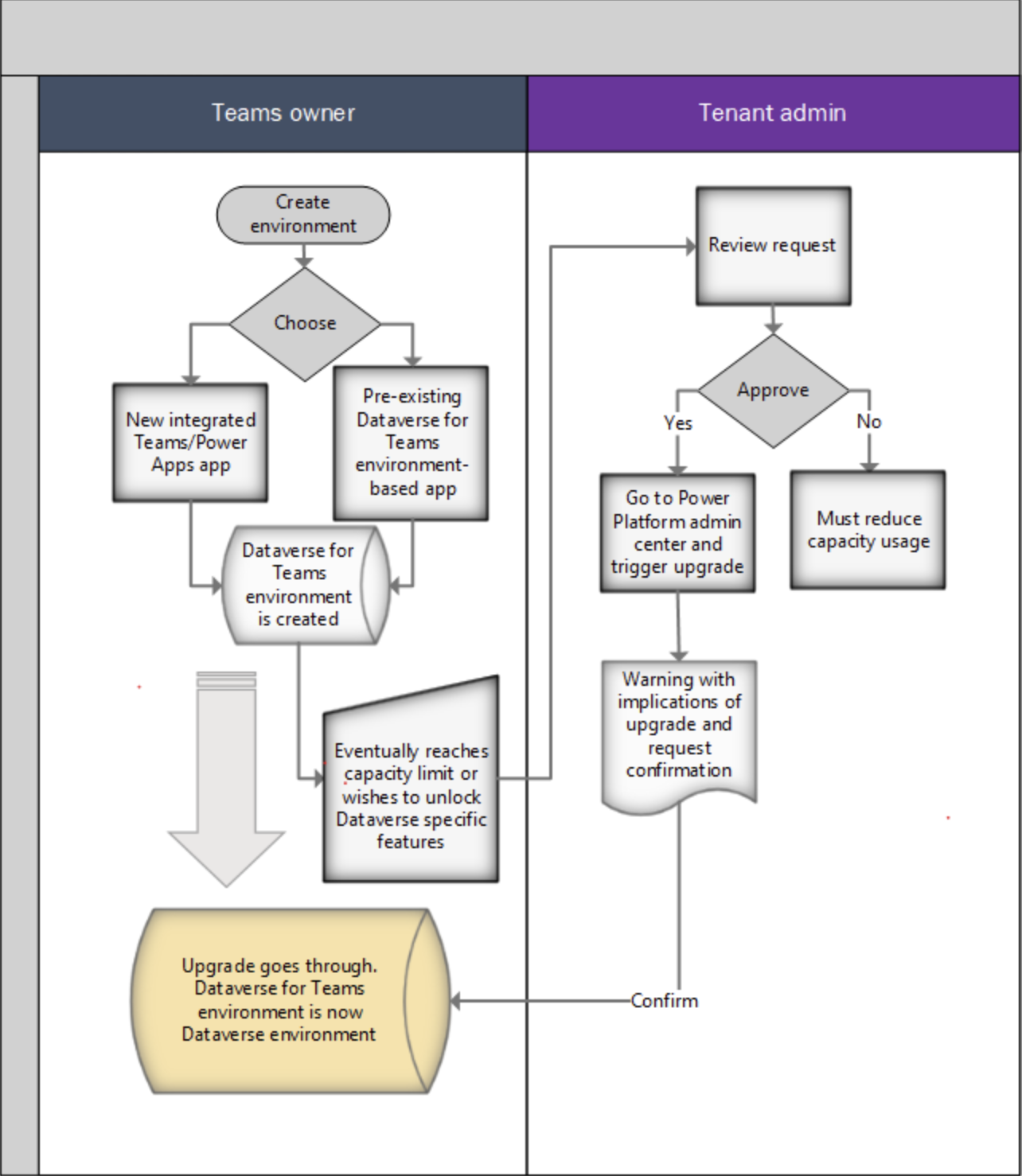
Below is the process flow when an upgrade is initiated.

Note: To successfully carry out the upgrade, the tenant must have at least as much available capacity as the size of the Dataverse for teams environment that’s being upgraded. After its upgrade, the consumed capacity of the upgraded Dataverse for Teams environment will start counting towards the tenant’s capacity.

For more information click here

That’s it for today.

I hope this helps.

Malla Reddy(@UK365GUY)

#365BlogPostsin365Days
Share this:

{How to} Renable a deleted environment on Power Platform Admin Center

Hello Everyone,

Today i am going to show to renable a deleted envionment on Power Platform Admin Center.

Let’s gets started.

Suppose you have deleted an environment and now you want to renable the same environment, you can do that.

How do you do that?

Login into Power Platform Admin Center

Select the enironment recently deleted.

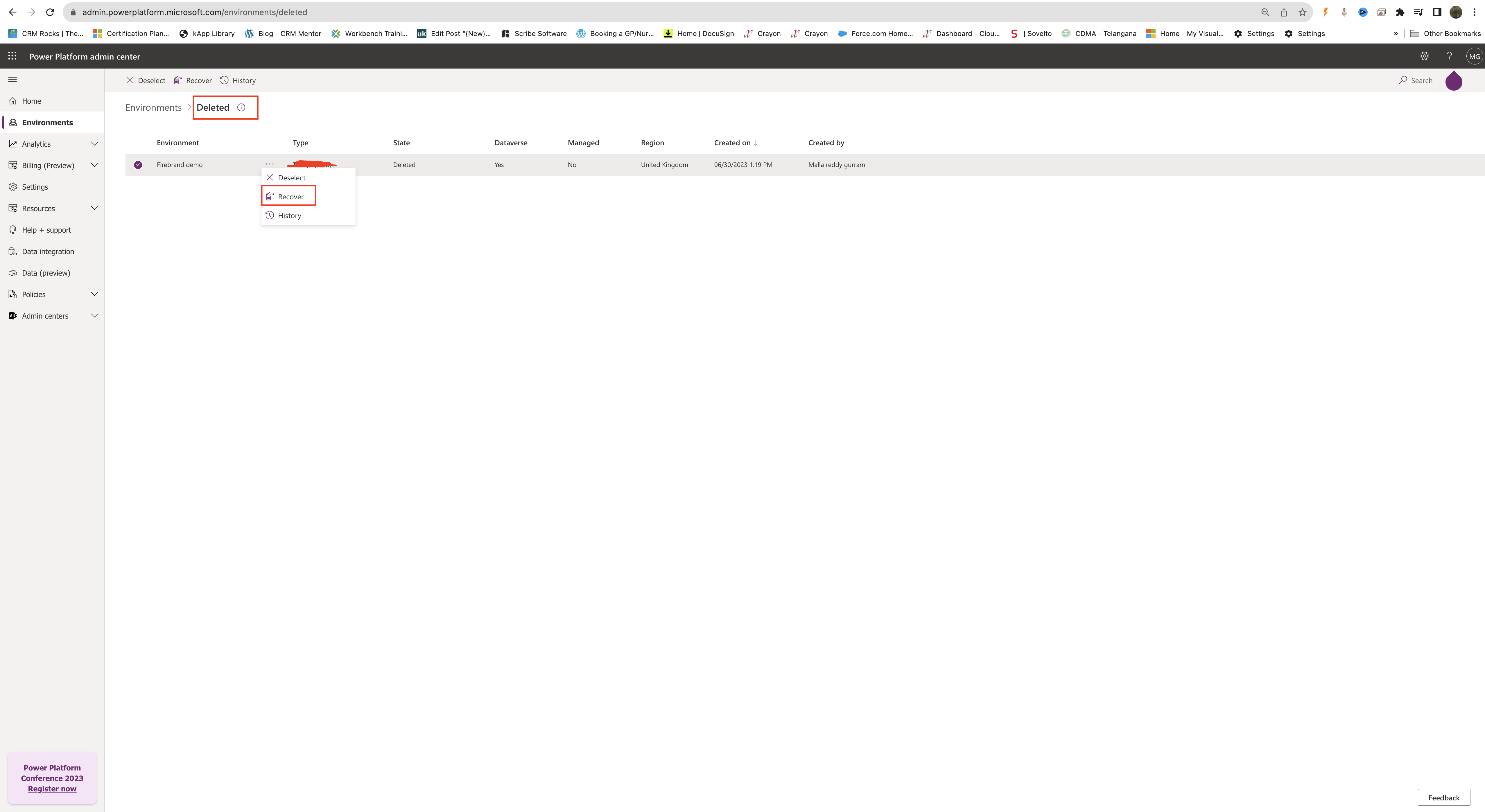
Then deleted environment will be displayed and click on the three dots … then click on recover.

Now your environment will be enabled.

Note: By default, administrator have 30 days to renable an environment, if the environment remains disabled for 30 days, its automatically deleted. Administrators have seven days to recover a deleted environment.

That’s it for today.

I hope this helps
Malla Reddy(@UK365GUY)
#365BlogPostsin365Days
Share this:

{How to} Create Free Microsoft 365 Developer Plan and Power App Developer Plan

Hello Everyone,

Today I am going to show how to create Microsoft 365 Developer Account and Power App Developer Plan to personal use for free.

Lets gets started.

Suppose you want to create an environment to practise and learn about Power Platform and Dynamics 365 Apps then you can continue reading this blog post.

In order to create an power apps environment you need an Microsoft 365 Account with E5 subscription.

You also need an Microsoft Email Account for this subscription.

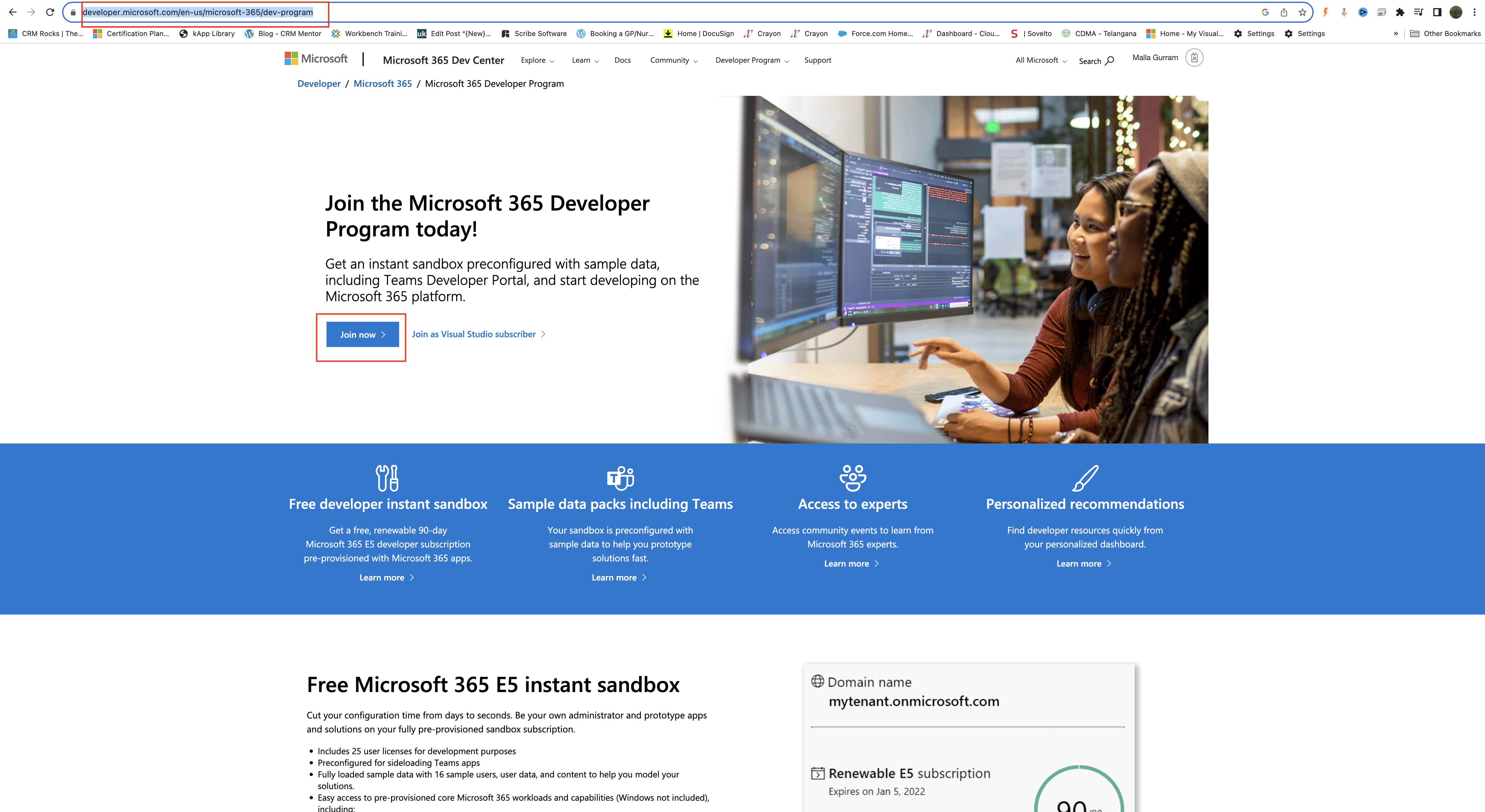
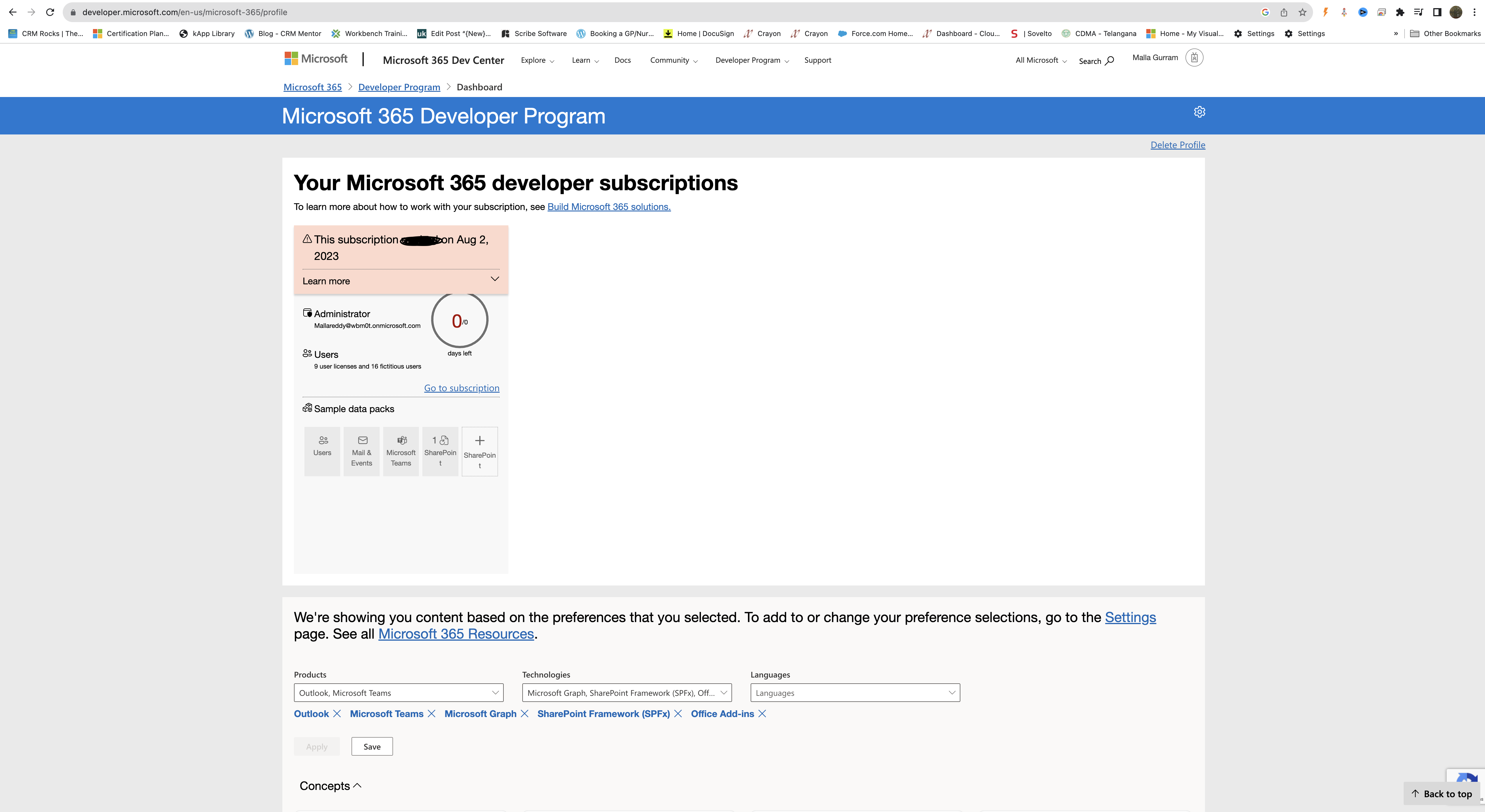
Register for Microsoft 365 Developer Plan

Provide your Country, details about your company and language preferences.

Also provide the purpose of the usage too, also select the products you are interested in like sharepoint framework (SPFx), power platform, outlook, microsoft graph, microsoft teams, Office Add-ons, Microsoft Identity Platform.

You have successfully created the Microsoft 365 Developer Account.

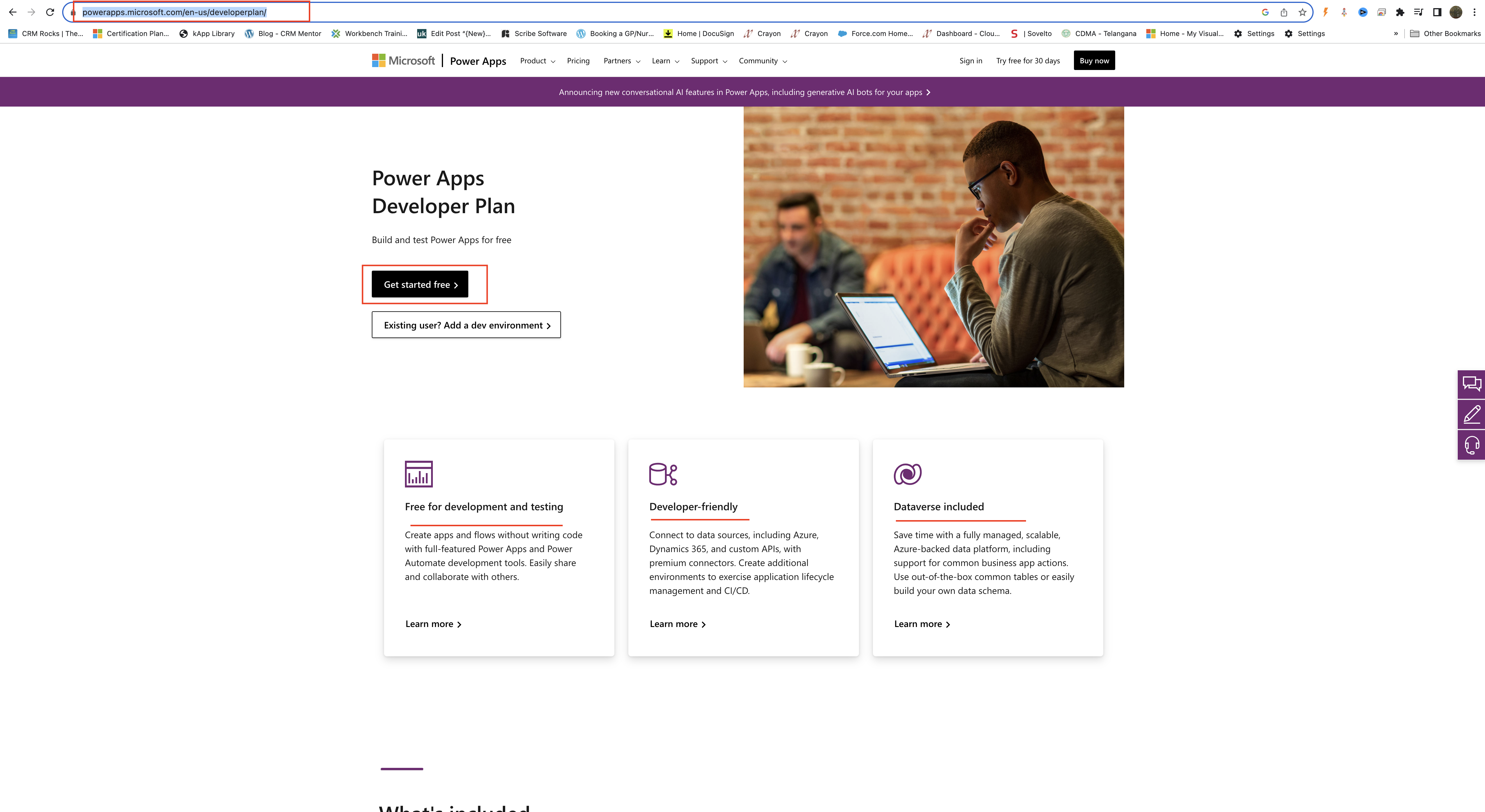
Then its time to create Power Platform Developer Plan

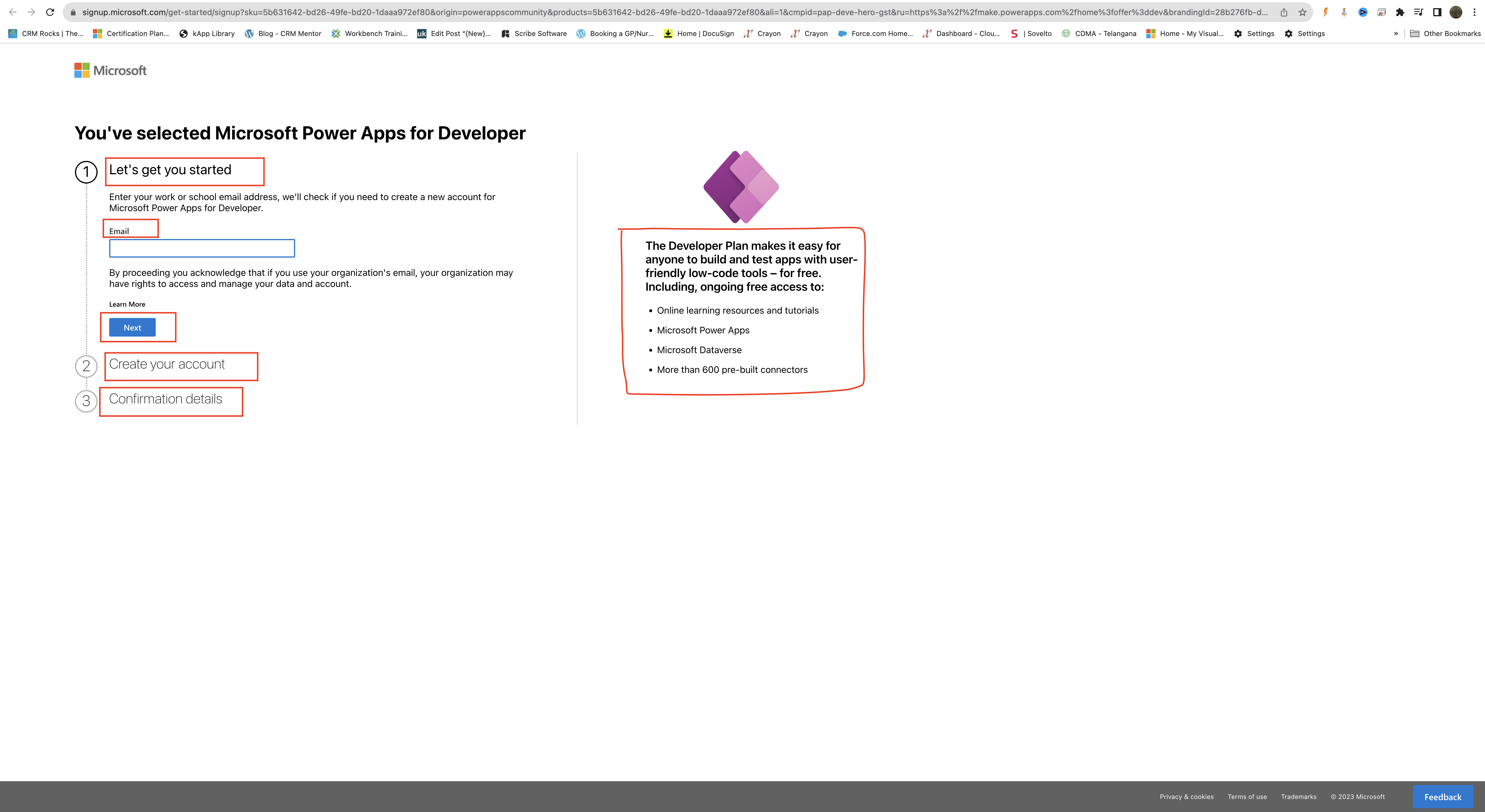
You have selected Microsoft Power Apps for Developer:

1. Provide your email address and click next.

2. Create your account

3. Confirmation details.

What will you get with Power Apps Developer Plan:

– You can built and test apps with user friendly low code tools for free. Including ongoing free access to:

1. Online learning resources and tutorials
2. Microsoft Power Apps
3. Microsoft Dataverse
4. More than 600 pre-built connectors.

That’s it for today.

I hope this helps
Malla Reddy(@UK365GUY)
#365BlogPostsin365Days
Share this: