Menu Close

Category: Blog

{How to} enable access to microsoft dataverse actions on Power Apps Maker Studio

Hello Everyone,

Today i am going to show to enable Microsoft Dataverse actions in Power Apps Studio. This is related to upcoming features on Power Apps.
Let’s get’s started.

If you are trying to turning on upcoming features on power apps studio ‘Smart email validation’ then the following error will be displayed.
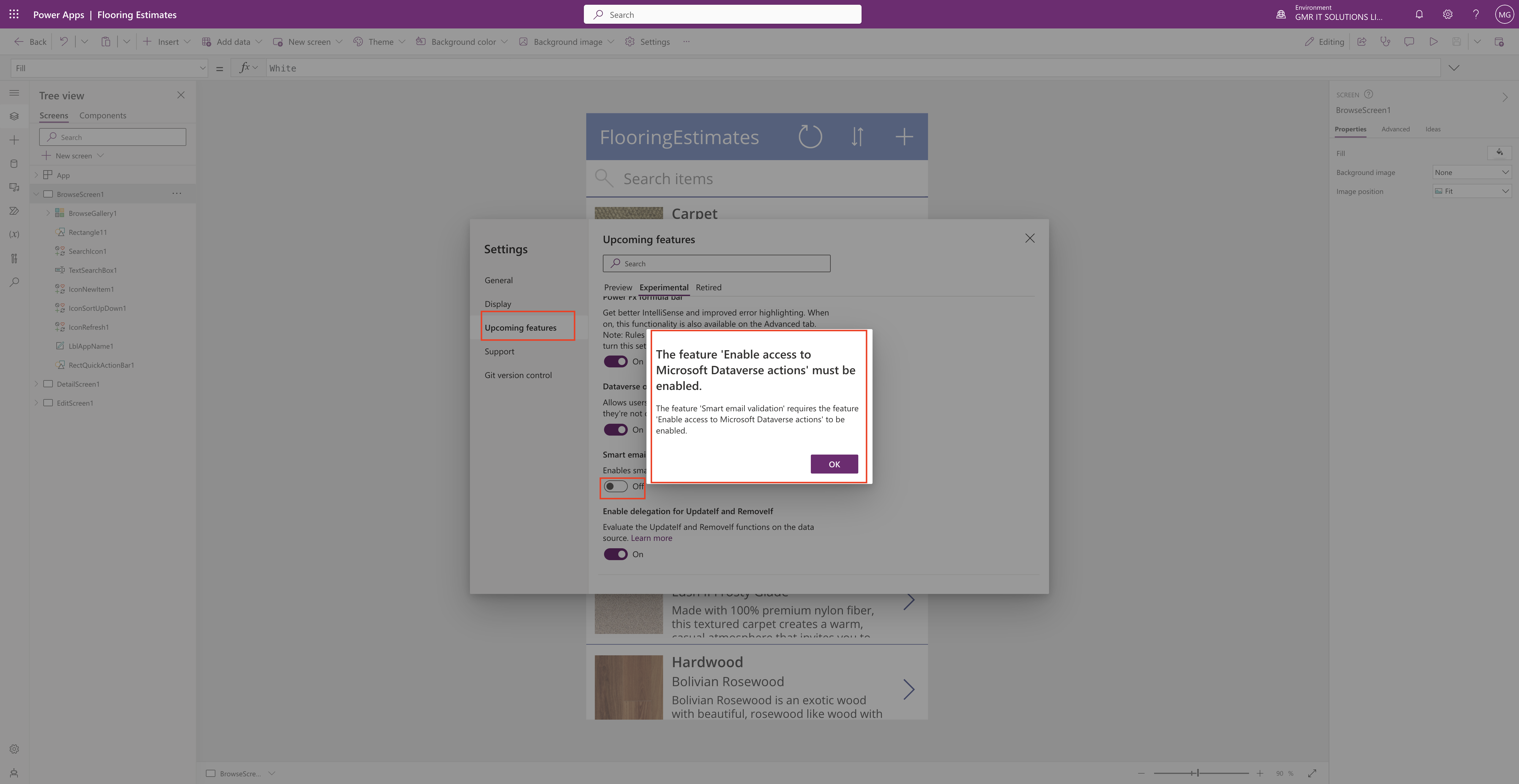
Then all you need to do is to enable access to Microsoft Dataverse Actions on Power Apps Studio.

Go to the Preview tab as this feature in in PREVIEW at the moment and turn on the Microsoft Dataverse Actions.
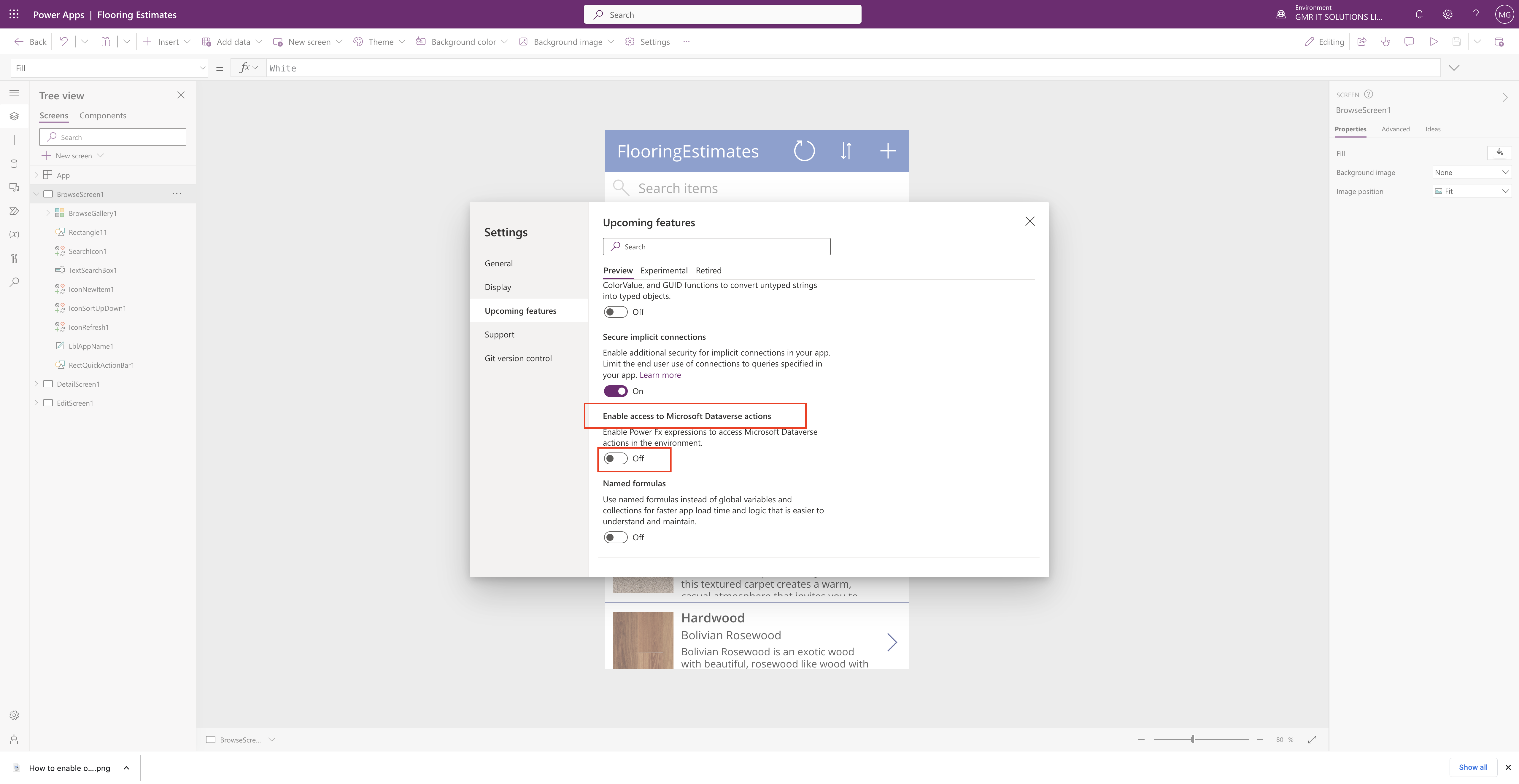
What is the purpose of this feature is to use Power Fx expressions to access to Microsoft Dataverse Actions.

Thats it for today.

I hope this helps
Malla Reddy(@UK365GUY)
#365BlogPostsin365Days

Share this:

{Did you know} you can have a job in 3 months with Power Up Program

Hello Everyone,

This blog posts for career switchers and freshers starting job now, can join the Power Up Program run by Microsoft.

Lets gets started.

Are you looking for career change or fresher searching for job now then continue reading this blog post.

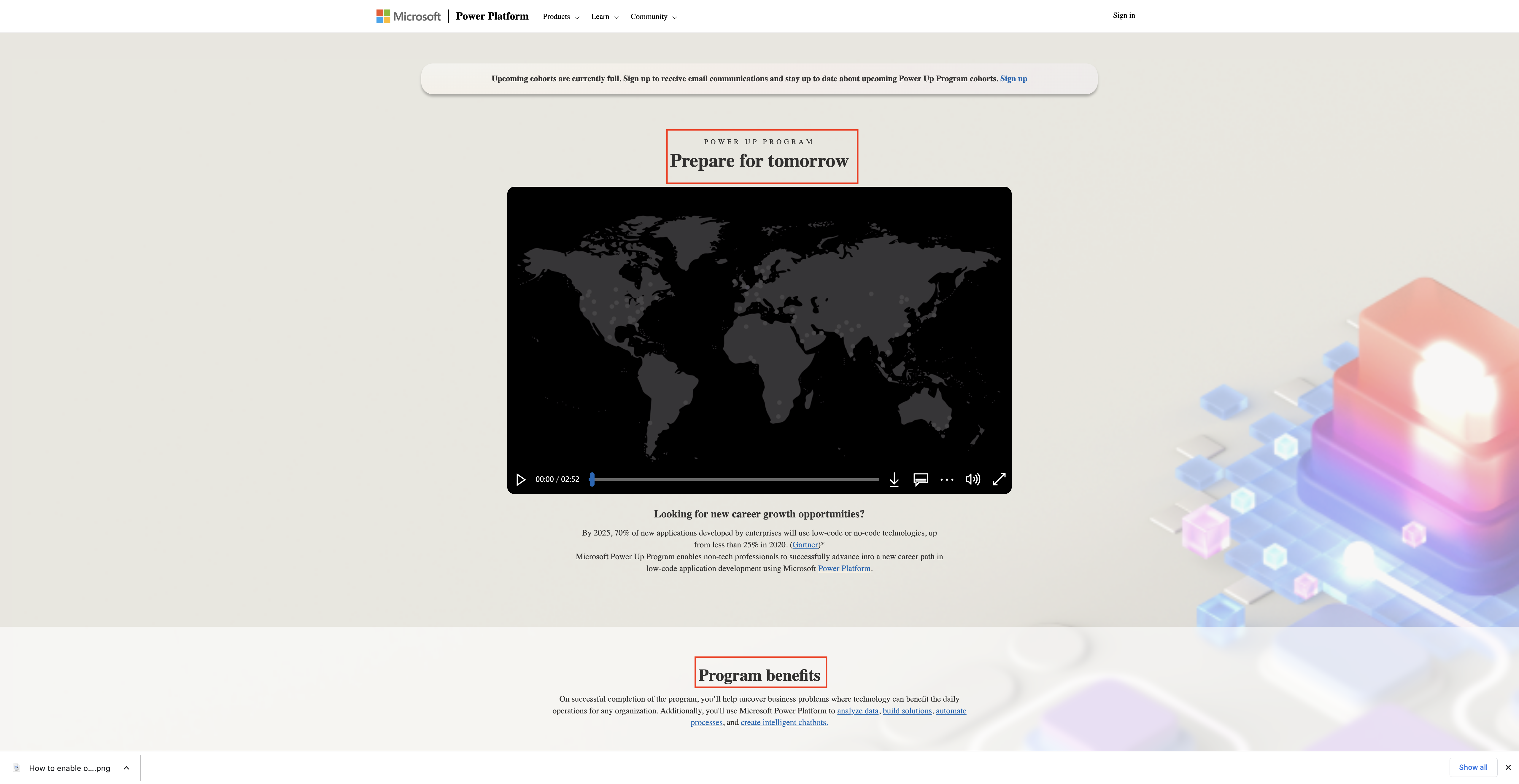
Microsoft runs Power Up Program to train you to become a Microsoft Power Platform Consultant in all aspects starting from what to learn and assignments and interview preparations.

So why dont you take a look at Microsoft Power Up Program and join and empower yourself and community around you.

Here is the link to Microsoft Power Up Program

You will get trained on Power Apps, Power Automate, Power BI, Power Virtual Agent, and then you can learn how to analyze data,build solutions, automate processes and create intelligent chatbots.

I hope this blog post can help someone out there in the world and if this blog post is useful and you can also help someone in whatever way you can..

That’s it for today.

I hope this helps
Malla Reddy(@UK365GUY)
#365BlogPostsin365Days
Share this:

{Did you know} how it looks when enable relationship insights in Dynamics 365 Sales Insights

Hello Everyone,

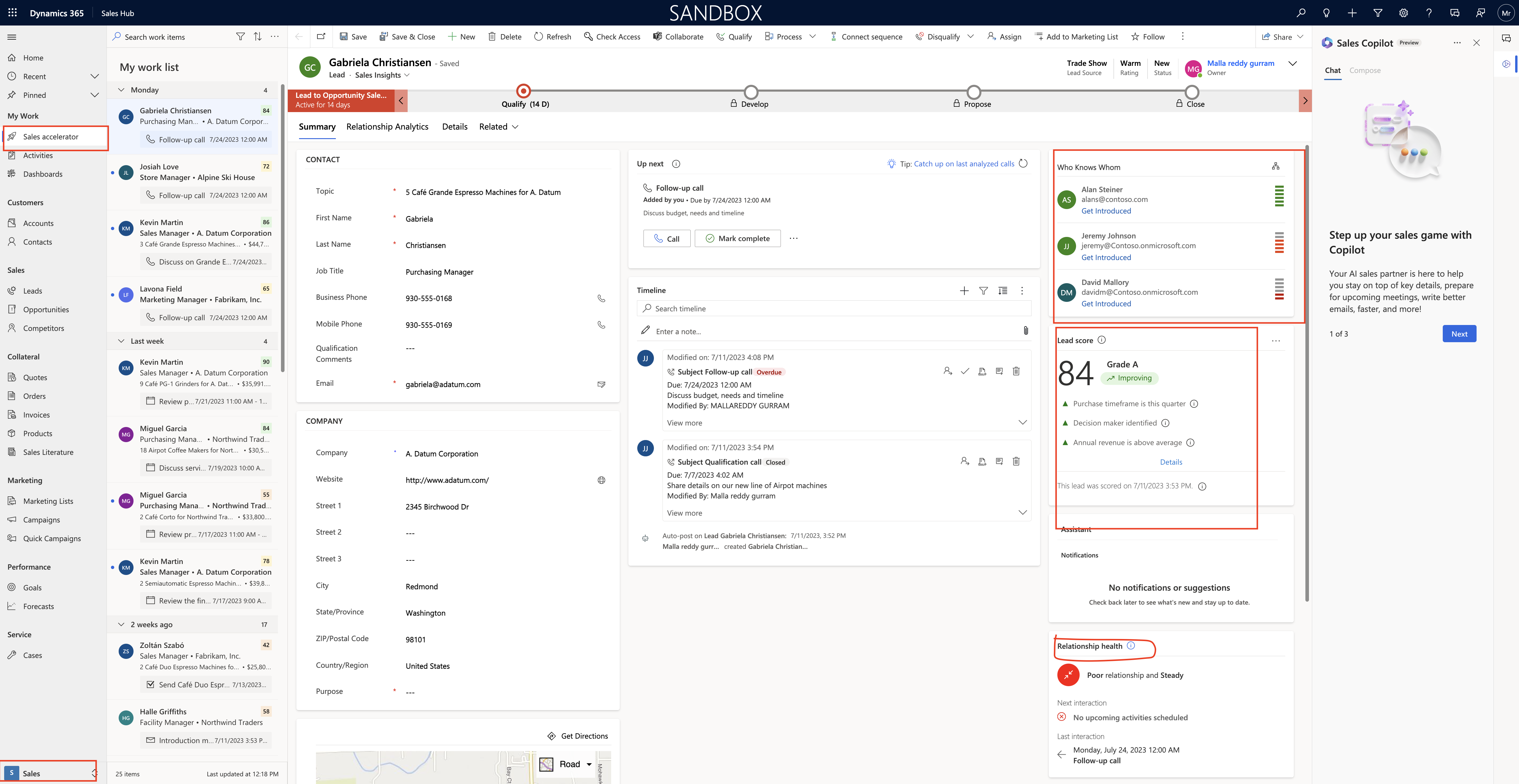
Today i am going to show how it looks when relationship insights enabled on Dynamics 365 Sales Insights.

Let’s get’s started.

Login into Dynamics 365 Sales Insights.

If you want to know how to enable Dynamics 365 Sales Insights click

Then if you switch to Sales and open the sales accelarator then you will see the sales insights see below screenshot.

That’s it for today.

I hope this helps

Malla Reddy(@UK365GUY)
#365BlogPostsin365Days

Share this:

{Do you know} Dynamics 365 and Microsoft Power Platform release planner documentation

Hello Everyone,

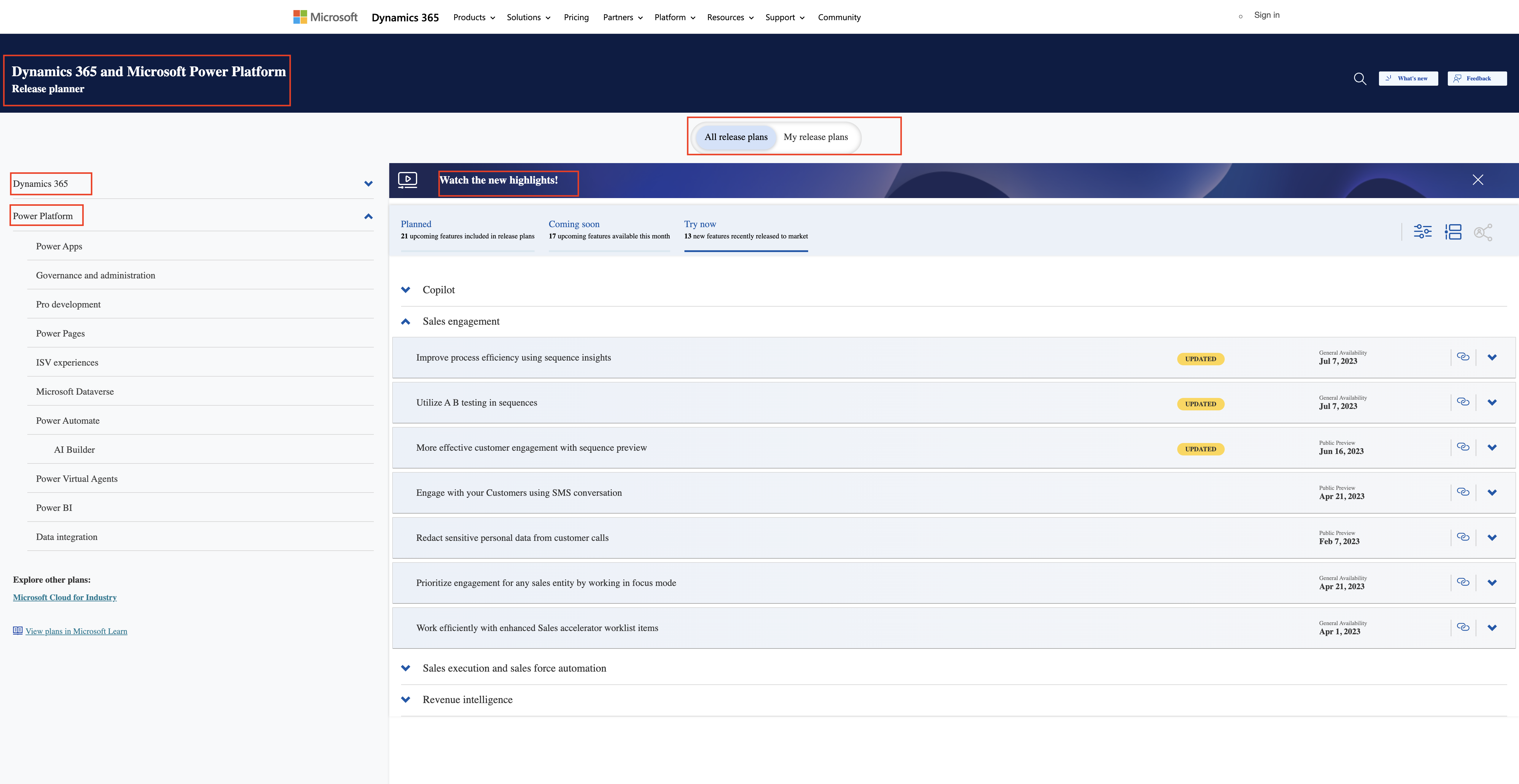
Today i am going to share Dynamics 365 and Microsoft Power Platform release planner documentation site.

Let’s get’s started.

Microsoft Dynamics 365 and Power Platform Community usually look for release documentation area on search engines.

I am going to share the url here

That’s it for today.

I hope this helps.

Malla Reddy(@UK365GUY)
#365BlogPostsin365Days
Share this:

How to approve email addresses for Users or Queues privilege by normal user other than system administrators in Dynamics 365 Sales

Hello Everyone,

Today i am going to show to approve email addresses by normal user other than system administrator.

Let’s get’s started.

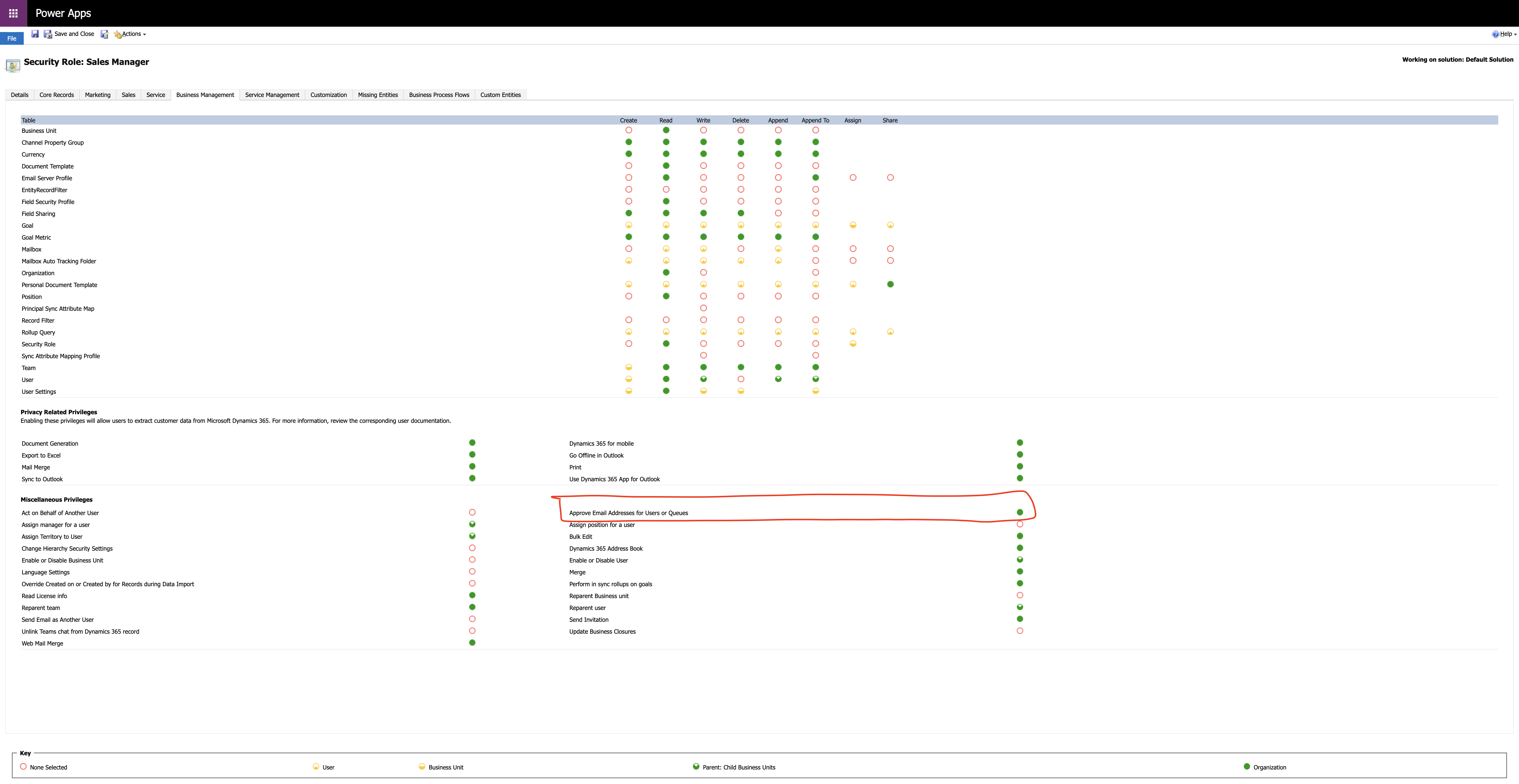
Normally to approve an email addresses in Dynamics 365 user requries the Approve Email Addresses for Users or Queues Privileges.

System Administrators usually have this role assigned default, so if any other user requires to approve email addresses, system admin’s can assign this Approve Email Addresses for Users or Queues Privileges to their security role.

How to assign manually lets see in action:

Login into Power Platform Admin Center and select an environment,

In the legacy web client in the upper right hand corner, click on Advanced Settings.

Settings > Users + Permissions > Security roles.

Security role and then select the Business Management tab.

Under Miscellaneous Privileges, set the previleges level for Approve Email Addresses for Users or Queues.

Then Approve Mailboxes:

How do you do that?

Login into Power Platform Admin Center, select the environment,

Legacy web client click on advanced settings.

Select Settings > Email > Mailboxes.

Select Active Mailboxes.

Select the mailboxes that you want to approve and then select More commands > Approve Email.

Select OK.

That’s it for today.

I hope this helps
Malla Reddy(@UK365GUY)
#365BlogPostsin365Days

Share this: