Menu Close

Tag: #365blogpostsin365days

Understand how Dynamics 365 Marketing activities contribute to defined milestones using Copilot

Hello Everyone,

Today i am going to share my views on dynamics 365 marketing activities contribute to defined milestone.
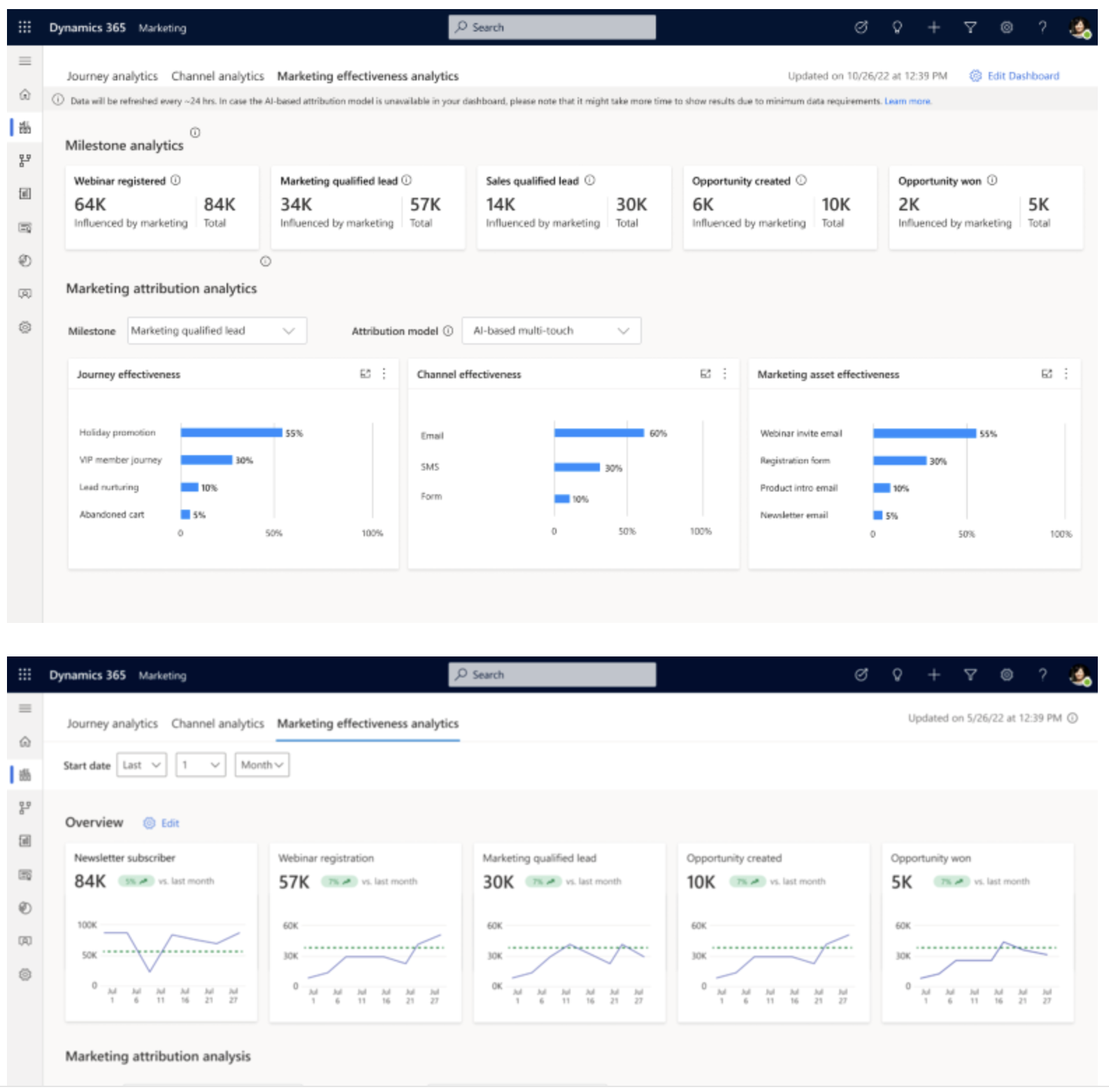
Dynamics 365 Marketing is a powerful platform that helps businesses manage and automate their marketing activities. When combined with Copilot, it can contribute significantly to achieve marketing milestones and objectives. Here’s how Dynamics 365 Marketing activities along with Copilot can help you reach your marketing goals.

Lead Generation:

Dynamics 365 Marketing can segment your leads and prospects based on various criteria. Copilot can assist in generating code to create custom lead scoring models to prioritize and nuture the most promising leads.

Copilot can provide content suggestions and email templates for lead generation campaigns, making it easier to engage potential customers.
Email Marketing:

Dynamics 365 Marketing allows for advanced email automation and personalization. Copilot can help design complex email workflows, create dynamic content and suggest email subject lines and copy.

It can also assist in setting up automated triggers, such as email responses to specific customer behaviors, which can improve email engagement and lead conversion rates.

Customer Engagement and Segmentation:

Dynamics 365 Marketing provides tools for customer profiling and segmentation.
Copilot can assist in generating queries and code for advanced segmentation based on various attributes and behaviors.

It can help create personalized customer journeys and automate follow up communication for different customer segments.

Event Management:

Dynamics 365 Marketing enables you to plan, execute and analyze events, Copilot can provide code snippets for event registration pages, attendee tracking and post-event follow ups.

It can help automate event-related tasks, such as sending event reminders, surveys and feedback requests.

Social Media Integration:

Copilot can suggesr content ideas for social media posts and help automate the scheduling of posts on different social platforms through integrations with Dynamics 365 Marketing.

It can also provide code for tracking and analyzing social media performance to refine your social media strategy.

Analytics and Reporting:

Copilot can assist in creating custom reports and dashboards within Dynamics 365 Marketing to monitor campaign performance, track KPI’s and generate insights.

It can help automate data extraction and analysis, ensuring that you have a real time insights into your marketing activities and can make data-driven decisions.

Marketing Automation:

Dynamics 365 Marketing offers powerful automation capabilities. Copilot can help design and implement complex marketing automation workflows for lead nuturing, customer onboarding, and more.

It can suggest code for creating custom connectors or integrations with other tools to streamline marketing processes.

Content Creation:

Copilot can assist in generating content ideas for marketing materials, such as blog posts, whitepapers, and videos. it can also provide code for creating and publishing content on your website or other platforms.

It can help with content optimization for SEO and suggest improvements to enhance content performance.

By combining Dynamics 365 Marketing with Copilot, you can streamline your marketing operations, improve the effectiveness of your campaigns, and reach your defined milestones more efficiently.

The Integration of these tools allows for a seamless workflow, enabling you to engage nurture, and convert leads while tracking and analyzing the performance of your marketing efforts.

That’s it for today.

I hope this helps.

Malla Reddy Gurram(@UK365GUY)
#365BlogPostsin365Days
Share this:

{How to} Design Email template in Dynamics 365 Customer Insights

Hello Everyone,

Today I am going to show how to design email in Dynamics 365 Customer Insights.

Let’s get’s started.

You want to design an email template and send invitation about a Radio Station.

Let’s see how do we do that?

Login into Dynamics 365 Customer Insights.

Click on Email under Channel.

Then you click on new.

Email Templates:

You can select the built in templates or can select the Custom Templates or Favorites.

I have chosen the built in email template Layouts 1 column centered template.

Then i have added the logo and Image for the email template and then added the email body and buttons and the QR code.

You can also design the footer on the template with your company address and unsubscribe links.

Also you can set from name and from where the email is coming from, subject and any preview text.

Is that easy to quickly configiure the email template on the Dynamics 365 Customer Insights.

That’s it for today.

I hope this helps.

Malla Reddy Gurram(@UK365GUY)
#365BlogPostsin365Days.

Share this:

{How to} Prevent duplicate emails to contacts that share an email address on Dynamics 365 Marketing

Hello Everyone,

Today i am going to show how to prevent duplicate emails to contact that share an email address in Dynamics 365 Marketing.

Let’s get’s started.

Normally in CRM there are duplicate emails in the contacts and even sending emails to these contacts will be alot of duplication of email communication with them.

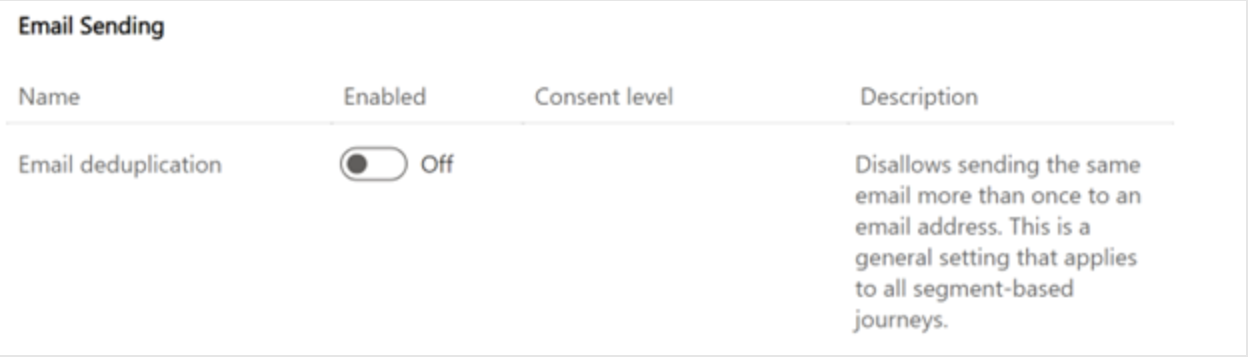
How do we enable email deduplication on Dynamics 365 Marketing?

1. Go to settings and select Features switches.

2. Enable the Email deduplication feature toggle in the “Email Sending” section.

Effective email management is very crucial for maintaining strong customer relationships and ensuring your business’s success.

So enabling email deduplication, you can ensure that even if your data has multiple contacts with the same email address.

When you send an email to the customers it will be sent only once, keeping their inboxes clutter-free and preserving your brand reputation.

By identifying and consolidating duplicate contacts that share the same email address, email deduplication ensures that each customer receives your message just once.

Increasing the chances that your important messages reach their inboxes and avoiding spam folders.

That’s it for today.

I hope this helps.

Malla Reddy Gurram(@UK365GUY)
#365BlogPostsin365Days
Share this:

Turn on UTM Tracking on Dynamics 365 Customer Insights

Hello Everyone,

Today i am going to show what will be added to your emails when you Turn On UTM Codes in Dynamics 365 Customer Insights.

Let’s get’s started.

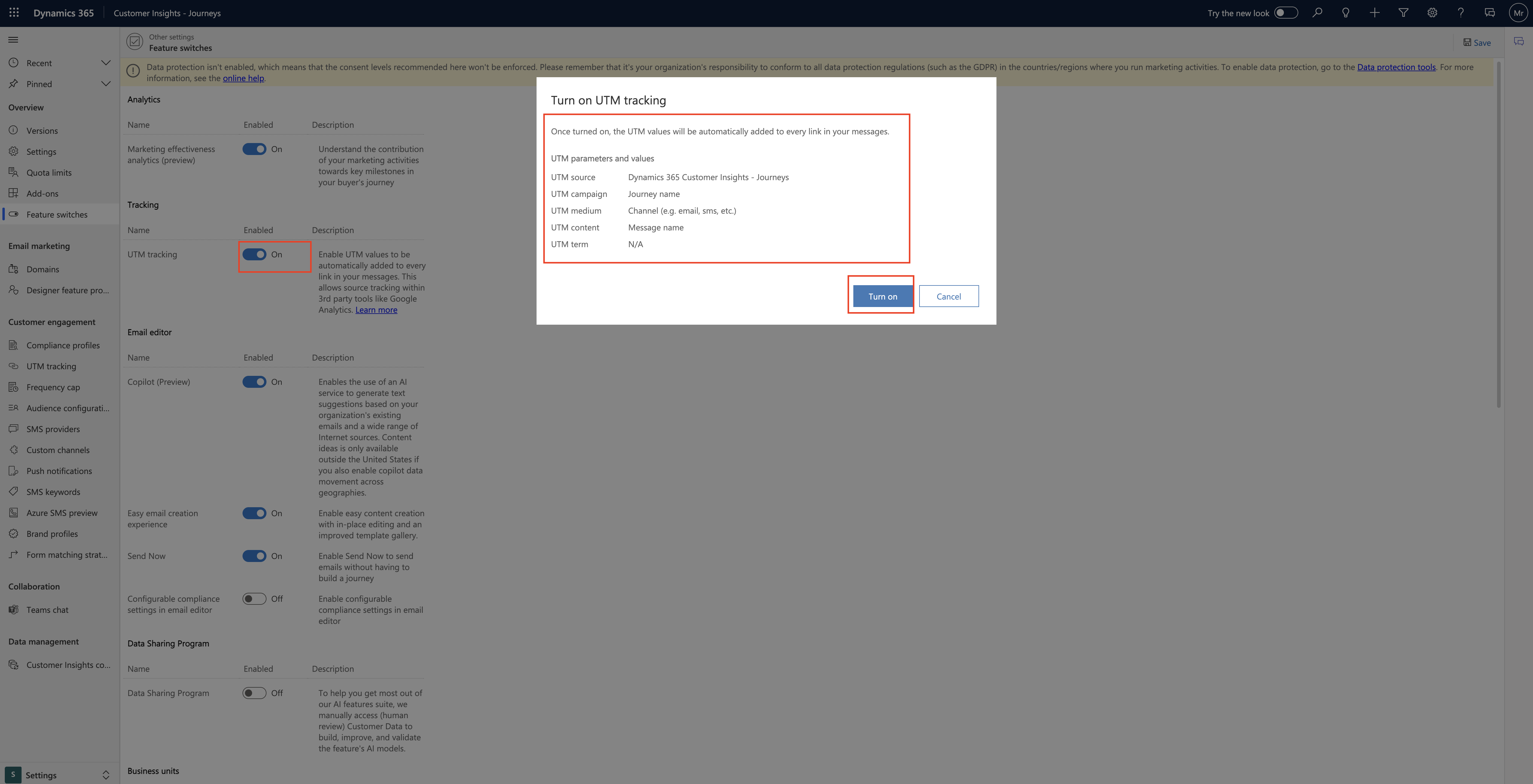
When you turn ON – Feature Settings.

UTM Tracking:

Once UTM Tracking is TURN ON:

The UTM Values will be automatically added to every link in your messages.

UTM parameters and values:

UTM Source : Dynamics 365 Customer Insights – Journeys
UTM Campaign – Journey name.
UTM Medium – Channel(e.g email, sms, etc)
UTM content: Message name.
UTM term: N/A

That’s it for today.

I hope this helps.

Malla Reddy Gurram(@UK365GUY)
#365BlogPostsin365Days
Share this:

Features switches Settings on Dynamics 365 Customer Insights

Hello Everyone,

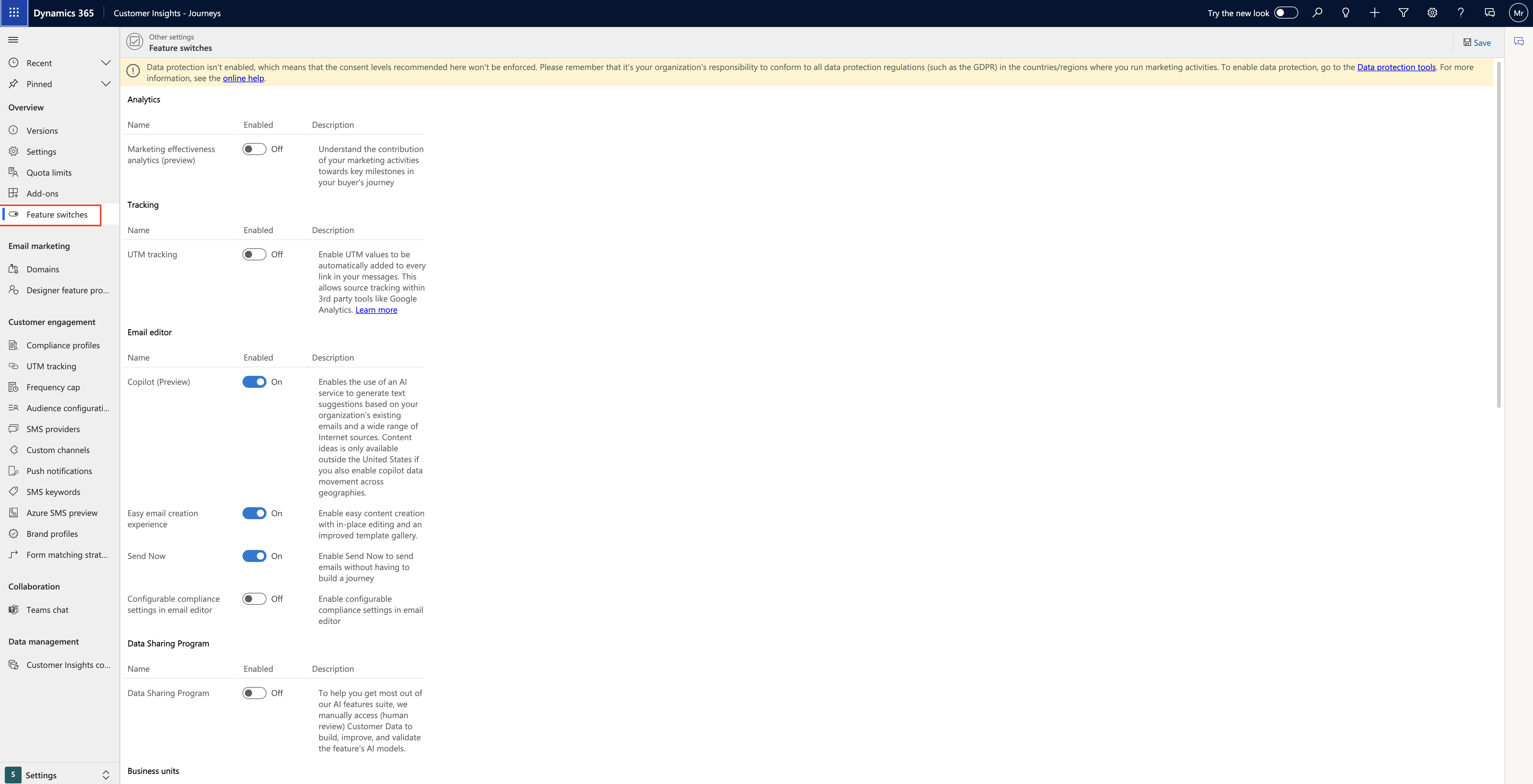
Today I am going to show what are the settings on features switches included on Dynamics 365 Customer Insights.

Let’s get’s started.

Login into Dynamics 365 Customer insights.

Change to settings on left hand side cornor of the screen.

Click on Feature Switches.

Let’s look at each of the settings what they does in terms of functionality in Dynamics 365 Customer Insights.

Analytics:

1. Marketing effectiveness analytics(Preview) turning ON this will give information about the contribution of your marketing activities towards key milestones in your buyer’s journey.

Tracking:

UTM tracking: Turn ON this settings will enable UTM Values to be automatically added to every link in your messages. This allows source tracking within 3rd party tools like Google Analytics.

Email editor:

Copilot(Preview) Turn ON this settings will enable to use of an AI service to generate text suggestions based on your organizations existing emails and a wide range of internet sources. Content ideas is only available outside the United States if you also enable copilot data movement across geographies.

Easy email creation experience – Turn ON enable easy content creation with in place editing and an improved template gallery.

Send Now – Turn ON -enable SEND NOW to send emails without having to build a journey.

Configurable Compliance settings in email editor – Turn ON – enable configurable compliance settings in email editor.

Data Sharing Program:

Turn ON this settings helps to get most out of our AI features suites, we manually access(HUMAN REVIEW) Customer data to build, improve, and validate the feature’s AI models.

Business Units:

Business unit scoping (real-time journeys) Turn ON enable business unit scoping for marketing processes in real time journeys.

Customer Journeys:

CC recipients for emails: Turn ON enable adding email CC recipients, Their interactions with sent emails (Open, farward, unsubscribe) will be counted as a primary recipient interaction against quota and will affect your insights an analytics.

Email Sending:

Email deduplication – Turn ON – Disallows sending the same email more than once to an email address. This is a general setting that applies to all segment – based Journeys.

Journeys:

Lead and Opportunity creation(Preview) – Turn ON will enables the creation of leads and opportunity within journeys using built-in journeys activities.

Integrations:

Customer Voice Integration: Turn ON – will enable Dynamics 365 Customer Voice Integrations with Marketing.

Compliance:

Multi brand consent and customizable preference centers – Turn ON – will create customizable branded preference centers in real -time journeys that manage consent separately for each line of business.

Note: You can not disable this feature once it is enabled.

Lead Management:

Lead Scoring – Turn ON will create scoring model to identify the best leads.

That’s it for today.

I hope this helps,

Malla Reddy Gurram(@UK365GUY)
#365BlogPostsin365Days
Share this: