Menu Close

Tag: #copilotstudio

{Do you know} Business impact of Copilot Studio Agents in Viva Insights

Hello Everyone,

Today I am going to share my thoughts on analysing the business impact of Copilot Studio Agents in Viva Insights.

Let’s get started.

Copilot Studio Agents integrated within Microsoft Viva Insights help organisations enhance employee productivity, well-being, and collaboration by providing AI-driven personalised recommendations and automated assistance.
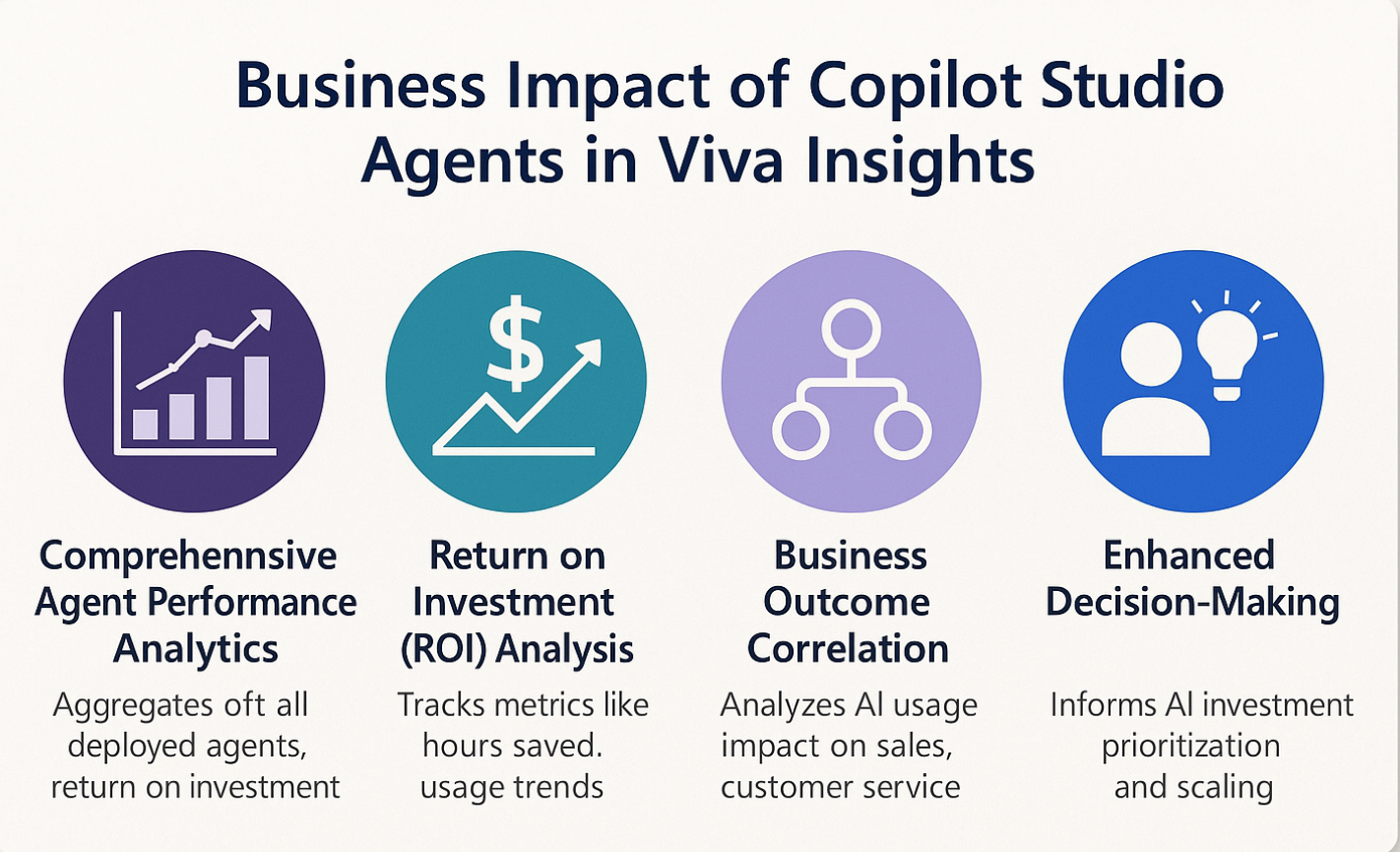
Analysing their business impact involves measuring key performance indicators such as time saved on routine tasks, improvements in employee engagement, and quality of decision making support.

Viva Insights leverages data from collaboration tools like Microsoft Teams and Outlook, enabling copilot agents to deliver actionable insights that reduce cognitive load and foster healthier work habits.

The analysis focuses on how these agents continue to increased efficiency, reduced burnout, and improve work-life balance.

Organizations can track metrics such as adoption rates, user feedback, and productivity improvements to assess the effectiveness of Copilot agents. Additionally, integrating feedback loops and sentiment analysis helps refine the AI’s assistance quality over time.

Overall evaluating Copilot Agents in Viva Insights provides a comprehensive understanding of their role in driving digital transformation, enhancing employee experience, and positively impacting organizational performance.

That’s it for today.

I hope this helps.

Malla Reddy Gurram(aka `@uk365guy)

Share this:

{How to} Collect thumbs up or down feedback and comments for your Copilot agents.

Hello Everyone,

Today I am going to share my thoughts on how to collect thumbs up or down feedback and comments for your Copilot Studio Agents.

Let’s get started.

To collect thumbs up or down feedback and comments for your Copilot agents, you typically follow these steps (especially in platforms like Microsoft Copilot Studio):

1. Enable feedback collection in your Copilot Setup: Make sure your copilot agent is configured to prompt users for feedback after delivering a response.

This usually includes UI elements like thumbs up or thumbs down buttons.

2. Prompt Users to Provide Feedback: After a response, display options for users to submit a thumbs up or down.
Optionally, allow users to add a text comment explaining their choice for richer insights.

3. Capture and store feedback data: Set up backend processes or integrations that log feedback and comments securely.
This data can be stored in databases or analytics platforms tied to your Copilot environment.

4. Analyse Feedback: Use dashboards or analytic tools to review thumbs-up/down ratios and read user comments.
Identify patterns where the Copilot performs well or needs improvement.

5. Iterate and improve: Use the collected feedback to retain or adjust the Copilot agent responses.
Implement changes based on common user concerns or praise.

Specific for Microsoft Copilot Studio:

Microsoft Copilot Studio provides built-in support for feedback collection:

Turn on user feedback: Enable the feedback feature from the Copilot Studio settings:

Feedback UI: Automatically shows thumbs up/down buttons after agent responses.

Feedback Comments: Users can add optional comments after rating.

View feedback: Admins can view aggregated feedback and comments in the analytics dashboard for continuous improvements.

That’s it for today.

I hope this helps.
Malla Reddy Gurram(@UK365GUY)

Share this:

{How to} Get smart actionable insights to improve your copilot agent performance

Hello Everyone,

Today I am going to share my thoughts on getting the actionable insights to improve copilot agent performance.

Let’s get started.

1. Enhanced Analytics Dashboard: The Analytics page now offers comprehensive insights into agent performance, including key metrics such as answer rate, usage, and error rates. This allows for a deeper understanding of how agents are performing and where improvements can be made.

2. Autonomous Agent Performance Metrics: For agents utilising autonomous capabilities, new analytics features provide visibility into how knowledge sources are used during each run. This helps in assessing relevance, adjusting content, and improving performance over time.

3. Unanswered Questions Analysis: Copilot Studio now categorises and highlights unanswered user questions, grouping them by themes and conversation contexts. This feature aids in identifying content gaps and refining agent responses.

4. Action Usage Insights: Enhanced visibility into how users utilise actions within an agent is now available. Metrics such as answer rate, action usage rate, and error rate provide a comprehensive view of user interactions, helping to identify areas for improvements.

5. Customer Satisfaction Feedback: The Customer Satisfaction tab offers detailed insights into user feedback, including average CAST Scores and satisfaction levels based on user queries. This data helps in understanding user sentiment and areas needing attention.

6. Evaluation Test Workflows: Copilot Studio Introduces structured, Automated testing workflows that simulate real user interactions; Makers can evaluate agents before going live, identifying weak spots and ensuring reliability.

7. Billing and Consumption Analysis: New billing analysis features allow makers to assess agent efficiency and cost breakdowns by event types. This helps in optimising operations and understanding the financial impact of agents.

That’s it for today.

I hope this helps.

Malla Reddy Gurram (aka @UK365GUY)

Share this:

{Do you know} Analyze quality of responses that use generative AI in Copilot Studio

Hello Everyone,

Today I am going to share my thoughts on Copilot Studio’s new feature, the quality of responses that use generative AI.

Let’s get started.

Microsoft’s Copilot Studio introduced a new feature on June 17, 2025, enabling administrators, makers, marketers, and analysts to automatically analyse the quality of responses generated by AI copilots. This feature aims to provide actionable insights to enhance agent performance.

The evaluation framework for generative AI (GenAI) systems has been evolving to address the limitations of traditional lab-based assessments.

A comprehensive evaluation framework was proposed to assess GenAI systems in real-world scenarios, emphasising the need for dynamic and ongoing assessments that consider user intent, social dynamics, and emergent behaviours.

Additionally, Google Cloud introduced the GenAI evaluation service within Vertex AI, allowing users to evaluate generative models against predefined or custom criteria. This service supports various metrics, including accuracy, relevance, and user satisfaction, facilitating a more nuanced understanding of AI performance.

These developments reflect a broader trend towards more sophisticated and context-aware evaluations of generative AI systems, moving beyond traditional benchmarks to emcompass real-world performance and user experience.

That’s it for today.

I hope this helps.

Malla Reddy Gurram(@aka UK365GUY)

Share this:

{How to} Use your own model when generating responses in copilot studio.

Hello Everyone,

Today i am going to share my thoughts on how to use your own model when generating responses in copilot studio.

Let’s get’s started.

In Copilot Studio, you can enhance AI behavior and responses by integrating your own custom model instead of relying on the default GPT based assistant. This is particularly useful for organizations that have domain specific data, proprietary language models, or unique use cases that require tailored AI responses. By using own model, you gain greater control over responses logic, accuracy and compliance with general standards or regulations.

To use your own model in Copilot Studio, you typically configure it through plugin actions or APIs.

This involves settings up an external endpoint where your model is hosted(e.g., Azure ML, AWS SageMaker, or a self-hosted REST API). Then you create a plugin in Copilot Studio that calls your model’s API, passing in user input and returning the model’s responses.

You can then use this plugin as a custom action in topics, ensuring your bot routes user queries through your specific model when needed.

+———————+
| User Message |
+———————+
|
v
+————————–+
| Copilot Studio Topic |
+————————–+
|
v
+————————–+
| Custom Plugin Action | <-- Calls your model +--------------------------+ | v +--------------------------+ | Your Custom Model (API) | +--------------------------+ | v +--------------------------+ | Response to Copilot | +--------------------------+ | v +--------------------------+ | User Receives | | Model's Response | +--------------------------+ This setup allows you to combine Copilot's powerful orchestration tools with the unique reasoning and training of your own AI models. That's it for today. Malla Reddy Gurram(@aka UK365GUY) #365blogpostsin365days

Share this: