Menu Close

Tag: #mallareddygurram

What is the significance of sending proactive messages in Microsoft Teams

Hello Everyone,

Today I am going to share my thoughts on sending the significance of sending proactive messages in Microsoft Teams.

Let’s get’s started.

Sending proactive messages in Microsoft Teams involves automating communications to initiate interactions without a user’s immediate prompt, enhancing engagement and efficiency.

To do this, you can use Microsoft Power Automate or a custom bot developed with the Microsoft Bot Framework.

With Power Automate, you can set up flows triggered by specific events or conditions, sending automated messages to Teams channels or users.

For a more advanced approach, a custom bot can use the Bot Framework to send messages based on complex logic or interactions.

This feature is particularly useful for notifications, reminders or updates ensuring that important information is communicated promptly and automatically.

However, it’s crucial to balance the frequency and content of proactive messages to avoid over whelming users, and to adhere to Team’s policies and best practises for bot interactions.

That’s it for today.

I hope this helps.

Malla Reddy Gurram(@UK365GUY)
#365BlogPostsin365Days

Share this:

{How to} Create Cloud Flows Just Describe it to design it from Power Automate

Hello Everyone,

Today I am going to show how to create a Cloud Flows Just ‘Describe it to design it’ from Power Automate.

Let’s get’s started.

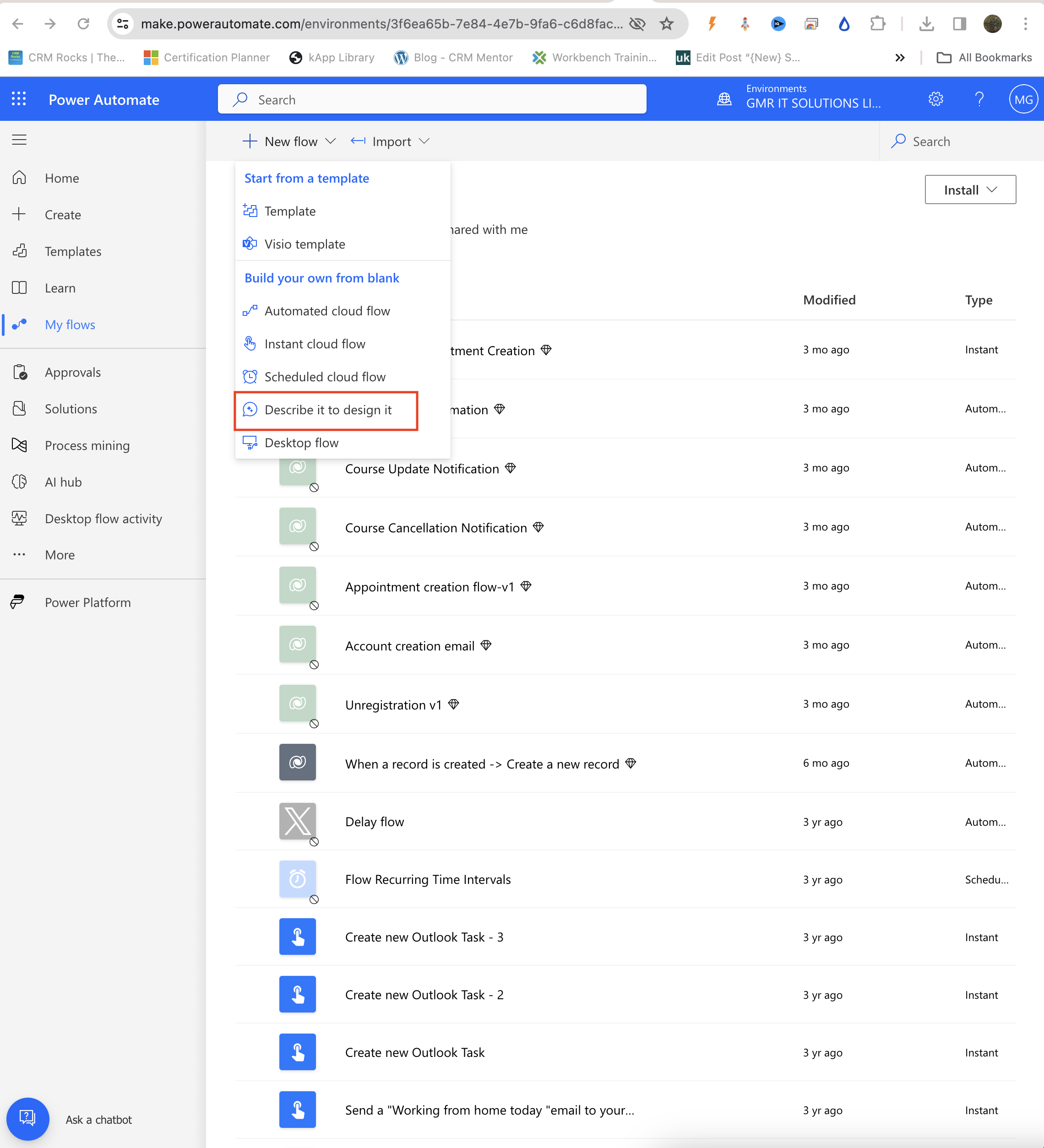
Up until now you can create flows from Templates, Viso template, OR Build your own from blank

Automated cloud flows, Instant cloud flow, Scheduled cloud flow, Desktop flow.

New ” Describe it to design it”

Now click on the Describe it to design it.

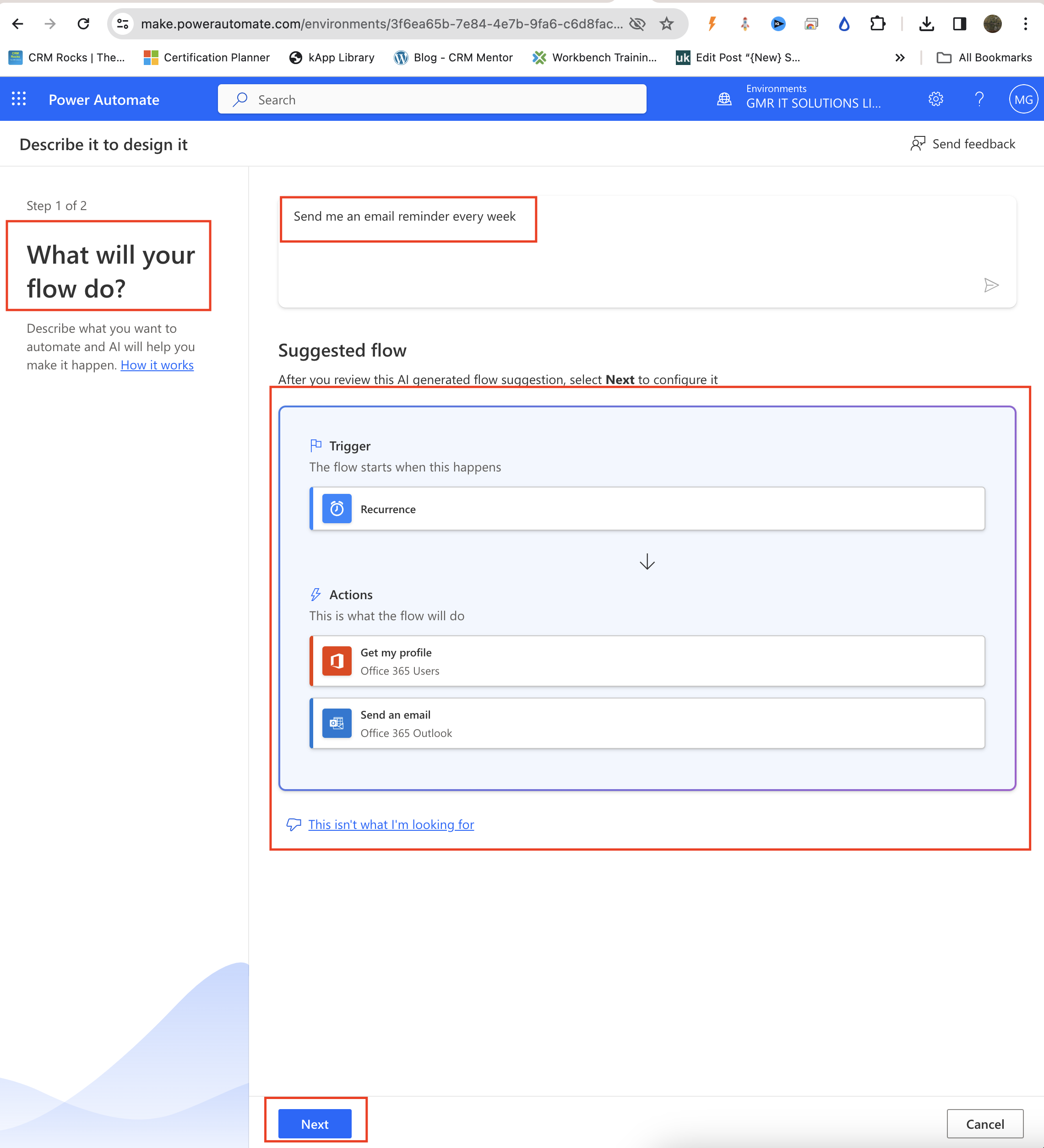
Then a new window will be displayed where you can describe what you want to auomate and AI will help you make it happen.

Ask Copilot ” Send me an email reminder every week”,

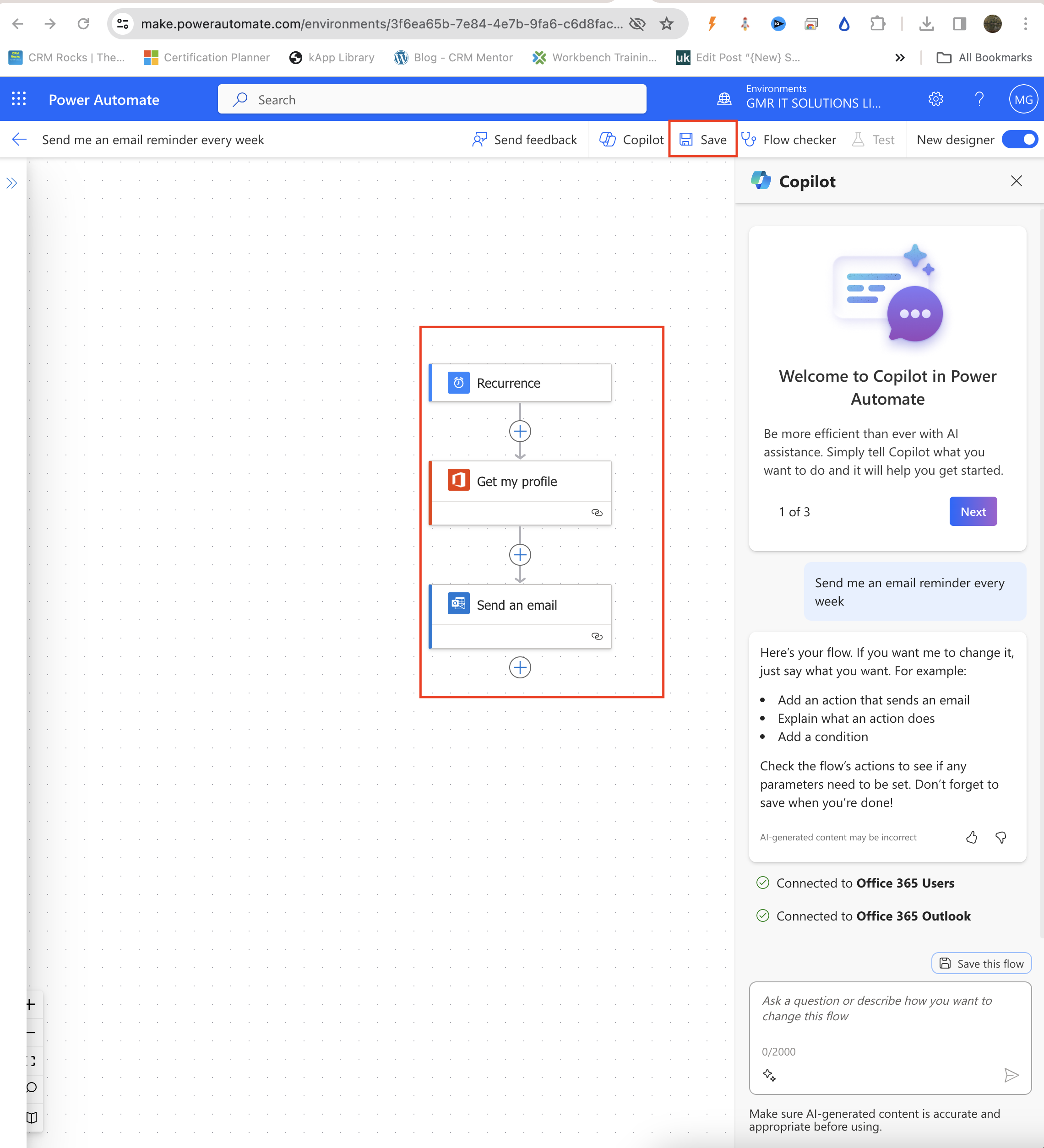
Then the suggested Flow will appear on the screen( see above), and click NEXT.

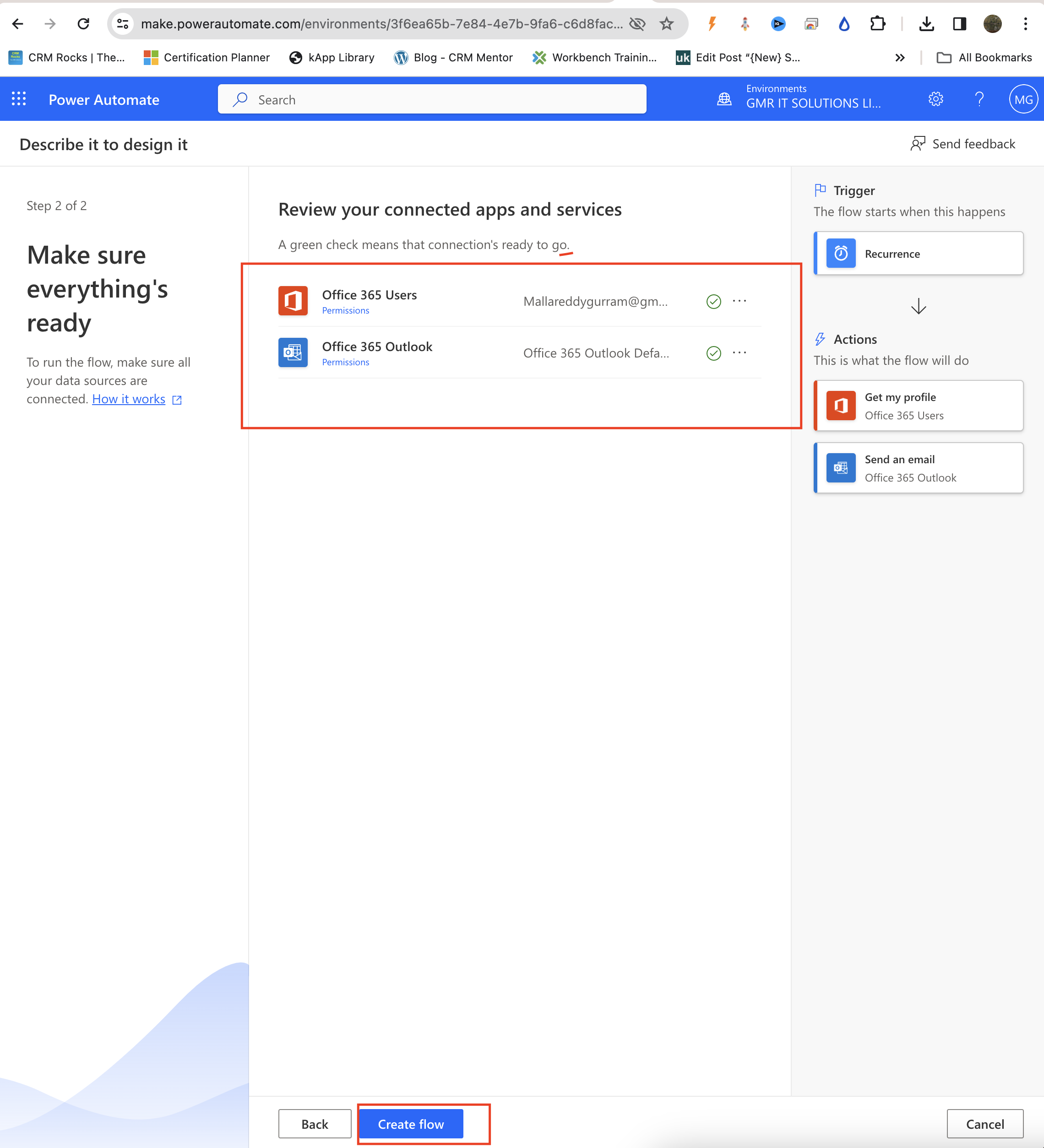
Office 365 users and Office 365 Outlook connections established and click on Create Flow.

Here you go, Cloud Flow created with few simple steps with natural language description.

That’s it for today.

I hope this helps.

Malla Reddy Gurram(@UK365GUY)
#365BlogPostsin365Days

Share this:

{How to} Check Power Automate License from Power Automate Settings

Hello Everyone,

Today I am going to show how to check the Power Automate License from Power Automat Settings.

Let’s get’s started.

Suppose you want to check your Power Automate Licenses as using some connectors requires Premium License.

1. Login into Power Automate.

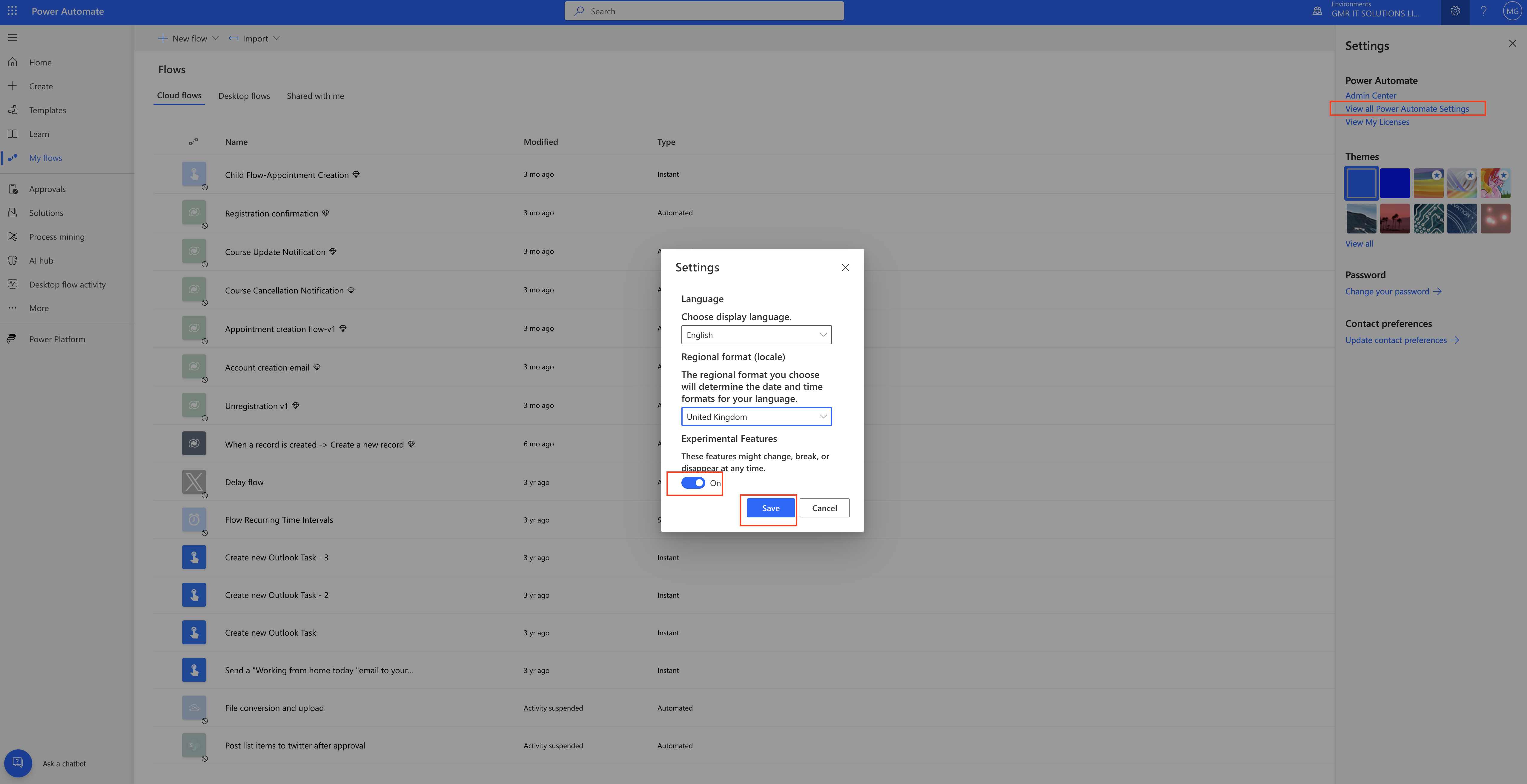
2. Click on Settings

3. Click on the View My Licenses.

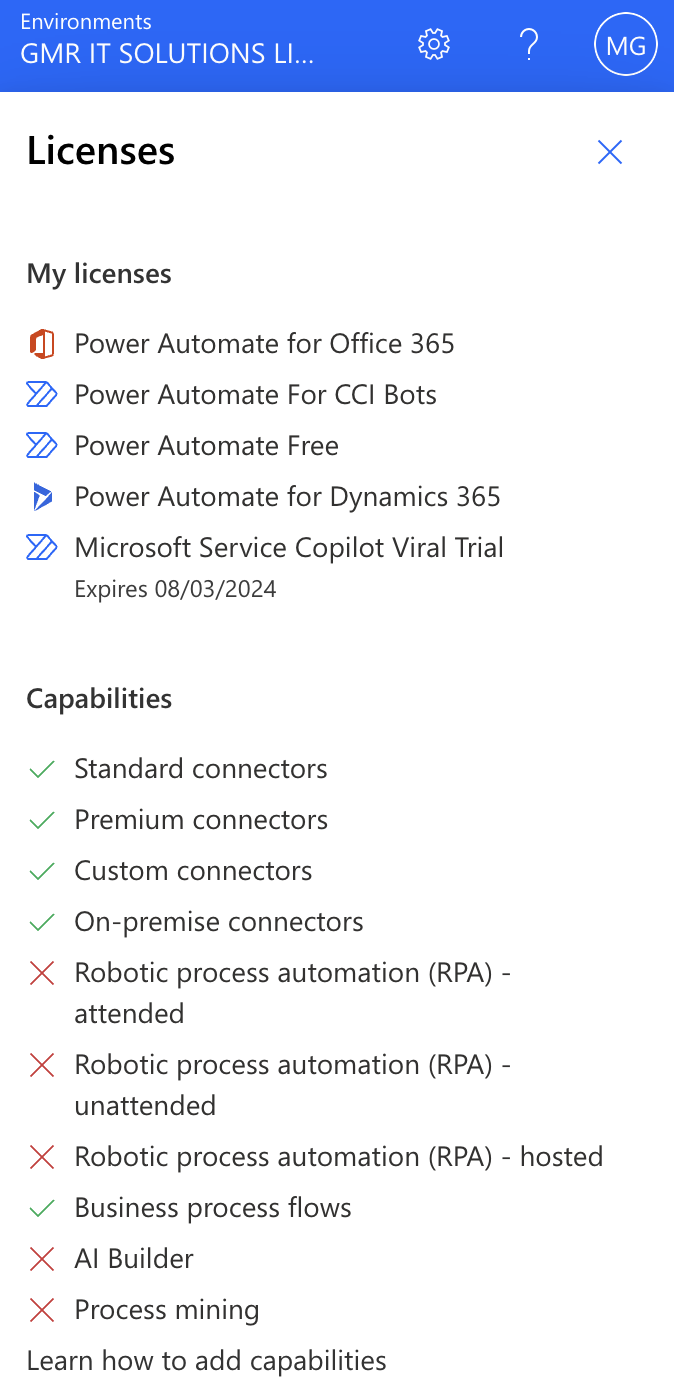
As you can see from above screenshot:

My licenses defines are authorised power automate licenses including the Microsoft Service Copilot Viral Trail.

That’s it for today.

I hope this helps,

Malla Reddy Gurram(@UK365GUY)
#365BlogPostsin365Days
Share this:

{Do you know} Create Power Automate Cloud Flows using Copilot

Hello Everyone,

Today I am going to share my thoughts on New Feature ” Create Cloud Flows using Copilot for Power Automate”.

Let’s get’s started.

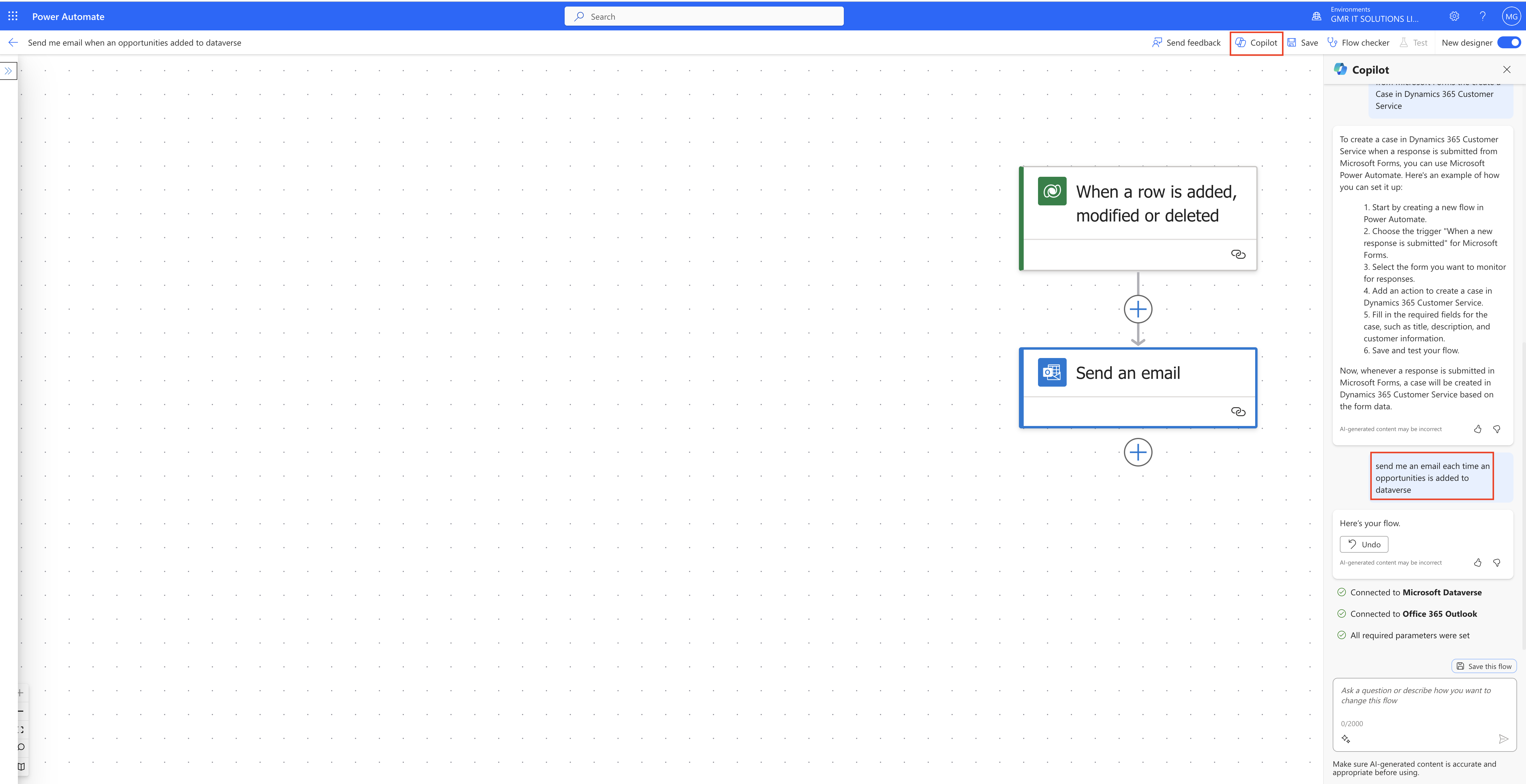
Up until now, we are creating Cloud Flows using drag and drop or clicks, Now with the new feature user can give statement to the Copilot to create Cloud Flows.

Copilot in Power Automate allows open-ended and conversational experiences while authoring your flows.

While you are building flows you can ask question on Copilot and you will get assistance making improvements.

You dont need knowledge of how power automate works.

Just type in normal speaking language and you will be able to build and enhance everything from a simple to complex flows.

That’s it for today.

I hope this helps.

Malla Reddy Gurram(@UK365GUY)
#365BlogPostsin365Days
Share this: