Menu Close

Tag: #mallareddygurram

{How to request } Power Apps License from Organisation Admins

Hello Everyone,

Today i am going to show how to request Power Apps Premium License from Organisation Admin.

Let’s gets started.

Suppose you have been shared a Power App and when you run it, you will be prompted that you need a license.
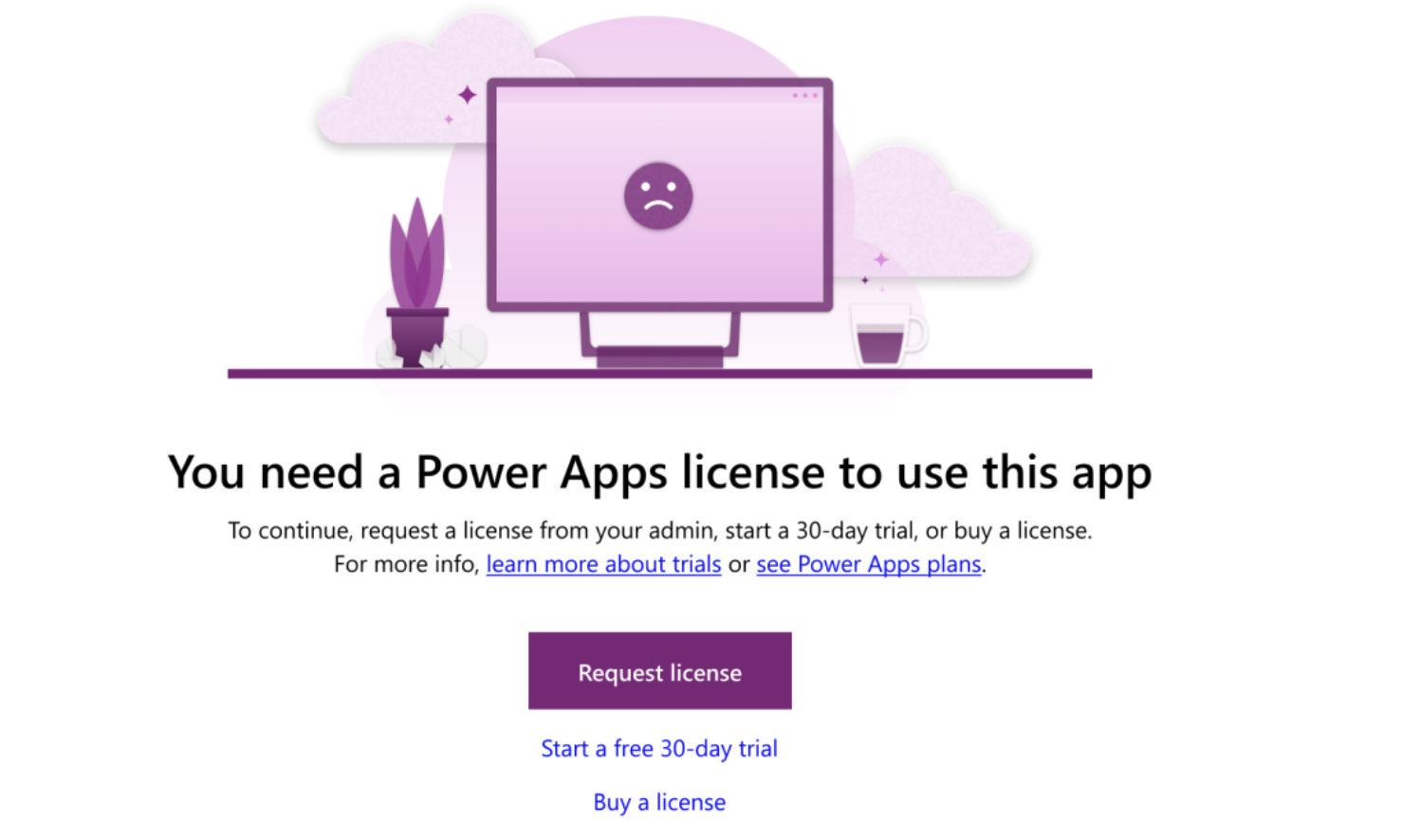
It will prompt to “Request a license” or you can trial 30 days for free.

Once the request is submitted for license a confirmation message will appear at the top of the page saying the request was sucessfully sent to their admin.

User can also request a license while on trial from the top banner of the screen of the power apps screen.

So Admin will be notified of all incoming licensing requests on the Microsoft 365 Home Page.
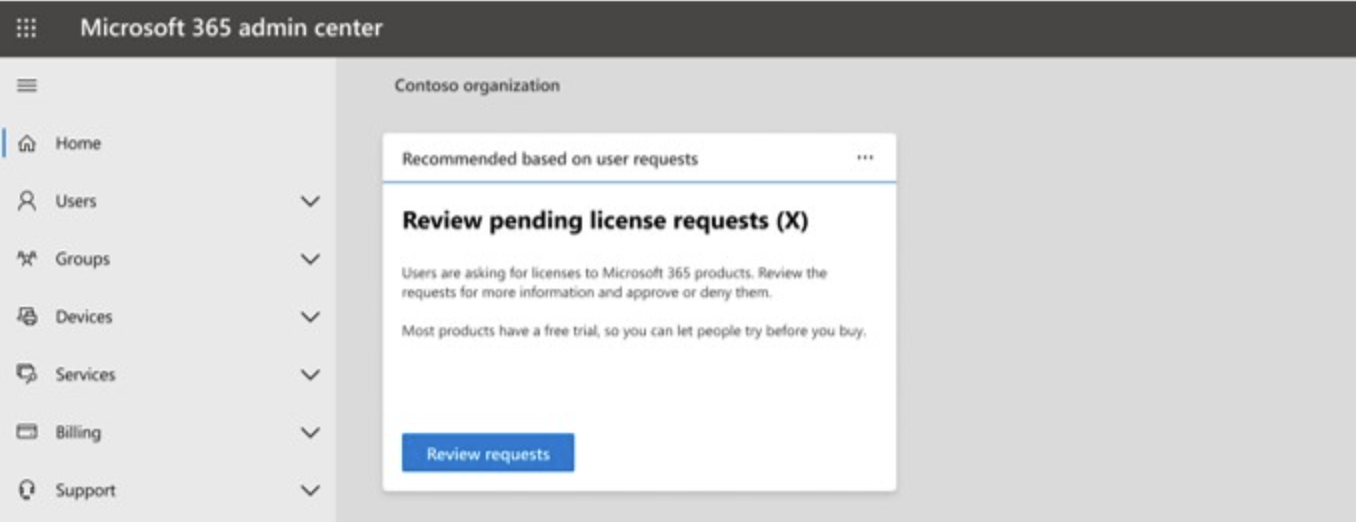
The admin will check whether to approve or reject the Power Apps Requests at once and include a message for their users.

All Admins can continue to user custom license request process and configure the proper settings in Microsoft 365 Admin Center.

For more information about license request and settings visit here

Thats it for today.

I hope this helps.
Malla Reddy(@UK365GUY)
#365BlogPostsin365Days
Share this:

How to check Power Platform Admin Center updates to the products using message center

Hello Everyone,

Today i am going to show how to see the installed updates from the Power Platform Admin Center using Message Center.

Lets gets started.

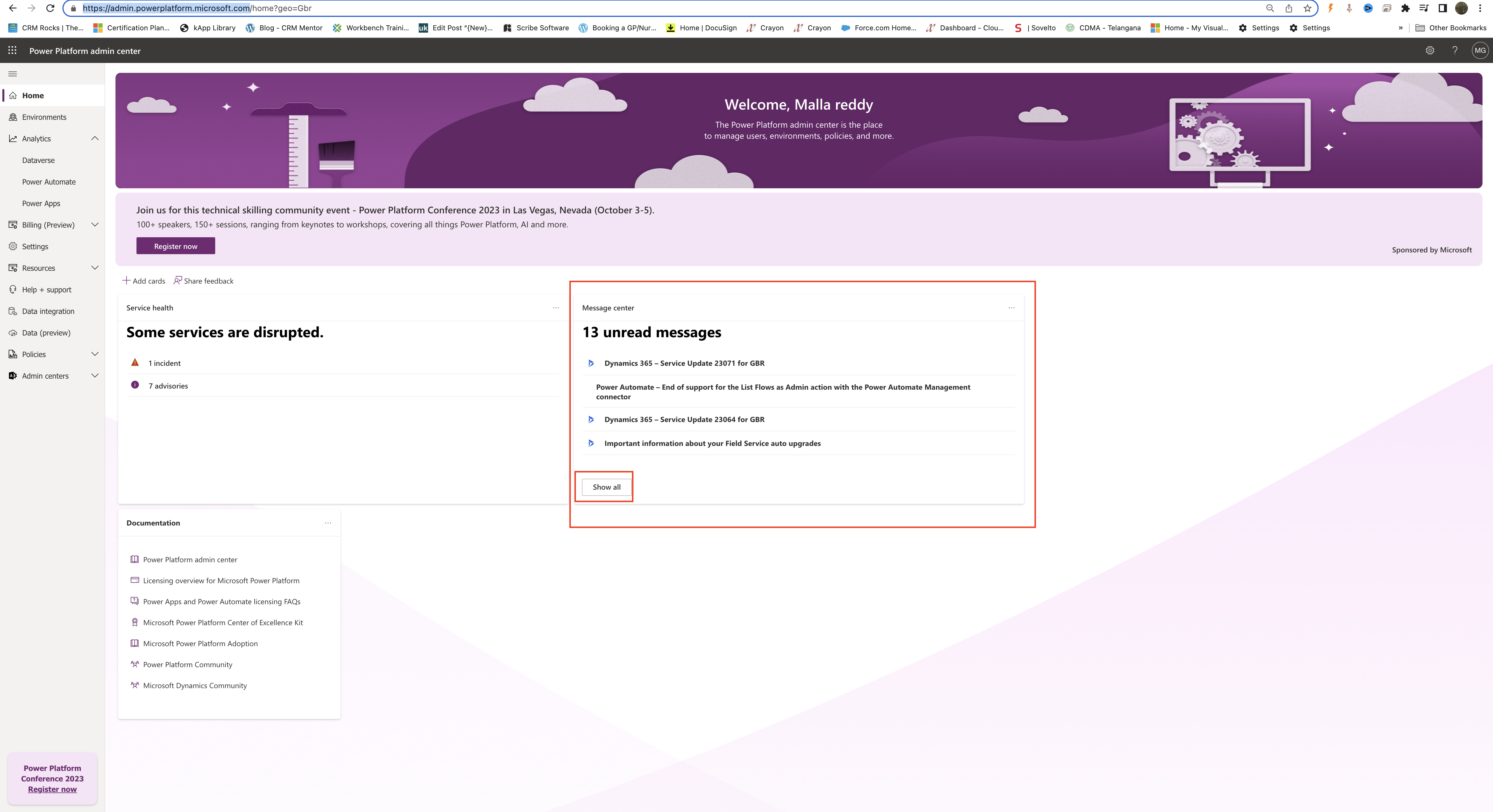
Login into PPAC

Message Center and click on Show all

You will be prompted to www.portal.office.com/adminportal/home#/MessageCenter

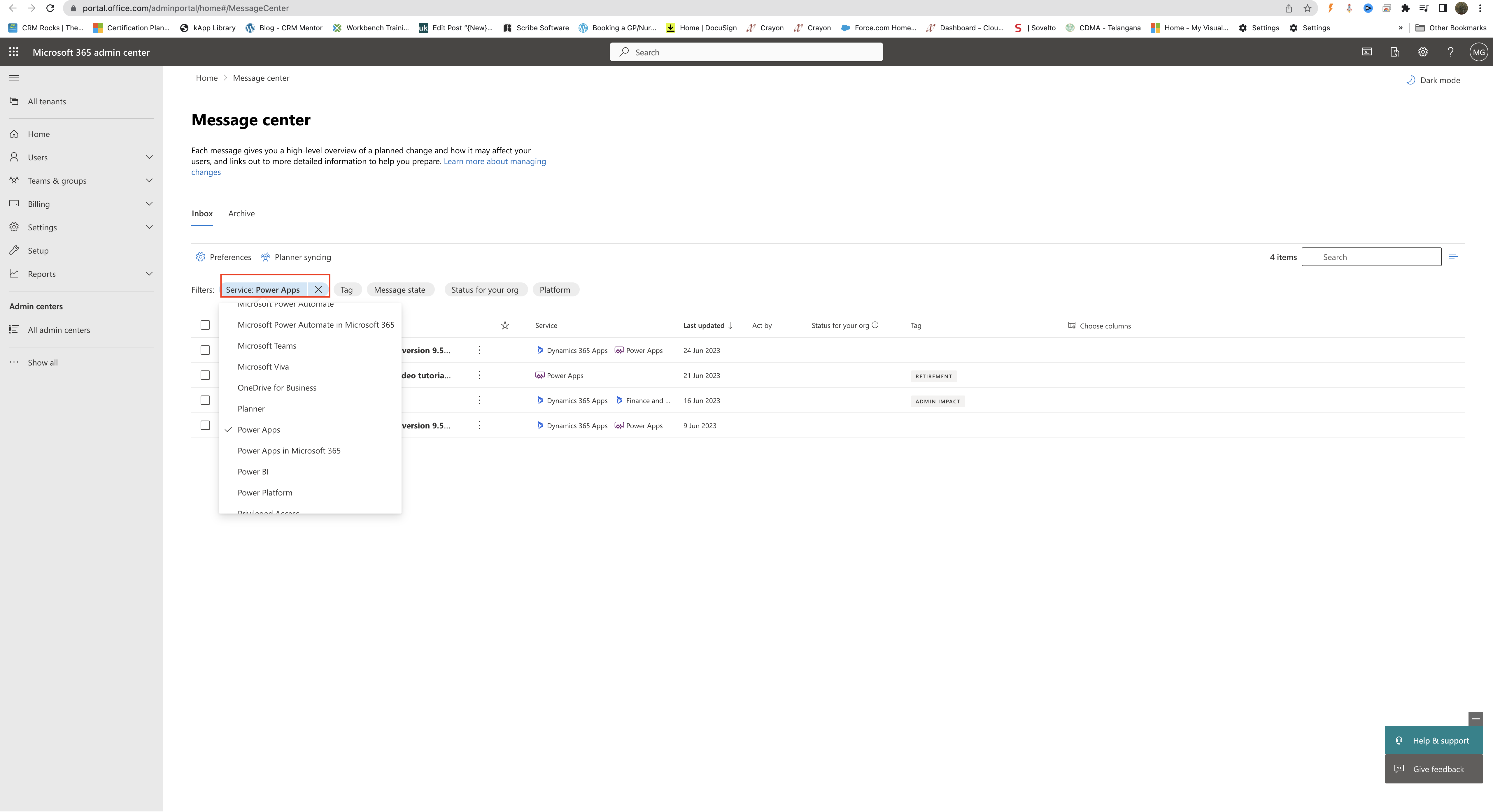
Click on the Service and you can filter by either power apps or power automate or Dynamics 365 etc…

Then you will see what has been updated recently.

Thats it for today.

I hope this helps
Malla Reddy(@UK365GUY)

Share this:

Release monthly channel for Model driven apps

Hello Everyone,

Today i am going to share new feature that is General Availability on Power Platform Admin Center is Monthly Release of new features into selected environment.

Let’s gets started.

Normally Microsoft have two releases in a year as wave 1 and wave 2.

Microsoft decided to release the new features monthly so that user adoption of new features are easy to digest instead of all developed features semi annual channel.

This way of release makes business users happiers as through Microsoft 365 release new features semi annual channel and business users are happier.

So how to manage release channels from Power Platform Admin Center ?

Login into PPAC

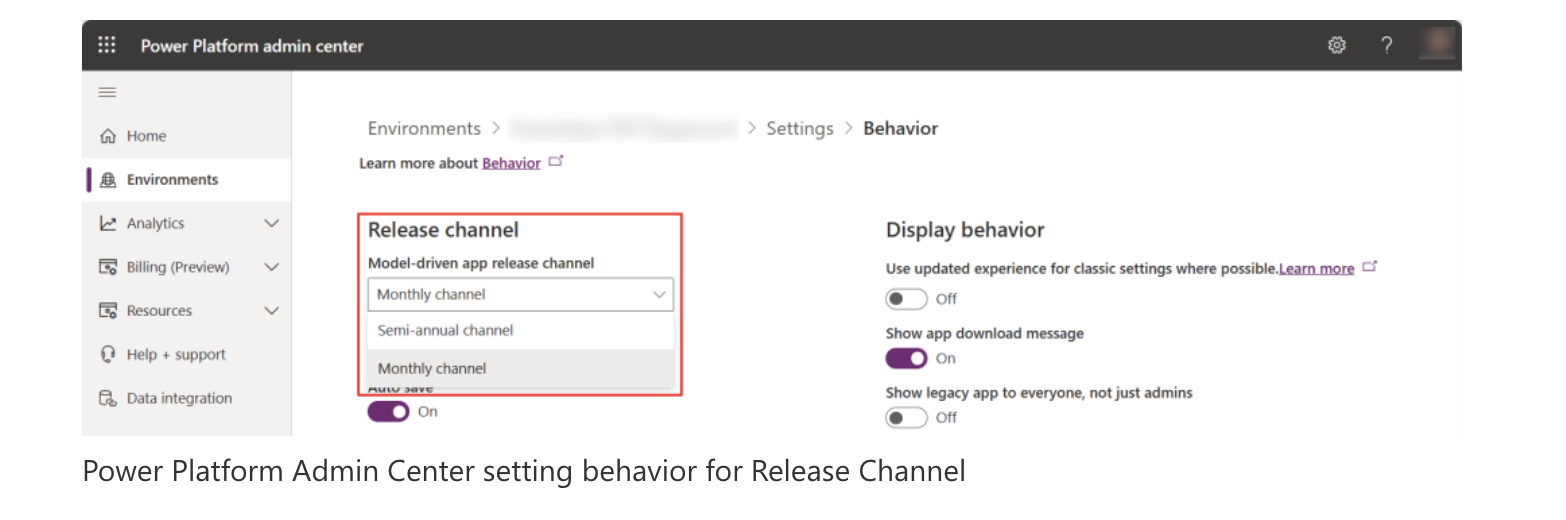
Select the environment you want to manage release channel and click on settings:

Also you can set the programmatically by updating a configuration table or with a URL parameter &channel=monthly.

These changes are already rolled out fully to use – Change Release Channels

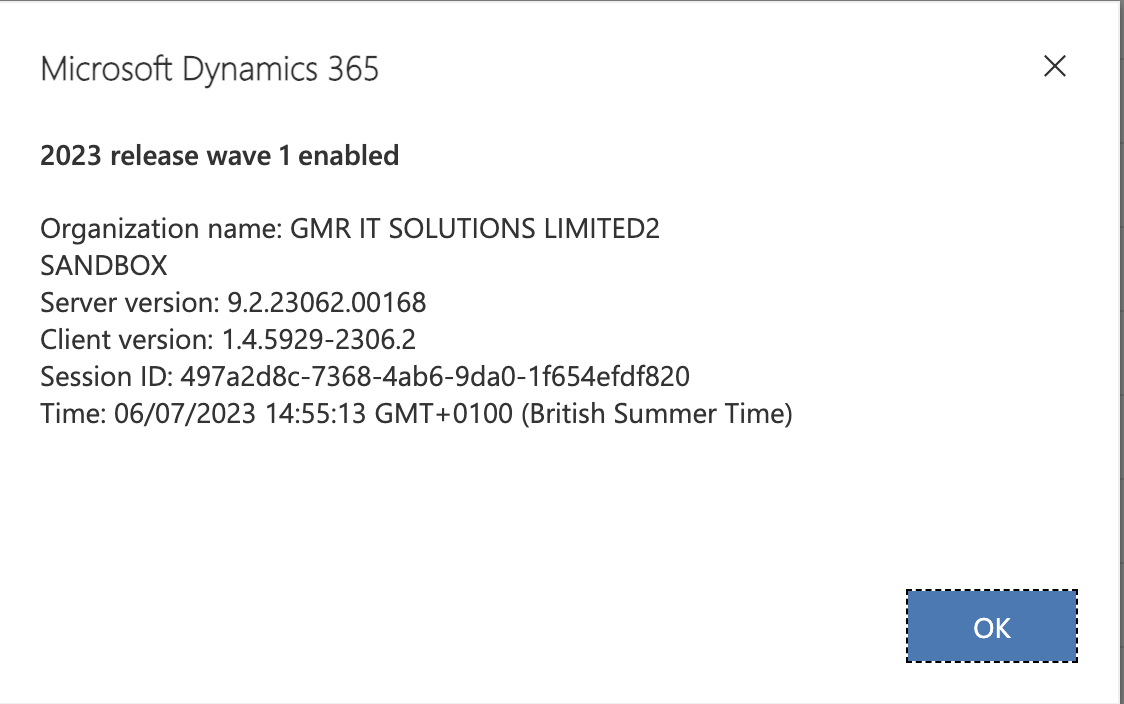
To test the change release rolled out or not you can go to the settings on Model Driven App and settings and ABOUT – you will see the update.

That’s it for today.

I hope this helps
Malla Reddy(@UK365GUY)
#365BlogPostsin365Days
Share this:

How to schedule meetings easily with Calendly for Outlook Microsoft 365

Hello Everyone,

Today i am going to show unusual blog post from me which Microsoft 365 apps.

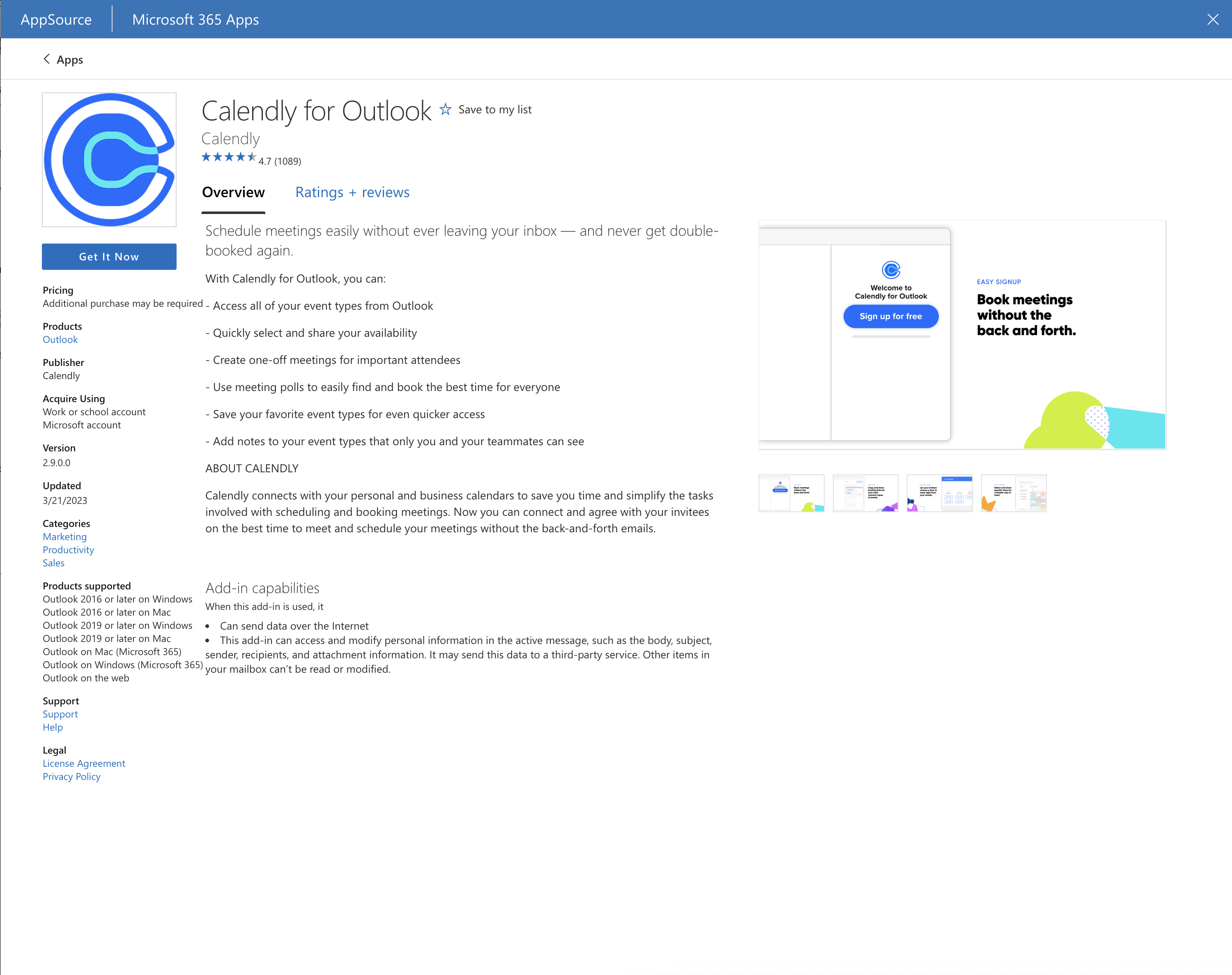
Calendly for Outlook: Schedule meetings easily without ever leaving your inbox – and never get double booked again.

Let’s gets started.

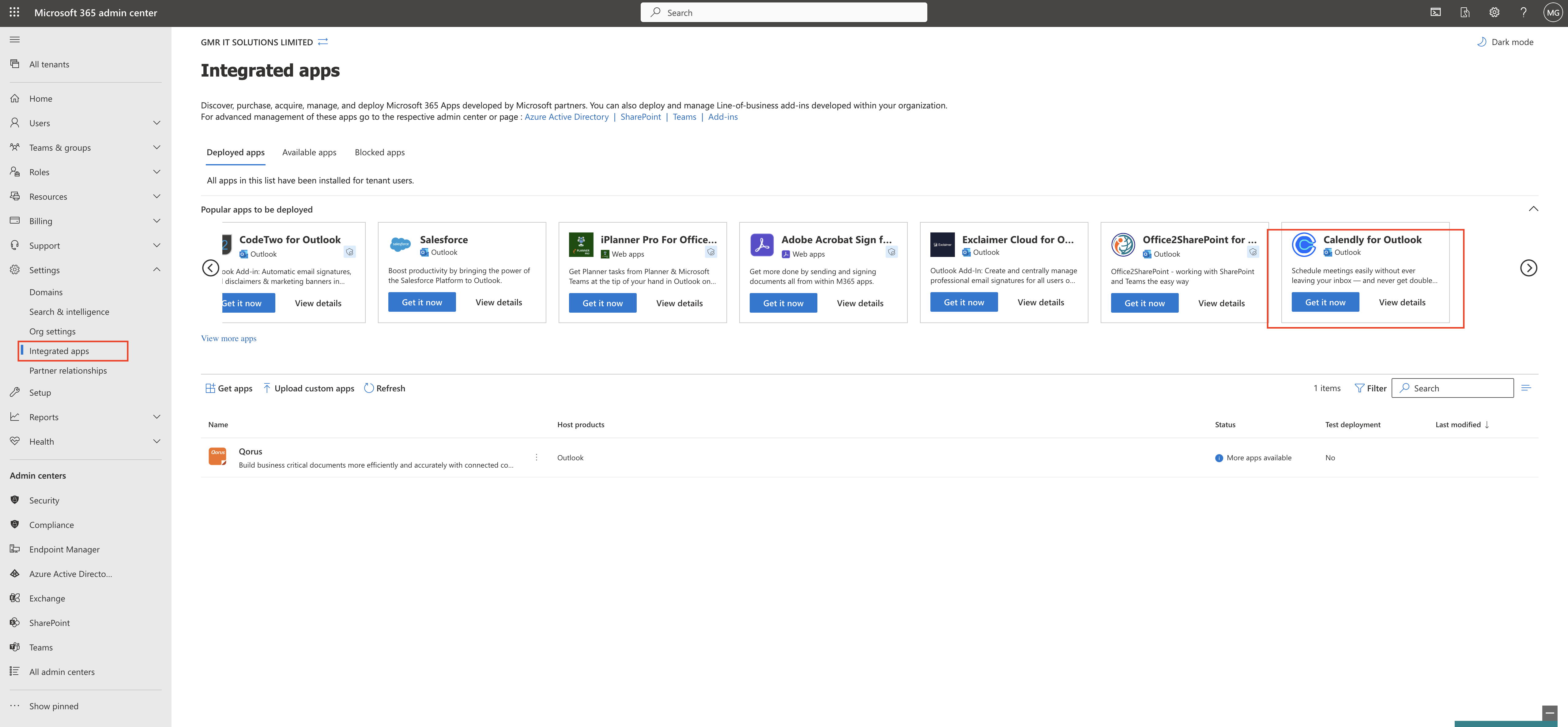
Sign into Microsoft 365 Admin Center www.portal.office.com

Click on Get it now.

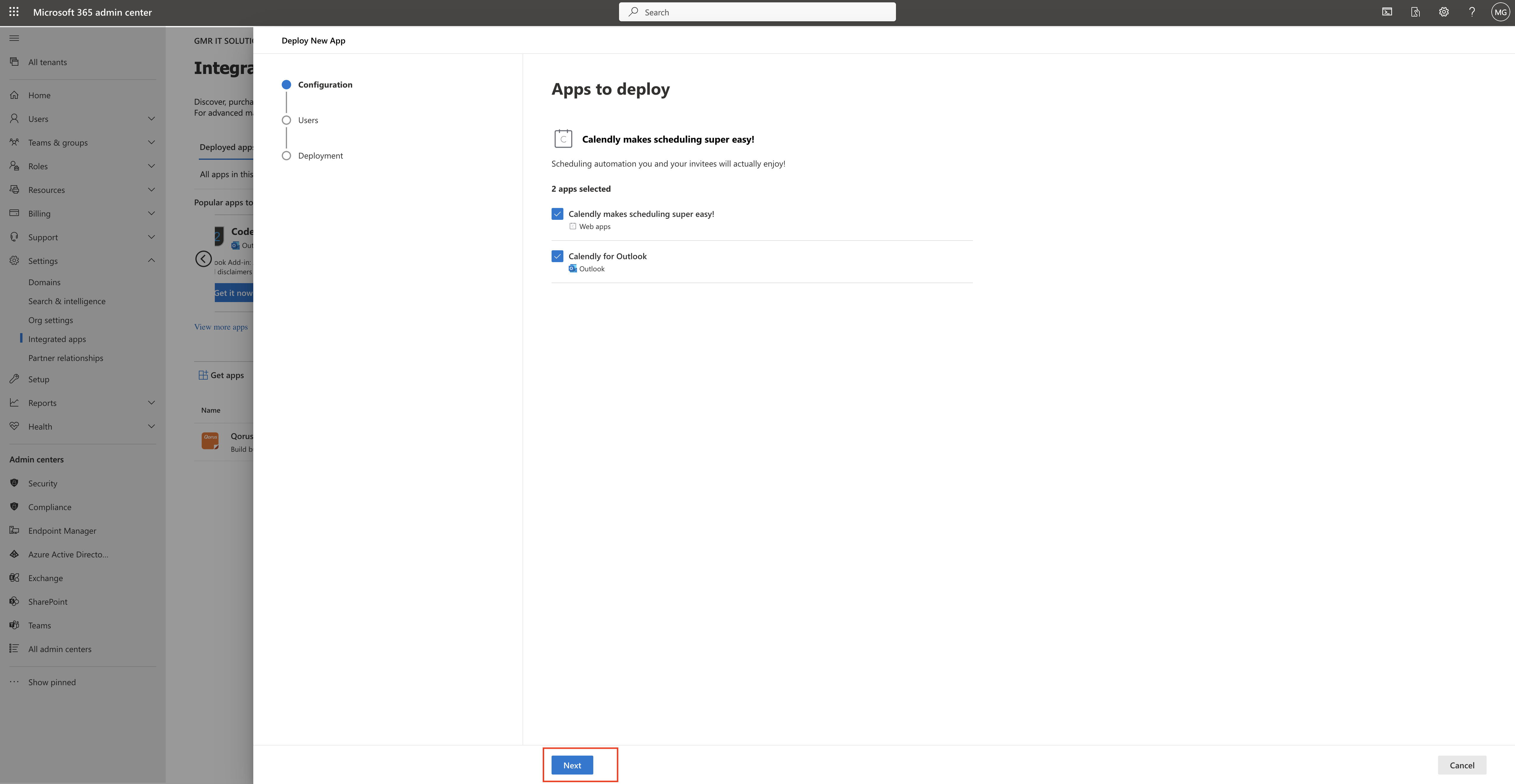
Now is the time to deploy new app.

so two apps selected

1. Calendly makes scheduling super easy – web apps
2. Calendly for Outlook – Outlook

click next.

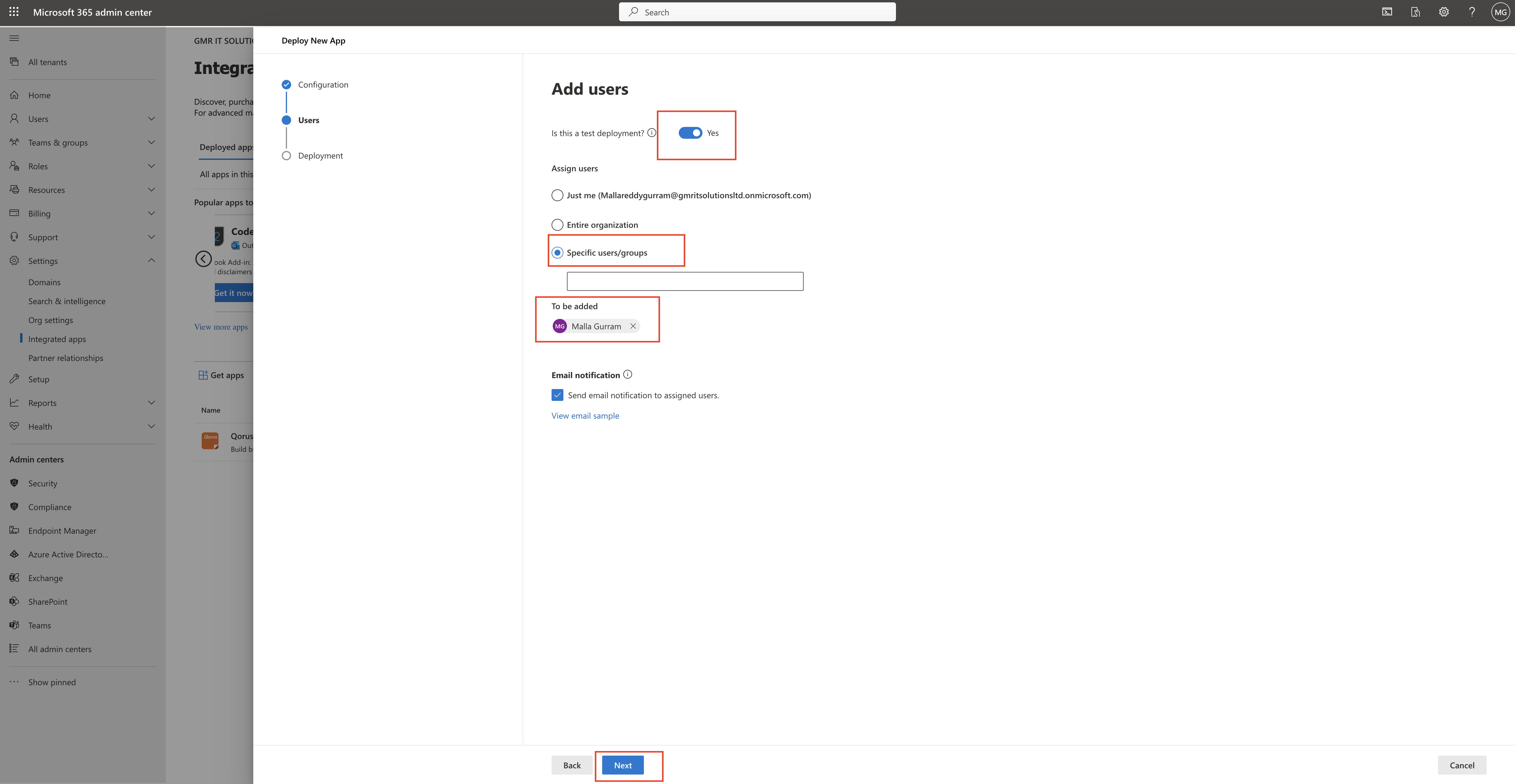
Now add users:

You can test the deployment to YES.

Assign users: to specific users/groups = select email address you would like to send notification about this deployment.

Then click NEXT.

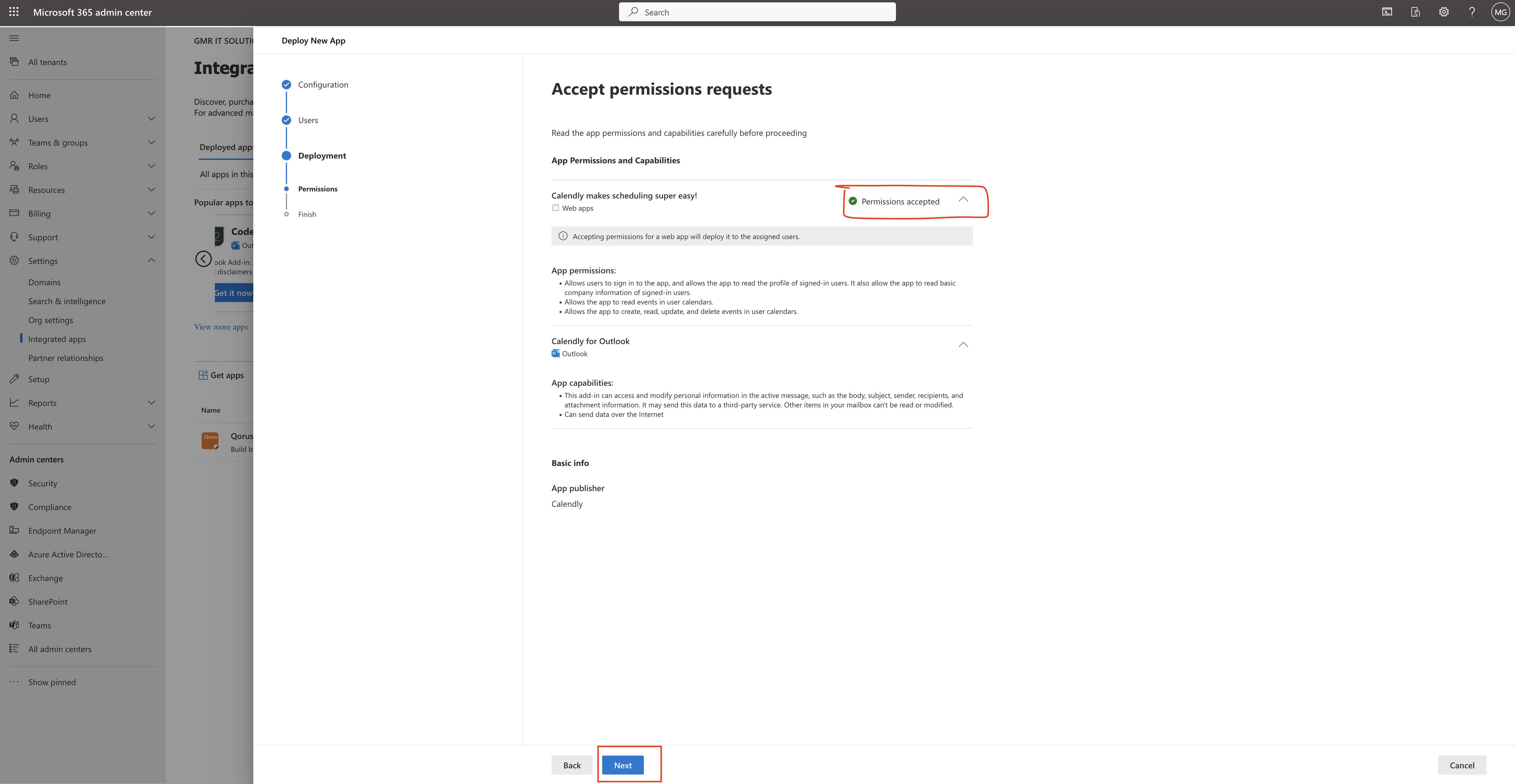
Accept the permissions will share some of the company information and user info with the app.

Then click on NEXT.

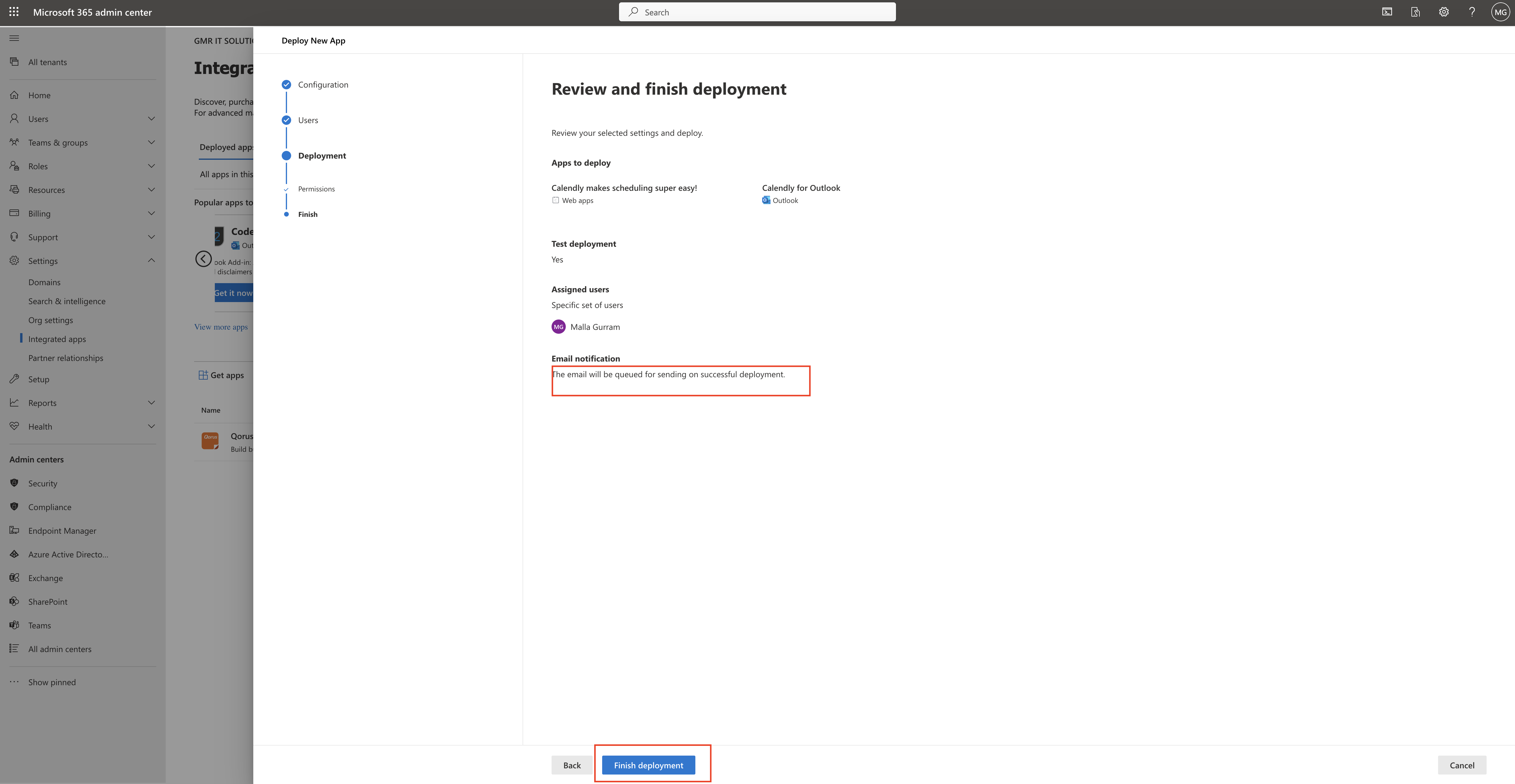
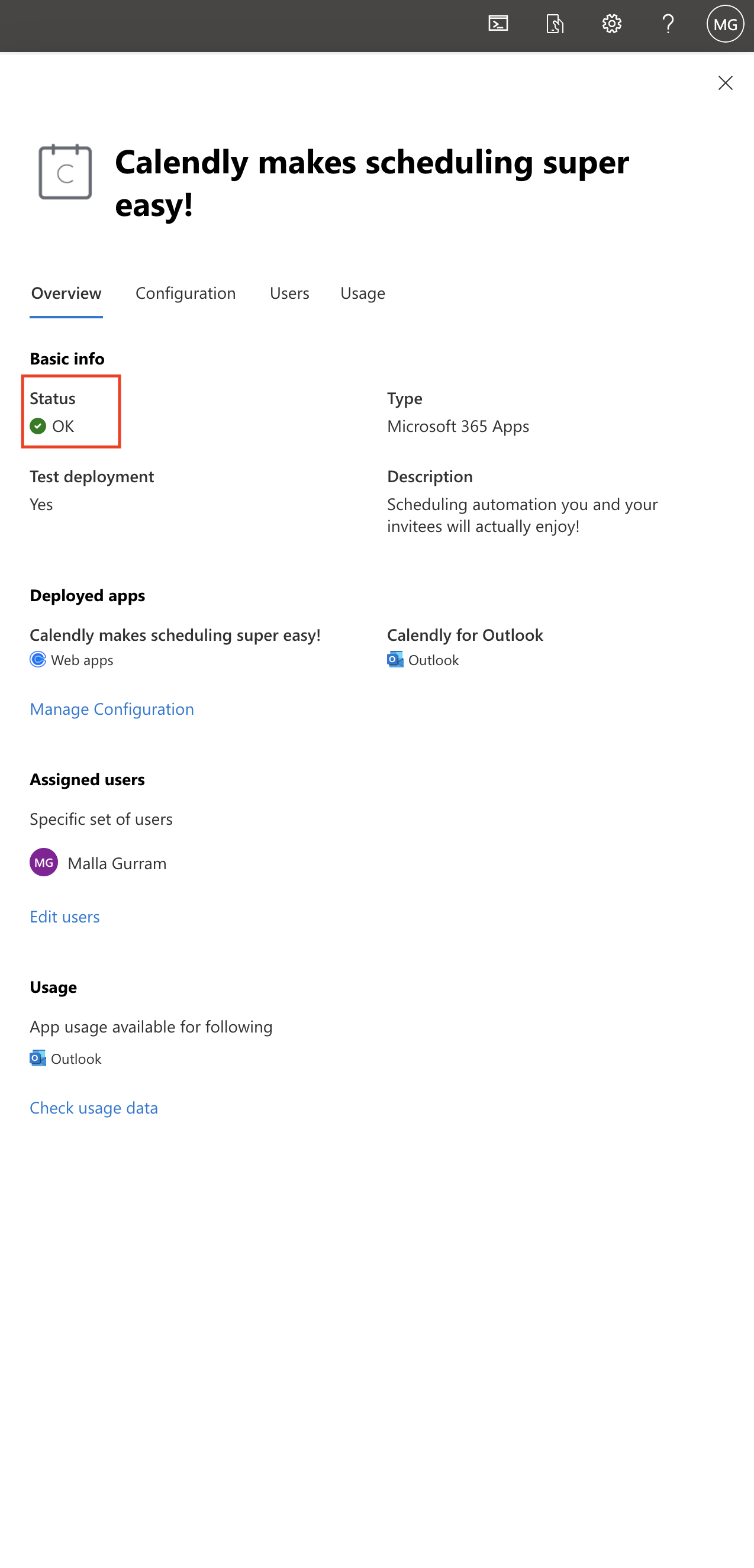
Deployment completed, now you can use the calendly from your outlook to schedule meetings.

Thats it for today.

I hope this helps.
Malla Reddy(@UK365GUY)
#365BlogPostsin365Days
Share this:

How to collaborate Dynamics 365 team members with Microsoft Teams collaboration and chat

Hello Everyone,

Today i am going to show how to collaborate Microsoft Dynamics 365 with Microsoft Teams collaboration and chat.

What are the advantages of the Microsoft Teams collaboration and chat?

Let’s gets started.

Login into PPAC

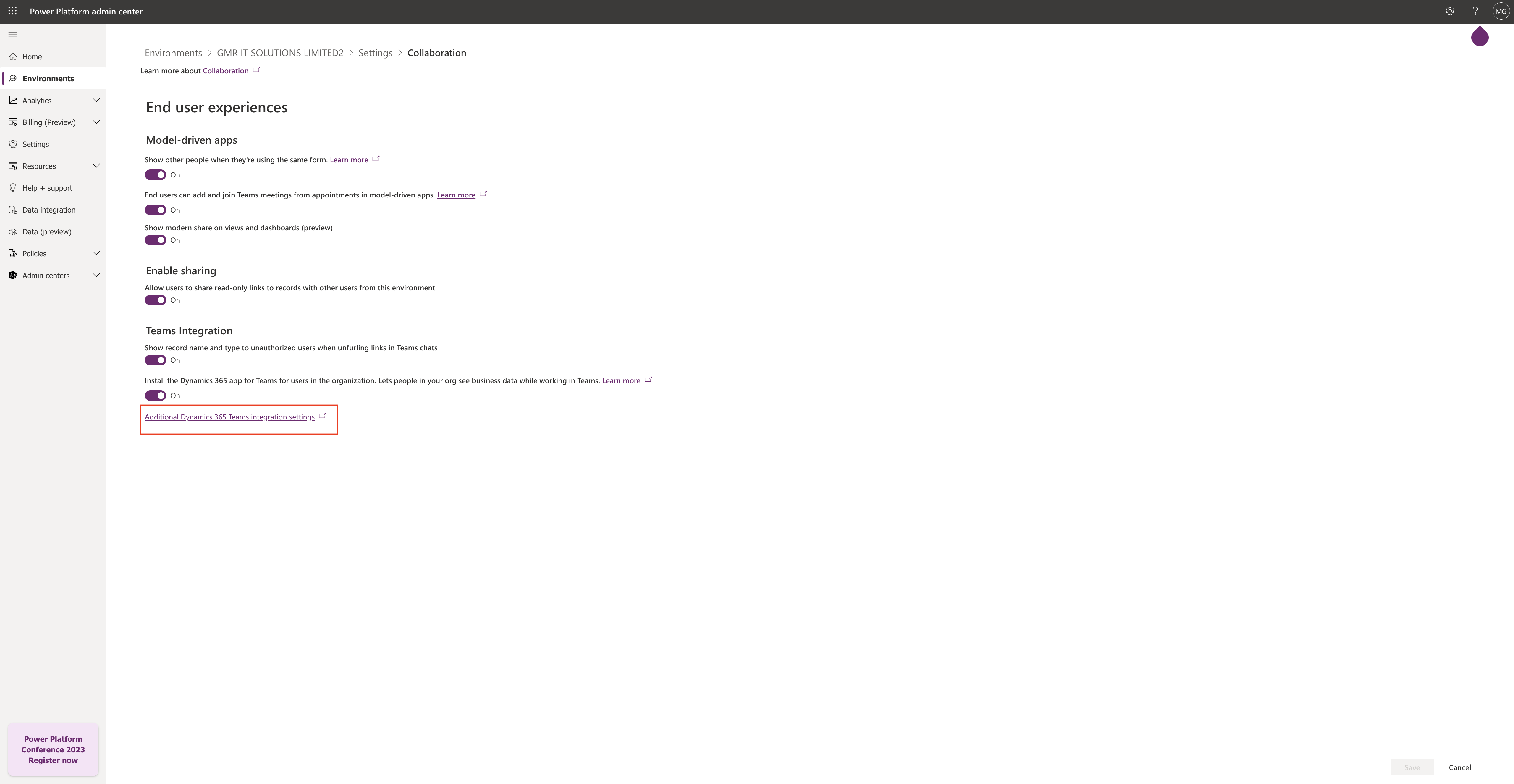
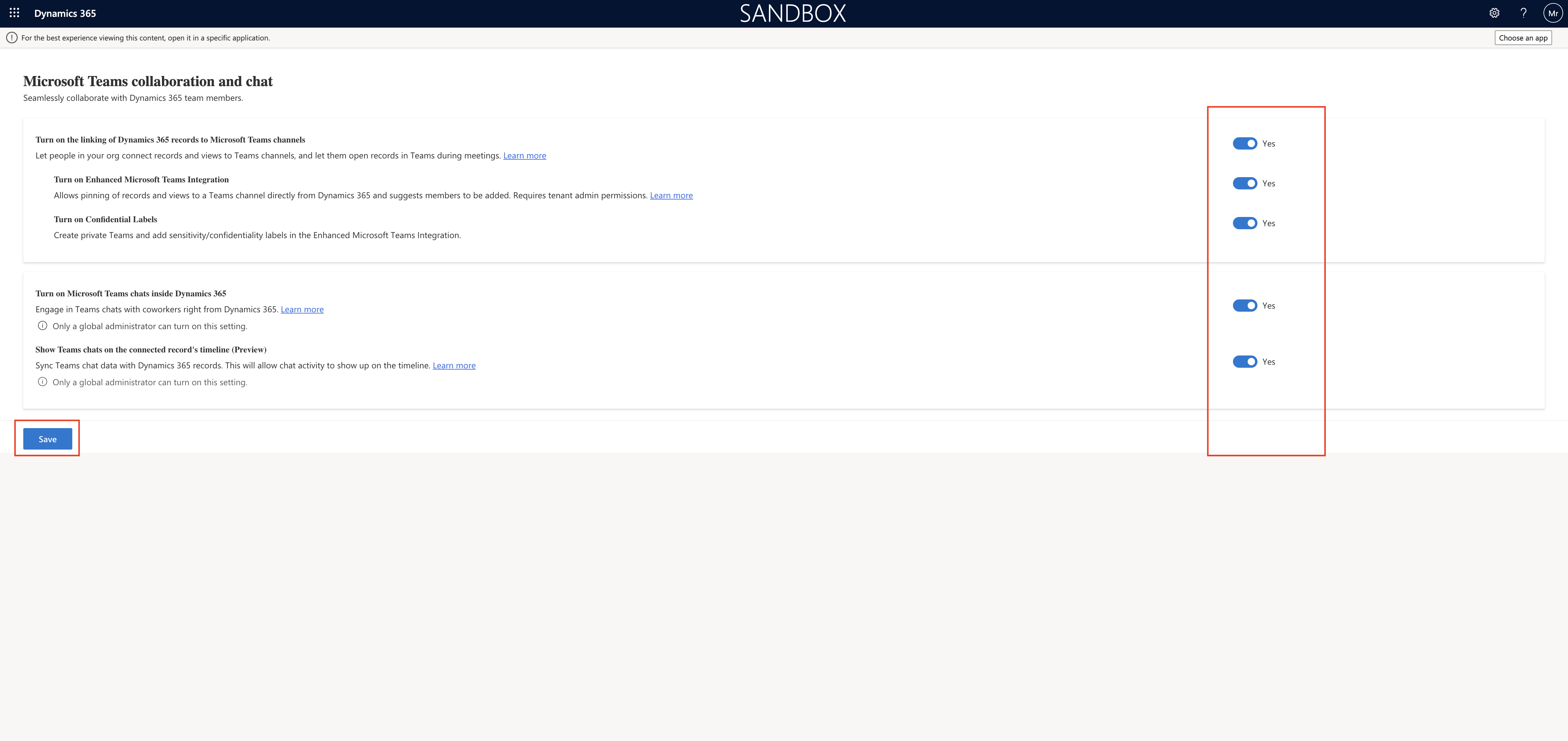
Select the environment and click on settings, click on “Collaborate Settings”.

Microsoft Teams collaboration and chat settings:

1. Turn on the linking of Dynamics 365 records to Microsoft Teams channels: Lets people in your org connect records and views to Teams channels, and let them open records in Teams during meetings = YES

2. Turn on Enhanced Microsoft Teams Integration: Allows pinning of records and views to a Teams Channel directly from Dynamics 365 and suggests members to be added. Requires tenant admin permissions = YES.

3. Turn on Confidential Labels: Create private Teams and add sensitivity/confidentiality labels in the Enhanced Microsoft Teams Integration = YES

4. Turn on Microsoft Teams chats inside Dynamics 365: Engage in Teams chats with coworkers right from Dynamics 365 = YES
Only a global administrator can turn on this settings.

5.Show Teams chats on the connected record’s timeline(Preview)

Sync Teams chat data with Dynamics 365 records. This will allow activity to show up on the timeline = YES

Only a global administrator can turn on this setting.

Then SAVE the settings.

Thats it for today.

I hope this helps
Malla Reddy(@UK365GUY)
#365BlogPostsin365Days
Share this: