Menu Close

Tag: #powerapps

{How to} use code interpreter on customer uploaded files in agent conversations in copilot studio

Hello Everyone,

Today I am going to share my thoughts on the use of the code interpreter on customer-uploaded files in agent conversations in copilot studio.

Let’s get started.

Your chatbot (agent) can take a user upload during a chat and automatically analyze it using code, then return results within the same conversation.

What actually happens behind the scenes

1. User uploads a file

Examples:

Excel (.xlsx)
CSV (.csv)
Sometimes JSON or text files.

2. The agent receives the file

The file is passed into the conversation as:

System.Activity.Attachments

3. Code Interpreter kicks in

Copilot Studio:

Generate Python code automatically

Runs it in a secure environment

Uses it to:
Read the file
Analyse data
Create outputs

4. The agent responds with results

The bot sends back:

Charts
Tablets
Insights
Summaries

Example flow:

Real example
User says:
“Analyze this sales spreadsheet”

What the agent does:
Reads the Excel file
Groups sales by month
Calculates totals
Generates a chart
Response:
“Revenue increased 18% in Q3. Here’s a breakdown…” + chart

Why this feature is useful
No manual coding needed
Works in real-time conversations
Turns your agent into a data analyst
Great for:
Customer uploads
Business reports
Data exploration

In one sentence
It lets your Copilot Studio agent act like a Python-powered data analyst that can read and analyze files users upload during chat.

Important notes
Best with structured data (Excel, CSV)
Requires:
File upload enabled
Code Interpreter enabled
Has file size and type limits

That’s it for today.

I hope this helps.

Malla Reddy Gurram aka @UK365GUY

Share this:

{Do you know}Evaluate test sets with multiple graders in Copilot Studio

Hello Everyone,

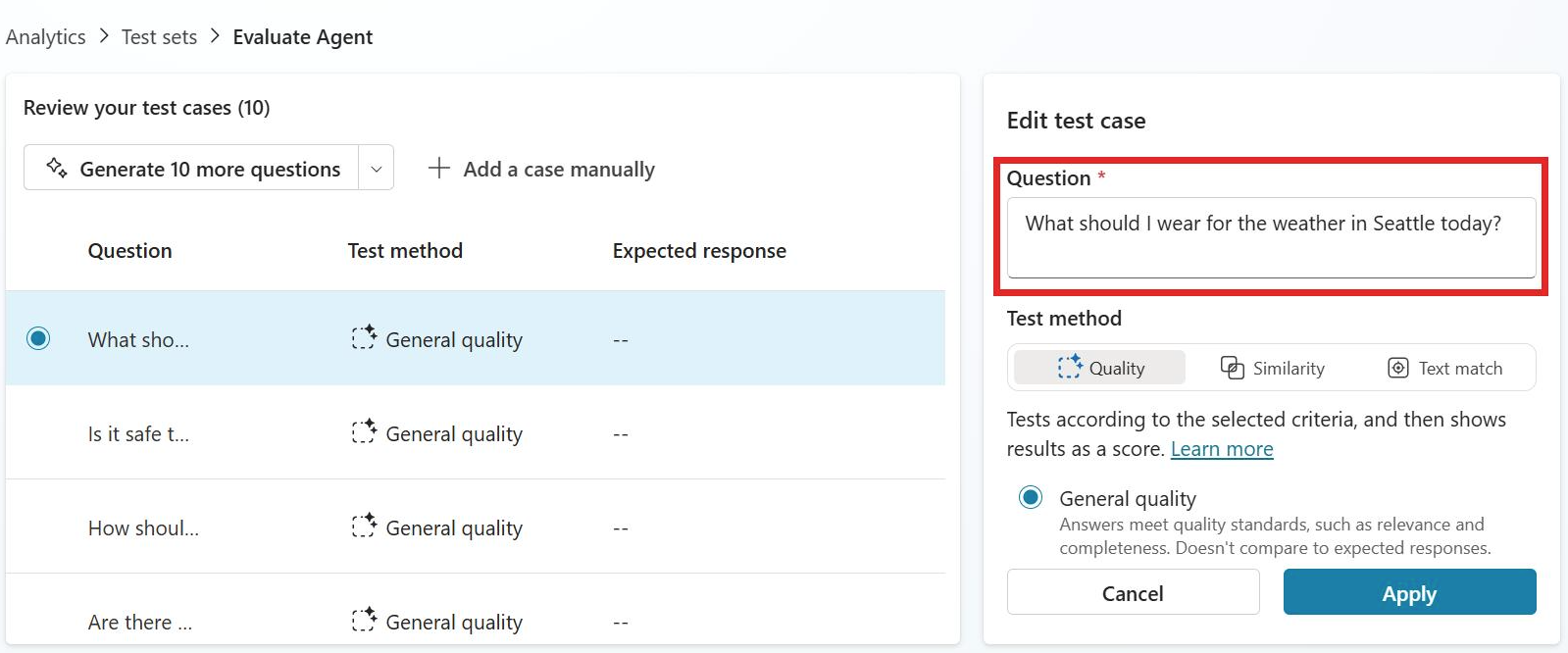
Today I am going to share my thoughts on the evaluation test sets with multiple graders in Copilot Studio.

Let’s get started.

Yes – Copilot Studio now supports evaluating a single test set with multiple graders in one run. This is listed as a Public preview in the 2025 release wave 2 plan, with availability starting February 8, 2026.

What it does:
You can attach several graders to the same test set, such as general quality, text similarity, and exact match.
Each grader can have its own pass criteria.
When you run the evaluation, Copilot Studio applies all selected graders to every test case in that run.
Results show up as separate columns per grader, plus an evaluation summary with aggregated results.

Why this helps:

You can assess different aspects of agent quality in one execution instead of rerunning the same test set multiple times.
Microsoft’s guidance also recommends combining multiple evaluation approaches rather than relying on a single grading method.

Related limits and setup:

Test sets can contain up to 100 test cases.
You can create test sets by generating them in Copilot Studio, importing a .csv or .txt file, writing cases manually, or using production data themes.

If you’re trying to use it in the product:

Go to your agent’s Evaluation page.
Create or open a test set.
Add multiple graders for the test.
Define pass thresholds for each grader.
Run the evaluation and compare the grader-specific result columns and summary.

That’s it for today.

I hope this helps.
Malla Reddy Gurram aka @UK365GUY

Share this:

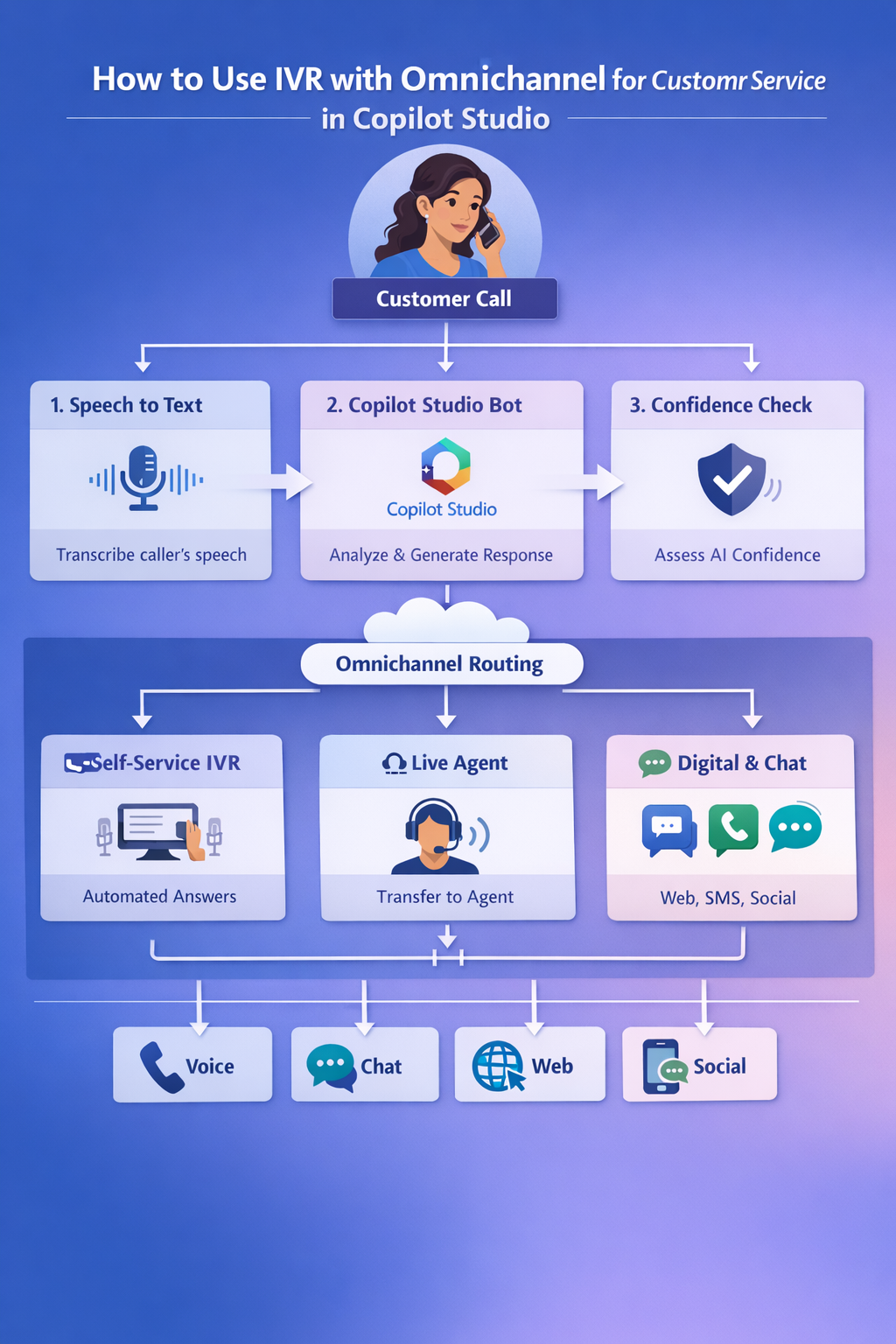
{How to} Use IVR with Omnichannel for customer service in Copilot Studio

Hello Everyone,

Today i am going to share my thoughts on using IVR with Omnichannel for Customer Service in Copilot Studio.

Let’s get started.

To use Interactive Voice Response (IVR) with Omnichannel for Customer Service in Microsoft Copilot Studio, you must integrate a voice-enabled agent into your Dynamics 365 environment. This allows the agent to handle phone calls, process keypad inputs, and escalate to live representatives when necessary.

Prerequisites:

Licensing: Ensure you have valid Copilot Studio and Dynamics 365 Customer Service licenses with the voice channel enabled.

Environment: Your agent and Dynamics 365 instance must be in the same geographical region.

Phone Number: Acquire a number through Azure Communication Services or use your own carrier (BYOC)

Setup Steps:

1. Configure the Agent in Copilot Studio:

1. Open your agent and navigate to Settings > Channels.

2. Select Dynamics 365 Customer Service (Under Customer Engagement Hub) and click connect.

3. Enabled Voice capabilities to allow speech recognition and DTMF (keypad) inputs.

2. Establish Handoff to Live Agents:

1. Go to Manage > Agent Transfers in Copilot Studio.

2. Select Omnichannel and enable it to ensure a seamless transition with full conversation history and variables.

3. Configure the Voice Workstream in Dynamics 365:

1. In the Customer Service Admin Centre, create a new voice workstream.

2. Link your acquired phone number to this channel.

3. Add your Copilot Agent to the workstream to act as the primary IVR.

Key IVR Capabilities:

DTMF Input: Customers can use their phone keypad for single- or multi-digit processing.

Speech Customisation: Use SSML (Speech Synthesis Markup Language) to adjust tone, pitch and speed.

Barge-in Control: Determine if customers can interrupt the agent while it is speaking.

Silence Detection: Configure the agent to handle pauses by triggering retries to reprompts.

That’s it for today.

I hope this helps.
Malla Reddy Gurram aka @UK365GUY

Share this:

{How to} Enhance IVR with generative answers optimized for voice in Copilot Studio

Hello Everyone,

Today I am going to share my thoughts on the Enhancing IVR with generative answers optimised for voice in Copilot Studio.
To enhance an IVR with generative answers optimised for voice in Microsoft Copilot Studio, you essentially combine LLM-based generative responses with voice-channel best practices so answers sound natural when spoken by a bot. Below is a practical step-by-step approach used in production IVR systems.

1. Enable Generative Answers in Copilot Studio

In Microsoft Copilot Studio you can allow the bot to generate responses from knowledge sources.

Steps
Open your Copilot Studio bot.

Go to Topics → Generative Answers.

Enable Generative AI responses.

Connect knowledge sources such as:

SharePoint

Public websites

Dataverse

Uploaded documents (PDF/Word)

This allows the bot to generate answers instead of only using scripted topics.

2. Configure Voice Channel (IVR)
To make the bot work as an IVR, connect it to voice channels via:

Azure Communication Services

Microsoft Teams

Dynamics 365 Customer Service

Third-party contact centers (Genesys, Avaya, etc.)

These platforms handle:

Speech-to-text

Text-to-speech

Call routing

3. Optimize Generative Answers for Voice

LLM responses are normally written for text, so you must shape them for spoken IVR.

Use Voice Response Instructions
In the Generative Answers configuration, add instructions like:

Respond in a short conversational style suitable for voice.
Use sentences under 15 words.
Avoid bullet lists and long explanations.
Pause between ideas.
If the answer is long, summarize first and offer to provide more details.
Example transformation:

Normal LLM output

Our return policy allows customers to return products within 30 days provided that the product is unused and in its original packaging.

Voice-optimized

You can return items within 30 days.
The product must be unused and in the original packaging.

4. Add Fallback Logic for IVR

In IVR flows you should always handle uncertain AI answers.

Typical pattern:

User question

Generative Answer

Confidence check

If low confidence → transfer to agent

Use Power Automate actions or topic conditions to:

escalate calls
ask clarification questions
repeat simplified answers

5. Limit Response Length
IVR responses must be shorter than chat responses.

Recommended limits:

Type Length
Primary answer 1–2 sentences
Follow-up details Optional
Total speaking time < 15 seconds 6. Add Confirmation Prompts Voice bots should confirm understanding. Example: “Your order was shipped yesterday. Would you like the tracking number?” This improves call flow and reduces frustration. 7. Improve Voice Naturalness (SSML) Use Speech Synthesis Markup Language (SSML) with Azure TTS. Example:

Your order shipped yesterday.

Would you like the tracking number?

This works with:

Azure AI Speech

8. Monitor and Retrain

Track voice interactions using analytics in:

Copilot Studio analytics

Dynamics contact center insights

Improve by:

Adding missing knowledge

Shortening responses

Adjusting prompt instructions

Example: IVR Flow with Generative Answers

Caller question

Speech to text

Copilot Studio

Generative Answer

Voice optimized response

Text to speech

Caller hears response

That’s it for today.

I hope this helps.

Malla Reddy Gurram aka @uk365guy

Share this:

{How to} Use answering machine detection and proactive engagement tools in Copilot Studio

Hello Everyone,

Today I am going to share my thoughts on how answering machine detection and proactive engagement tools work.

Let’s get started.

In Microsoft Copilot Studio, you can leverage Answering Machine Detection (AMD) and Proactive Engagement tools to automate outbound voice workloads and improve customer interaction efficiency. These features are primarily used within Dynamics 365 Contact Center or Customer Service to handle high-volume proactive outreach.

Answering Machine Detection (AMD)

AMD allows your AI agent to distinguish between a live human and a voicemail system, triggering different automated workflows accordingly.

Configuration: AMD is managed through a specific Answering Machine Detection system topic in Copilot Studio.

Workflow: You can define what happens when a machine is detected, such as:

Leveraging a Message: Use a Message node within the AMD topic to specify exactly what the agent should say to the voicemail.

Ending the Call: Automatically hang up to void nonproductive connections and save costs.

Real-time Outcomes: The system shares call outcomes (e.g., LiveAnswer, AnsweringMachine) in near real time, helping you track campaign efficiency.

Proactive Engagement Tools:

Proactive engagement enables your organisation to initiate outbound calls instead of just waiting for inbound queries.

Dialling Modes:

Copilot: The system dials the customer and connects them directly to the AI agent. Ideal for automated notifications like payment reminders or service alerts.

Progressive: Copilot starts the call to perform basic tasks (like verifying the right person is on the line) before handing off to a human representative.

Predictive: Automatically places calls based on predicted representative availability

Setup Requirements:

Create an Outbound Workstream in the Dynamics 365 Contact Center admin center.

Assign a phone number enabled for outbound calling.

Use the Voice template when creating your agent in Copilot Studio for the best compatibility.

Messaging: For text-based engagement (e.g., in Microsoft Teams), you can use Power Automate Flows to trigger proactive messages or Adaptive cards based on specific business events.

That’s it for today.

I hope this helps.

Malla Reddy Gurram aka @uk365guy
Share this: