Menu Close

Tag: #uk365guy

{How to} Use answering machine detection and proactive engagement tools in Copilot Studio

Hello Everyone,

Today I am going to share my thoughts on how answering machine detection and proactive engagement tools work.
Let’s get started.

In Microsoft Copilot Studio, you can leverage Answering Machine Detection (AMD) and Proactive Engagement tools to automate outbound voice workloads and improve customer interaction efficiency. These features are primarily used within Dynamics 365 Contact Center or Customer Service to handle high-volume proactive outreach.

Answering Machine Detection (AMD)

AMD allows your AI agent to distinguish between a live human and a voicemail system, triggering different automated workflows accordingly.

Configuration: AMD is managed through a specific Answering Machine Detection system topic in Copilot Studio.

Workflow: You can define what happens when a machine is detected, such as:

Leveraging a Message: Use a Message node within the AMD topic to specify exactly what the agent should say to the voicemail.

Ending the Call: Automatically hang up to void nonproductive connections and save costs.

Real-time Outcomes: The system shares call outcomes (e.g., LiveAnswer, AnsweringMachine) in near real time, helping you track campaign efficiency.

Proactive Engagement Tools:

Proactive engagement enables your organisation to initiate outbound calls instead of just waiting for inbound queries.

Dialling Modes:

Copilot: The system dials the customer and connects them directly to the AI agent. Ideal for automated notifications like payment reminders or service alerts.

Progressive: Copilot starts the call to perform basic tasks (like verifying the right person is on the line) before handing off to a human representative.

Predictive: Automatically places calls based on predicted representative availability

Setup Requirements:

Create an Outbound Workstream in the Dynamics 365 Contact Center admin center.

Assign a phone number enabled for outbound calling.

Use the Voice template when creating your agent in Copilot Studio for the best compatibility.

Messaging: For text-based engagement (e.g., in Microsoft Teams), you can use Power Automate Flows to trigger proactive messages or Adaptive cards based on specific business events.

That’s it for today.

I hope this helps.

Malla Reddy Gurram aka @uk365guy
Share this:

{How to } Publish Copilot Agents to WhatsApp

Hello Everyone,

Today i am going to share my thoughts on how to publish the copilot agent to whatsapp channel.

Let’s get started.

To publish a Microsoft Copilot Studio agent to WhatsApp, you must use Azure Communication Services (ACS) as the bridge between your agent and the whatsapp business platform.

1. Prerequisites

Before starting, ensure you have the following:

Azure Subscription: You need an active subscription with an Azure Communication Services (ACS) resource.

WhatsApp Business Account (WABA): A verified business account on Meta’s WhatsApp Business Platform.

Phone Number: A clean, verified phone number specifically for your WhatsApp agent.

Agent Settings: Your agent’s authentication must be set to either “No authentication” or “Authentication manually” (Microsoft sign-in is not supported on this channel).

2. Step-by-Step Configuration

1. Publish YOur Agent: Ensure your latest changes are live by selecting Publish in the Copilot Studio side menu.

2. Navigate to Channels: Go to Settings > Channels and select the WhatsApp tile.

3. Connect to Azure:

a. Select your Azure Communication and the specific ACS resource.
b. Choose the WhatsApp-enabled phone number you wish to use.

4. Deploy: Click Deploy. This process automatically configure the connection between ACS and Copilot Studio.

5. Scan & Test: Once deployment is finished, Copilot Studio will generate a QR code.
Scan this with your WhatsApp device to start a test chat with your live agent.

3. Important Limitations & Tips

Content Restrictions: WhatsApp agents have limited support for Adaptive Cards.
Only “Interactive actions” (up to 3 buttons), “Choice lists”, and “Open URL” cards are supported.

24-Hour Window: You can reply freely to a user within 24 hours of their last message.
To initiate a conversation outside this window, you must use Meta-approved WhatsApp Message Templates.

Troubleshooting: If messages are sent but the agent doesn’t respond, verify that the Event Grid resource provider is registered in your Azure subscription to allow message forwarding.

For detailed step-by-step instructions click here

That’s it for today.

I hope this helps.

Malla Reddy Gurram aka @UK365GUY

Share this:

{How to} Request Information from humans in the loop in Copilot Studio Agent flows

Hello Everyone,

Today I am going to share my thoughts on how to request information from humans in the loop in Copilot Studio Agent flows.

Let’s get started.

In the agent flows in Microsoft Copilot Studio, you can request information from a human (human in the loop) when the agent cannot complete a task automatically. This is usually done by sending a request to a person through approval, email, or Teams using Microsoft Power Automate.

Below are the simple steps.

Step 1: Create or Open an Agent Flow
1. Go to Copilot Studio
2. Open your Copilot Agent
3. Navigate to Agent Flows
4. Click New flow.

Step 2: Add a Trigger

Choose a trigger such as:

1. When an agent calls the flow
2. When a topic triggers the flow

This allows the agent to start the flow when needed.

Step 3: Add a Human Approval Step

In the flow designer:

1. Click + New step
2. Select Approvals
3. Choose Start and wait for an approval

This sends a request to a human (manager, support agent, etc)

Example:

The agent asks a human to approve a refund.

Step 4: Send the Request to a Person

Configure the approval:

Assigned to: email or user
Title: Request from Copilot Agent
Details: Information the human needs.

Example:

Customer requested refund of £50.
Approve or reject?

You can send it via:

Microsoft Teams
Email
Power Automate approvals portal

Step 5: Wait for the Human Response

The flow pauses until the human responds.

Possible responses:

Approve
Reject
Provide additional input

Step 6: Return the Result to the Agent

Add a Condition step:

If Approved -> continue the process.
If Rejected -> inform the user

Example response to the user:

“Your request has been approved.”
“Your request requires further review.”

Example Use Cases

Approving refunds
Escalating to a manager
Verifying sensitive data
Manual renewal of AI decisions

Furthermore: You can also create a human escalation where the agent hands the conversation to live support person in Teams or a helpdesk system.

That’s it for today.

I hope this helps.

Malla Reddy Gurram aka @UK365GUY

Share this:

{Do you know} Business impact of Copilot Studio Agents in Viva Insights

Hello Everyone,

Today I am going to share my thoughts on analysing the business impact of Copilot Studio Agents in Viva Insights.

Let’s get started.

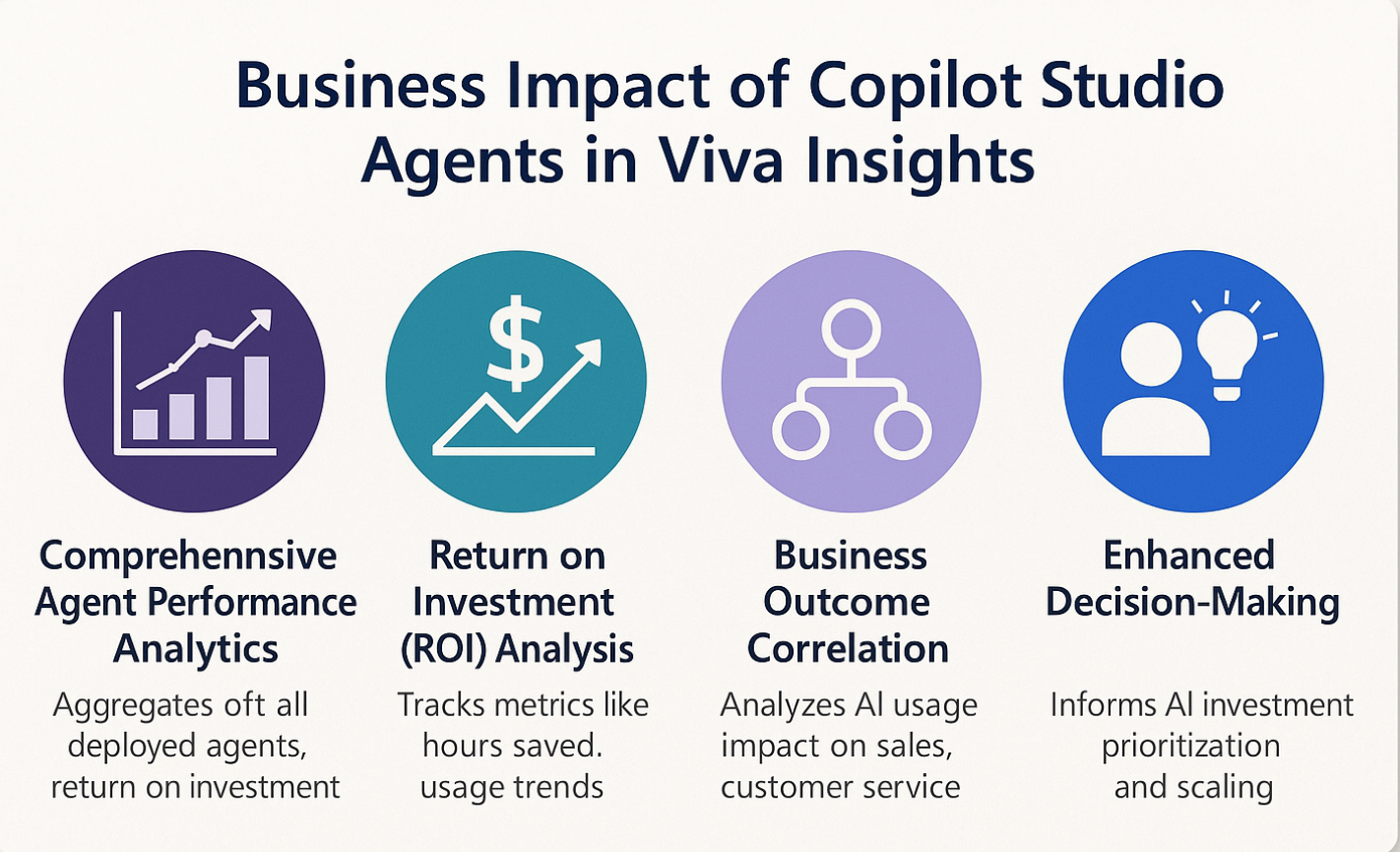
Copilot Studio Agents integrated within Microsoft Viva Insights help organisations enhance employee productivity, well-being, and collaboration by providing AI-driven personalised recommendations and automated assistance.

Analysing their business impact involves measuring key performance indicators such as time saved on routine tasks, improvements in employee engagement, and quality of decision making support.

Viva Insights leverages data from collaboration tools like Microsoft Teams and Outlook, enabling copilot agents to deliver actionable insights that reduce cognitive load and foster healthier work habits.

The analysis focuses on how these agents continue to increased efficiency, reduced burnout, and improve work-life balance.

Organizations can track metrics such as adoption rates, user feedback, and productivity improvements to assess the effectiveness of Copilot agents. Additionally, integrating feedback loops and sentiment analysis helps refine the AI’s assistance quality over time.

Overall evaluating Copilot Agents in Viva Insights provides a comprehensive understanding of their role in driving digital transformation, enhancing employee experience, and positively impacting organizational performance.

That’s it for today.

I hope this helps.

Malla Reddy Gurram(aka `@uk365guy)

Share this:

{How to} Collect thumbs up or down feedback and comments for your Copilot agents.

Hello Everyone,

Today I am going to share my thoughts on how to collect thumbs up or down feedback and comments for your Copilot Studio Agents.

Let’s get started.

To collect thumbs up or down feedback and comments for your Copilot agents, you typically follow these steps (especially in platforms like Microsoft Copilot Studio):

1. Enable feedback collection in your Copilot Setup: Make sure your copilot agent is configured to prompt users for feedback after delivering a response.

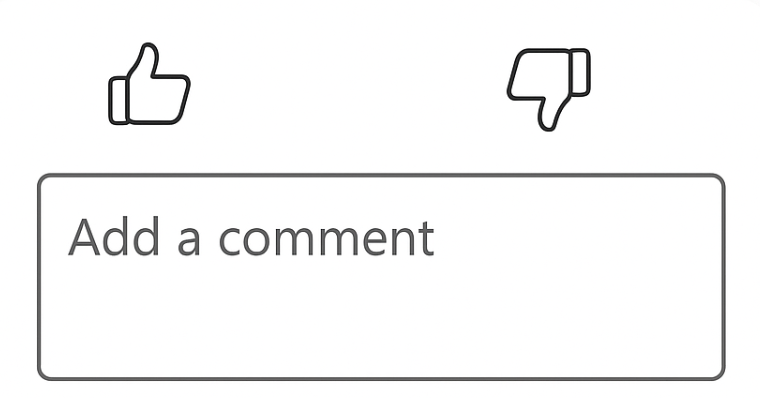
This usually includes UI elements like thumbs up or thumbs down buttons.

2. Prompt Users to Provide Feedback: After a response, display options for users to submit a thumbs up or down.
Optionally, allow users to add a text comment explaining their choice for richer insights.

3. Capture and store feedback data: Set up backend processes or integrations that log feedback and comments securely.
This data can be stored in databases or analytics platforms tied to your Copilot environment.

4. Analyse Feedback: Use dashboards or analytic tools to review thumbs-up/down ratios and read user comments.
Identify patterns where the Copilot performs well or needs improvement.

5. Iterate and improve: Use the collected feedback to retain or adjust the Copilot agent responses.
Implement changes based on common user concerns or praise.

Specific for Microsoft Copilot Studio:

Microsoft Copilot Studio provides built-in support for feedback collection:

Turn on user feedback: Enable the feedback feature from the Copilot Studio settings:

Feedback UI: Automatically shows thumbs up/down buttons after agent responses.

Feedback Comments: Users can add optional comments after rating.

View feedback: Admins can view aggregated feedback and comments in the analytics dashboard for continuous improvements.

That’s it for today.

I hope this helps.
Malla Reddy Gurram(@UK365GUY)

Share this: