Menu Close

Tag: #uk365guy

How to schedule single resource optimization when considering new requirements on Dynamics 365 Field Service

Hello Everyone,

Today I am going to show how to optimize single resource when a resource completes a work order earlier than expected timelines.

Let’s get’s started.

Dispatchers schedule work orders but sometimes disruptions happens due to delay in resource being ontime at the site or may finishes the work order below the set time, so in that situations dispatches becomes unbalanced and causes disruptions to schedules.

How do we do that?

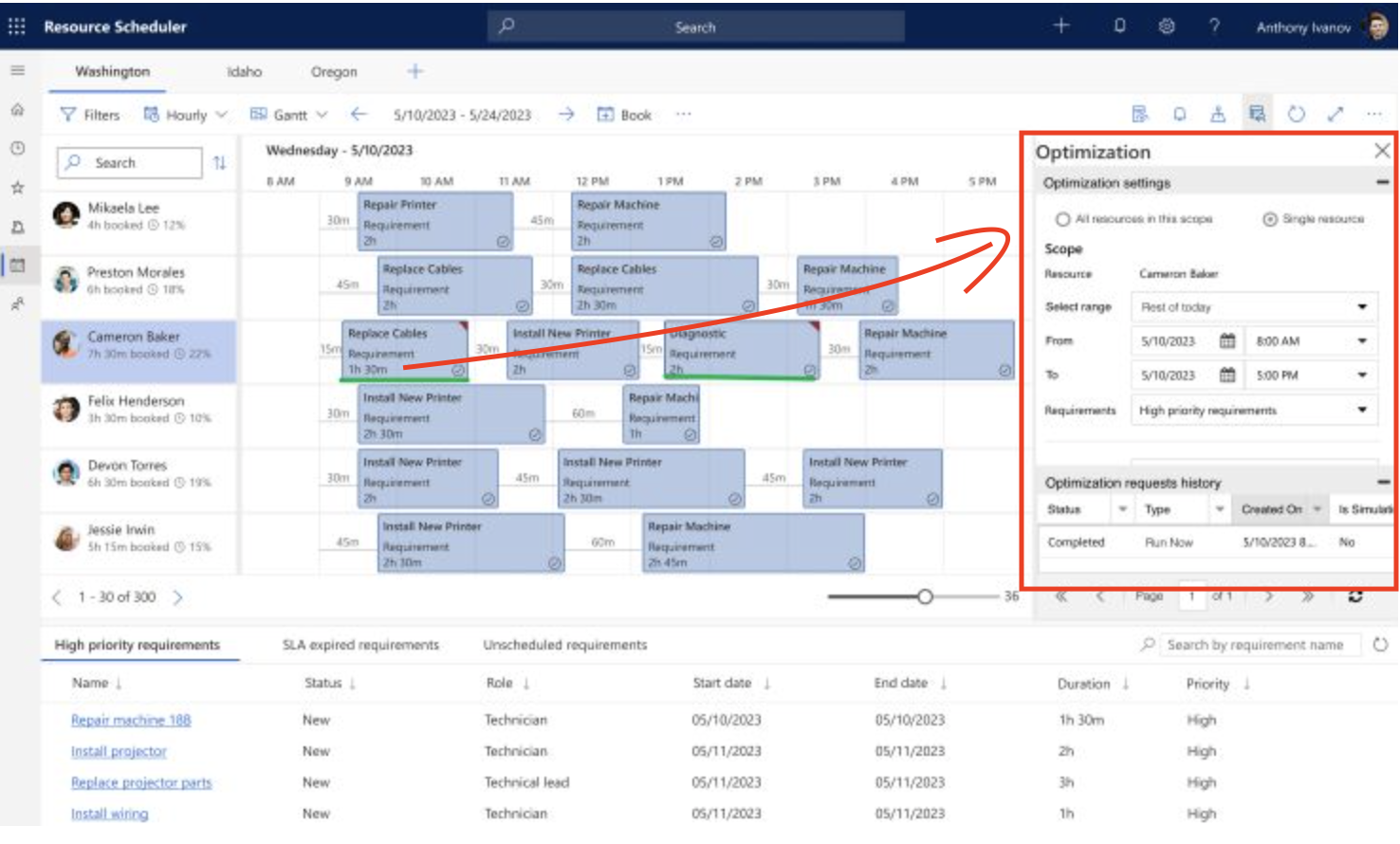
With the introducion of the Single Resource Optimization on Dynamics 365 Field Service Schedulers can reschedule the resources to optimization.

Distruptions or exceptions during the day that affects a resource’s schedule are fairly common:
1. A technician finishes a booking earlier than estimated, and now has idle time before the next booking.

2. A technician is stuck in traffic and can’t make it to the next booking on time.

3. A customer cancels an appointment at the last minute, and now there’s a gap in the resource’s schedule.

Dispatchers need an efficient way to fix such disruptions. This include re-optimizing bookings to make sure there’s no overlap, or to schedule new work to cover idle time, or to optimize travel time.

Note: Allow resource optimization to pull in additional requirements to fill gaps in the technician’s schedules, create a more optimized route or address high priority requirements.

Share this:

Microsoft Dynamics 365 Field Service Break down long-duration or complex requirements

Hello Everyone,

Today I am going to share new feature which Microsoft releases for Dynamics 365 Field Service Resource Scheduling so making the work items into smaller chunks.

Let’s get’s started.

Microsoft Dynamics 365 Field Service Resource Scheduling when working with long-duration or complex requirements, it’s often necessary to specify the patterns(sometimes called the work contour) for how the work will break down into the bookings when the requirement in scheduled.

Improve the experience for breaking down requirements into requirement details.

Key Improvements are:

1. Modernize the existing specify pattern control, improving performance and stability and aligining it with the new schedule board.

2. Allow bulk operations for requirment details, including the ability to bulk edit at various timesales.

3. Enable split and move operations to easily make updates as schedules and capabilities change.

That’s it for today.

I hope this helps.

Malla Reddy Gurram(@UK365GUY)
#365BlogPostsin365Days

Share this:

{How to} Customize work order views for Teams and Outlook for Dynamics 365 Field Service

Hello Everyone,

Today I am going to show how to configure the work orders to access from Outlook or Microsoft Teams, where the users can customize work orders from the Outlook and Microsoft Teams.

Let’s get’s started.

Login into Dynamics 365 Field Service.

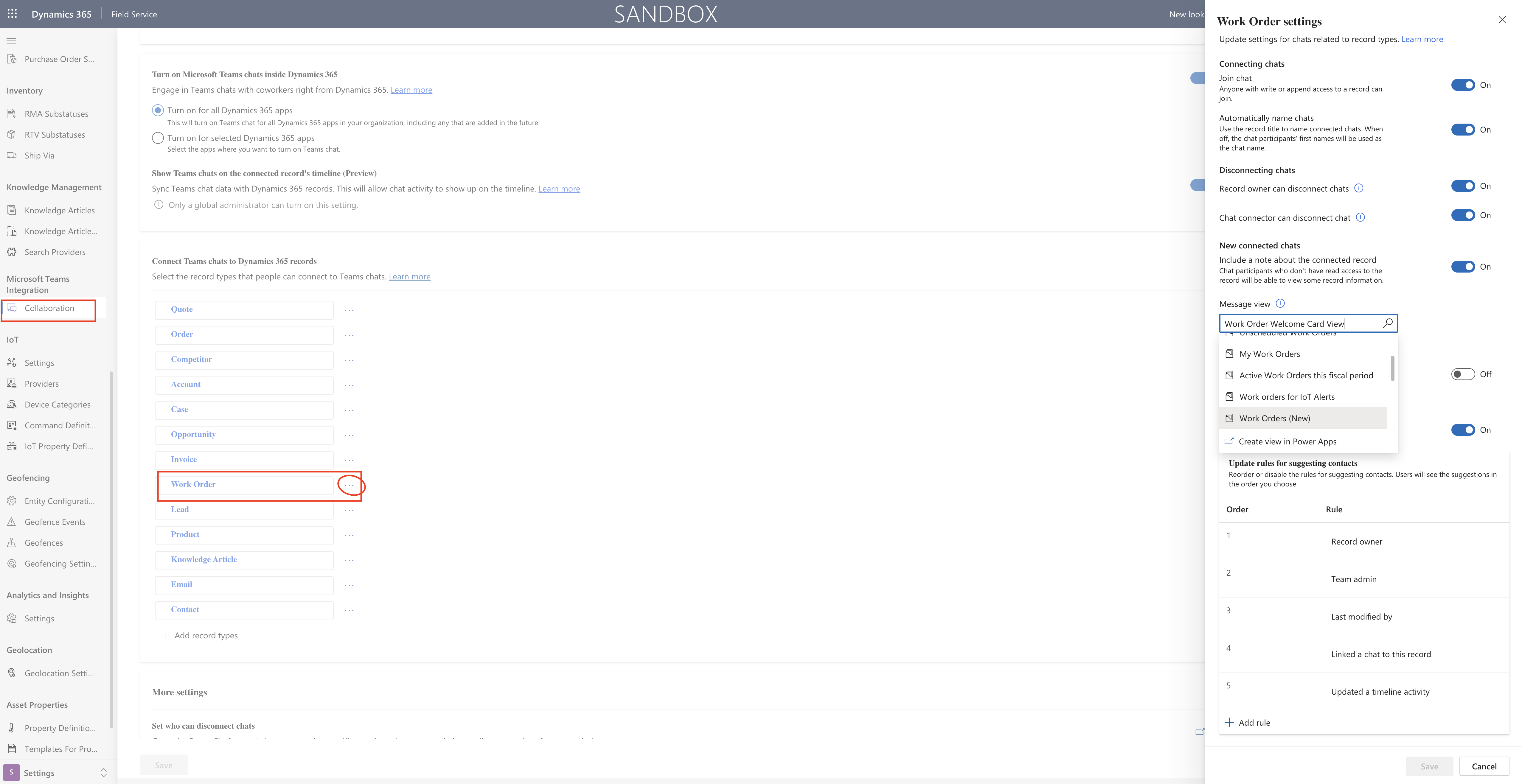
Go to Settings > Collaborations.

Microsoft Teams Collaboration and chat:

1. Turn on the linking of Dynamics 365 records to Microsoft Teams channels
2. Turn on Enhanced Microsoft Teams Integration
3. Turn on Confidential Labels.

Turn on Microsoft Teams chats inside Dynamics 365

1. Turn on for all Dynamics 365 Apps

You want to turn on for only specific selected Dynamics 365 apps

1. Turn on for selected Dynamics 365 apps

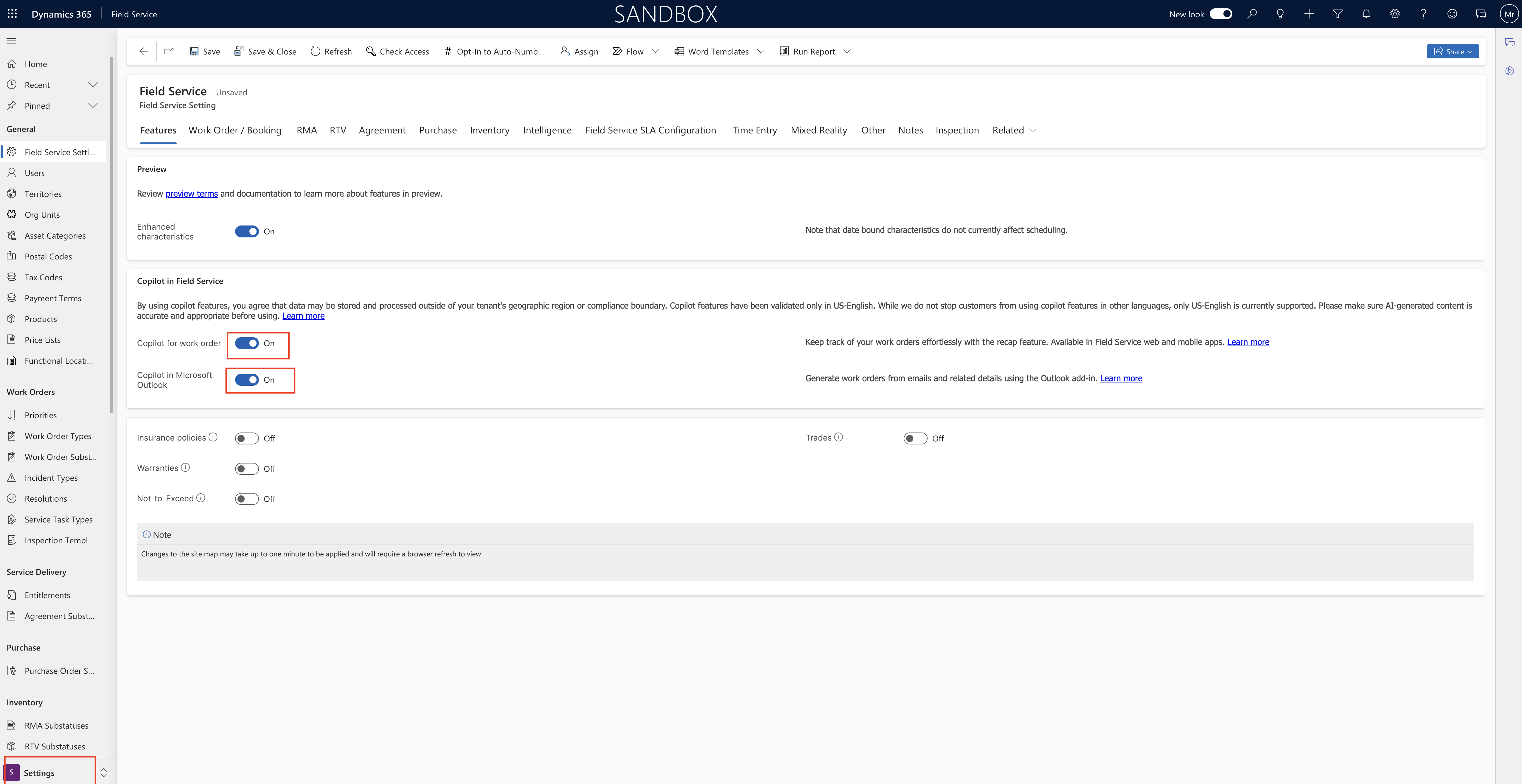
Then switch to the Settings and Field Service Settings.

Enable Copilot for work order, Copilot in Microsoft Outlook: This feature will suggest the users when using the work oders on Outlook or Microsoft Teams.

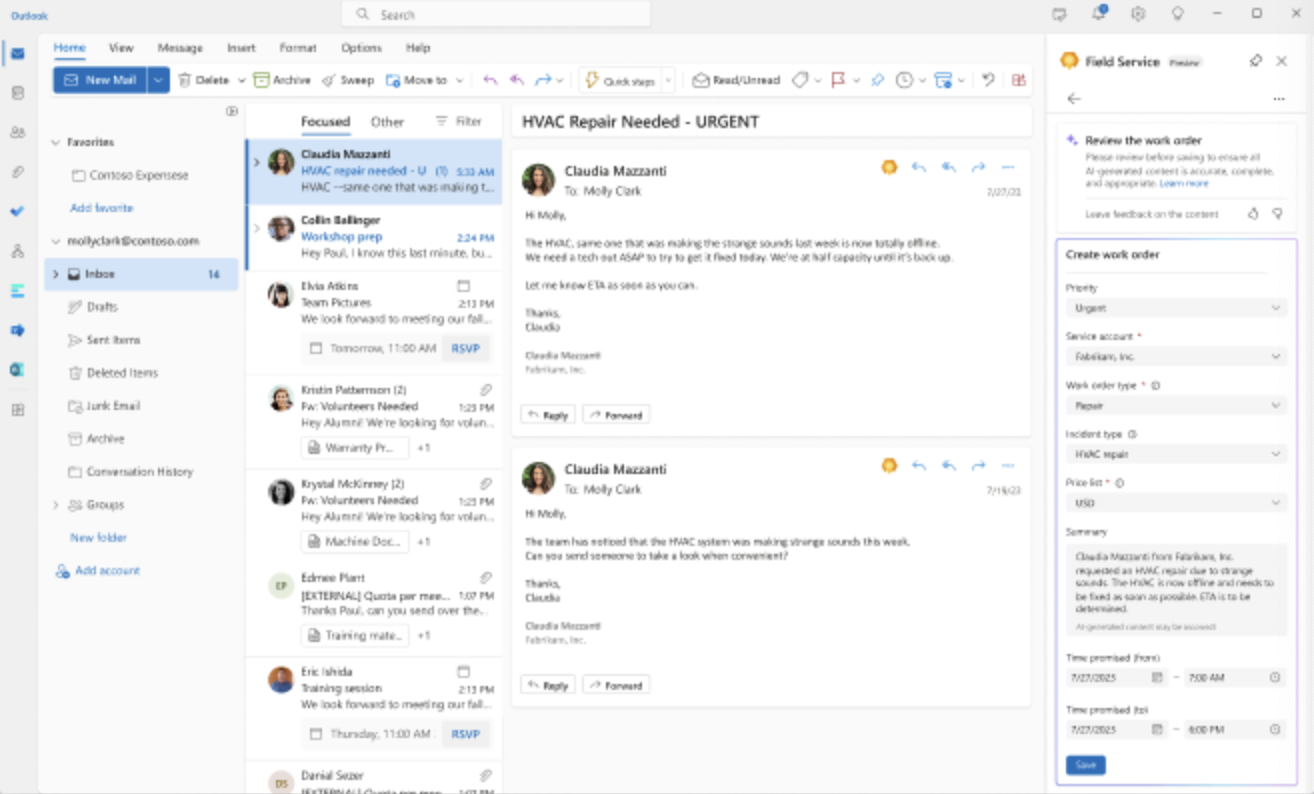
Add the Dynamics 365 Field Service for Outlook add -in to your outlook.

Details:

Field Service customers typically modify the work order form by adding, removing, rearranging form fields based on their needs.

Field Service Admins can now create or customize a view in the Power Apps Maker experience, and sync the view with the Field Service Outlook add-in and Teams app. The view then automatically renders the user interface in the outlook add -in and Teams app to construct the customized work order form.

Copilot follows the data schema of the view and helps populate the work order form according to the email context and customized work order table.

That’s it for today.

I hope this helps.

Malla Reddy Gurram(@UK365GUY)
#365BlogPostsin365Days

Share this:

{How to} Activte Copilot across all Dynamics 365 Apps on particular environment

Hello Everyone,

Today i am going to show how to activate Copilot across all your Dynamics 365 Apps in one particular environment.

Let’s get’s started.

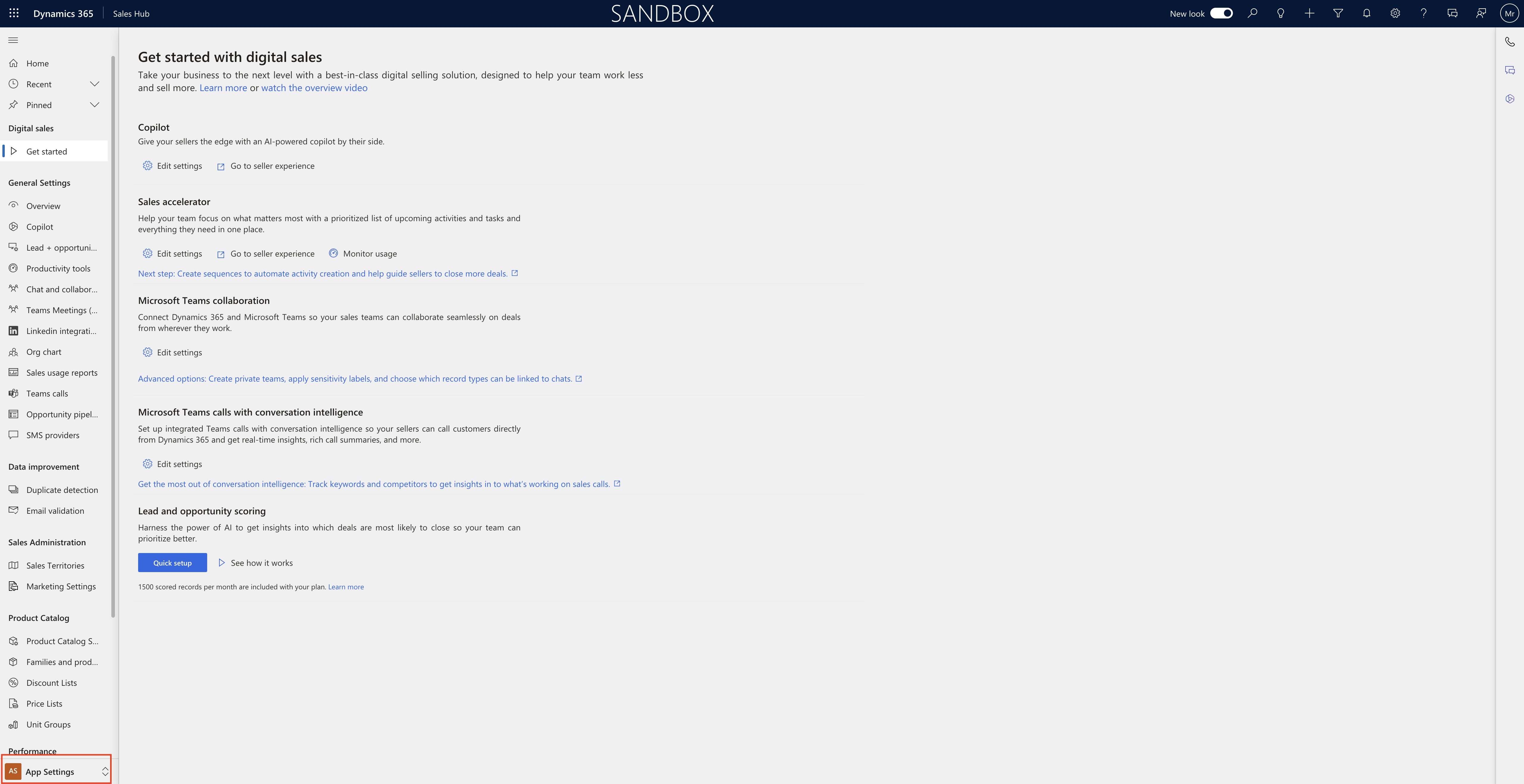
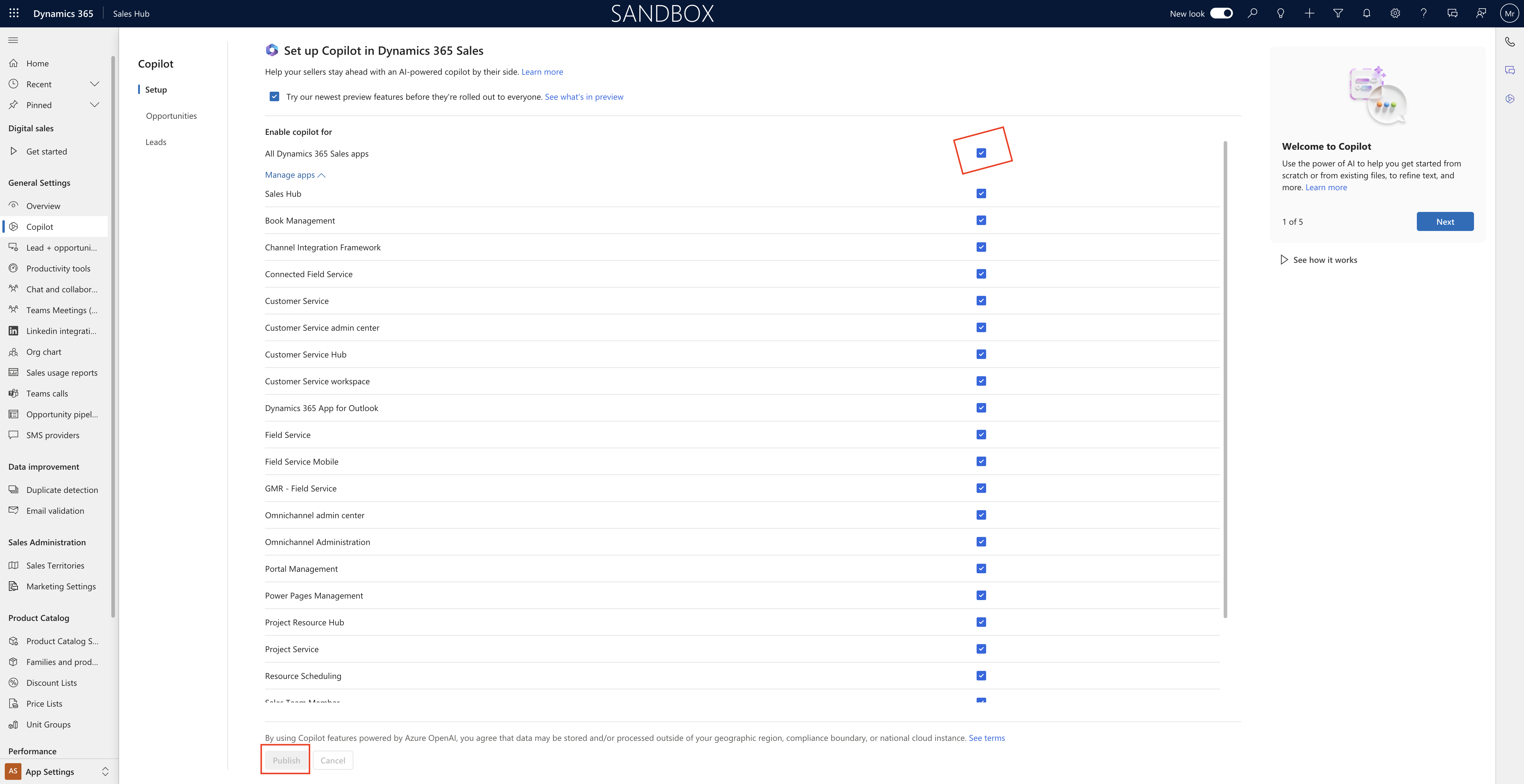
1. Login into your Dynamics 365 Sales Hub, in this instance i have opened my dev environment.

2. Change the settings to App Settings

3. Click on Copilot and select enable copilot for All Dynamics 365 Sales Apps.

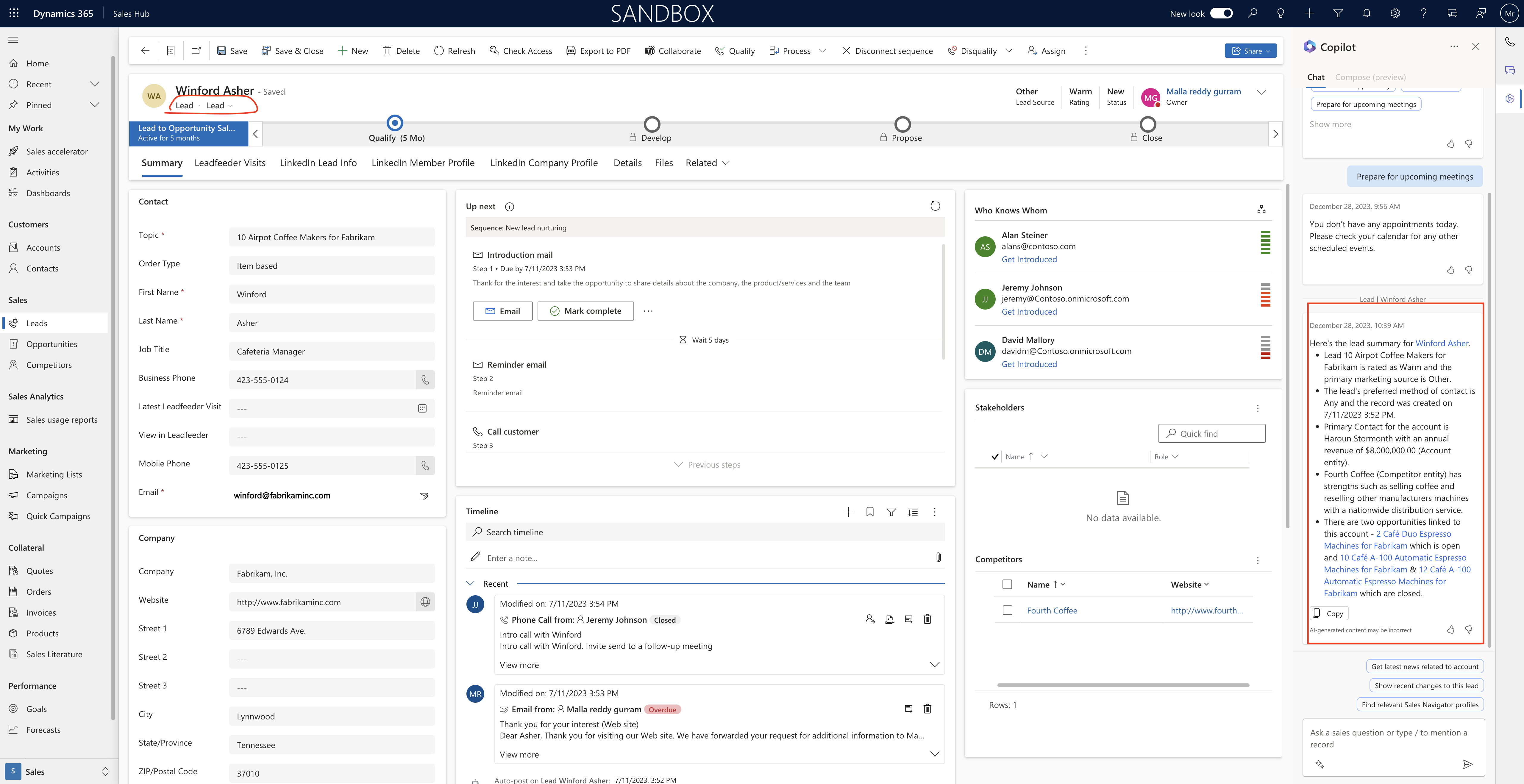
4. Open the Dynamics 365 Sales Hub and open any lead or opportunity and see the Copilot will appear and you can start using against lead or opportunity.

That’s it for today.

I hope this helps.

Malla Reddy Gurram(@UK365GUY)
#365BlogPostsin365Days

Share this:

{How to} Check Summary of an Opportunity using Copilot on Dynamics 365 Sales

Hello Everyone,

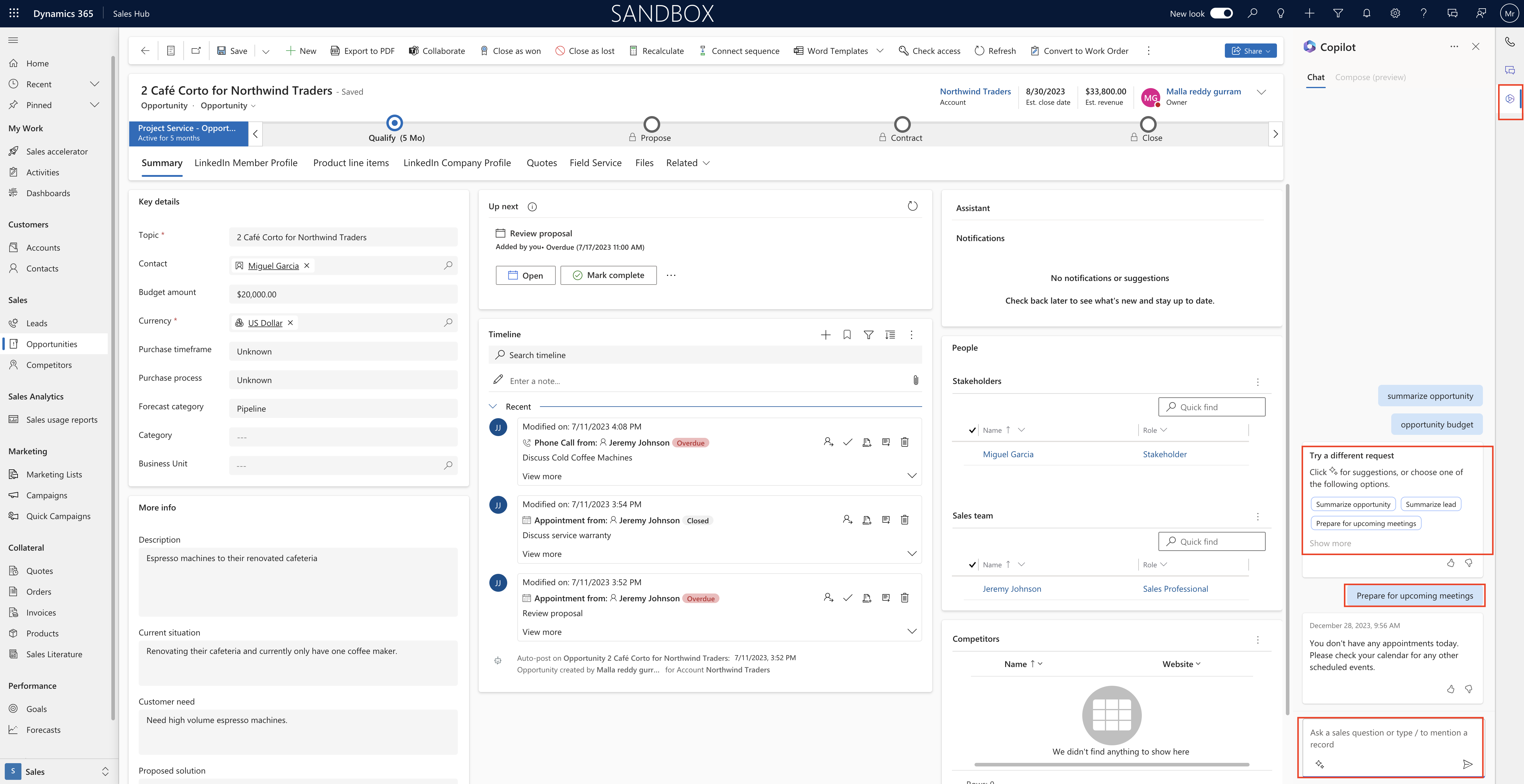
Today I am going to show how to get summary of an opportunity using Copilot on Dynamics 365 Sales.

Let’s get’s started.

Dynamics 365 Sales – Sales team work on multiple opportunity and dynamically, as information is scattered across the system.

Getting the information out of the mulitple opportunities will be time consuming and tidious task, also in terms of big deals multiple people work on opportunity concurrently so staying upto date will be very challenging.

AI generated opportunity summaries provide a quick and comprehensive summary of key customer data, including buying behavior, preferences and past purchases.

By leveraging this information, sellers can gain valuable insights into customer needs, allowing them to tailor sales pitches and increase their chances of success.

Copilot advantages:

1. You can view AI generated summary of an opportunity in a reader friendly format. Summary includes overview of the status and progress of a potential sale or deal.

2. It provides a snapshot of where the opportunity stands in the sales process and how likely opportunity can be closed successfully.

3. You can view highlighted changes, which indicates the changes since last login and its degree of importance, helping you to pay attention to the most recent changes.

That’s it for today.

I hope this helps.
Malla Reddy Gurram(@UK365GUY)
#365BlogPostsin365Days

Share this: