Menu Close

Tag: #365blogpostin365days

Show other people when they’re using the same form on Power Apps Model Driven Apps

Hello Everyone,

Today i am going to show how to enable and Show other people when they’re using the same form in Model Driven Apps.
Let’s get’s started.

Firstly how to enable this feature:

Login into www.admin.powerplatform.microsoft.com

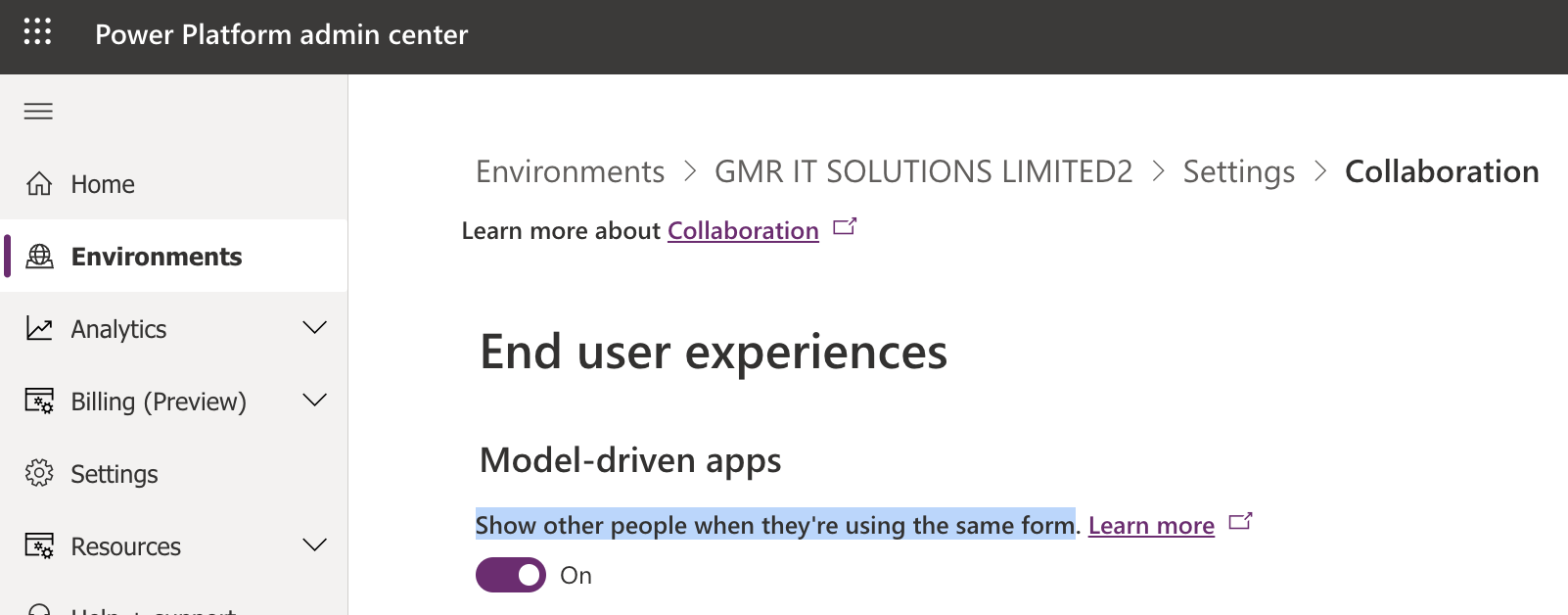
Go to settings > collabarations > turn on Show other people when they are using same form(see below screenshot)
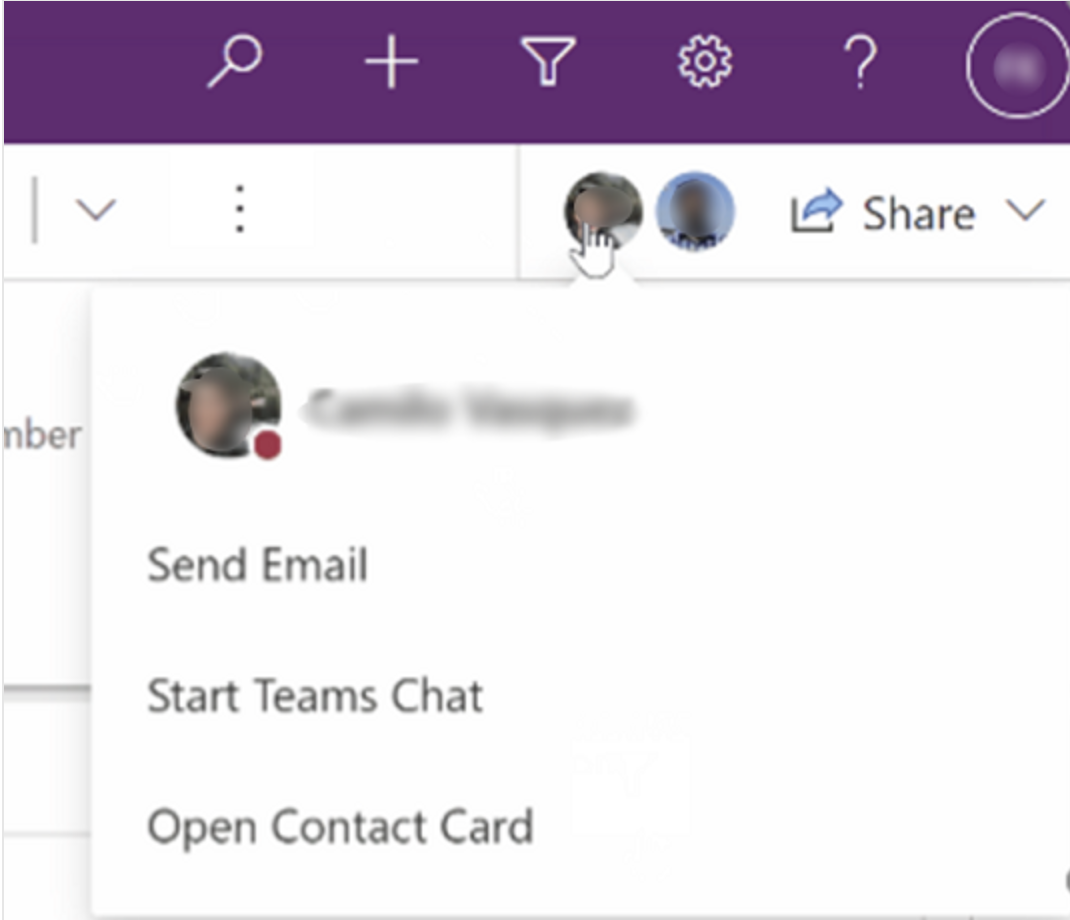
Suppose you are using the case record and your co-worker is working on same record, then you can see other users who are working in the same record as well as select a user picture to see their online status, send them an email or start a teams chat too.
Note: This feature uses Azure Fluid Relay Service Availability, so you must have this feature available in your region if you want to try this feature.

Also users must be able to access fluidrelay.azure.com
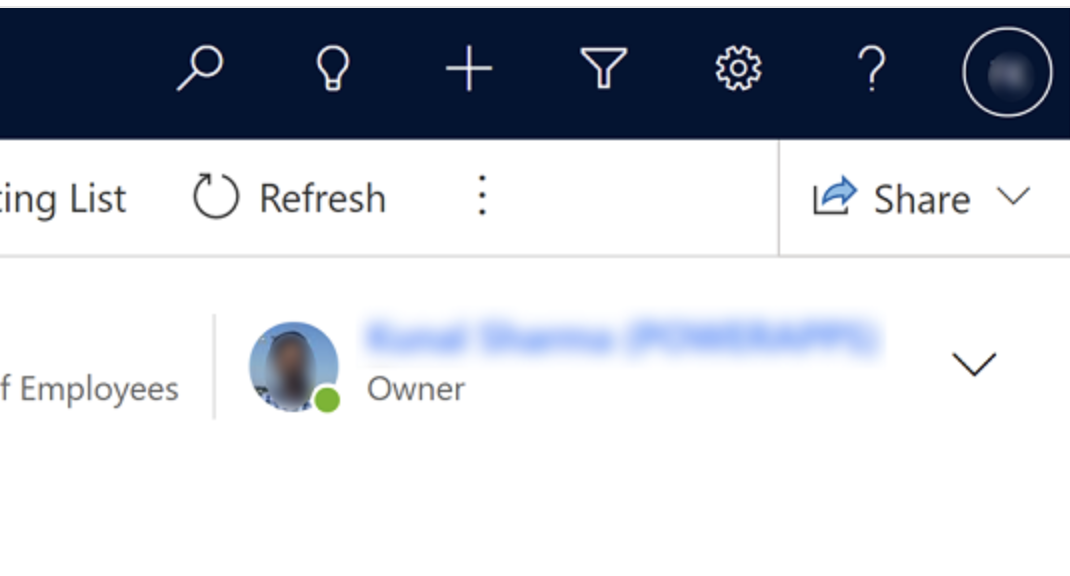
You can also see the user’s status and picture: App users for example record owner as well as the users appearing in grids and lookups are displayed with their picture and online status.

Note: Available in Model Driven Apps and cannot be disabeld, extended to user lookups and grid user columns.

Share Privilege on a record and you email a record link to a colleague, the colleague will automatically get read access to the record.

That’s it for today.

I hope this helps
Malla Reddy Gurram(@UK365GUY)
#365BlogPostsin365Days
Share this:

{Resolved} Error This app isn’t opening correctly in Power Apps

Hello Everyone,

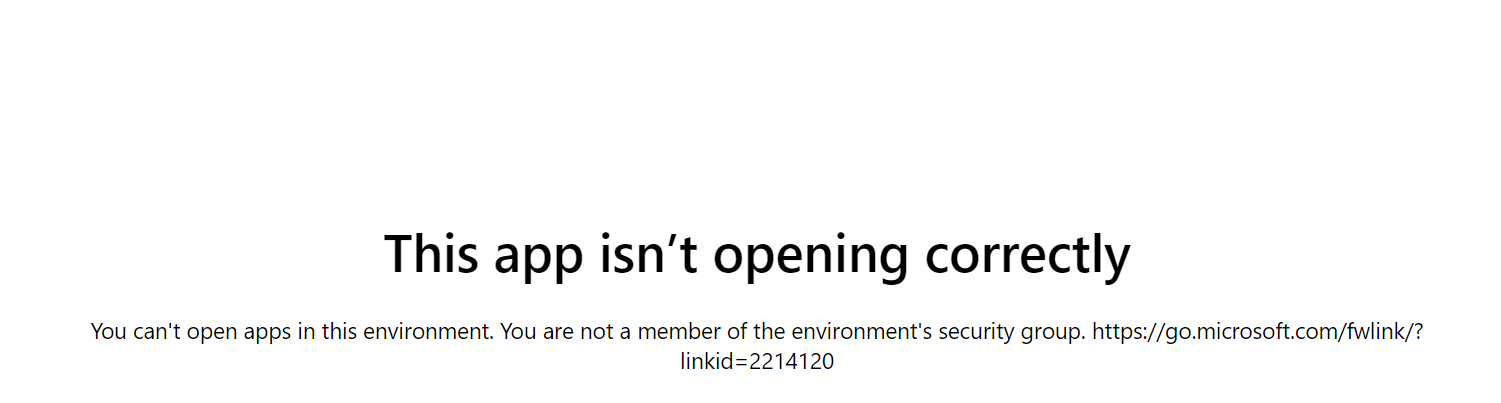
Today i am going to share solution for the “This app isn’t opening correctly in Power Apps” when a user tries to access the power apps environment.

Let’s get’s started.

Suppose you have acquired Power Apps Privileges using your Microsoft 365 E3 or E5 Licenses and you would like to experiment on Power Apps, try to access the environment which is created for development, or test or production.

You are trying to access one of those environments then you may get this below error shown.

Solution: You need to contact your System Administrator to get access to one of those environments as mentioned above.

Once your System Administrator approves and grant access to the environment then you are good to login into the environment.

That’s it for today.

I hope this helps
Malla Reddy(@UK365GUY)
#365BlogPostsin365Days
Share this:

Automatic deletion of inactive developer environments

Hello Everyone,

Today i am going to show how the automatic delete the developer environments works.

Let’s gets started.

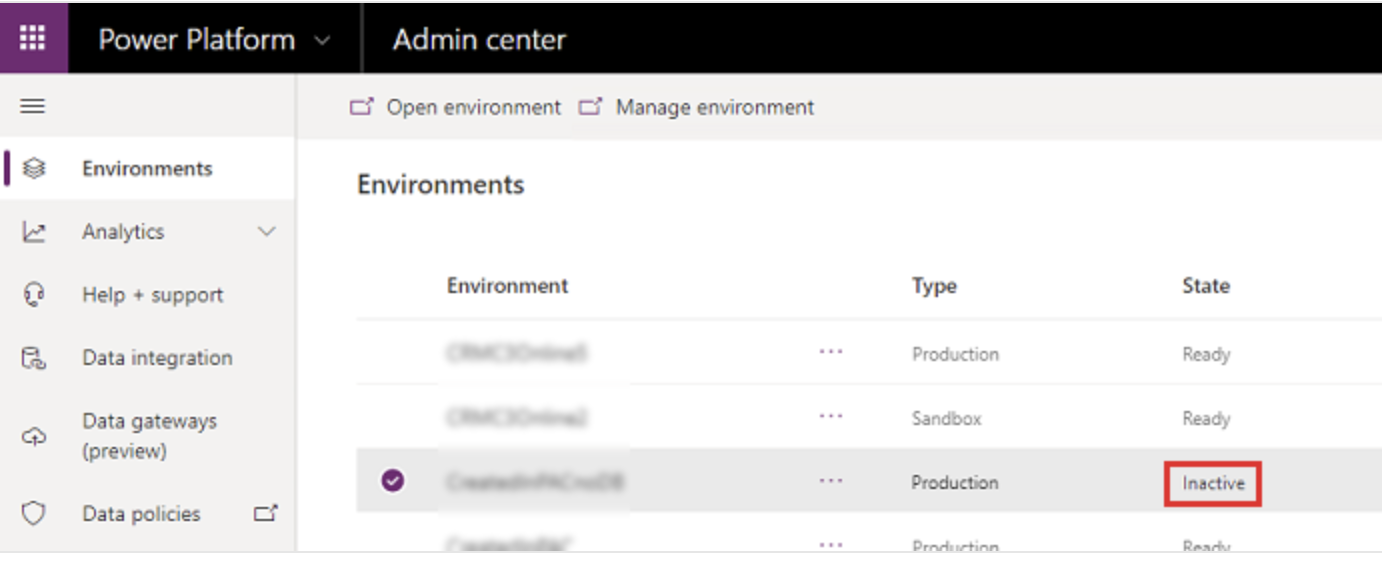
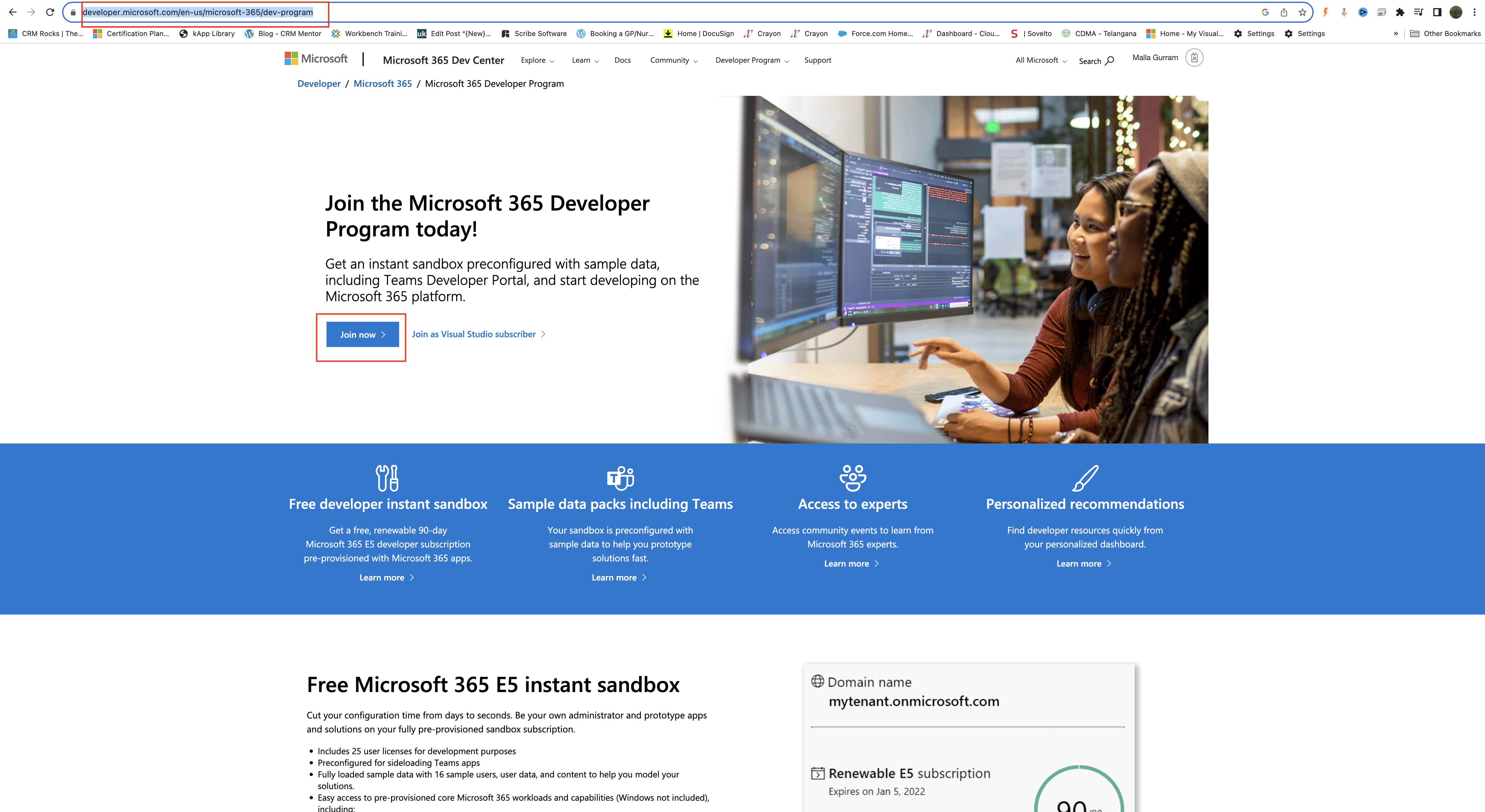
Normally users can create a developer environment in a tenant for learning purpose, so Microsoft came up with clean up strategy to free up storage space, if they are not used in 90 days.

The system sends an email notification to all admins in your organization 14 days, 7 days, and 1 day before the environment is disabled. if no action is taken, then the environment is deleted 10 days after the final email is sent.

Note: Only Production and sandbox environments are affected by the subscription based automatic cleanup.

For more information about the clean up click here
Thats it for today.

I hope this helps
Malla Reddy(@UK365GUY)
#365BlogPostsin365Days
Share this:

{How to} Create Free Microsoft 365 Developer Plan and Power App Developer Plan

Hello Everyone,

Today I am going to show how to create Microsoft 365 Developer Account and Power App Developer Plan to personal use for free.

Lets gets started.

Suppose you want to create an environment to practise and learn about Power Platform and Dynamics 365 Apps then you can continue reading this blog post.

In order to create an power apps environment you need an Microsoft 365 Account with E5 subscription.

You also need an Microsoft Email Account for this subscription.

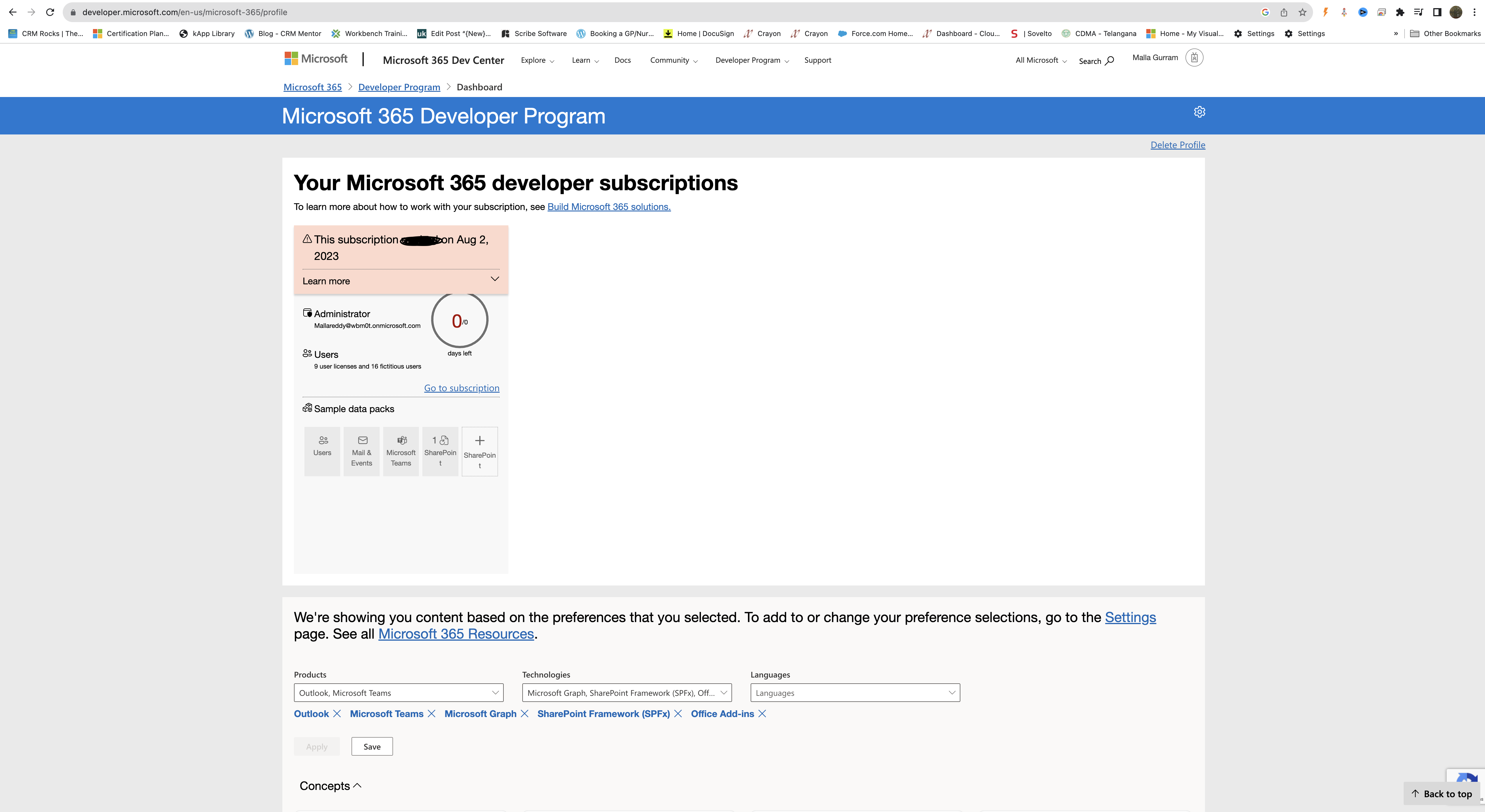
Register for Microsoft 365 Developer Plan

Provide your Country, details about your company and language preferences.

Also provide the purpose of the usage too, also select the products you are interested in like sharepoint framework (SPFx), power platform, outlook, microsoft graph, microsoft teams, Office Add-ons, Microsoft Identity Platform.

You have successfully created the Microsoft 365 Developer Account.

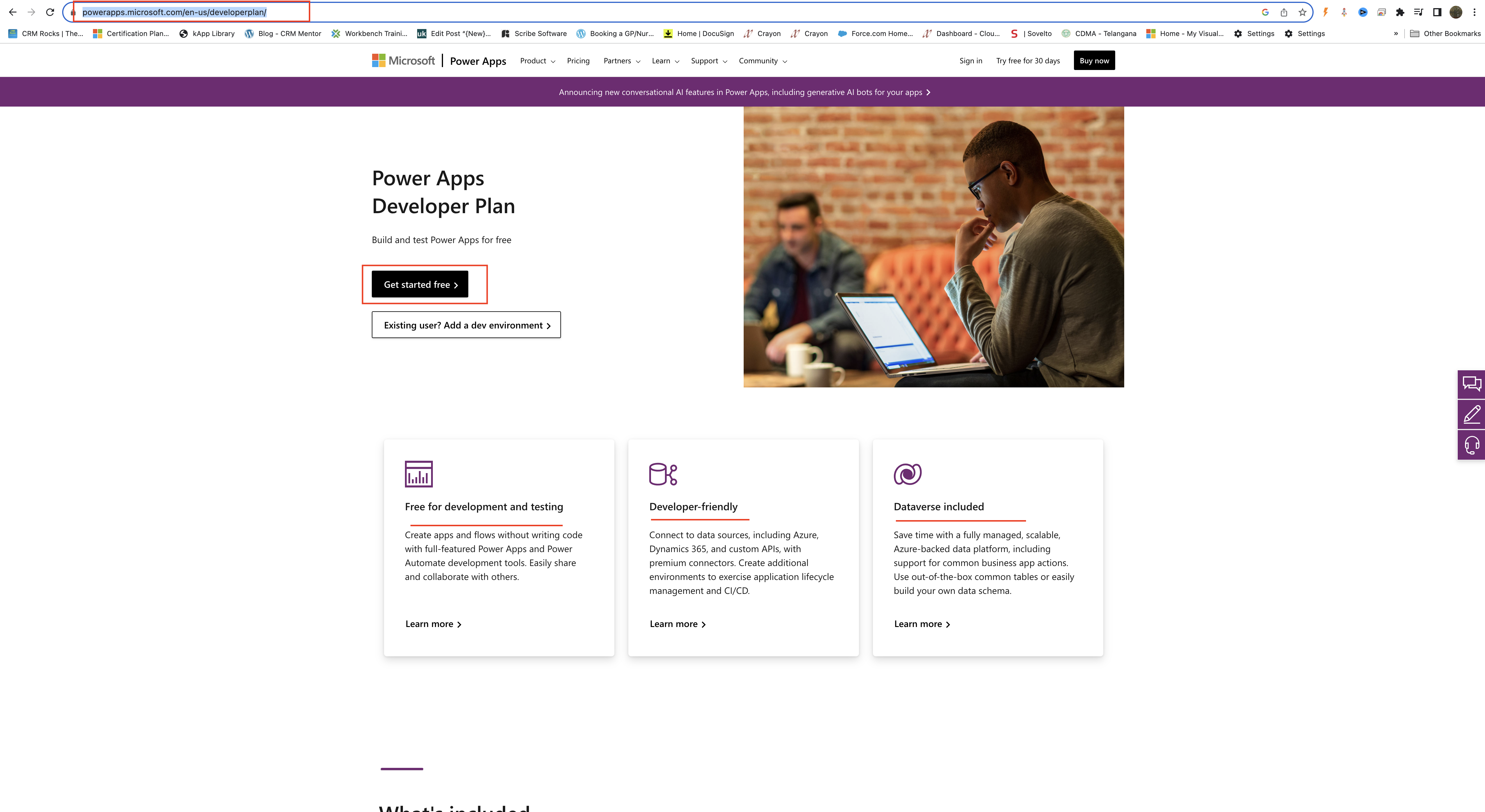
Then its time to create Power Platform Developer Plan

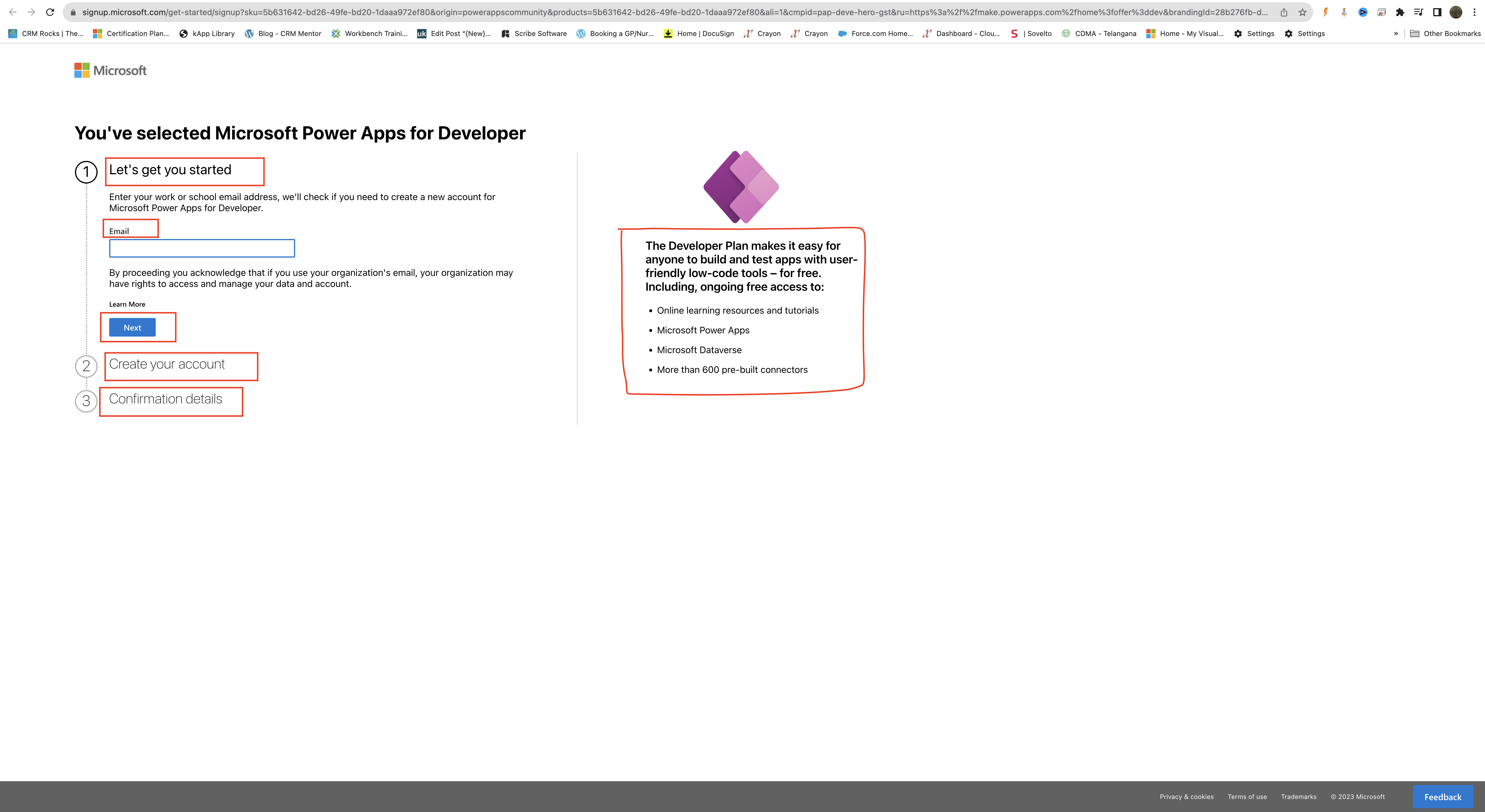
You have selected Microsoft Power Apps for Developer:

1. Provide your email address and click next.

2. Create your account

3. Confirmation details.

What will you get with Power Apps Developer Plan:

– You can built and test apps with user friendly low code tools for free. Including ongoing free access to:

1. Online learning resources and tutorials
2. Microsoft Power Apps
3. Microsoft Dataverse
4. More than 600 pre-built connectors.

That’s it for today.

I hope this helps
Malla Reddy(@UK365GUY)
#365BlogPostsin365Days
Share this:

{Did you know} how it looks when enable relationship insights in Dynamics 365 Sales Insights

Hello Everyone,

Today i am going to show how it looks when relationship insights enabled on Dynamics 365 Sales Insights.

Let’s get’s started.

Login into Dynamics 365 Sales Insights.

If you want to know how to enable Dynamics 365 Sales Insights click

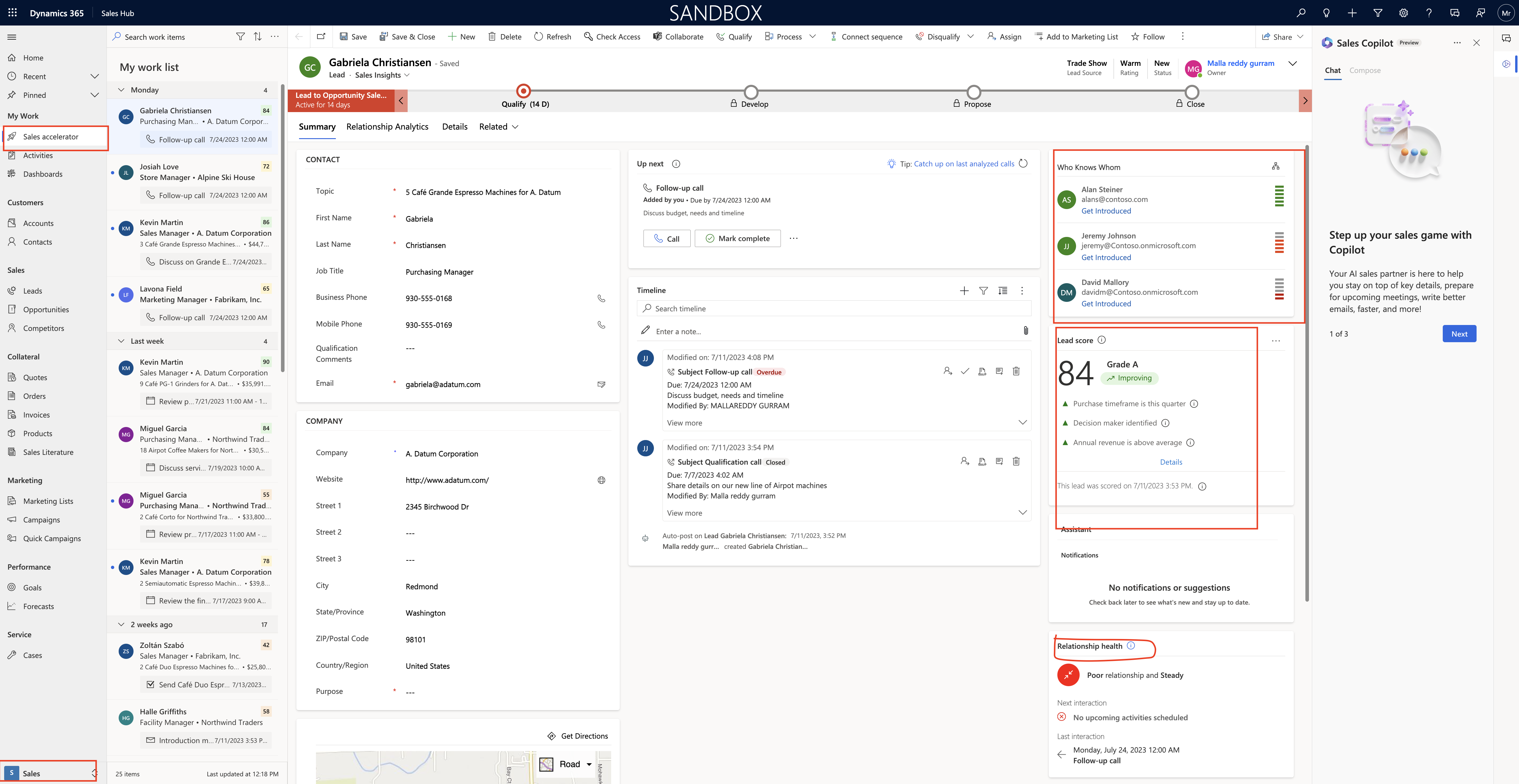
Then if you switch to Sales and open the sales accelarator then you will see the sales insights see below screenshot.

That’s it for today.

I hope this helps

Malla Reddy(@UK365GUY)
#365BlogPostsin365Days
Share this: